How to Enable Protectimus BOT Token Enrollment via the Self-Service Portal
Protectimus BOT tokens deliver one-time passwords (OTPs) and authentication notifications through messaging applications such as Telegram, Messenger, and Viber. Compared to SMS authentication, BOT tokens are more secure, completely free, and easier for users to manage.
This guide explains how to configure your Protectimus Resource so that users can enroll their own Protectimus BOT tokens through the Protectimus Self-Service Portal.
Once configured, users will be able to log in to the Self-Service Portal and independently activate their BOT tokens without administrator assistance.
Before you begin:
- Create a Resource in the Protectimus system.
- Add users and make sure each user has either a password or a registered email address.
- Assign these users to the Resource.
- Enable the Self-Service Portal for the Resource.
Detailed instructions are available in the following guides:
How to Enroll a Protectimus BOT Token via the Self-Service Portal
This step-by-step guide shows how administrators can configure Protectimus MFA Service so users can enroll and activate their own Protectimus BOT tokens through the Protectimus Self-Service Portal.
- Log in to the Protectimus SaaS Service.
- Open the Resources page and select the required Resource.
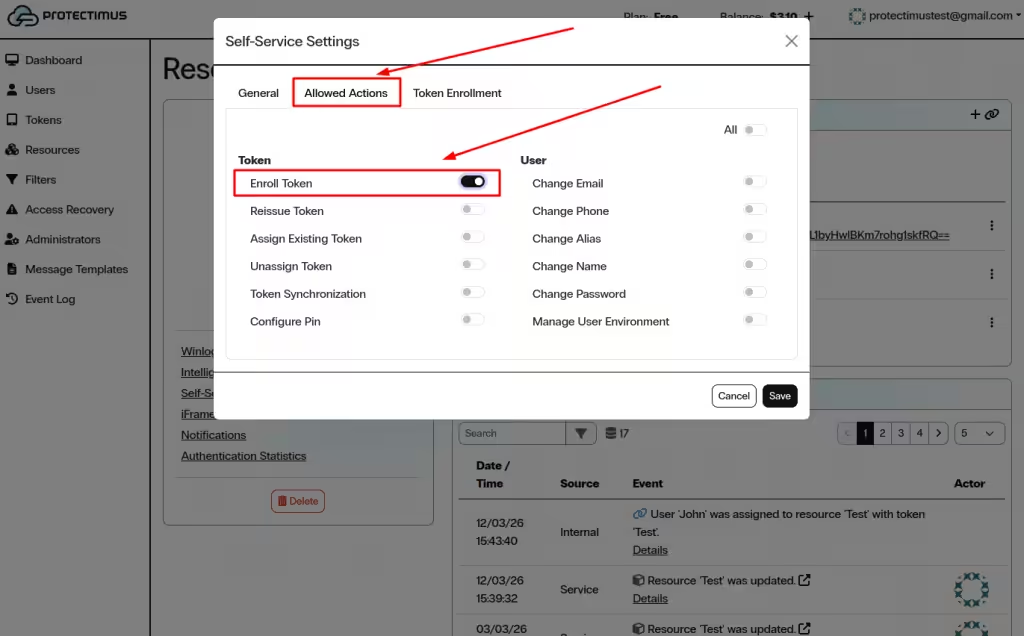
- Enable Enroll Token in the Allowed Actions section.
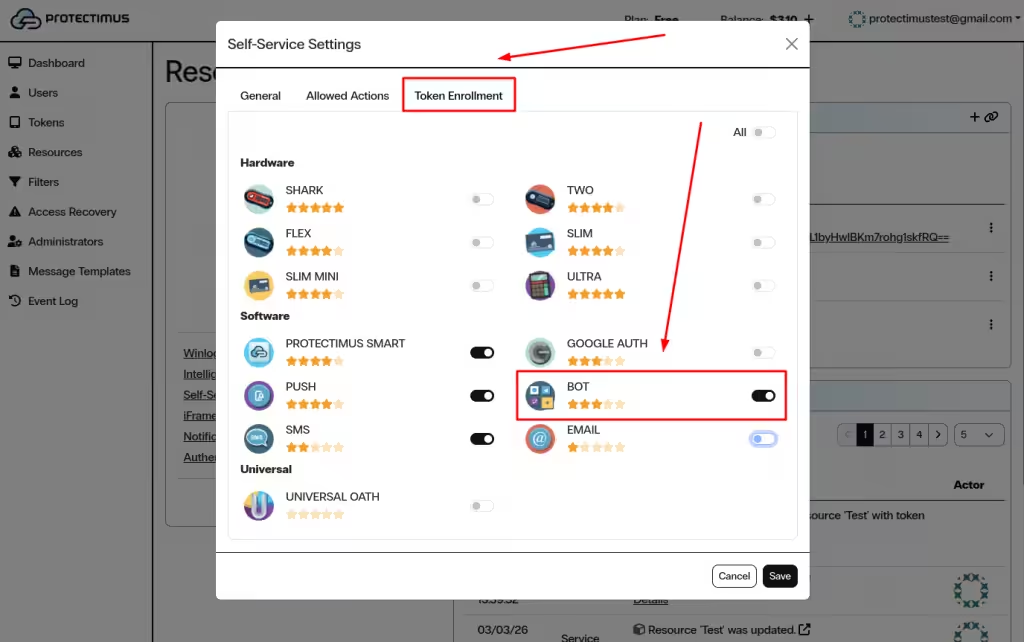
- Allow BOT token enrollment in the Token Enrollment tab.
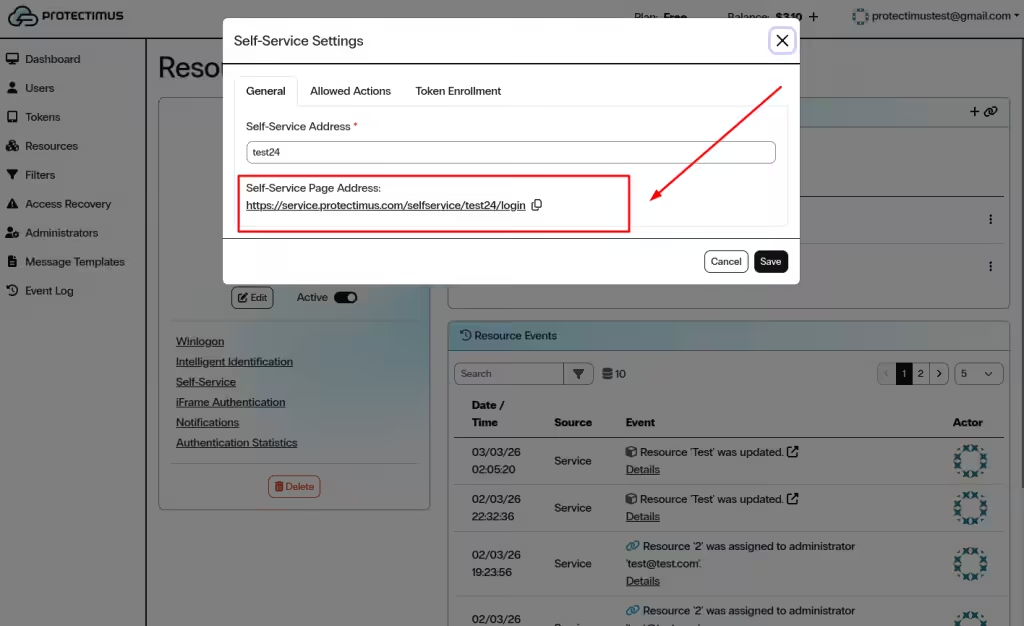
- Provide users with the Self-Service Portal link.
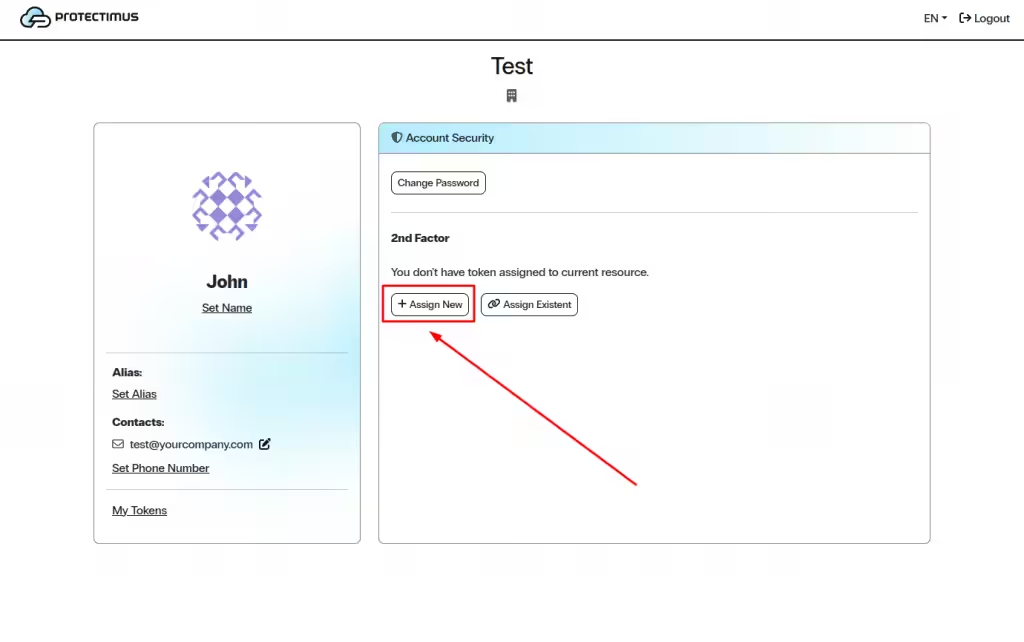
- Users log in to the portal and click Assign New.
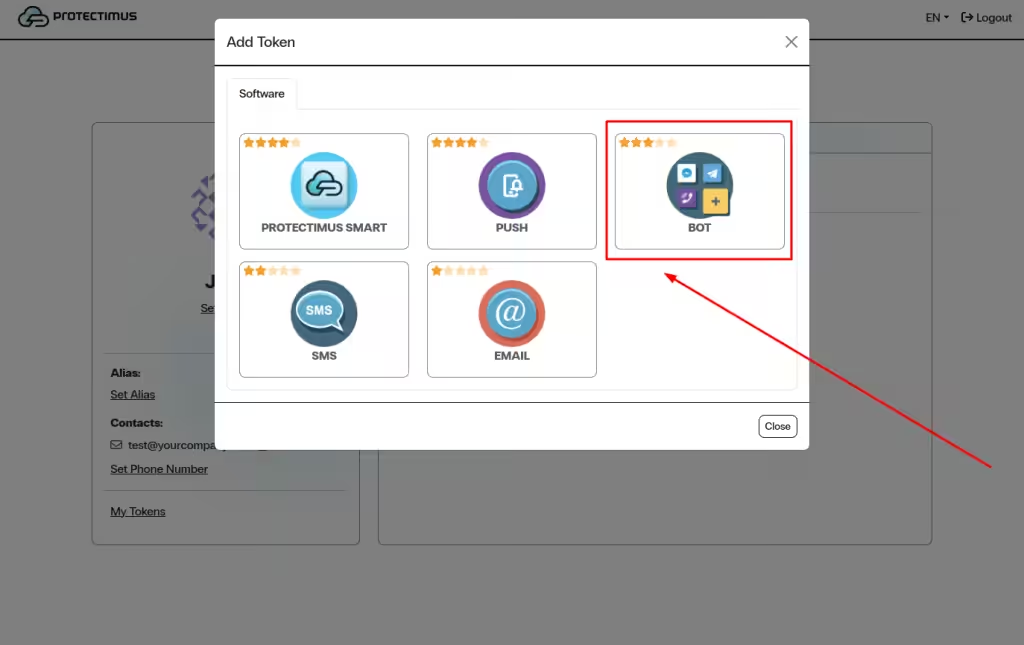
- Select BOT, configure the token, and scan the QR code.
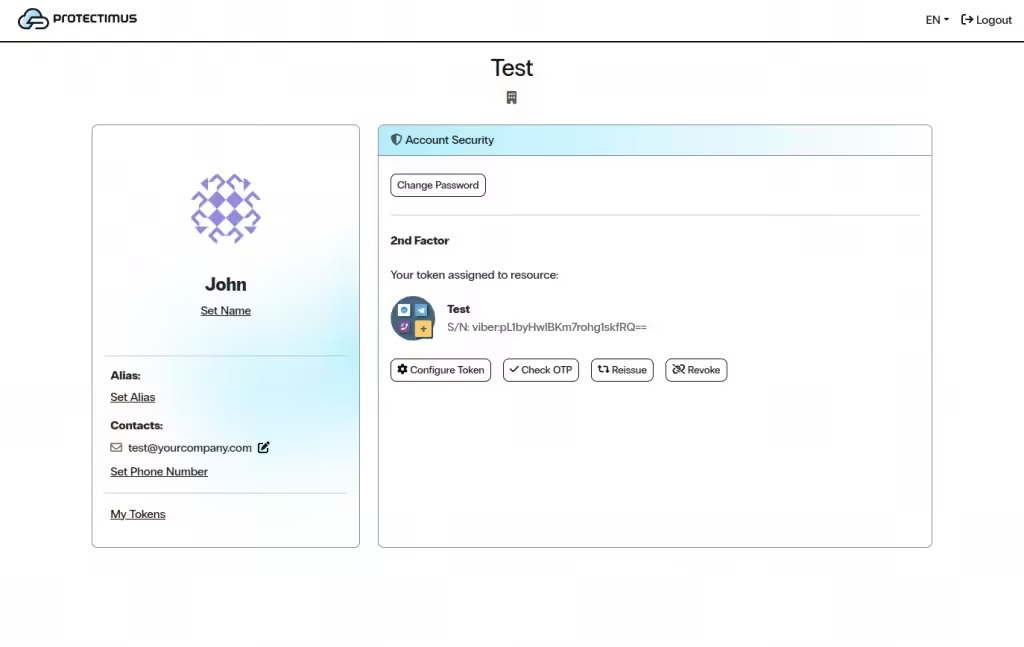
- The BOT token will appear in the 2nd Factor section after activation.
1. Enable Protectimus BOT Token Enrollment in the Self-Service Portal
- Log in to your Protectimus SaaS Service account.
- Open the Resources page and select the required Resource.
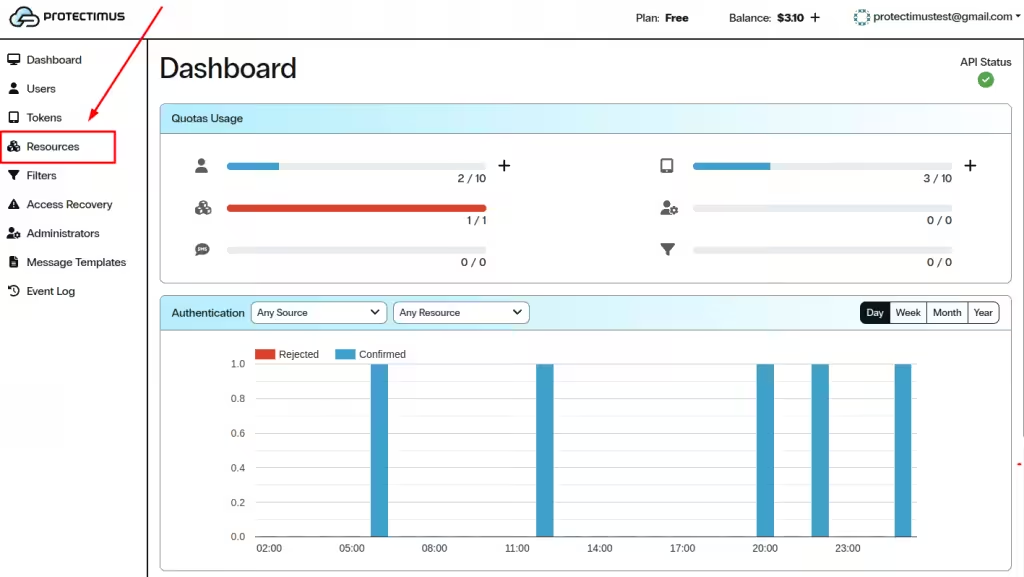
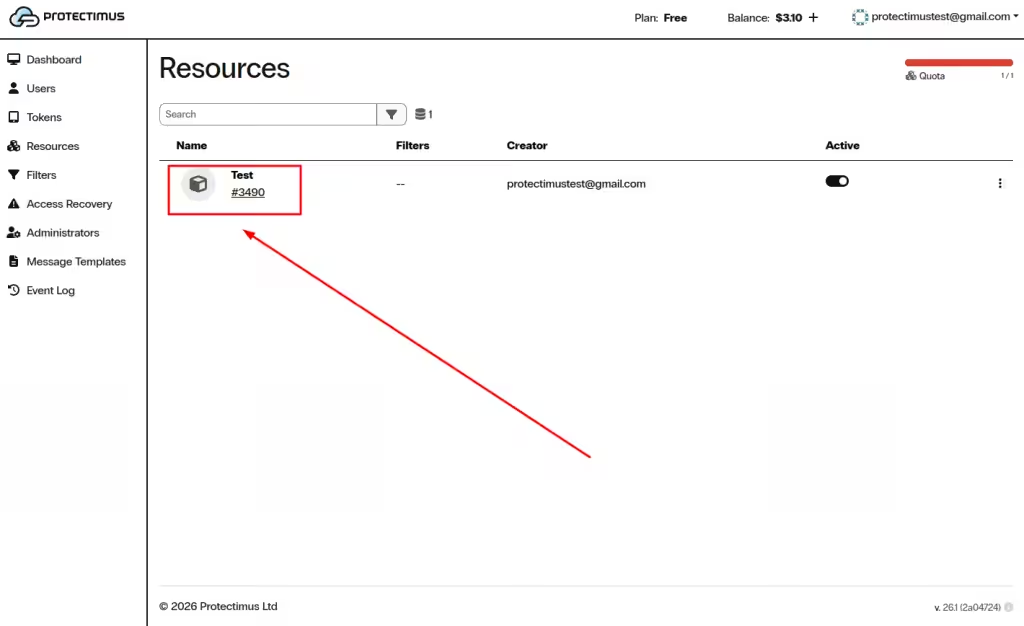
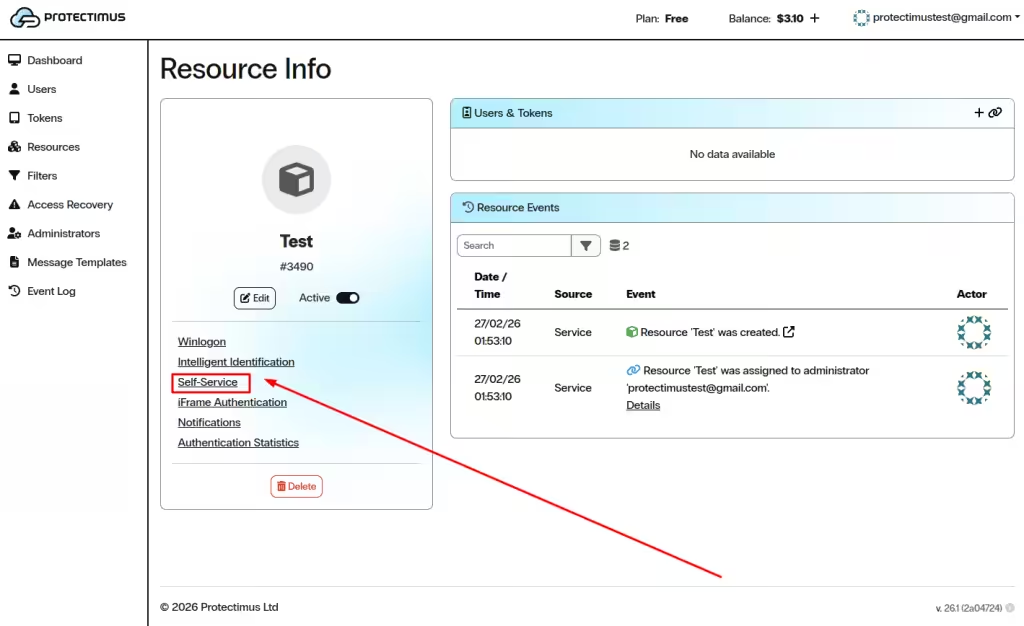
- Open the Self-Service tab.
- In the Allowed Actions section, enable Enroll Token.
- Open the Token Enrollment tab.
- Enable BOT as an available token type.
- Click Save.
2. Provide Users with Access to the Self-Service Portal
To access the Self-Service Portal, users need:
- The Self-Service Page Address generated in the Resource settings.
- Their username and either a password or a registered email address.
Send the Self-Service Portal link to your users and ask them to enroll their tokens. Also inform users which username and password or email they should use to log in to the Protectimus Self-Service Portal.
3. How Users Enroll a Protectimus BOT Token in the Self-Service Portal
- Open the Self-Service Portal using the link provided by your administrator.
- Log in using your username and password or email verification.
- In the 2nd Factor section, click Assign New.
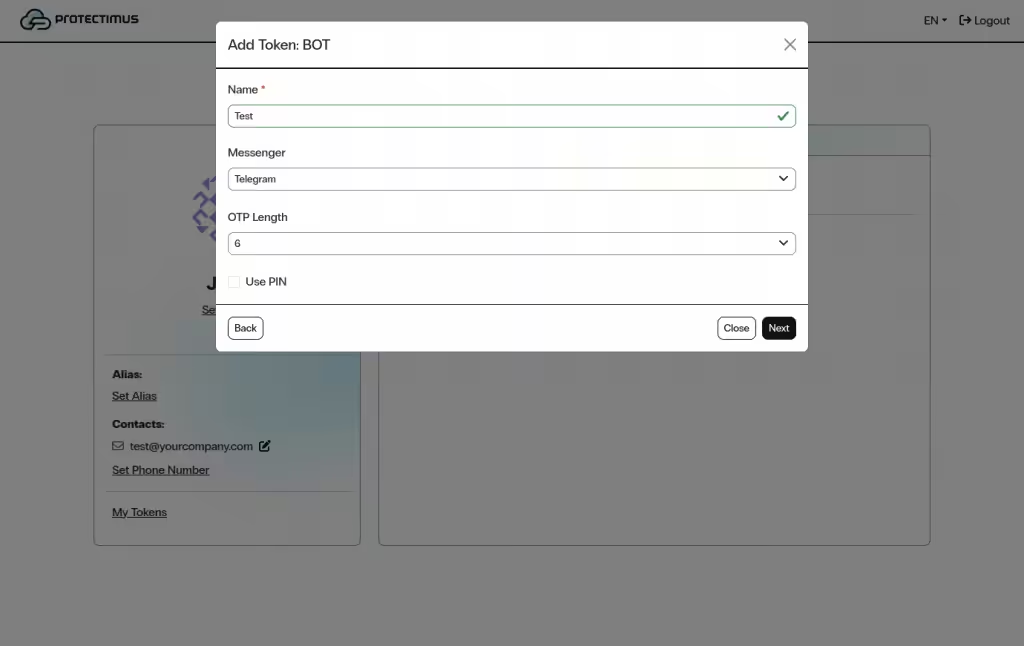
- In the Add Token window, select BOT.
- Enter the Name of the token.
- Select the preferred Messenger.
- Leave the default OTP Length unless instructed otherwise.
- Click Next.
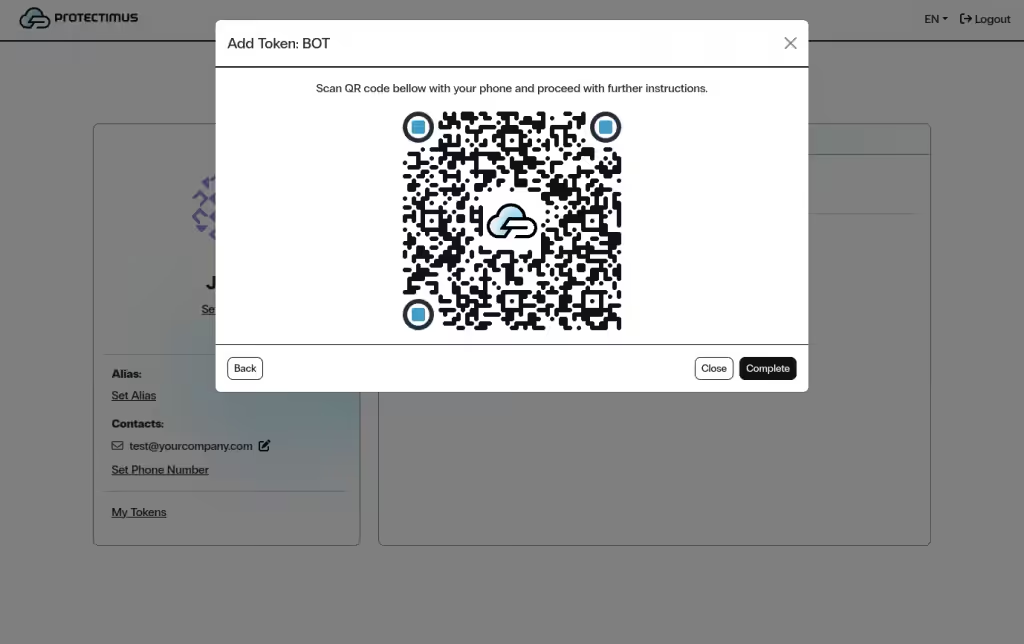
- A QR code will appear on the screen.
- Open the selected messenger on your phone and scan the QR code.
- The bot will be activated automatically in the selected messaging app.
- After successful activation, the BOT token will appear in the 2nd Factor section.
Related Guides
You may also find the following guides helpful:
If you have any questions, please contact Protectimus customer support service.