

Guides
Collapse Protectimus TOTP Burner

Protectimus TOTP Burner: Programming Hardware Tokens via NFC

Protectimus TOTP Burner is an Android application developed by Protectimus for configuring and managing Protectimus FLEX, Protectimus SLIM, and Protectimus SLIM mini programmable hardware tokens.

Download and install the Protectimus TOTP Burner app from Google Play.



The app allows you to:

  1. Write secret keys to hardware tokens via NFC and configure one-time password generation settings.
  2. Validate a secret key separately before writing it to a token.
  3. View token information.
  4. Program large batches of tokens using the dedicated Berserk Mode.

Please note: an NFC-enabled Android smartphone is required to use the app.
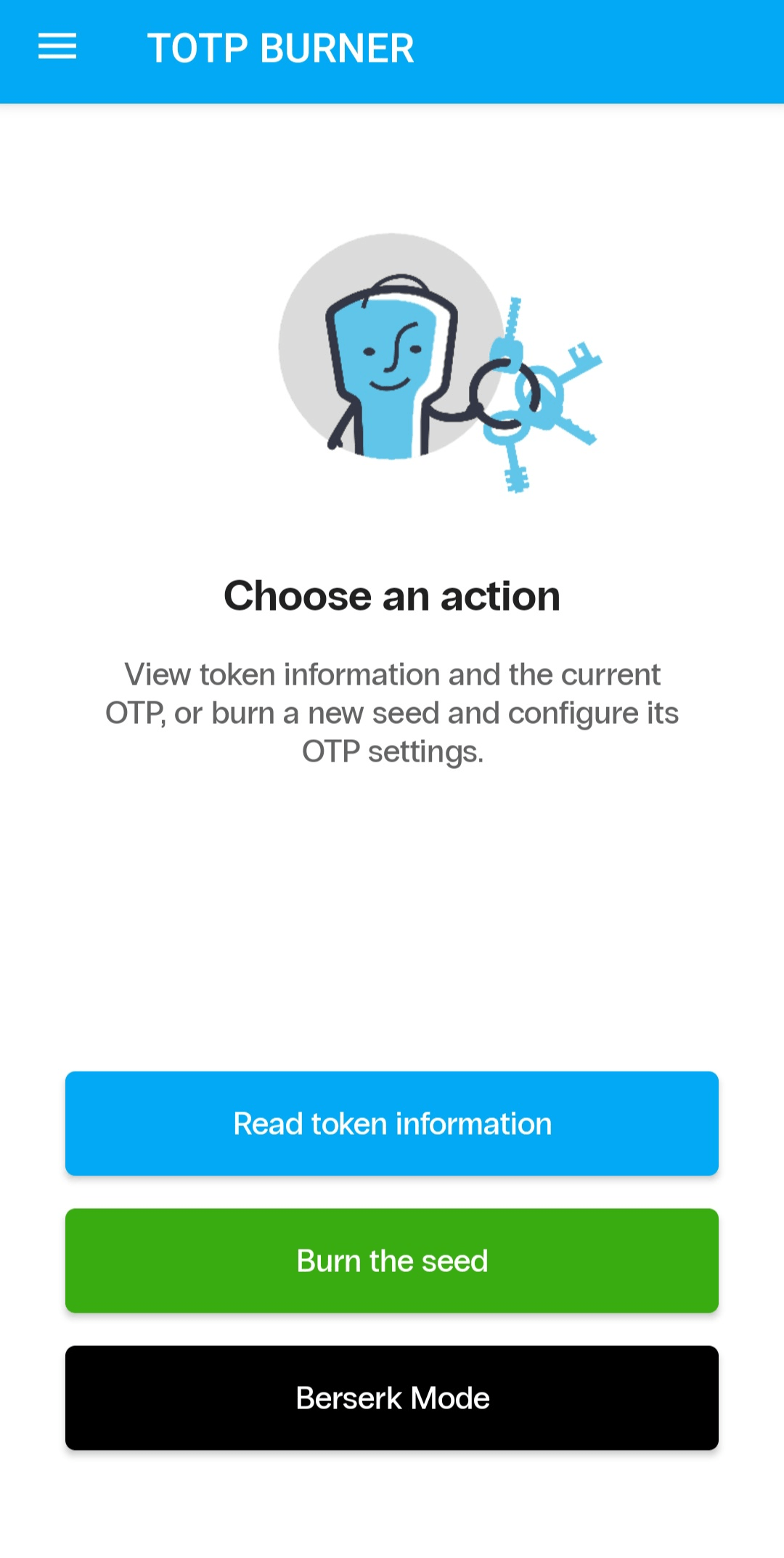


Protectimus TOTP Burner main screen: Read token information / Burn the seed / Berserk Mode

1. Programming an Individual Token


Protectimus TOTP Burner allows you to program a secret key into a token in two ways:
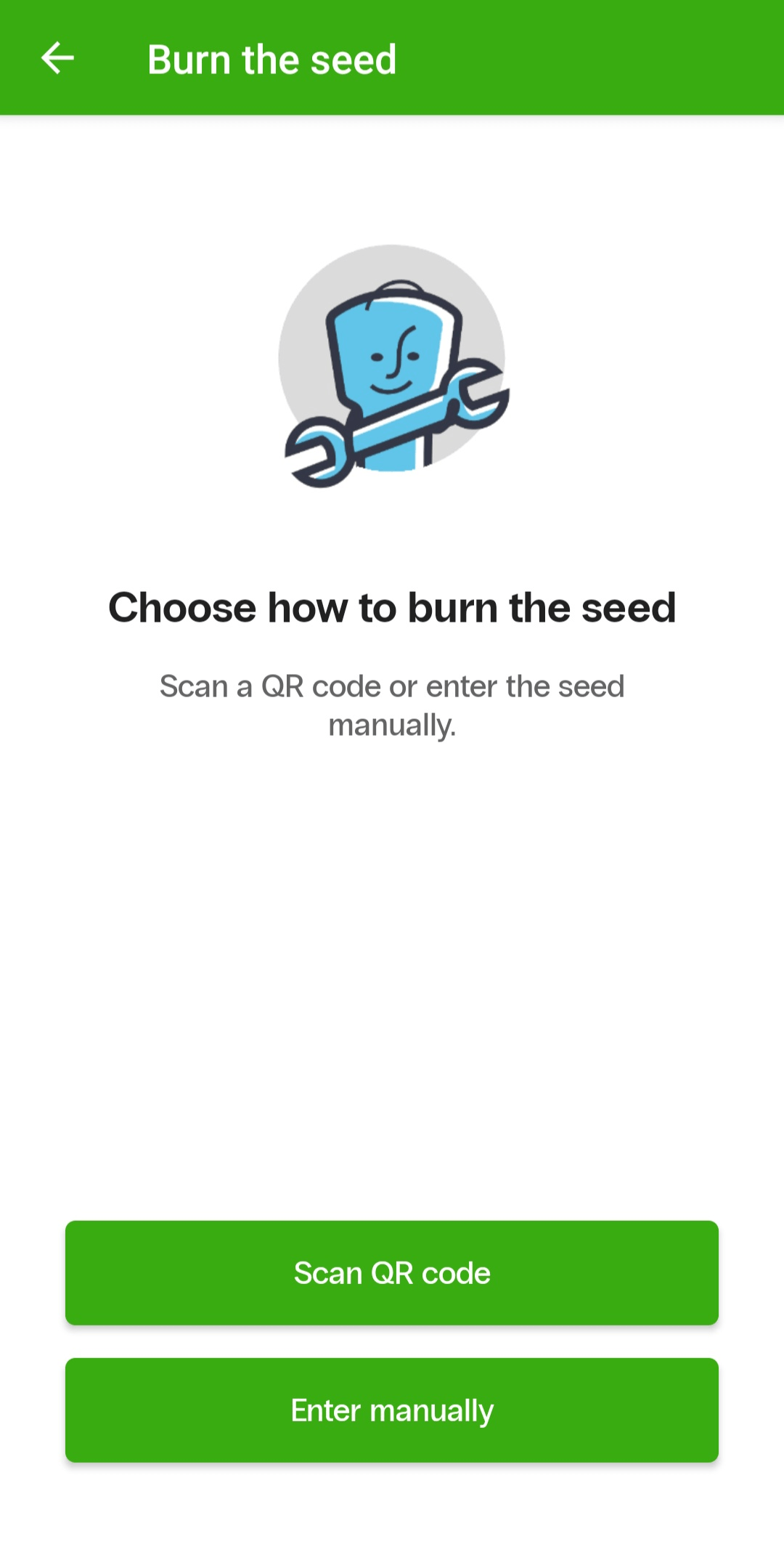
  • scan a QR code using the smartphone camera;
  • enter the secret key manually in Base32 format.


Burn the seed screen: Scan QR code / Enter manually

Whichever method you use, turn on the token and hold it firmly against the smartphone’s NFC antenna area before programming. Keep the token in this position until the operation is complete.

When programming a token manually, enter the secret key in Base32 format and configure the OTP generation parameters:

  • OTP length — 6 or 8 digits;
  • OTP refresh interval — 30 or 60 seconds.

The secret key must contain between 16 and 32 Base32 characters. The app checks the key length and format before programming the token.
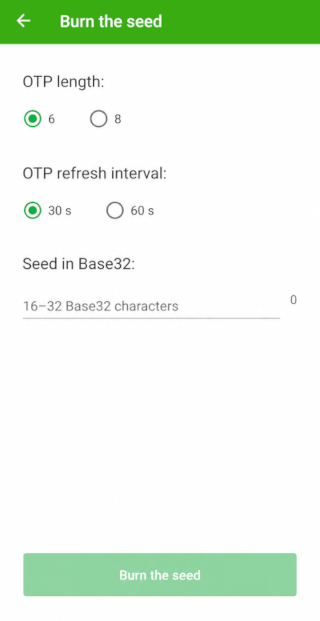


Burn the seed screen: Enter manually

Tap Burn the seed to start programming. The app will confirm that the token has been programmed successfully or display an error message if the operation fails.

2. Validating a Secret Key


You can validate a secret key separately before writing it to a token. To do this, open the app’s side menu and select Validate the seed.
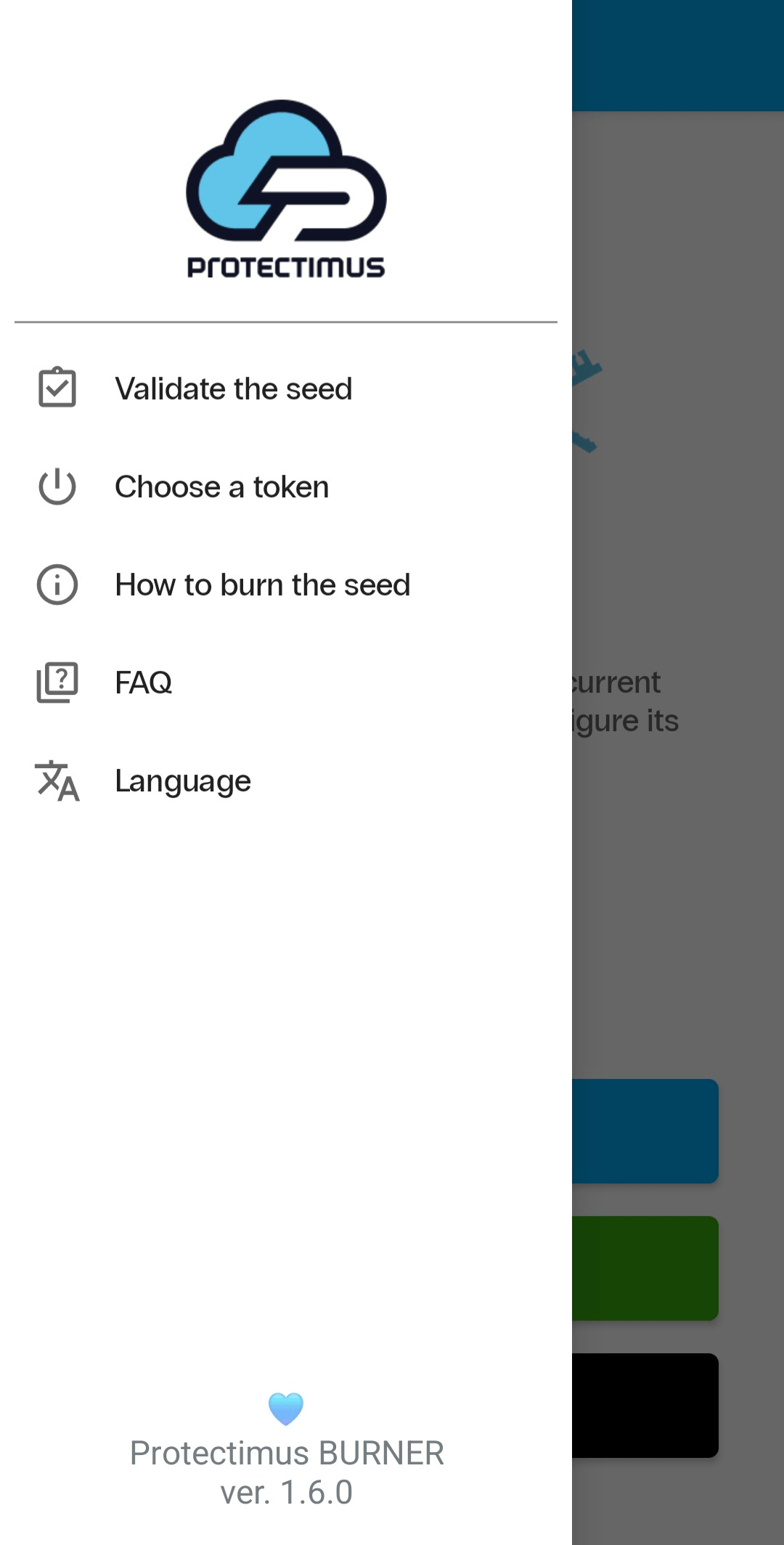


Protectimus TOTP Burner side menu with Validate the seed option

You can scan the key from a QR code or enter it manually.
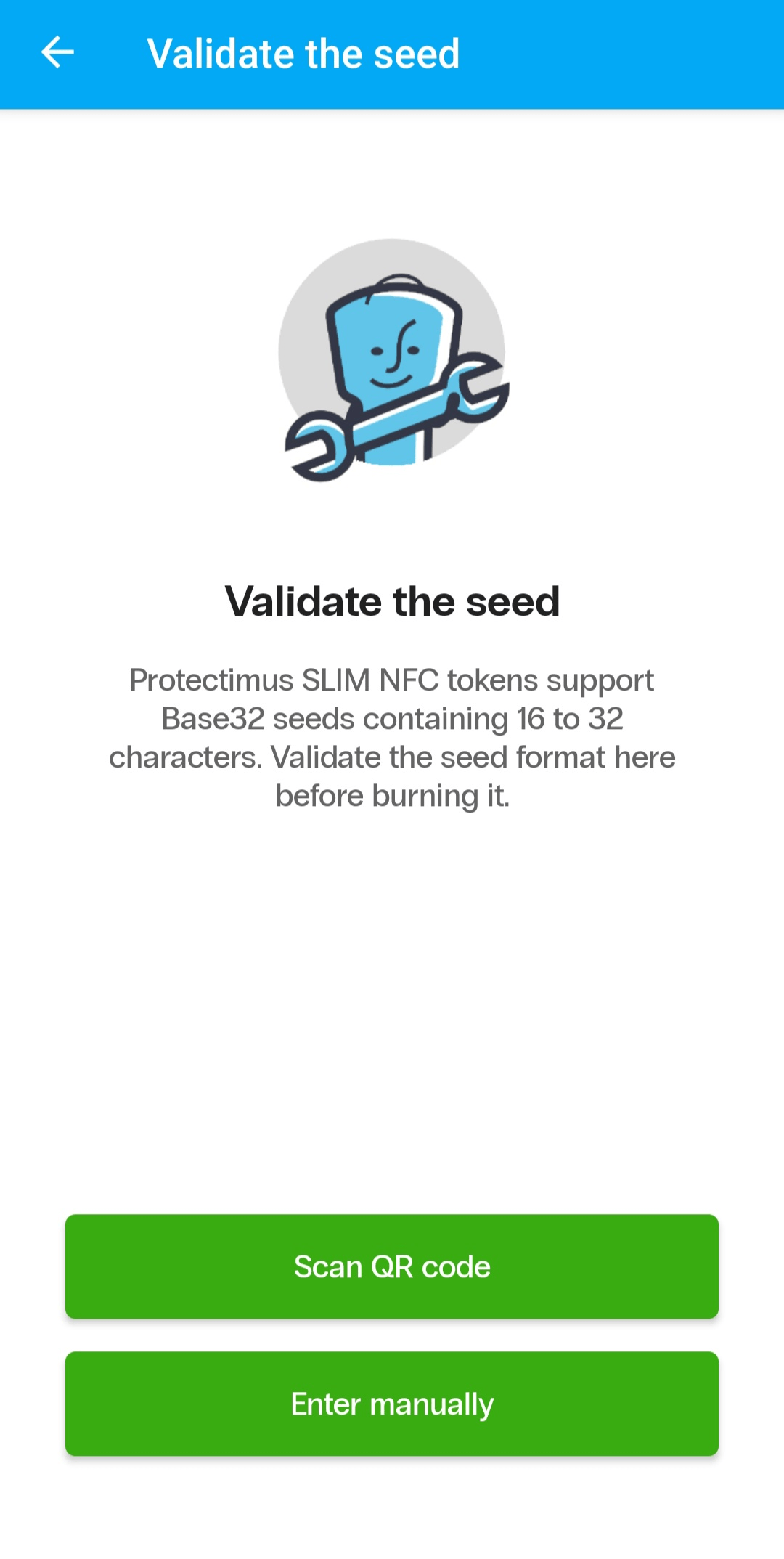


Validate the seed screen: Base32, 16–32 characters, Scan QR code / Enter manually

The app checks:

  • whether the key uses valid Base32 encoding;
  • whether it contains any invalid characters;
  • whether its length meets the requirements for Protectimus tokens.

This allows you to identify errors before programming begins and avoid failed attempts to write the key to a token.

3. Viewing Token Information


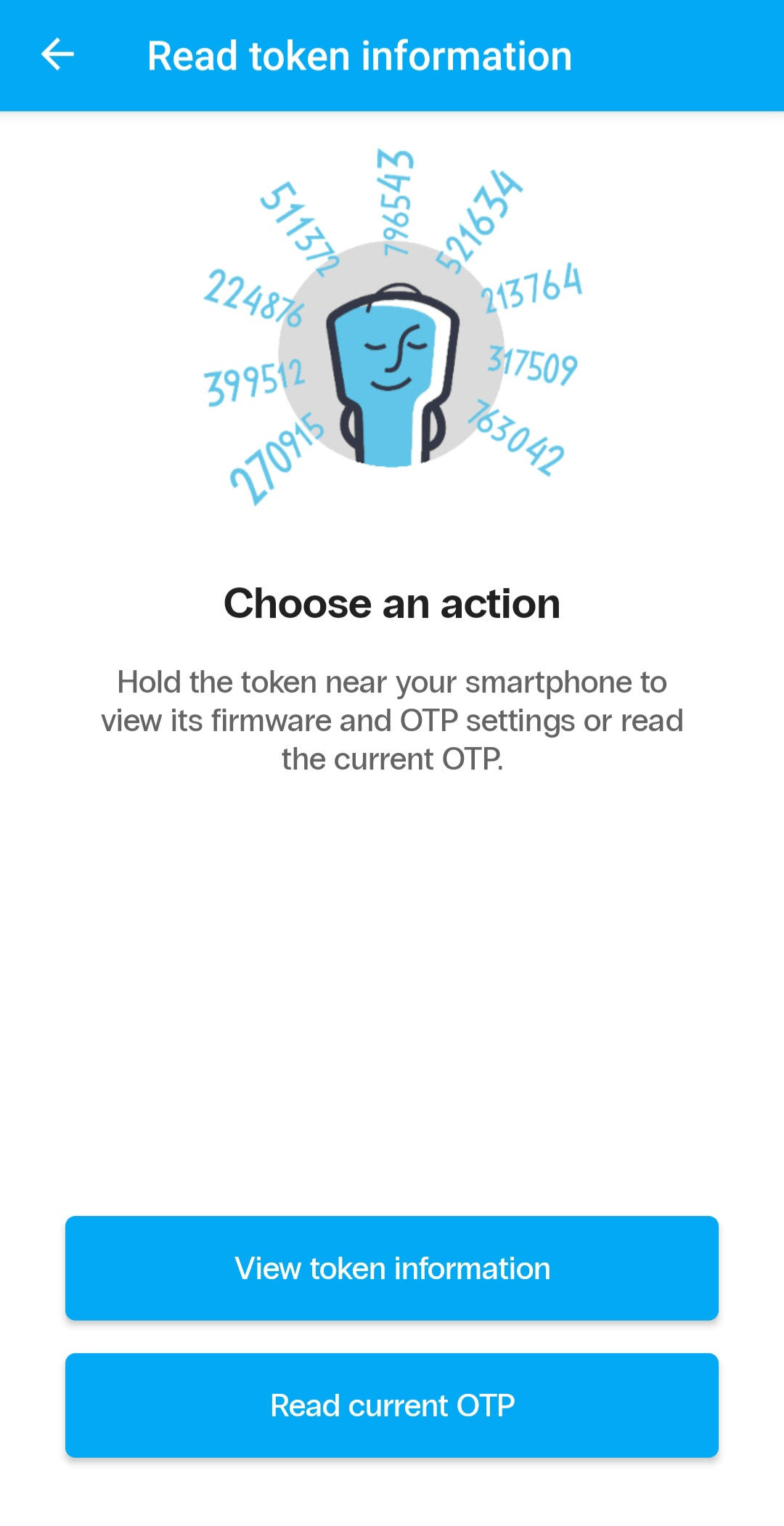
Using NFC, the app can read technical information from a hardware token, including:
  • serial number;
  • firmware version;
  • hardware revision;
  • OTP generation algorithm;
  • configured OTP time interval;
  • information about the token’s internal clock.


Read token information screen: View token information / Read current OTP

Protectimus TOTP Burner can also read the current one-time password generated by the token.

To read the token information or current OTP, turn on the token and hold it near the smartphone’s NFC antenna.

4. Berserk Mode for Bulk Token Programming


Berserk Mode is designed for semi-automated programming of large batches of hardware tokens. It reduces the number of manual steps required: once a programming session has started, the user only needs to present each token to the smartphone one after another.

Before starting, select the OTP time interval:

  • 30 seconds;
  • 60 seconds.

The selected interval will be applied to all tokens programmed during the session.

Berserk Mode supports two programming workflows: Hit List and Wild Burn.
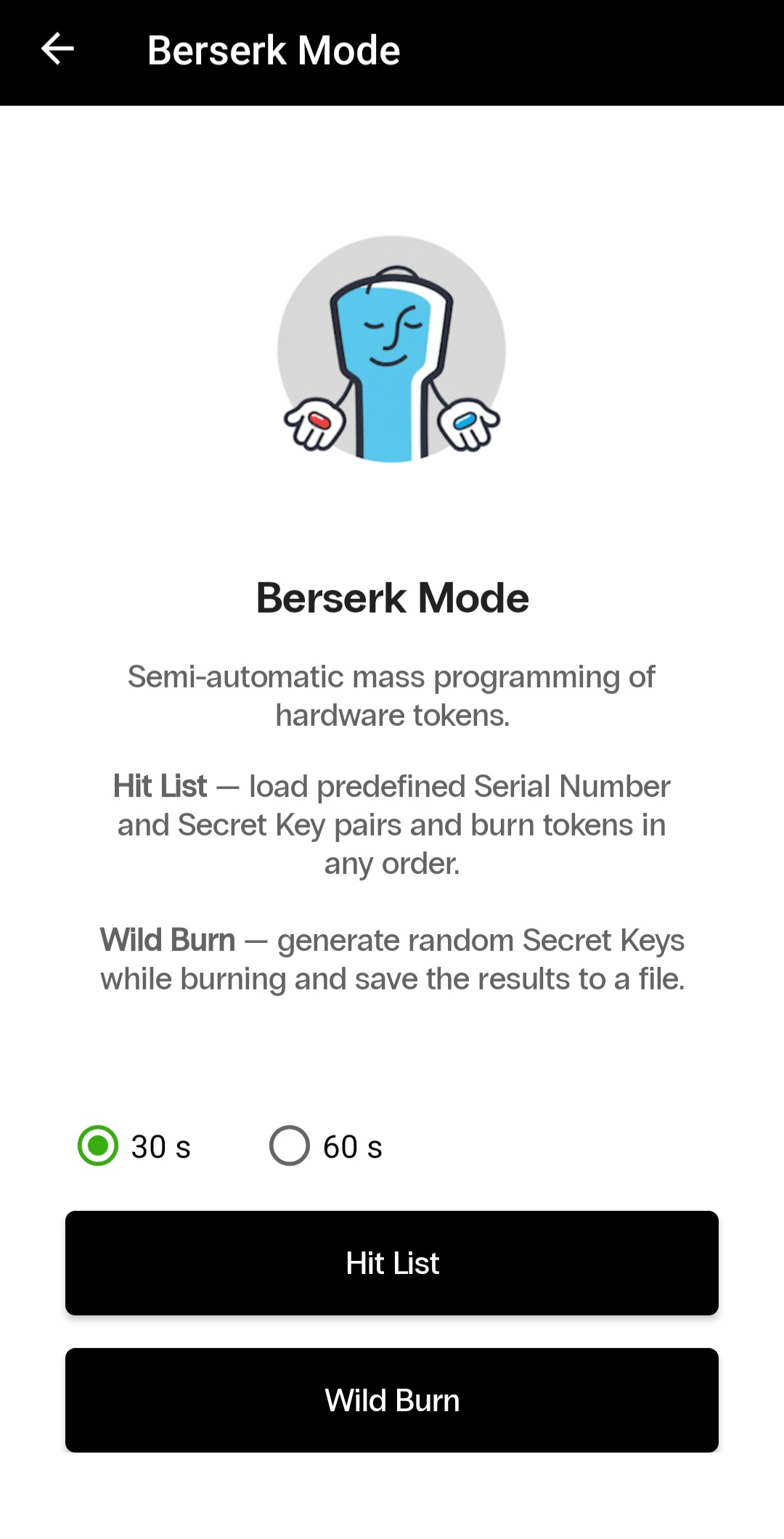


Berserk Mode main screen: 30 s / 60 s / Hit List / Wild Burn

4.1. Hit List


Hit List is used when token serial numbers and their corresponding secret keys have been prepared in advance.

The app reads the serial number of each token presented to the smartphone, automatically finds the corresponding secret key in the uploaded file, and programs the token. This means the tokens can be processed in any order.

Preparing the File


Prepare a TXT or CSV file containing one token per line.

For a TXT file, use the following format:

SerialNumber SecretKey

For example:

TWO0000001 JBSWY3DPEHPK3PXP
TWO0000002 KRSXG5DSNFXGOIDB
FLX0123456 MFRGGZDFMZTWQ2LK

In a TXT file, the serial number and secret key must be separated by a single space. In a CSV file, they must be separated by a comma.
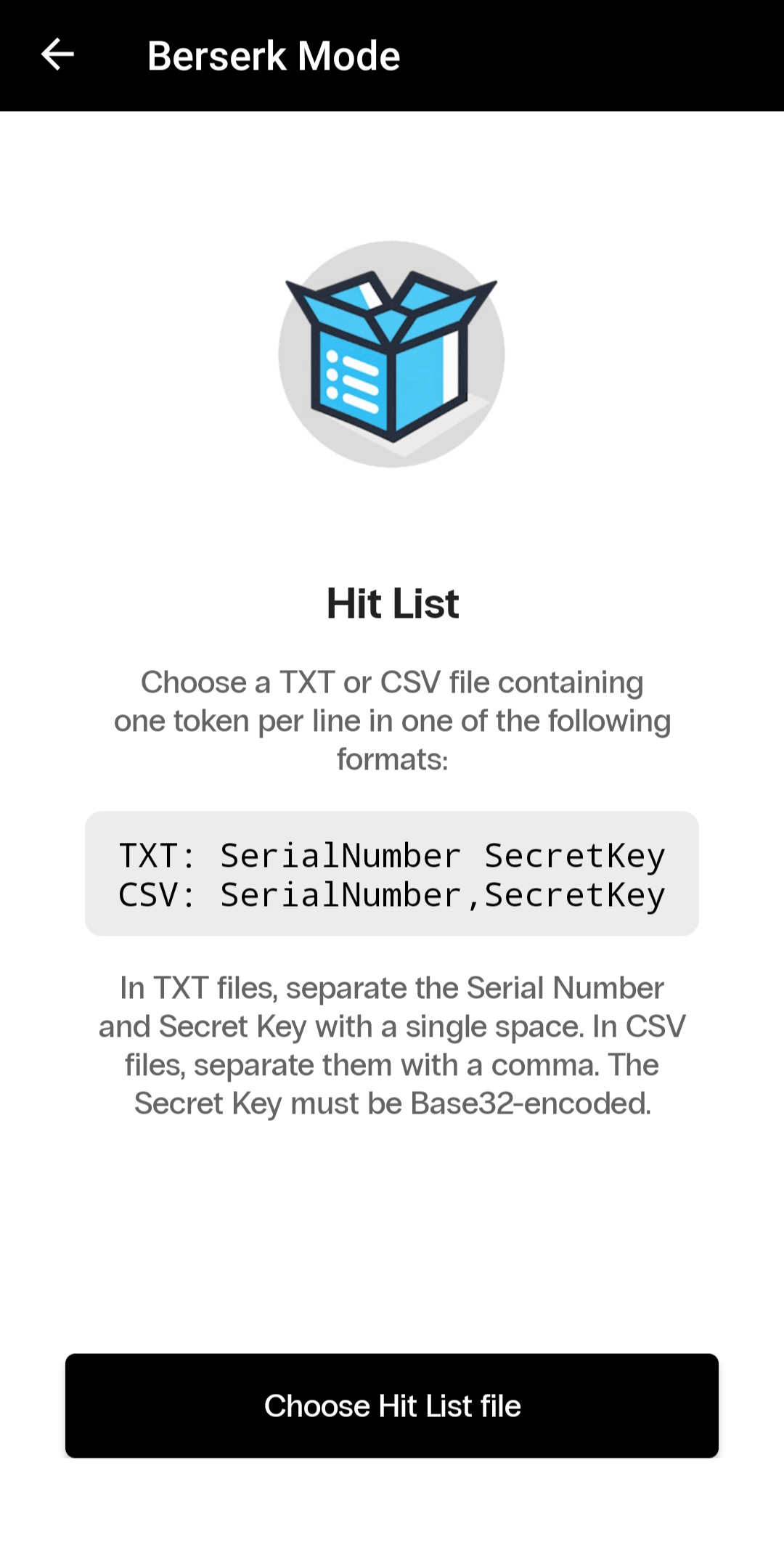


Hit List — supported TXT and CSV formats: 
TXT: SerialNumber SecretKey
CSV: SerialNumber,SecretKey

Important requirements:

  • each line must contain one serial number and one secret key;
  • the secret key must be encoded in Base32 format;
  • the file must not contain duplicate serial numbers;
  • each token must have its own unique secret key.

Programming Process


  1. Open Berserk Mode.
  2. Select the OTP time interval — 30 or 60 seconds.
  3. Open Hit List.
  4. Select the prepared TXT or CSV file.
  5. Check the number of tokens loaded from the file.
  6. Tap Start burning.
  7. Wait until the green READY indicator appears.
  8. Turn on the token and hold it near the smartphone’s NFC antenna.
  9. Keep the token in place until the operation is complete.
  10. After the token has been programmed successfully, wait until the READY indicator appears again, then present the next token.
  11. When you have finished programming the batch, tap Finish burning.

If the serial number of a token is not found in the uploaded list, the app will not program the token and will display a corresponding message.

The app also prevents a token that has already been processed during the current session from being programmed again.

Programming Results


If all tokens in the list are programmed successfully, the app will notify you that the batch has been completed.

If only some of the tokens have been programmed, you can save two separate files:

  • a list of successfully programmed tokens;
  • a list of tokens that still need to be programmed.

If no tokens were programmed, no separate completion screen is displayed. The app returns to the main Berserk Mode screen.

4.2. Wild Burn


Wild Burn is used when secret keys have not been generated in advance.

For each token, the app automatically generates a new cryptographically random secret key, writes it to the token, and adds the result to the current session.
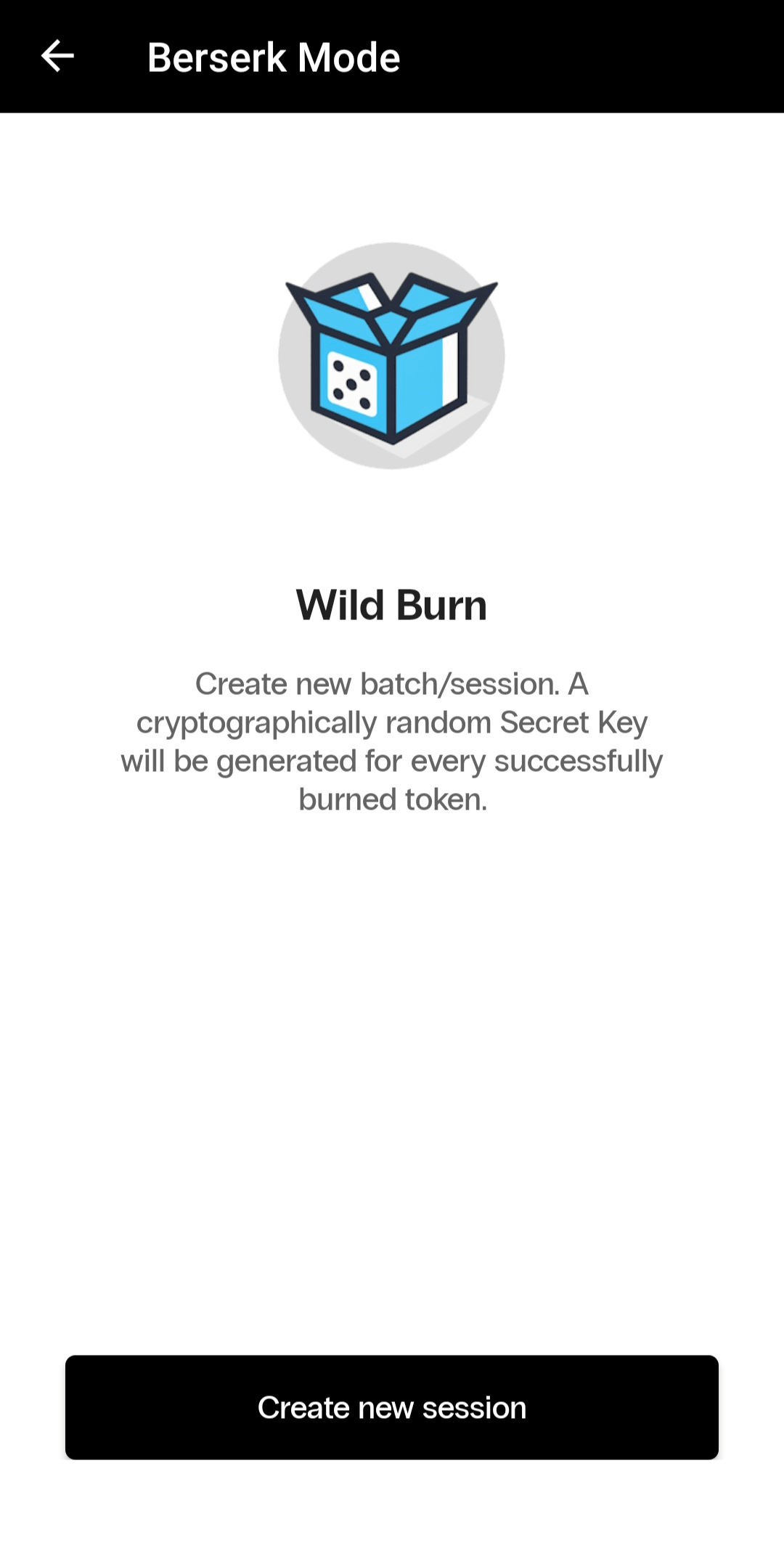
Wild Burn — Create new session

Programming Process


  1. Open Berserk Mode.
  2. Select the OTP time interval — 30 or 60 seconds.
  3. Open Wild Burn.
  4. Tap Create new session.


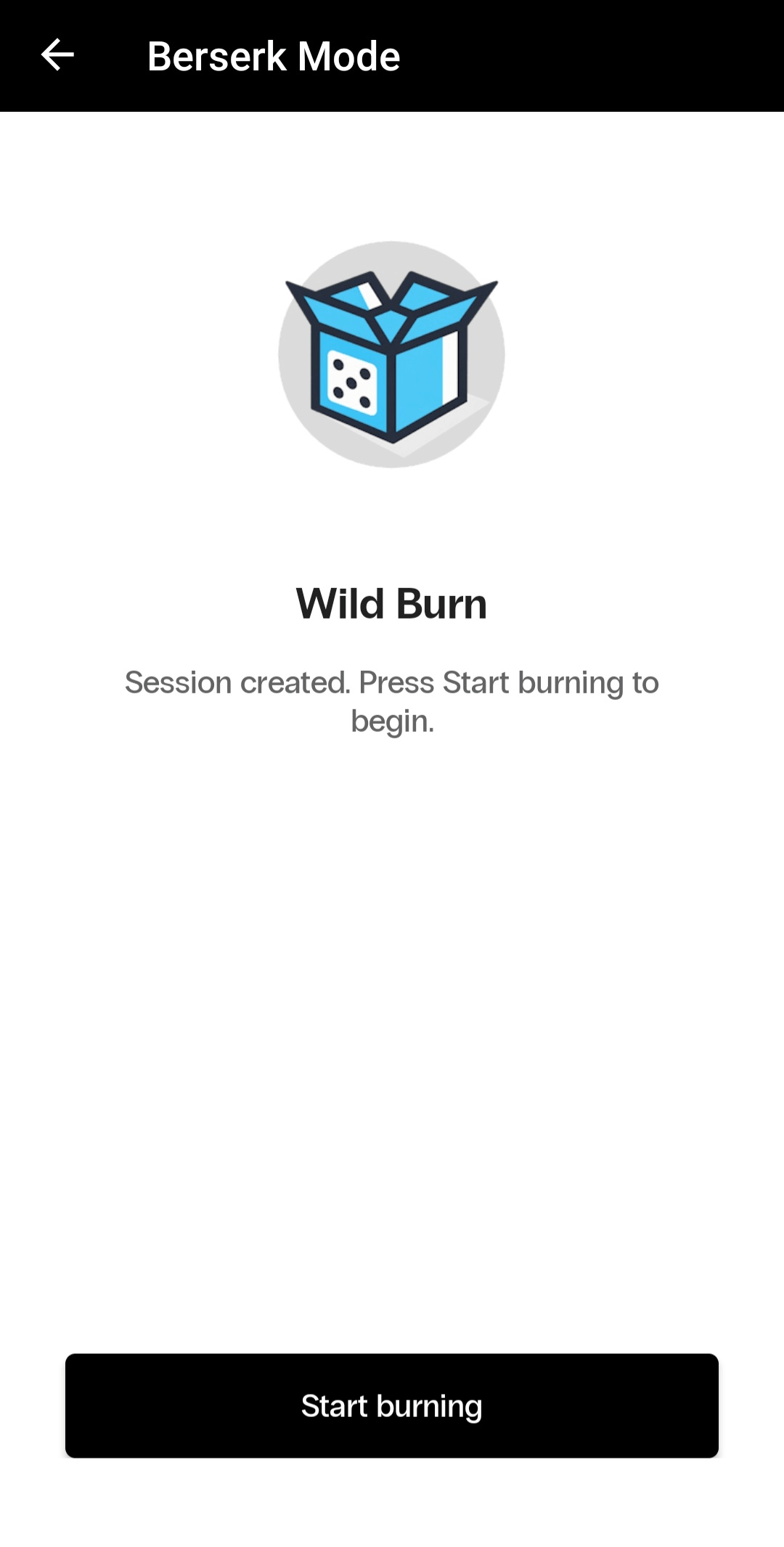
Wild Burn — Session created. Start burning button

  1. Tap Start burning.
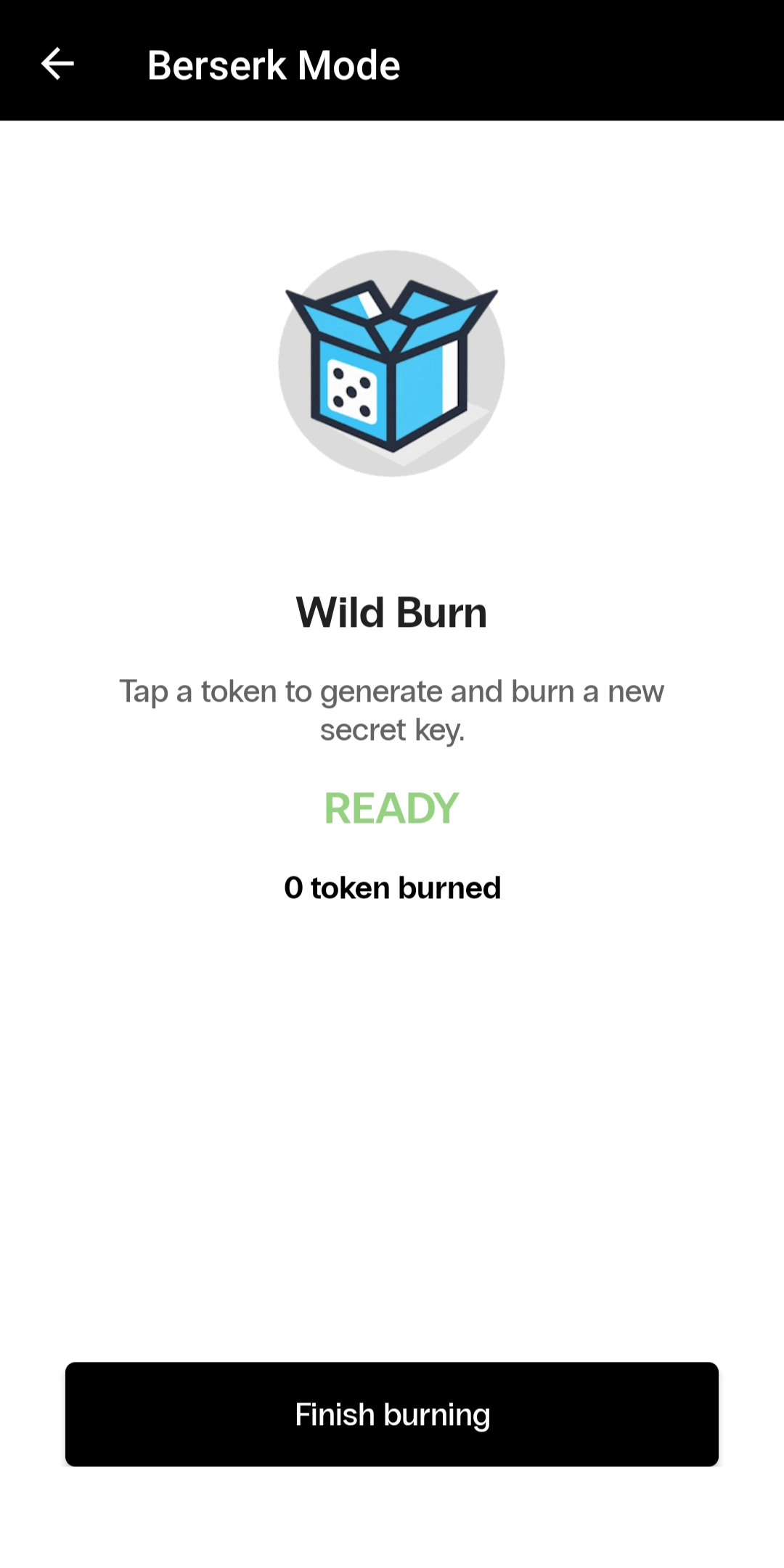
  2. Wait until the green READY indicator appears.


Wild Burn during programming: READY / 0 token burned / Finish burning

  1. Turn on the token and hold it near the smartphone’s NFC antenna.
  2. The app will read the token’s serial number, generate a secret key, and program the token.
  3. Once programming has completed successfully, remove the token from the NFC area.
  4. Wait until the READY indicator appears again, then present the next token.
  5. When you have finished programming the batch, tap Finish burning.

Saving the Results


After completing the session, you can save a CSV file containing the data for all successfully programmed tokens.

The file contains:

  • the token serial number;
  • the generated secret key.

If you end the session before programming the first token, the app returns to the main Berserk Mode screen without creating an empty file.

5. Security Recommendations


Secret keys are used to generate one-time passwords, so files containing these keys must be protected against unauthorized access.

We recommend that you:

  • store files containing secret keys only in secure storage;
  • never send secret keys over unsecured communication channels;
  • restrict access to files containing programming results;
  • back up secret keys in accordance with your organization’s security policy;
  • delete working files from the smartphone after securely transferring them to their intended storage location;
  • do not attempt to program a token again if the app reports that the physical write operation was completed but the result could not be saved.

6. Summary


Protectimus TOTP Burner provides the essential tools for working with Protectimus programmable hardware tokens:

  • programming secret keys via NFC;
  • scanning QR codes;
  • manually entering and validating Base32 secret keys;
  • configuring OTP length and time interval;
  • viewing technical information about a token;
  • reading the token’s current one-time password;
  • bulk token programming with Berserk Mode;
  • saving programming results to files.

The app can be used both to configure individual hardware tokens and to prepare large batches of tokens for deployment in corporate environments.

If you have any questions, contact our support team.

    Table of Contents




