









Two-Factor Authentication for Windows Login
Multi-factor authentication solution for Windows 8 / 8.1 / 10 / 11 and Windows Server 2012 / 2012 R2 / 2016 / 2019 / 2022 / 2025. Protects both local accounts and remote desktops (RDP). Easy to install and suits either corporate or personal Windows accounts. Works in offline mode.
Last updated: October 31, 2026
Protectimus Winlogon adds two-factor authentication to the Windows sign-in screen on workstations and Windows Server. After the password, users confirm the login with a one-time password from a hardware token, the Protectimus SMART app, SMS, email, or a messenger chatbot. It covers domain and local accounts, console and RDP sessions, and works in offline mode.
How Windows Login 2FA Works with Protectimus
Protectimus Winlogon installs on the Windows computer and adds a second step to the standard Windows sign-in. The user enters the Windows password as usual. Winlogon then asks for a time-based one-time password (TOTP) and sends it to the Protectimus authentication server for verification. Access is granted only when both the password and the one-time password are correct.
A stolen or phished Windows password is no longer enough on its own. The same check applies at the console and to Remote Desktop sessions on the protected machine.
The authentication server can be the Protectimus Cloud Service or the Protectimus On-Premise Platform installed on your own servers. Switching between them takes a change of a couple of lines in the Winlogon configuration file.
Download Installer
To implement two-factor authentication, Protectimus Winlogon 2.0 adds a new credential provider to the computer's operating system. Some antivirus programs and/or Windows SmartScreen may perceive this operation as a dangerous activity as it leads to changes in user authentication mechanisms and requires the expansion of the set of system libraries.
This software is signed by a Developer Certificate in the name of Protectimus Limited. Protectimus Limited ensures that this software implements only the declared functions.
Please, enter your email to continue:
15-Minute Setup
Setting up Protectimus two-step verification for Microsoft RDP and Windows Logon on your computer takes just 15 minutes. It’s easy enough for any PC user. You can find the detailed installation instructions on this page. If you have any questions, feel free to reach out to our support team at support@protectimus.com.
Active Directory Support
Microsoft RDP & Windows Logon
The two-factor authentication solution for Windows and Microsoft RDP from Protectimus is designed for local use when logging into your home or work computer, as well as for protecting remote access to corporate desktops through a connection to a terminal server Windows Server 2012 / 2012 R2 / 2016 / 2019 / 2022 / 2025 over RDP.
Protection Scenarios
Workstations and Servers
Protectimus Winlogon protects sign-in to Windows client computers and to Windows Server, including terminal servers used for remote work. You can start with the machines that carry the most risk, such as servers and administrator workstations, and extend coverage to all computers later. When installed on a domain controller, Winlogon can create a Group Policy Object and push the installation to selected domain computers remotely.
Domain and Local Accounts
Both Active Directory accounts and local Windows accounts can be protected. Users are added in Protectimus in the login@domain format, and the Protectimus login of a local account must match its Windows username exactly. If your organization needs broader directory coverage, see MFA for Active Directory.
Offline Login
Laptops that leave the office and machines without internet access still get MFA. If the computer cannot reach the authentication server, the user can sign in with MFA in offline mode.
Administrators who prefer to block offline access can turn it off in the 2FA policy.
Console and Remote Login
The second factor is required both for sign-in at the computer itself and for Remote Desktop connections to it. RDP protection is enabled with a separate setting during configuration. For remote access scenarios such as terminal servers, RD Gateway, and VPN-based access, see MFA for RDP.
Supported Windows and Windows Server Versions
Protectimus Winlogon supports the following Windows versions:
| Operating system | Type | Notes |
|---|---|---|
| Windows 8 / 8.1 | Workstation | Local and domain accounts |
| Windows 10 | Workstation | Local and domain accounts |
| Windows 11 | Workstation | Local and domain accounts |
| Windows Server 2012 / 2012 R2 | Server | Console and RDP sign-in |
| Windows Server 2016 | Server | Console and RDP sign-in |
| Windows Server 2019 | Server | Console and RDP sign-in |
| Windows Server 2022 | Server | Console and RDP sign-in |
| Windows Server 2025 | Server | Console and RDP sign-in |
Quick Setup
Set up two-factor authentication in Windows in just a few minutes

Registering with the Service
Register with the Protectimus 2-factor authentication service and fill out the registration form by clicking this link.

Activating a Service Plan
To use the Protectimus cloud service, you`ll need to activate a service plan for the API to work. To do so, navigate to “Service Plans”.

Creating a Resource

Creating Users
Create users, security tokens, and assign them to a resource. Use usernames of the form login@domain for AD and local user accounts.

Installing Protectimus Winlogon
Download the installer and full installation instructions for Protectimus Winlogon using the buttons below. Run the Protectimus Winlogon installer and follow the instructions from step 4.
Here's what our customers say
-
SICIM
-
DXC
-
Volet
At the moment, my assessment of the company’s work is 10 out of 10. An important factor in choosing this two-factor authentication provider was the possibility of customizing the 2FA system for our project. After we got in touch with the Protectimus team and explained the task, they implemented the necessary functionality for us free of charge. There were no problems. Everything works well.
Cristian G, System Administrator at SICIM
Protectimus was chosen because of their unique Dynamic Strong Password Authentication (DSPA) technology. Using this product, we added 2FA to all the systems we needed to protect in one fell swoop, as it allowed us to integrate two-factor authentication services straight with Active Directory. We have been using the Protectimus two-factor authentication platform for a year and are satisfied with this product.
Mauro S., Xchanging Italy a DXC Technology
Over the past years, we’ve had only positive cases of working together. Protectimus helped us at every stage, from integration to adding additional features that solved our specific tasks. Using Protectimus, we are confident that Volet infrastructure and users are well protected. Protectimus gives us what money can’t buy – not a sense of security, but REAL security. I highly recommend it for implementation.
Artem Sh., Info Security Director at Volet
Broad Functionality

Time-Controlled Resource Access
Filters available to Protectimus 2FA system administrators allow you to control the times at which employees have access to company resources. Denying access to corporate computers outside of working hours, you can increase the level of protection of your corporate network.

Event Monitoring

Unified Authentication Ecosystem
Authentication Methods
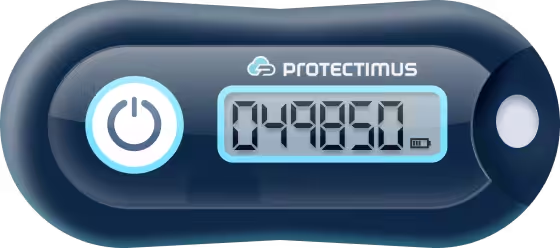
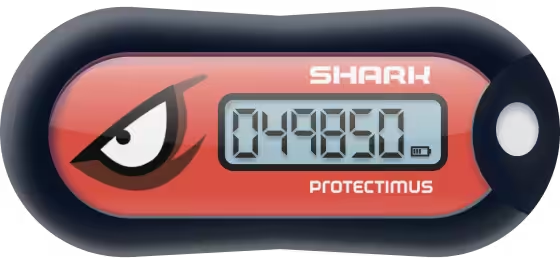
Each user can sign in with the method that fits their work. For staff without company phones, shared workstations, or areas where phones are not allowed, hardware OTP tokens work without a smartphone: classic TWO and SHARK tokens, and programmable Slim NFC and FLEX tokens. Software methods include the Protectimus SMART authenticator app, one-time passwords delivered by a messenger chatbot (BOT), SMS, and email.
The latest version of Protectimus Winlogon adds push authentication: users can approve Windows and RDP sign-in requests in the Protectimus SMART app instead of typing a code. It also supports automatic enrollment for all token types, so administrators no longer have to add hardware tokens or chatbot delivery manually. The latest version is available from Protectimus on request.
Deployment Options
Start with cloud integration — to switch between cloud and on-premise servers, you just need to change a couple lines in the configuration file
Protectimus Winlogon works with either deployment model. The Cloud Service is the quickest way to start: register, create a resource, add users, and install Winlogon on the computers you want to protect. The Protectimus MFA platform can be installed on your own servers or in a private cloud when authentication data has to stay inside your network.
For installation, policy settings, RDP access, and offline login, follow the step-by-step setup guide for your deployment: Cloud Service setup guide or On-Premise Platform setup guide.
Cloud Service

On-premise Platform

Ready to get started?
Ready to strengthen your security with Protectimus multi-factor authentication? Our comprehensive guides will walk you through the seamless integration process. Our dedicated support team is ready to assist you. Get started today and enhance your authentication with Protectimus.

FAQ
Can I enable 2FA for both domain and local Windows accounts?
Yes. Protectimus Winlogon protects Active Directory accounts and local Windows accounts. Users are added in the login@domain format, and for local accounts the Protectimus login must match the Windows username exactly.
Does Windows login 2FA work without an internet connection?
Yes. Protectimus Winlogon has an offline mode for computers that cannot reach the authentication server. Administrators can disable offline login in the 2FA policy if it is not needed.
Which Windows and Windows Server versions are supported?
Windows 8, 8.1, 10, and 11 on workstations, and Windows Server 2012, 2012 R2, 2016, 2019, 2022, and 2025 on servers.
Can I use hardware tokens instead of a smartphone for Windows login?
Yes. Users can sign in with classic hardware TOTP tokens such as Protectimus TWO and SHARK, or with programmable tokens such as Slim NFC and FLEX. No smartphone or internet connection is needed on the user’s side to generate the code.
Can I exclude specific users or groups from 2FA?
By default, Protectimus Winlogon applies 2FA to all accounts on the computer except the built-in Administrator and Guest accounts. To limit 2FA to specific users, select an Active Directory group on the 2FA Policy screen when you install the component.
How is Windows login 2FA different from RDP 2FA?
Windows login 2FA protects sign-in to a specific computer, both at the console and over Remote Desktop to that machine. To protect remote access as a whole, including terminal servers, RD Gateway, and VPN connections, see MFA for RDP.