How to Set Up MFA for Cisco Meraki Client VPN
Last updated: November 1, 2026
You can add MFA to Cisco Meraki Client VPN with Protectimus via RADIUS. In the Meraki Dashboard, the Protectimus RADIUS Server is added as the authentication server for Client VPN, and after the password users confirm sign-in with a one-time password from a hardware token, an authenticator app, or a messenger chatbot. Protectimus runs as a cloud service or on-premise.
Integrating Protectimus’s multi-factor authentication solution enables a straightforward setup for
Cisco Meraki Client VPN two-factor authentication (2FA), requiring just a few minutes to configure. By implementing MFA as an extra security layer, the Cisco Meraki Client VPN system ensures that only authorized users can access it, significantly enhancing protection against potential cyber threats.
In the current era of widespread remote work, establishing a secure remote access system is of paramount importance. Protectimus offers a multifactor authentication solution for Cisco Meraki Client VPN, guaranteeing that even if a user’s login credentials are compromised, their access to the VPN remains safeguarded. Two-factor authentication serves as a strong defense against various cyber threats, including phishing, brute force, social engineering, MITM, and data spoofing attacks, thereby ensuring the security of your organization’s data and resources.
Protectimus allows secure access to your Cisco Meraki Client VPN by providing multi-factor authentication (MFA) using the Protectimus RADIUS server.
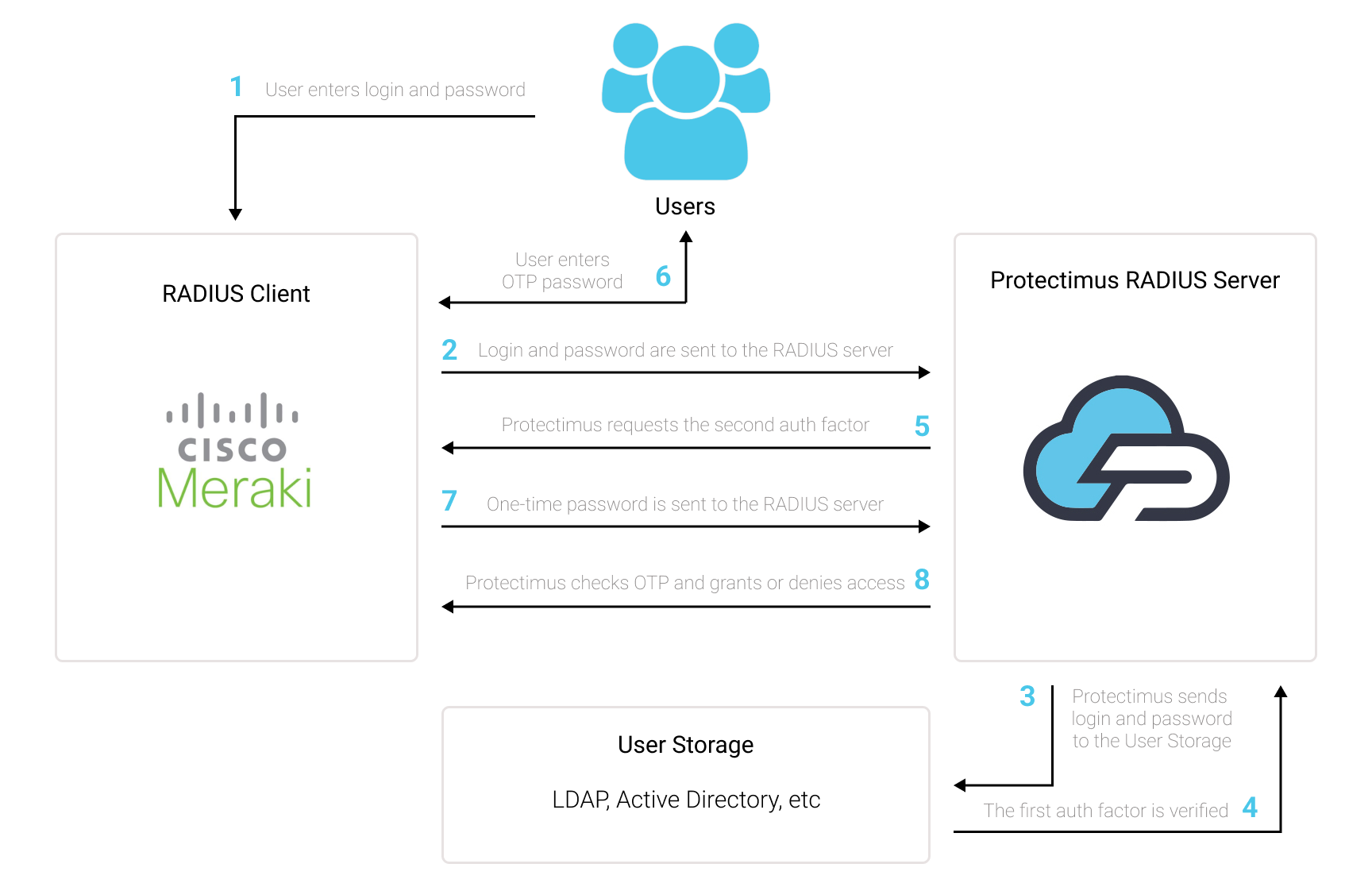
The scheme of work of the Protectimus solution for Cisco Meraki Client VPN two-factor authentication is presented below.
Requirements
| Component |
Requirement |
| Cisco Meraki |
Cisco Meraki Client VPN with RADIUS authentication support, managed in the Meraki Dashboard (Security & SD-WAN) |
| RADIUS timeout |
60 seconds in the Authentication and Access section |
| Protectimus |
Protectimus Cloud Service or Protectimus On-Premise Platform |
| RADIUS component |
Protectimus RADIUS Server installed in your network; with the On-Premise Platform for Windows, select the RADIUS option during installation |
| RADIUS port |
1812 by default (set in radius.yml) |
| Users and tokens |
Added to a Protectimus resource manually or through the Users’ Self-Service Portal |
Why Use Protectimus MFA for Cisco Meraki Client VPN
- Works through RADIUS. Meraki Client VPN already supports RADIUS authentication, so MFA is added on the server side and the VPN client stays as it is.
- A short setup on the Meraki side. In the Meraki Dashboard you set the authentication type, the timeout, and the RADIUS server details; the rest is configured in Protectimus.
- Cloud or on-premise. Use the Protectimus Cloud Service or keep authentication data on your own servers with the On-Premise Platform.
- Hardware and software tokens. Hardware OTP tokens, a smartphone app, or OTP delivery by chatbot, added manually or by users themselves in the Self-Service Portal.
- One MFA layer for mixed environments. The same Protectimus resource and tokens can protect other VPN gateways and systems; see MFA for VPN for the wider picture.
How Cisco Meraki Client VPN 2FA Works
Protectimus’ Two-Factor Authentication Solution for Cisco Meraki Client VPN adds an additional layer of security, effectively thwarting unauthorized access attempts to your VPN.
Upon enabling two-factor authentication (2FA) on your Cisco Meraki Client VPN server, users will be required to provide two separate authentication factors to access their accounts.
When implementing 2FA/MFA for Cisco Meraki VPN, users will need to provide:
- The first factor, which is their username and password (something the user knows);
- The second factor, which is a one-time password generated using a hardware OTP token, 2FA chatbot or a smartphone app (something the user possesses).
To compromise a Cisco Meraki Client VPN protected by two-factor authentication (2FA/MFA), a hacker would need to obtain both a standard password and a one-time password simultaneously, with only a 30-second window to intercept the latter. This nearly impossible task highlights the remarkable effectiveness of two-factor authentication against most hacking attempts.
How to Enable 2FA for Cisco Meraki Client VPN
You can set up multi-factor authentication (2FA) for Cisco Meraki with Protectimus using the RADIUS protocol:
- Get registered with Protectimus SAAS Service or install the On-Premise 2FA Platform and configure basic settings.
- Install and configure Protectimus RADIUS Server.
- Add Protectimus as RADIUS Server for Cisco Meraki Client VPN.
Step 1: Get Registered and Configure Basic Protectimus Settings
Choose your deployment option and complete the basic setup:
Protectimus Cloud Service
- Register with the Protectimus Cloud Service and activate API.
- Add a Resource.
- Add Users.
- Add Tokens manually or activate the Users’ Self-Service Portal.
- Assign Tokens to Users.
- Assign Users and Tokens to the Resource.
Protectimus On-Premise Platform
- Install the Protectimus On-Premise Platform. If you install the Protectimus Platform on Windows, select the RADIUS option during installation.
- Add a Resource.
- Add Users.
- Add Tokens manually or activate the Users’ Self Service Portal.
- Assign Tokens to Users.
- Assign Tokens with Users to the Resource.
Step 2: Install and Configure Protectimus RADIUS Server
Detailed instructions for installing and configuring the Protectimus RADIUS Server for Cisco Meraki VPN 2-factor authentication using RADIUS are available in our
Protectimus RADIUS Server Installation Guide for Cisco Meraki Client VPN 2FA.
Step 3: Add Protectimus as RADIUS Server for Cisco Meraki VPN MFA
- In the Cisco Meraki Dashboard, navigate to Security & SD-WAN, and then select the Client VPN option.
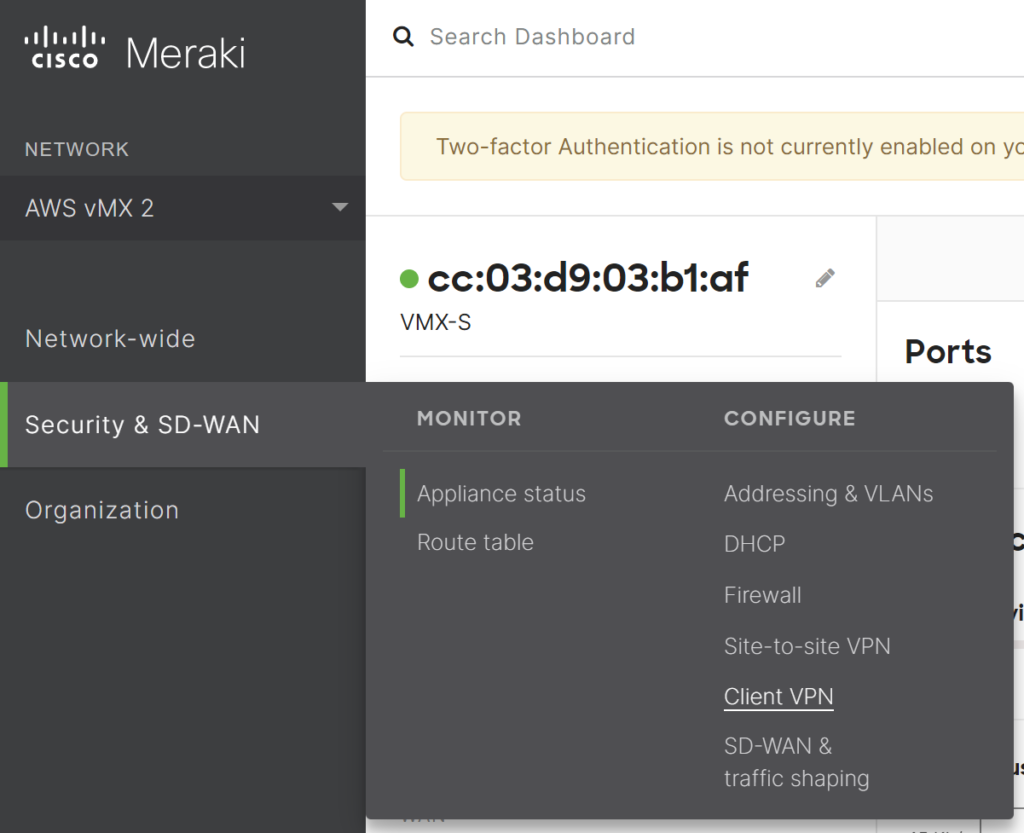
- Choose AnyConnect Settings, proceed to the Authentication and Access section, and configure the following:
- Authentication Type: RADIUS.
- RADIUS servers: The subsequent step will explain how to add a RADIUS server.
- RADIUS timeout: 60 seconds.
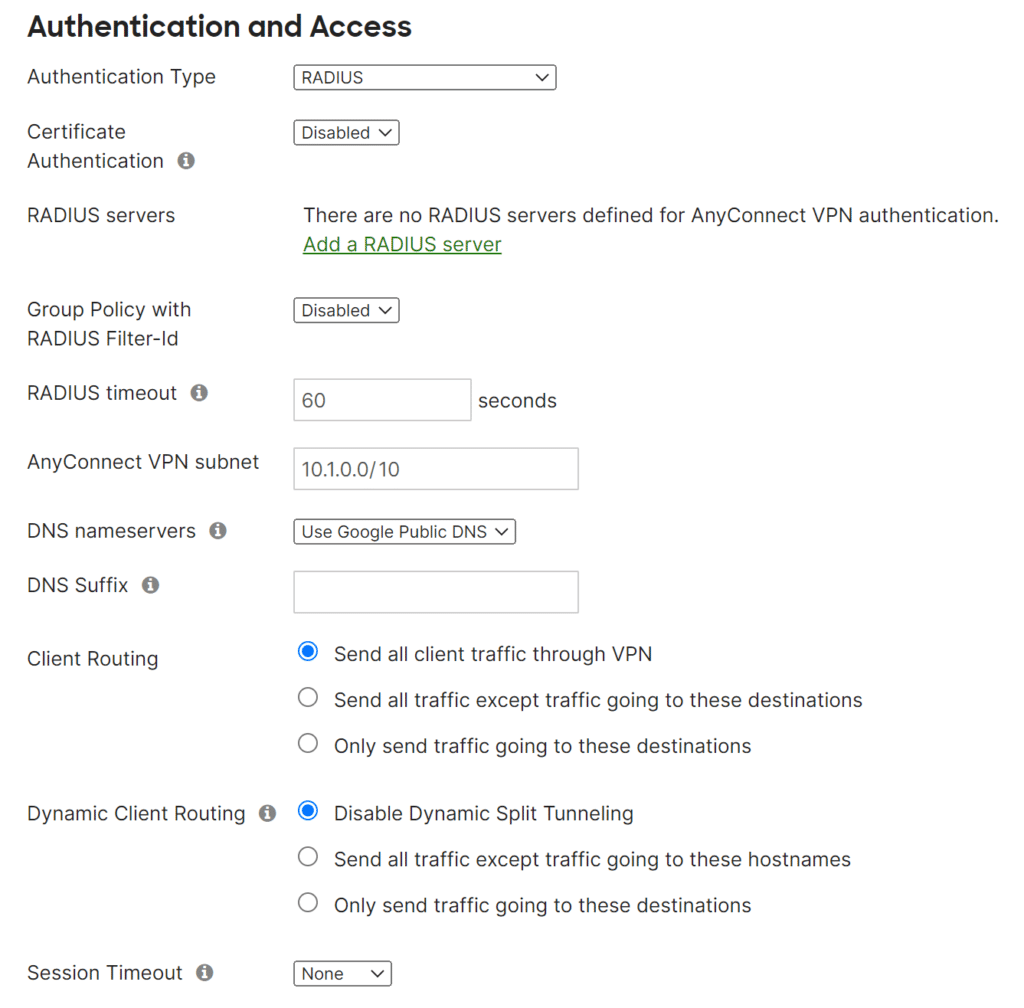
- Within the RADIUS servers section, proceed to click on Add a RADIUS server and configure the following:
- Host: Enter the IP of server where the Protectimus RADIUS Server component is installed.
- Port: Indicate 1812 (or whichever port you configured in the Protectimus radius.yml file when configuring Protectimus RADIUS Server).
- Secret: Enter the shared secret you created in the Protectimus radius.yml file (radius.secret property) when configuring Protectimus RADIUS Server.
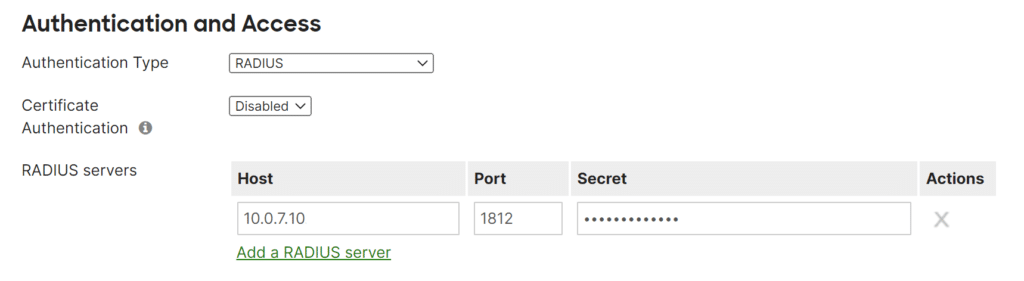
Integration of two-factor authentication (2FA/MFA) for your Cisco Meraki VPN is now complete.
If you have other questions, contact
Protectimus customer support service.
FAQ
Does Cisco Meraki Client VPN support MFA natively, or do I need a third-party solution?
Meraki Client VPN can send authentication to an external RADIUS server, and that is how third-party MFA such as Protectimus is added. A separate MFA server makes sense when you want the same users, tokens, and policies for the VPN and for other systems.
Can I use hardware tokens for Meraki Client VPN login?
Yes. Users can sign in with a code from a hardware OTP token instead of a smartphone app. The token is assigned to the user in Protectimus, and nothing changes on the Meraki side.
Why should the RADIUS timeout in Meraki Client VPN be set to 60 seconds?
This setup uses a RADIUS timeout of 60 seconds in the Authentication and Access section. It gives the user enough time to receive the one-time password and enter it before the request expires.
Where in the Meraki Dashboard is RADIUS for Client VPN configured?
Go to Security & SD-WAN > Client VPN and open AnyConnect Settings. In the Authentication and Access section, set Authentication Type to RADIUS and the RADIUS timeout to 60 seconds.
Then, in the RADIUS servers section, click Add a RADIUS server. Enter the IP address of the Protectimus RADIUS Server as Host, port 1812 (or the port set in radius.yml), and the shared secret from radius.secret.
What happens if the MFA server is unavailable?
Meraki waits for a response from the Protectimus RADIUS Server for the configured timeout and then rejects the login. To keep VPN access available, deploy redundant Protectimus RADIUS Server instances and add them in the RADIUS servers section; with the On-Premise Platform, the platform itself can run as a multi-node cluster.
Planning MFA for more than one gateway?
Compare MFA options for VPN or
start a free trial of Protectimus.