Guides
Collapse SaaS Service

Managing Resources in SSAS Service: Step-by-Step Guide

Resources are used to group users. For example, you can create separate resources for different web projects or departments.

The number of resources you can create depends on your Service Plan. To create additional resources, upgrade or customize your Service Plan.
1. How to Add a Resource


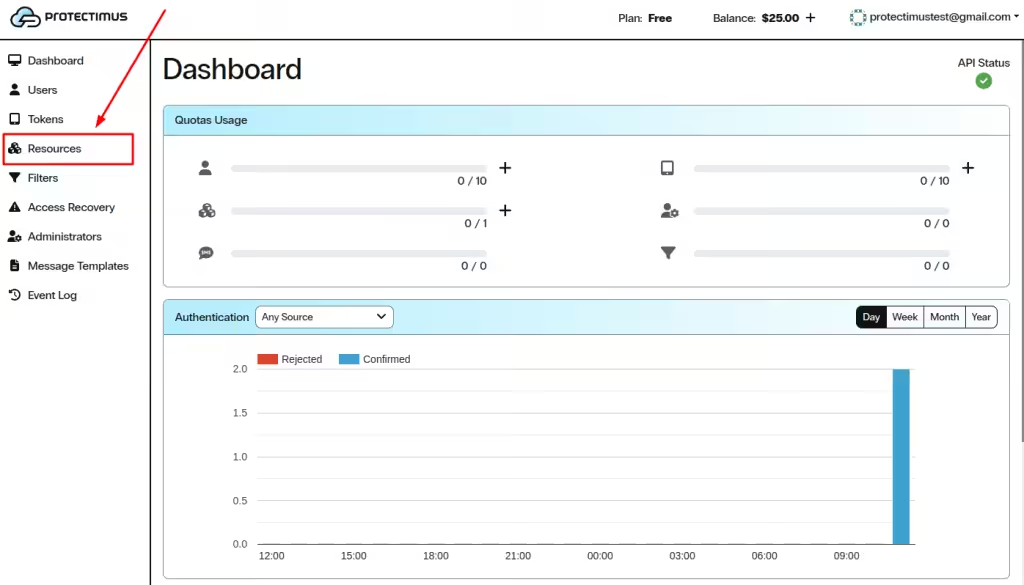
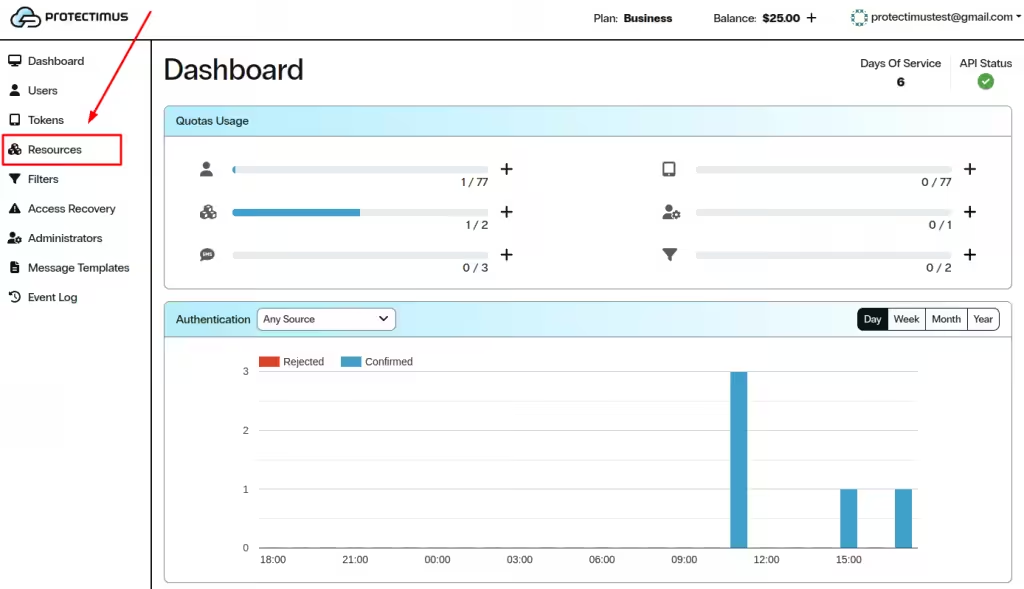
  1. Log in to your Protectimus SaaS Service account and go to the Resources page.

How to Add a Resource in Protectimus SaaS Service - Step 1
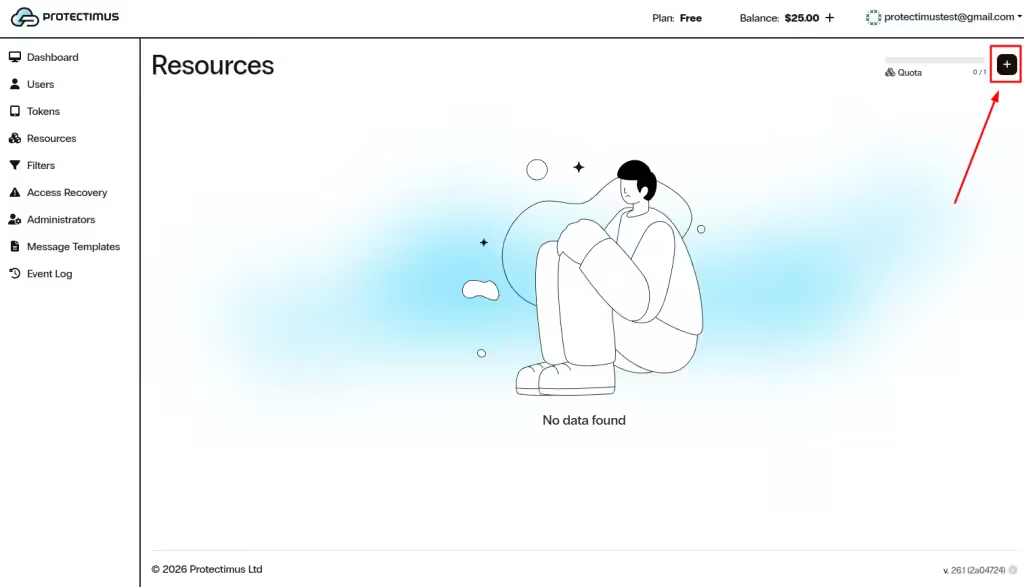
  1. Click the + (Create Resource) button in the upper right-hand corner.

How to Add a Resource in Protectimus SaaS Service - Step 2
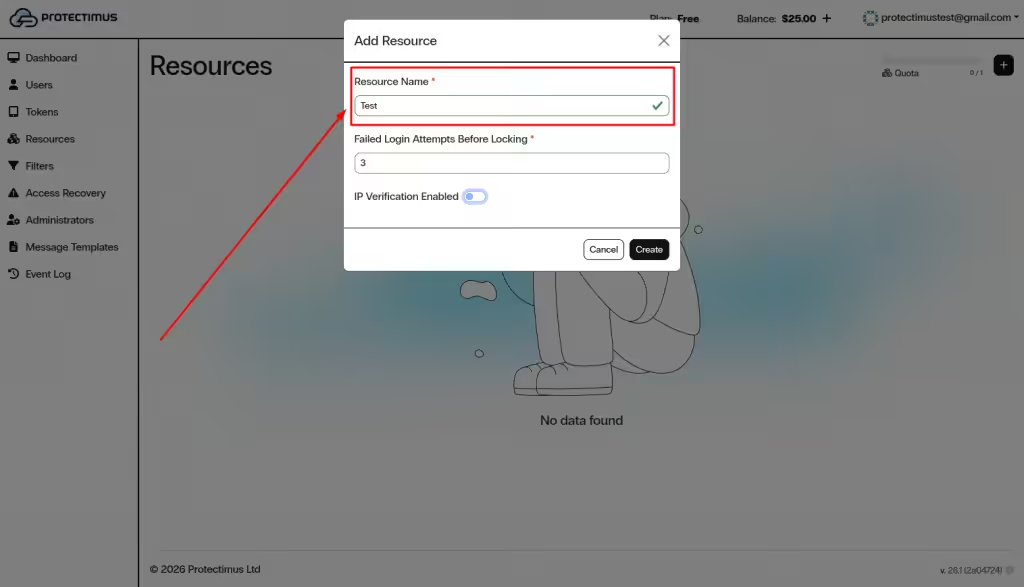
  1. Enter a Resource Name and click Create.

How to Add a Resource in Protectimus SaaS Service - Step 3
  1. You can also configure the following optional settings:

    Failed Login Attempts Before Locking
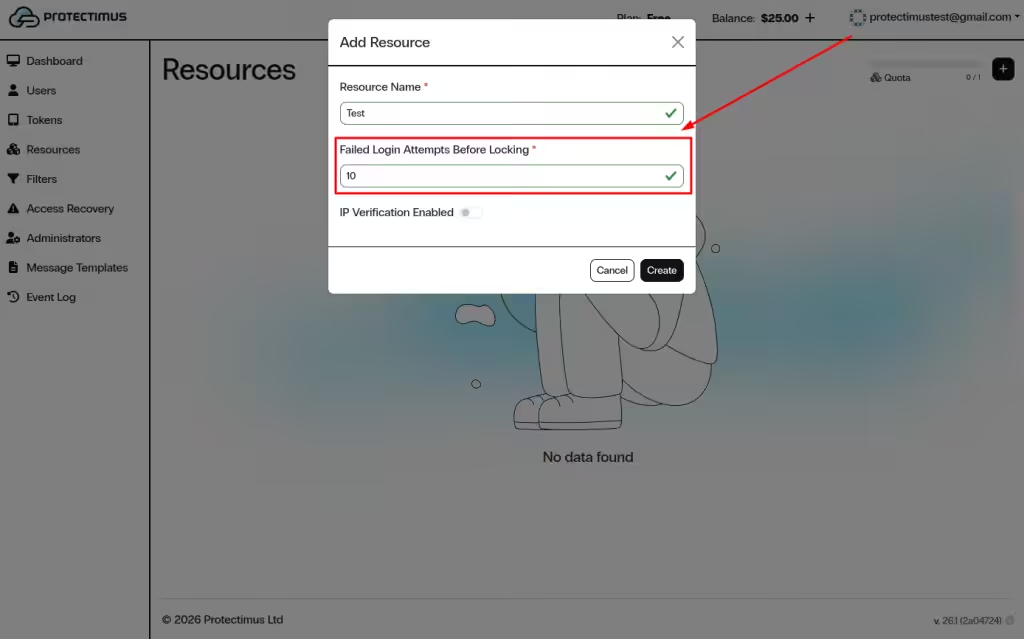
    • Allowed range: 3–10.
    • If the number of failed authentication attempts exceeds this limit, the User is locked.
    • A successful authentication resets the failed attempts counter (if the User is not locked).
    • Users can be unlocked via the web interface or API.

    Failed Login Attempts Before Locking setting

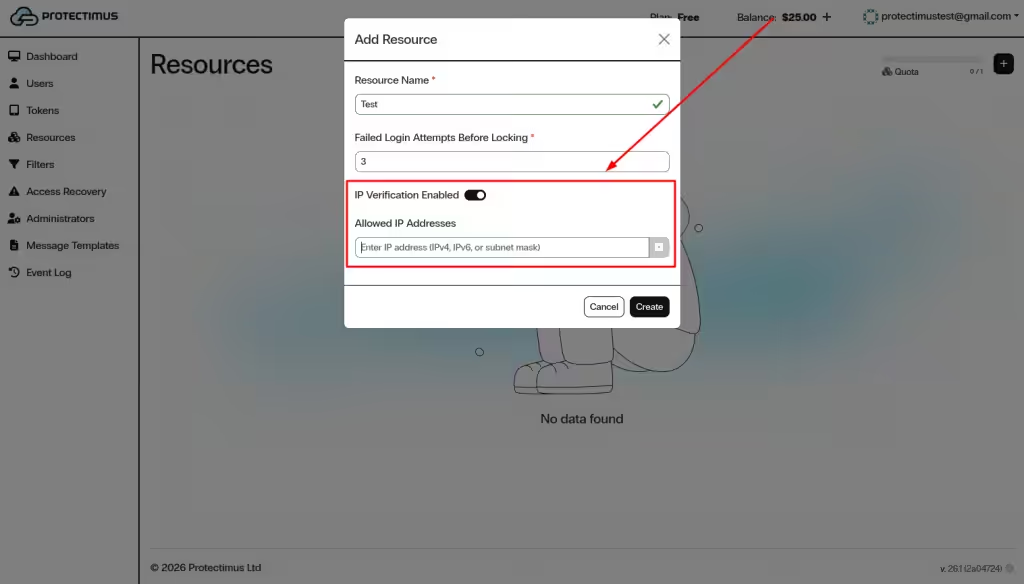
    IP Verification

    • When enabled, Users can access the system only from trusted IP addresses that you specify.

    IP Verification settings

2. Configuring and Managing the Resource


After creating a resource, open its dashboard to configure settings and manage access.

To open the dashboard, go to the Resources page and click the name of the required resource.
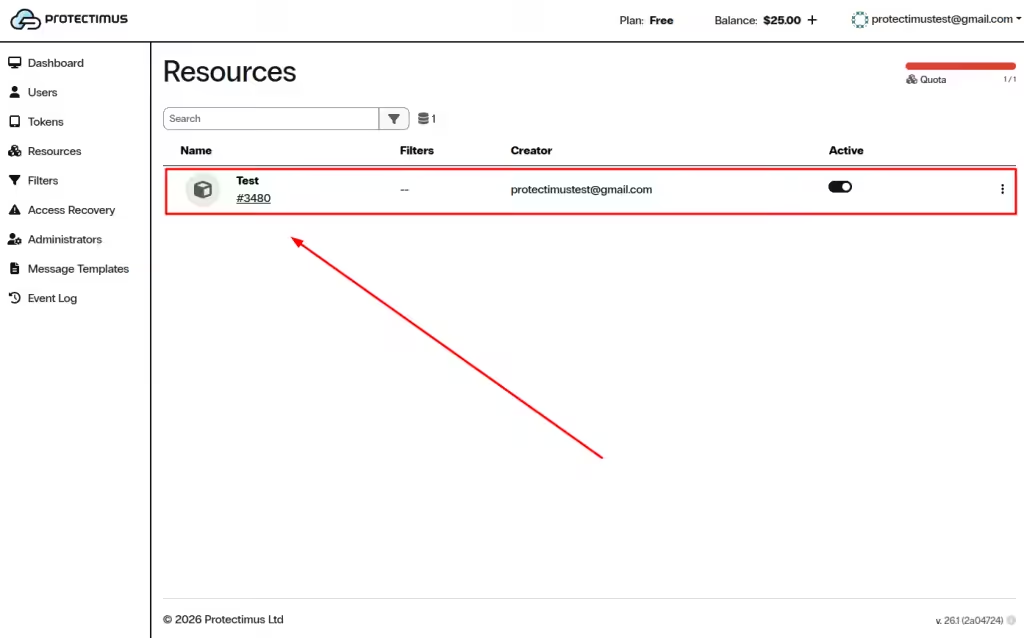

Open Resource Dashboard

The Resource Dashboard includes the following sections:
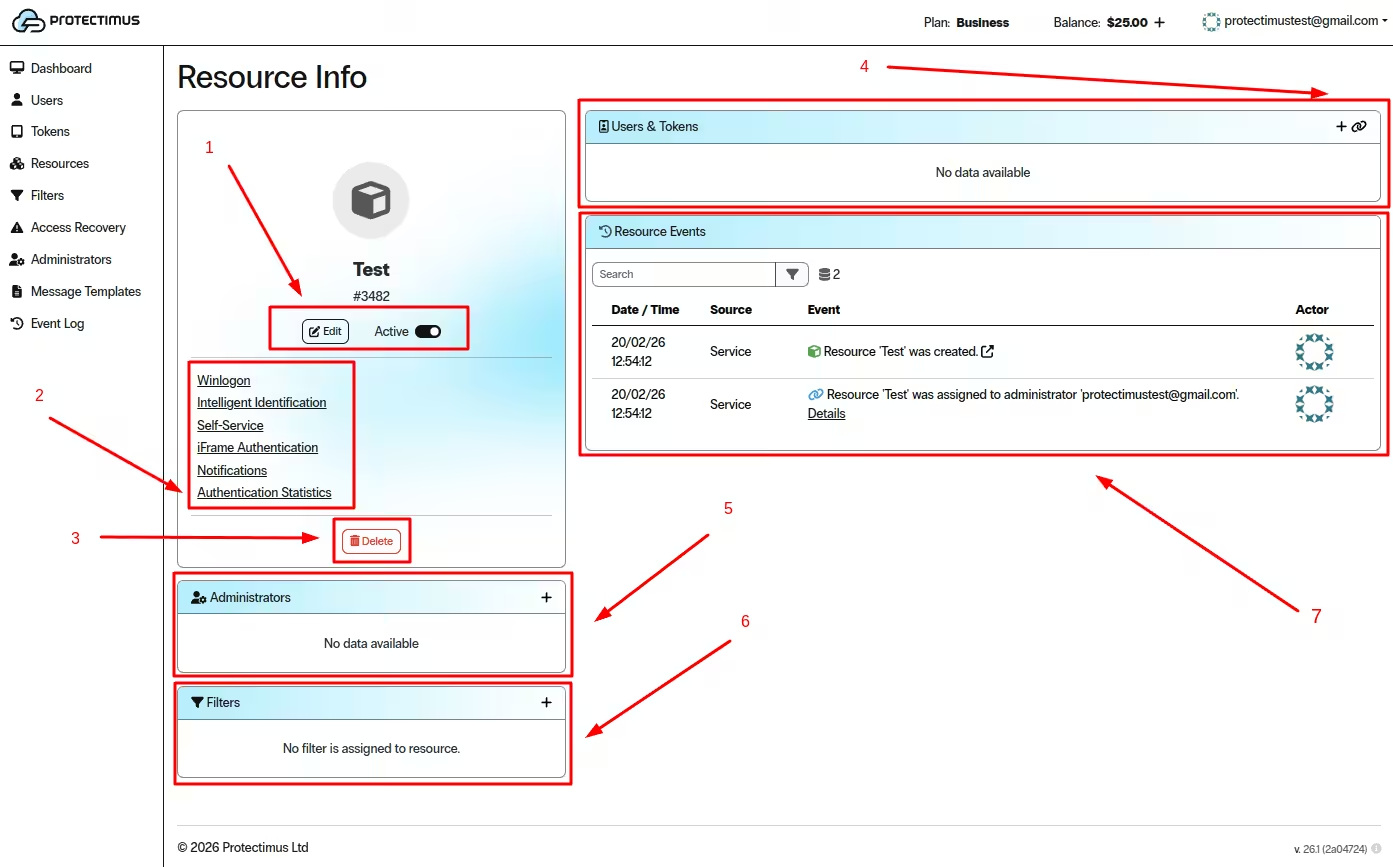

Resource Dashboard overview

1. Edit and Activate the Resource


  • Click Edit to modify resource settings.
  • Use the Active toggle to enable or disable the resource.

2. Configure Resource Features


Use the following sections to configure features and view statistics:

  • Winlogon
  • Intelligent Identification
  • Self-Service
  • iFrame Authentication
  • Notifications
  • Authentication Statistics

Click any section to configure its settings.

3. Delete the Resource


  • Click Delete to permanently remove the resource.

4. Add and Assign Users & Tokens


Users and Tokens must be assigned to the Resource. Otherwise, Users will not have access, and Tokens will not work.
  • Click the + icon to add users or tokens.
  • Use the link icon to assign existing users and tokens.

5. Assign Administrators


  • Click + in the Administrators section to assign administrators.
  • Assigned administrators will be listed here.

6. Apply Filters


  • Click + in the Filters section to assign filters.
  • Active filters will appear here.

7. Monitor Resource Activity


  • The Resource Events section displays all resource activity.
  • Use the search field to filter events.

3. How to Edit or Delete a Resource


  1. Go to the Resources page.

Resources page
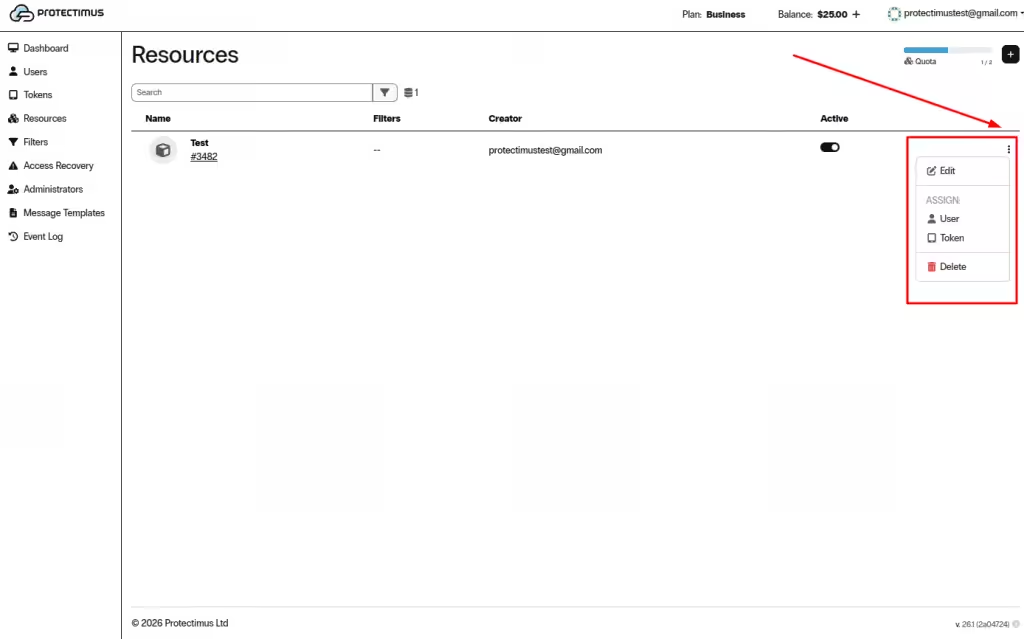
  1. Select the resource and click the three dots on the right.

  2. Choose one of the following options:
    • Edit
    • Assign User or Token
    • Delete

Resource actions menu

4. How to Assign Users and Tokens to a Resource

Users and Tokens must be assigned to the Resource, otherwise Users will have no access to this Resource and Tokens won’t work. Protectimus supports several user authentication methods:
  1. User authentication with a static password. This method requires that a User should have a password, and that this User should be assigned to the Resource.
  2. User authentication with a one-time password. This method requires that a User should have a Token, this Token must be assigned to the User, and both this User and the Token should be assigned to a Resource.
  3. User authentication with a static password and a one-time password. It is a combination of the two methods described above. This method requires that a User should have a Token, this Token must be assigned to the User, and both this User and the Token should be assigned to a Resource. If a User’s Token is deactivated, OTP authentication will not be performed, in which case only this User’s static password and this User’s compliance with the filters’ requirements, if any, will be authenticated.
  4. Token authentication on a resource. This method allows you not to assign a Token to any specific User, but simply to verify the validity of a one-time password generated by the Token. This method requires that a Token should be assigned to a Resource.
 
  1. Go to the Resources page.
  Go to the Resources page in Protectimus SAAS Service  
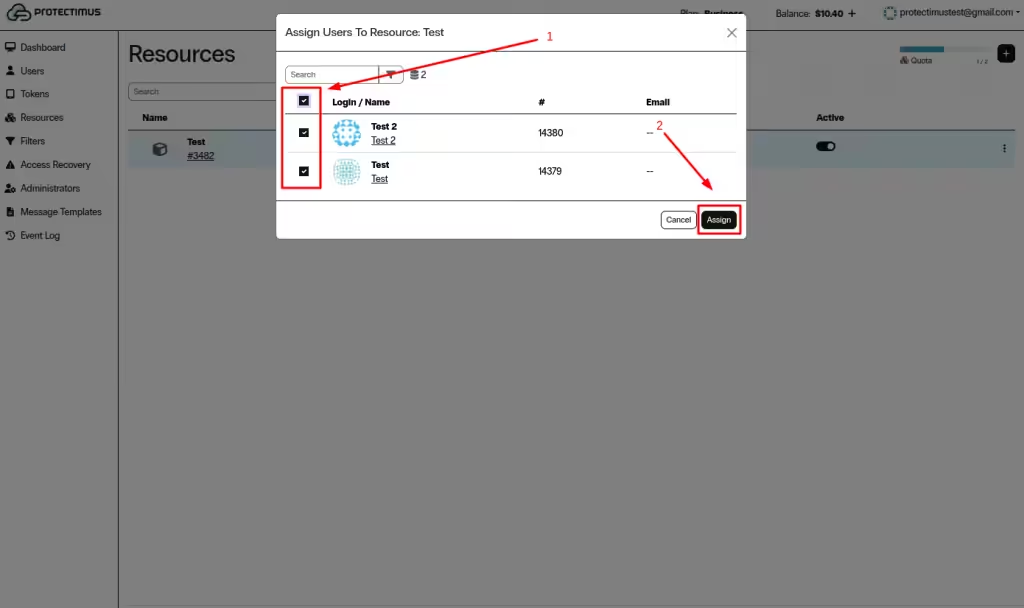
  1. Select the desired resource and click the three dots on the right. Then assign a User or a Token (if users and tokens have already been added).
  How to edit and delete the Resource  
  1. Select the Users and Tokens to be assigned to the Resource, then click Assign.
  How to Assign Users and Tokens to Resource

If you have any questions, please contact Protectimus customer support service.

    This site is registered on wpml.org as a development site. Switch to a production site key to remove this banner.
    Table of Contents