Guide to Setting Up Mail Tokens for Two-Factor Authentication
Protectimus MAIL tokens deliver one-time passwords (OTPs) to users via email. This method is free and easy to deploy because most users already have access to their email accounts.
This guide explains how administrators can configure Protectimus so users can enroll their own Protectimus MAIL tokens through the Protectimus Self-Service Portal.
Before you begin:
- Create a Resource in the Protectimus system.
- Add users and make sure each user has either a password or a registered email address.
- Enable the Self-Service Portal for the Resource.
Detailed instructions are available in the following guides:
How to Enroll a Protectimus MAIL Token via the Self-Service Portal
- Log in to the Protectimus SaaS Service.
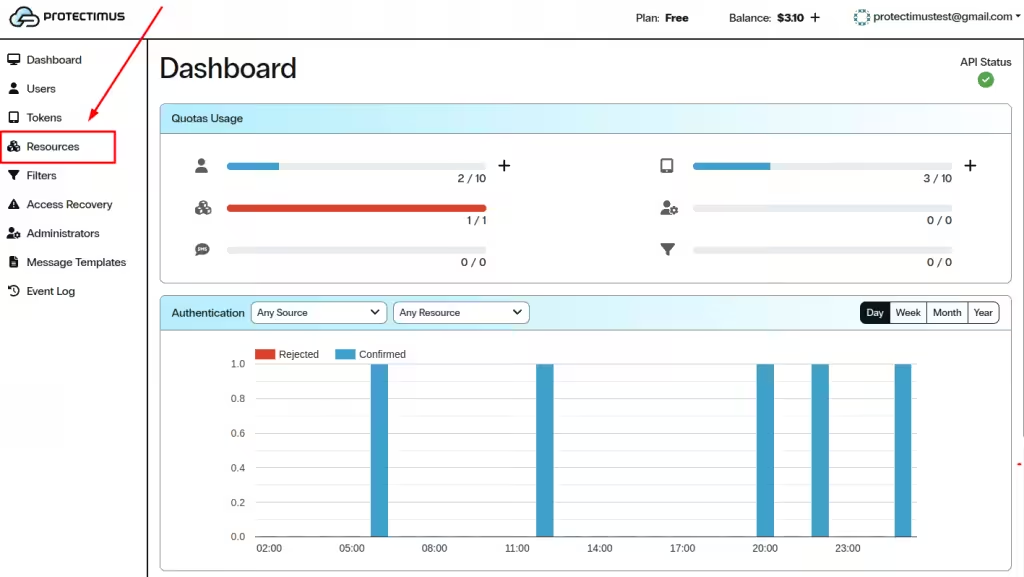
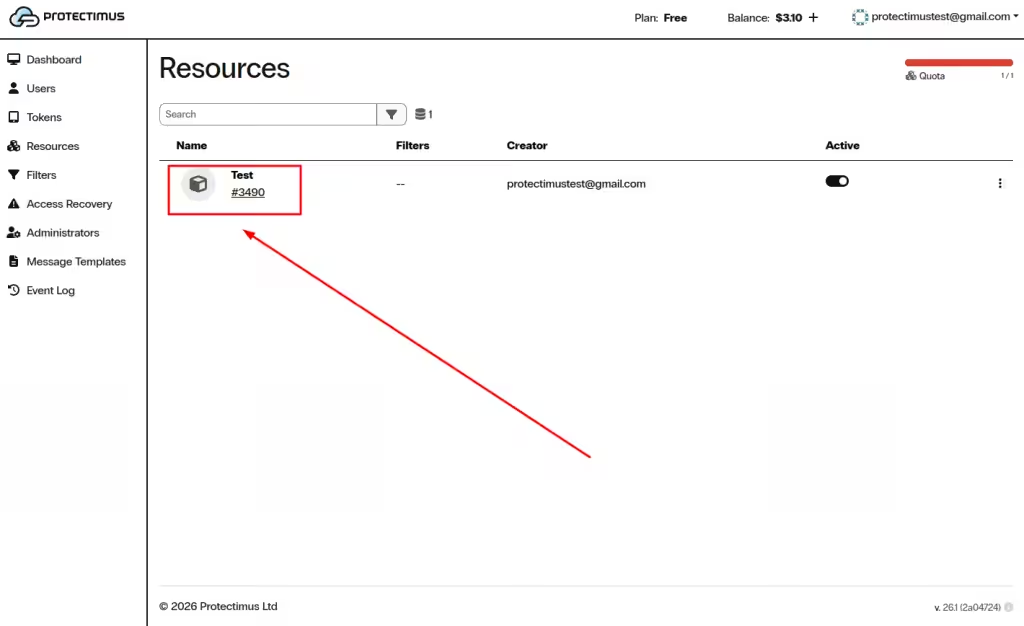
- Open the Resources page and select the required Resource.
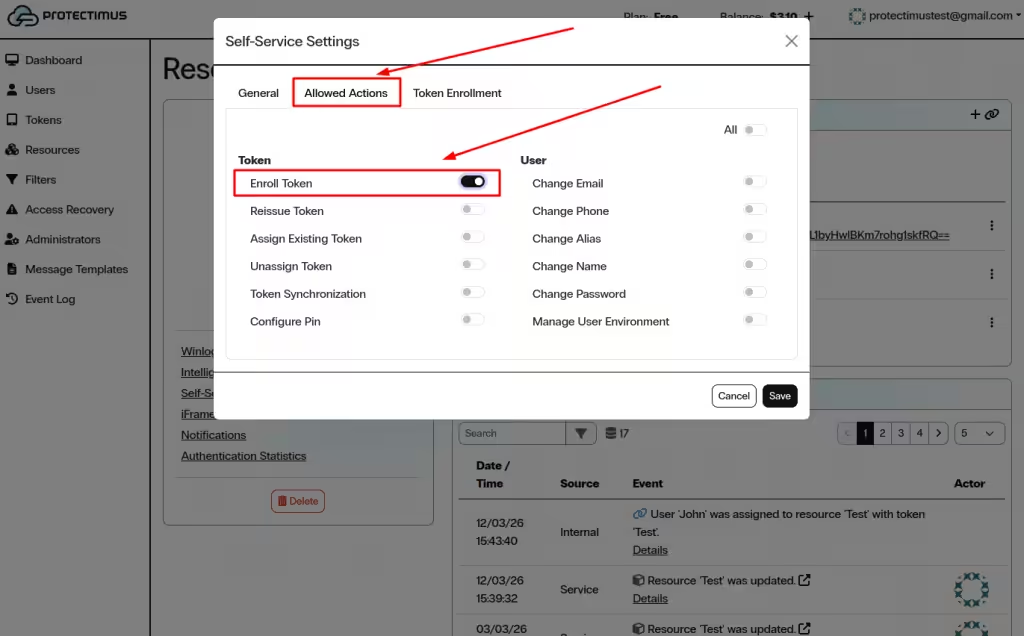
- Enable Enroll Token in the Allowed Actions section.
- Allow MAIL token enrollment in the Token Enrollment tab.
- Provide users with the Self-Service Portal link.
- Users log in to the portal and click Assign New.
- Select MAIL, configure the token, and confirm the email address.
- The MAIL token will appear in the 2nd Factor section after activation.
1. Enable MAIL Token Enrollment in the Self-Service Portal
- Log in to your Protectimus SaaS Service account.
- Open the Resources page and select the required Resource.
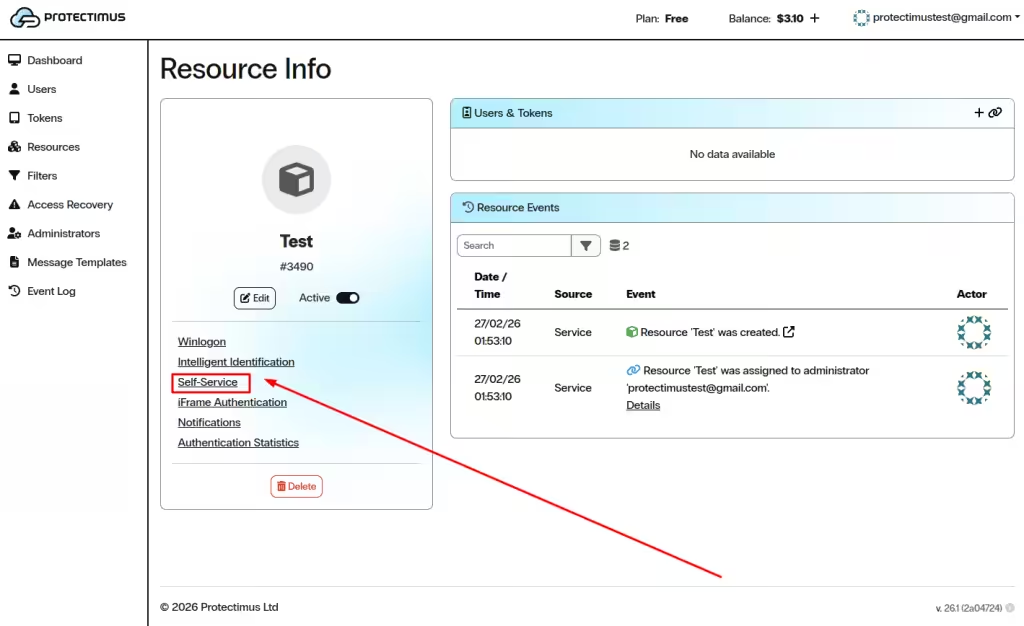
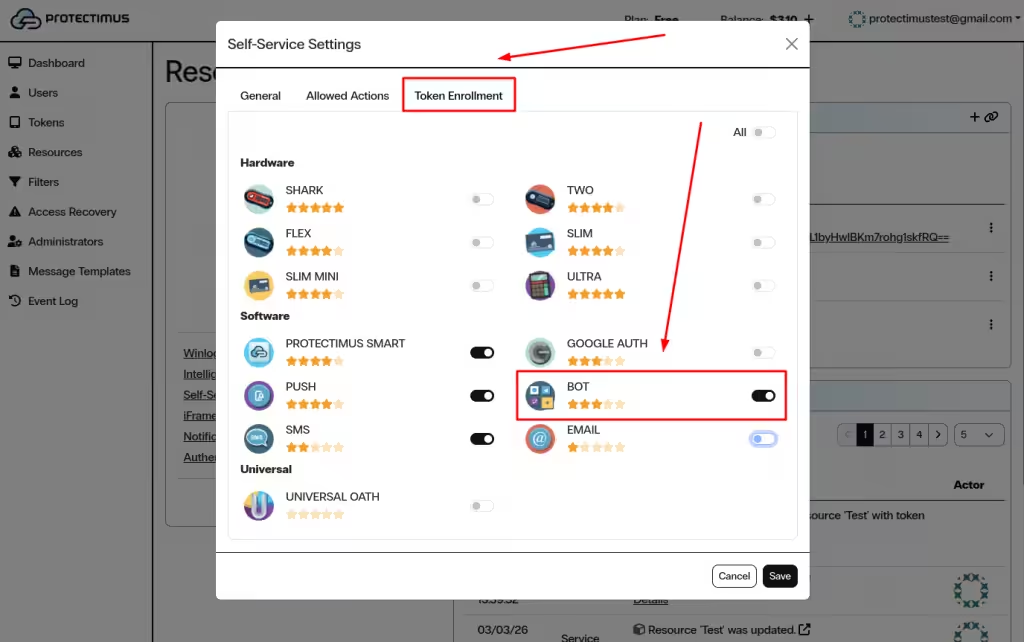
- Open the Self-Service tab.
- In the Allowed Actions section, enable Enroll Token.
- Open the Token Enrollment tab.
- Enable MAIL as an available token type.
- Click Save.
2. Provide Users with Access to the Self-Service Portal
To access the Self-Service Portal, users need:
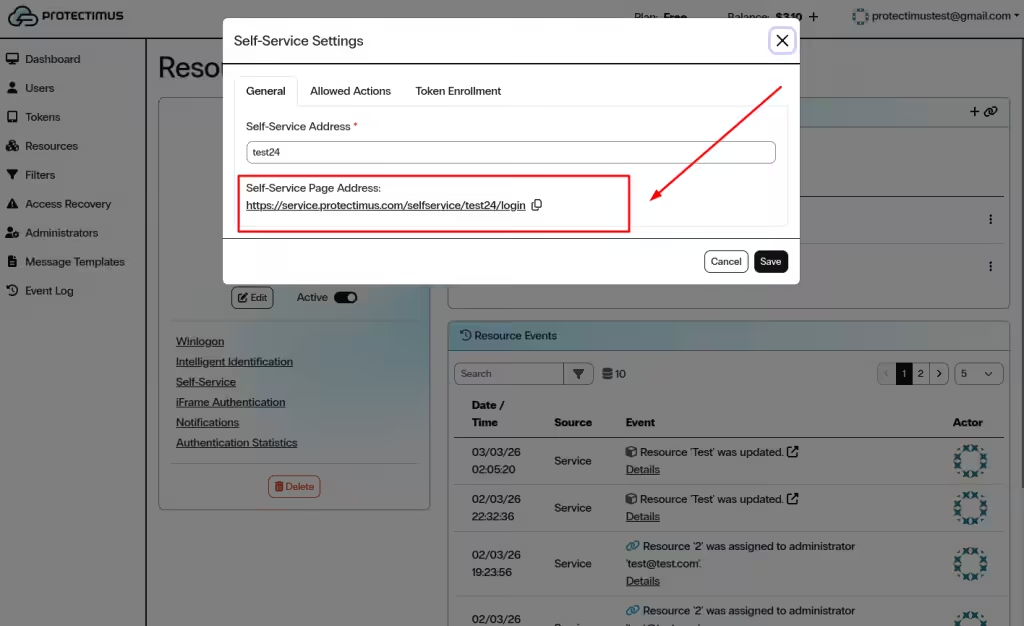
- The Self-Service Page Address generated in the Resource settings.
- Their username and either a password or a registered email address.
Send the Self-Service Portal link to your users and ask them to enroll their tokens. Also inform users which username and password or email they should use to log in to the Protectimus Self-Service Portal.
3. User Guide: How to Enroll a Protectimus MAIL Token
- Open the Self-Service Portal using the link provided by your administrator.
- Log in using your username and password or email verification.
- In the 2nd Factor section, click Assign New.
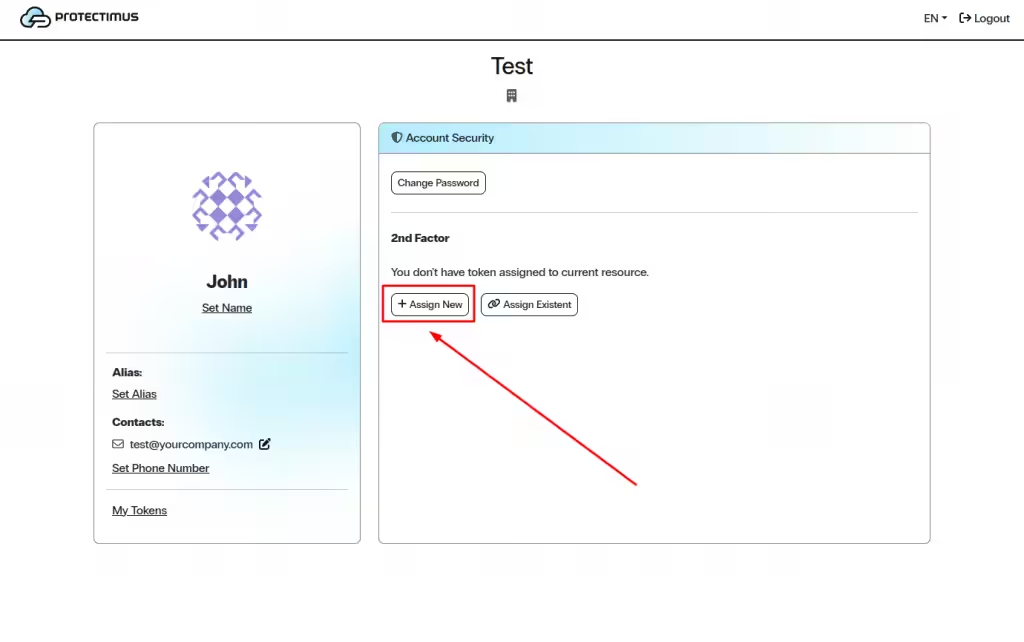
- In the Add Token window, select MAIL.
- Enter the Name of the token.
- Enter your Email Address where OTP codes will be delivered.
- Select the desired OTP Length.
- Click Save.
- A one-time password will be sent to the specified email address.
- Enter the received OTP to confirm activation.
- After successful activation, the MAIL token will appear in the 2nd Factor section.
If you have any questions, please contact Protectimus customer support service.