



Windows Logon and Remote Desktop Protocol (RDP) are among the most common entry points into corporate infrastructure. If these access points are protected only by passwords, attackers can gain access using credential theft, brute-force attacks, or phishing.
Adding two-factor authentication (2FA) significantly improves Windows security by requiring users to verify their identity with a one-time password (OTP) or authentication notification.
This guide explains how to enable two-factor authentication for Windows Logon and RDP using the Protectimus SaaS Service. It covers configuration in the Protectimus console, Winlogon settings, installation of the Winlogon client, and recommended security policies.
You will also learn how to configure automatic token enrollment, enable offline access with backup codes, and manage authentication policies for both local and remote logins.
To protect Windows Logon and RDP access with two-factor authentication, complete the following steps:
The sections below explain each step in detail.
The Protectimus Windows Logon & RDP solution adds two-factor authentication (2FA / MFA) to protect access to computers running Windows locally and over RDP.
This guide covers the setup process for Protectimus SaaS Service with the updated interface.
If you use the Protectimus On-Premise Platform, please refer to the existing guide: Windows Logon & RDP: Securing Access with Two-Factor Authentication.
The solution supports:
- Windows 8;
- Windows 8.1;
- Windows 10;
- Windows 11;
- Windows Server 2012;
- Windows Server 2016;
- Windows Server 2019;
- Windows Server 2022.
Protectimus can secure both local Windows logon and RDP access. It also supports offline access using backup codes.
For additional information, visit the Protectimus Windows and RDP 2FA Solution page.
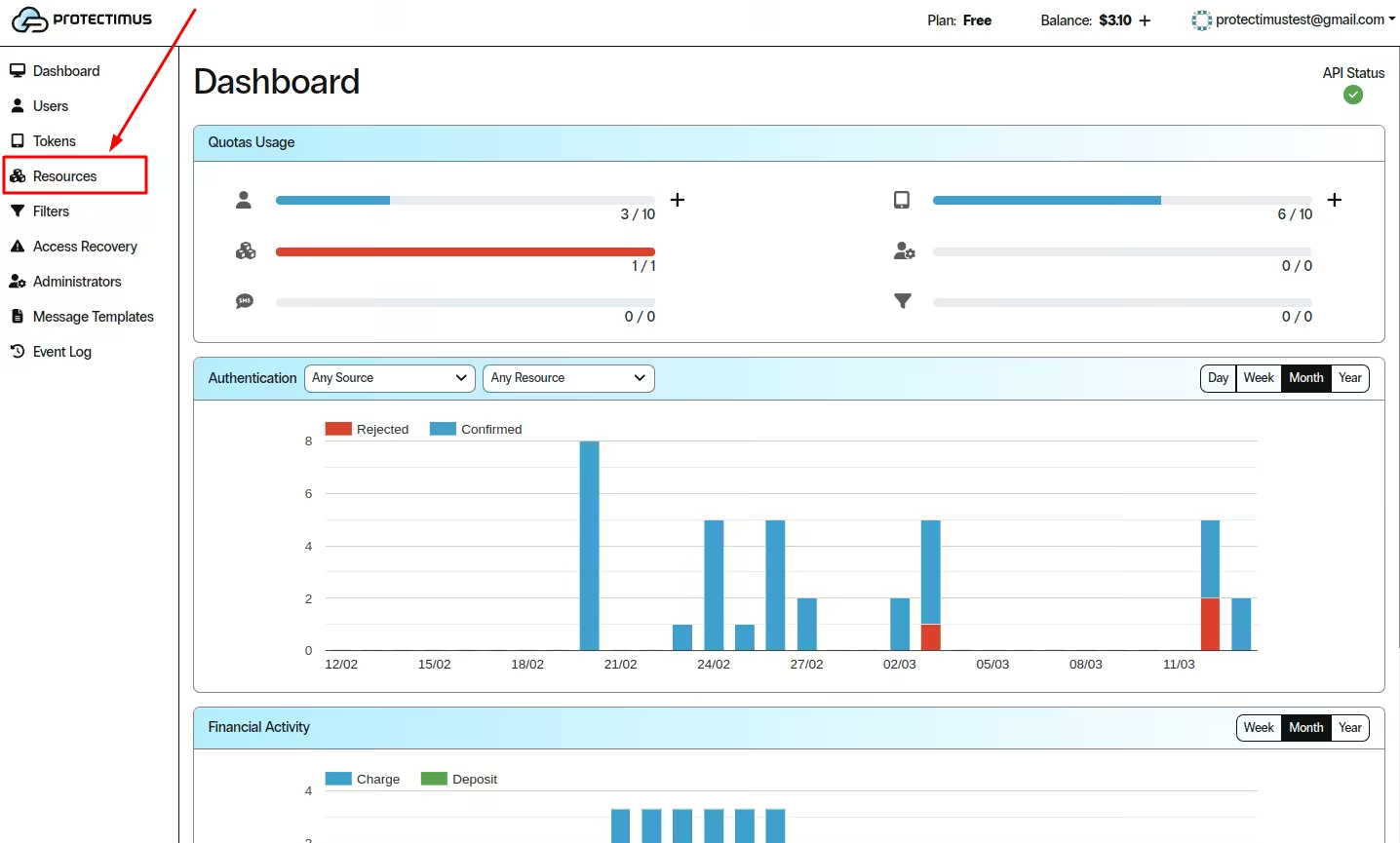
Create an account in the Protectimus Cloud Service and activate API.
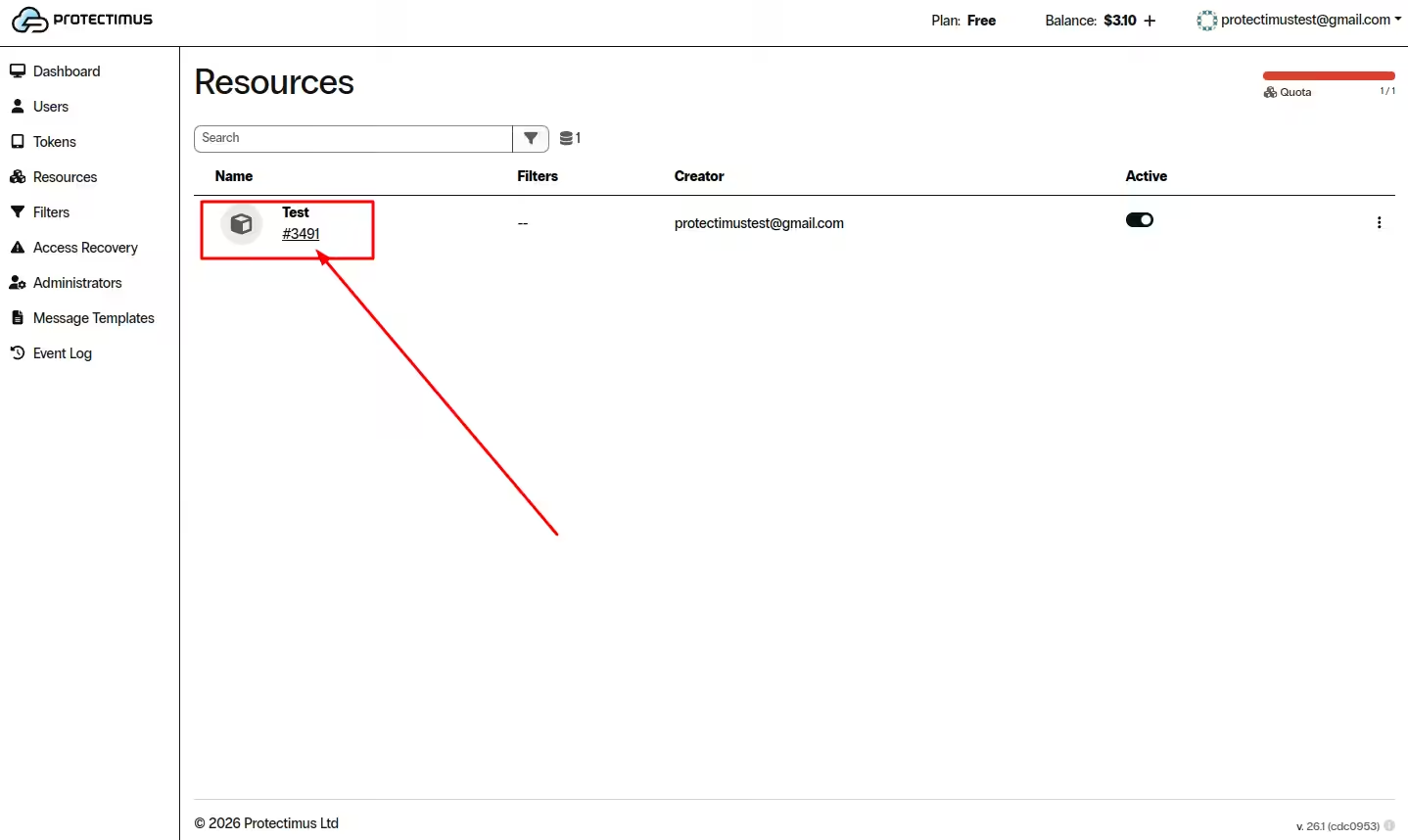
Then create a Resource, add users, and assign users and tokens as needed. Detailed instructions are available in these guides:
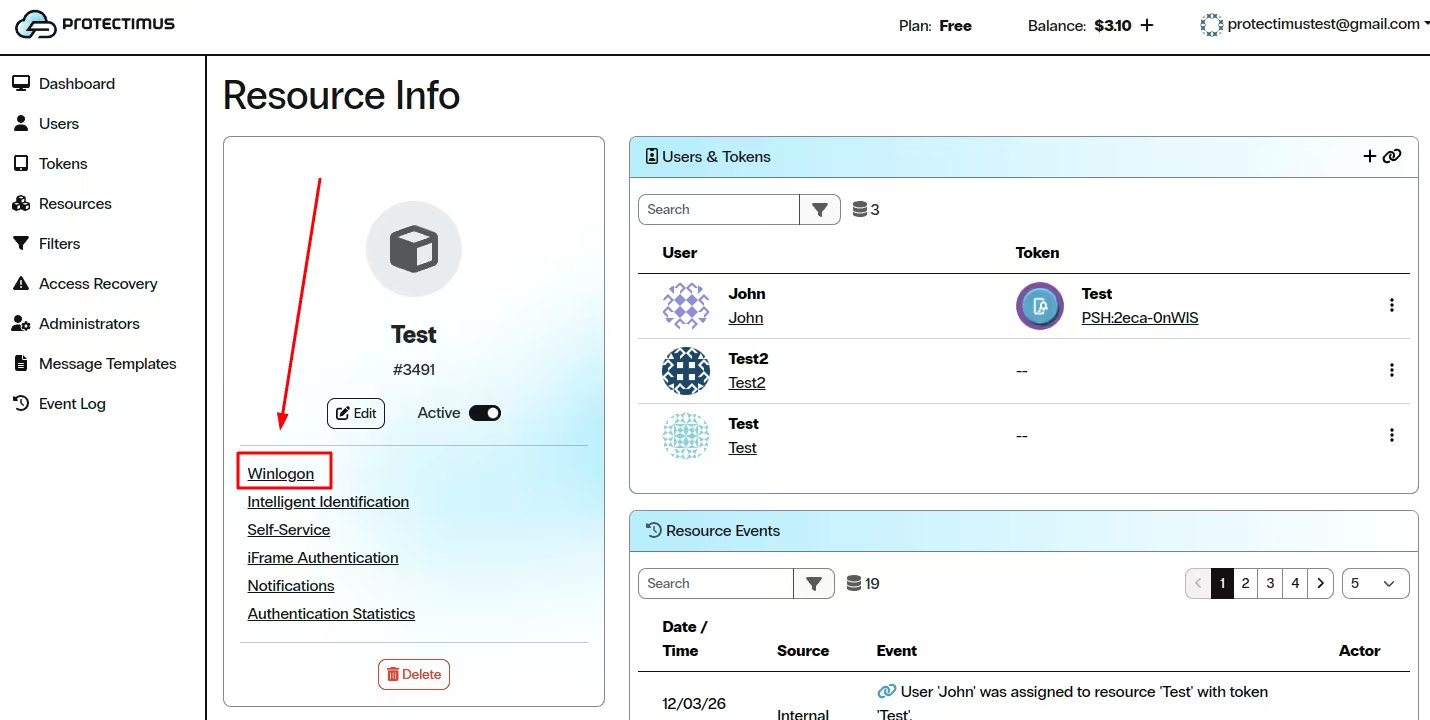
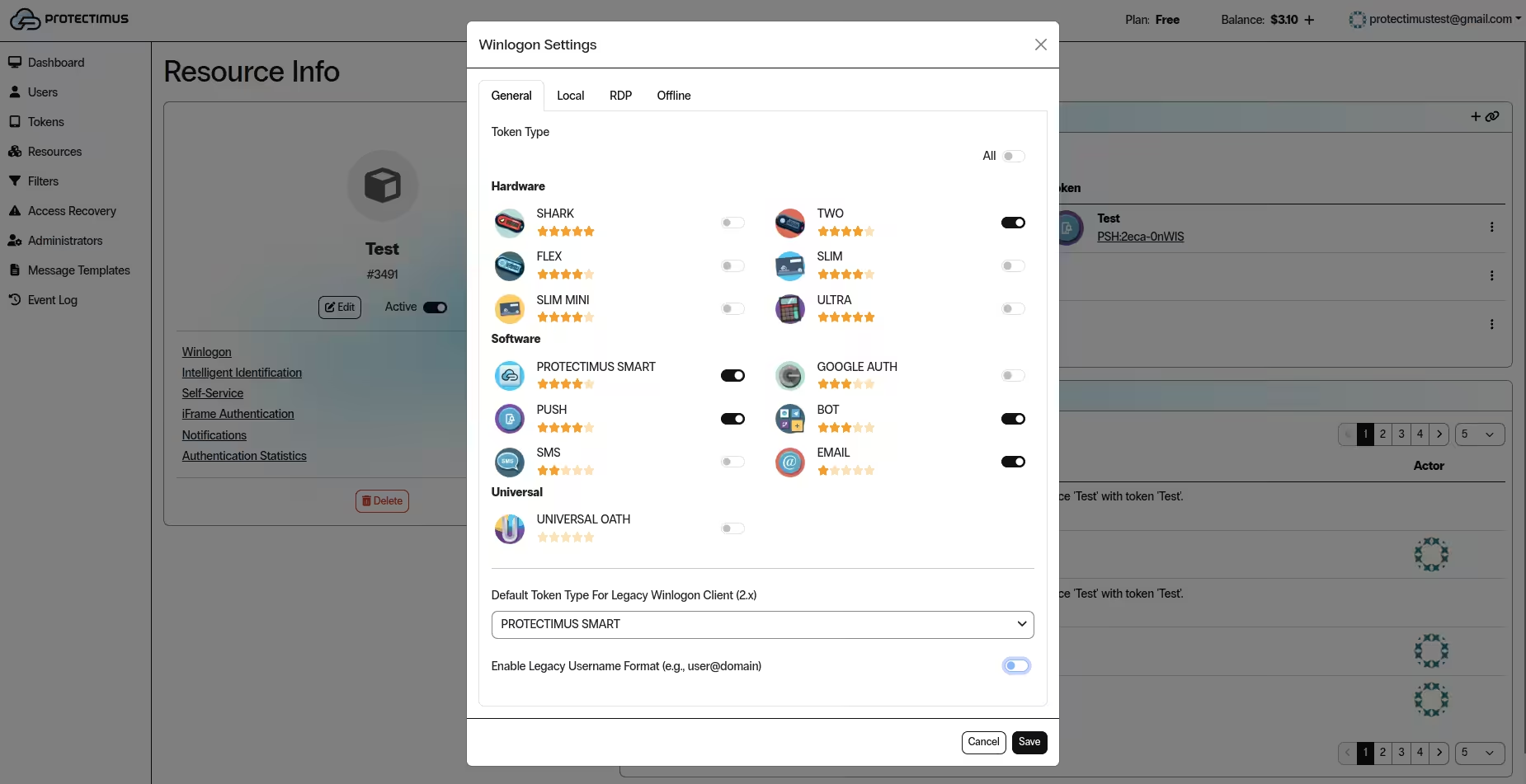
The Winlogon Settings window contains four tabs: General, Local, RDP, and Offline.
On the General tab, choose which token types can be used with Protectimus Winlogon.
We strongly recommend enabling only the token types that are actually required for your deployment.
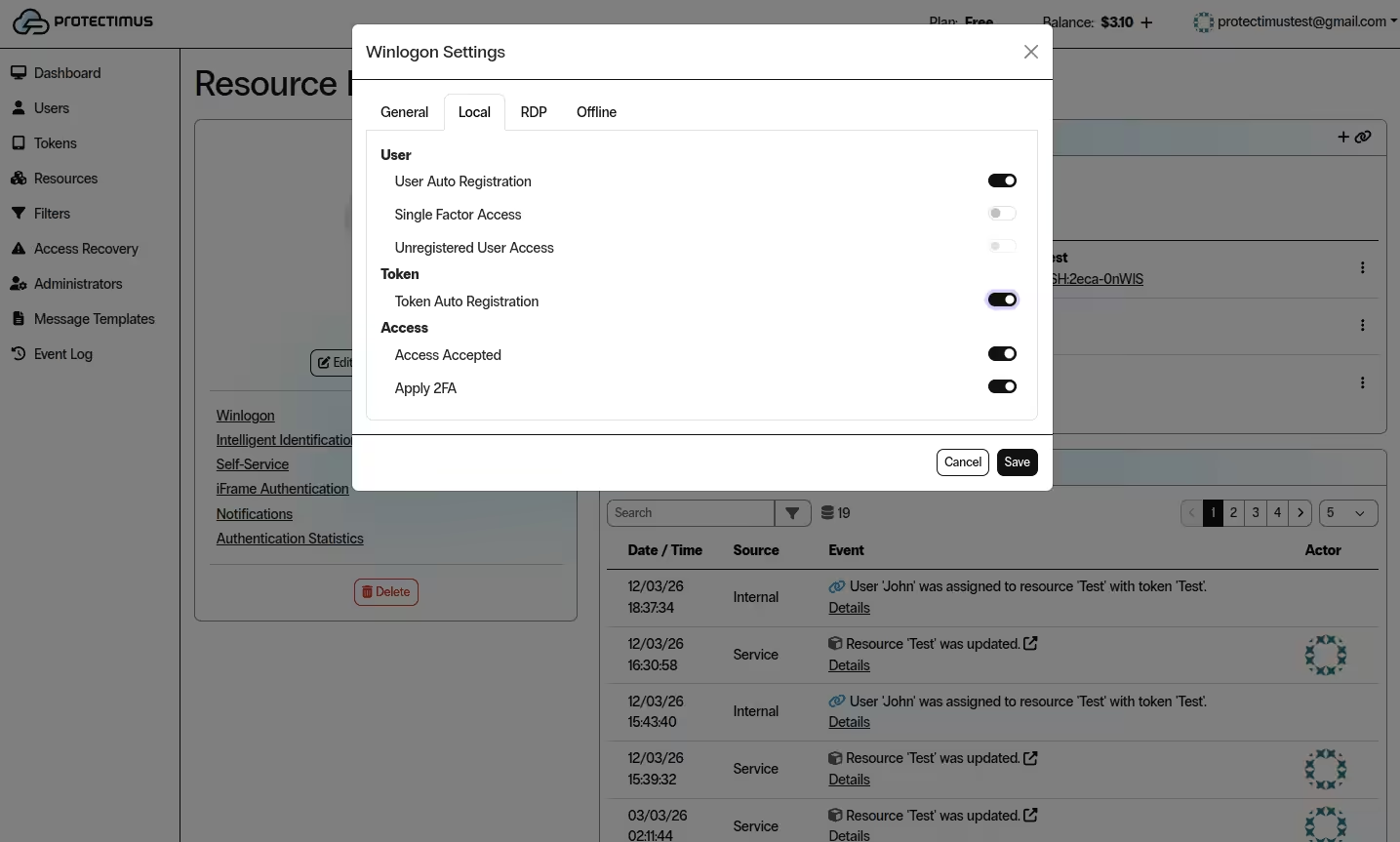
On the Local tab, configure how users authenticate when signing in directly on the Windows computer.
For most deployments, we recommend enabling User Auto Registration, Token Auto Registration, Access Accepted, and Apply 2FA.
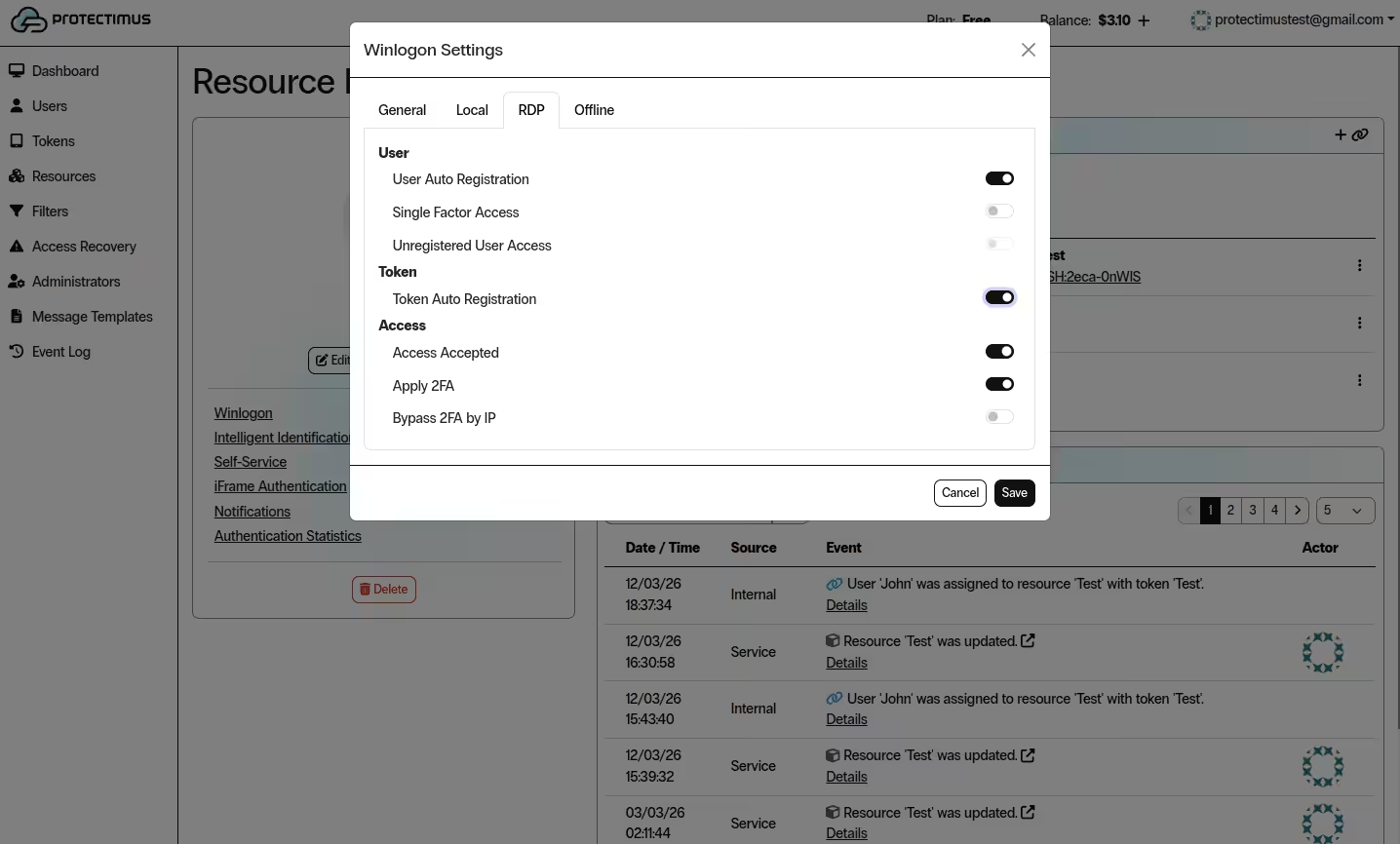
On the RDP tab, configure how users authenticate when connecting over Remote Desktop Protocol.
PLEASE NOTE! RDP access is denied until Access Accepted is enabled on the RDP tab.
To protect RDP with two-factor authentication, enable both Access Accepted and Apply 2FA.
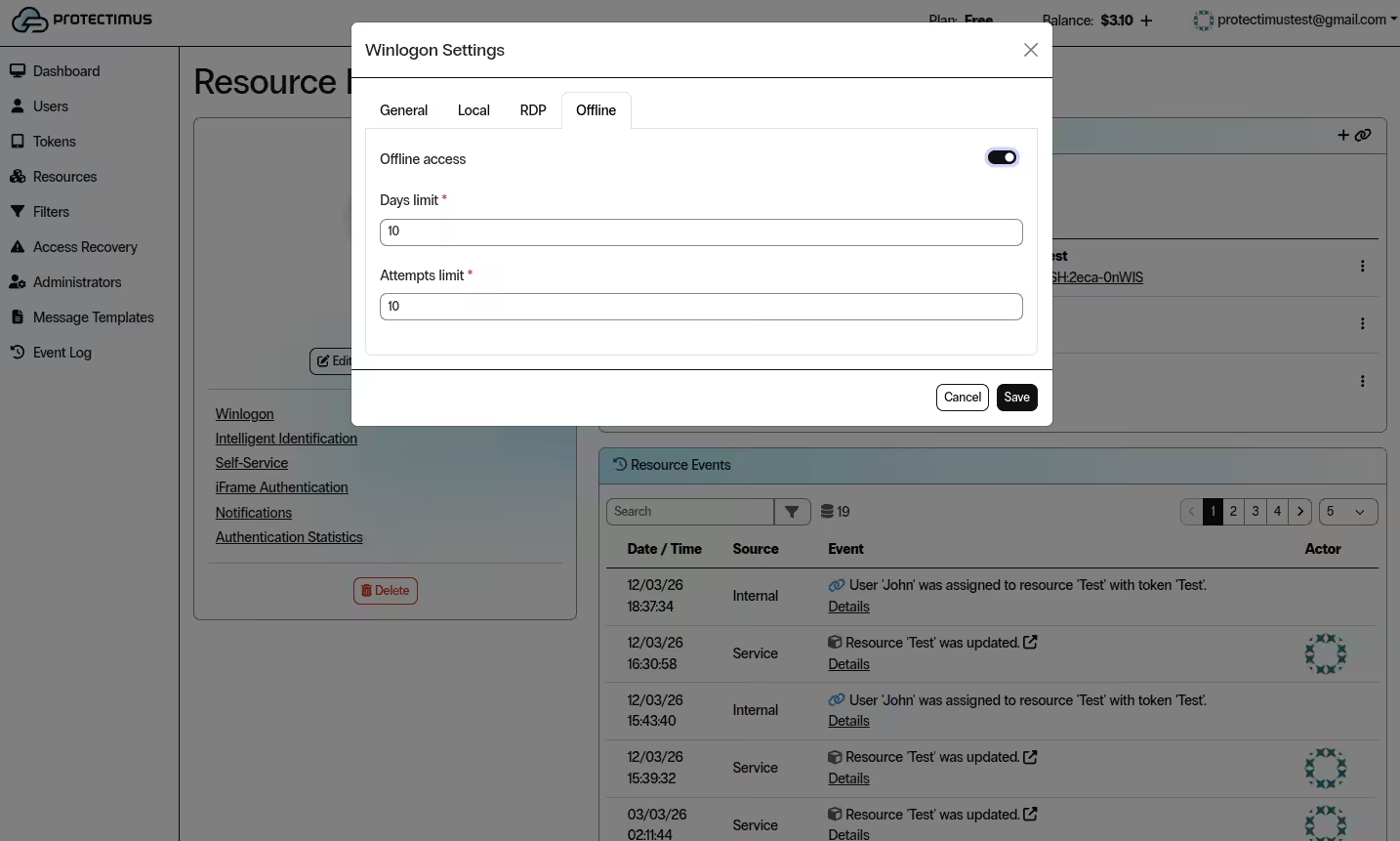
On the Offline tab, configure backup access when the computer has no Internet connection.
If offline access is enabled, users can sign in with a backup code instead of a one-time password when the computer cannot connect to the Internet.
If you want users to enroll their own tokens during first sign-in, use this recommended setup:
This configuration allows users to log in with their usual Windows credentials first and then complete token enrollment automatically.
PLEASE NOTE! You may use different settings for local Windows logon and for RDP access.
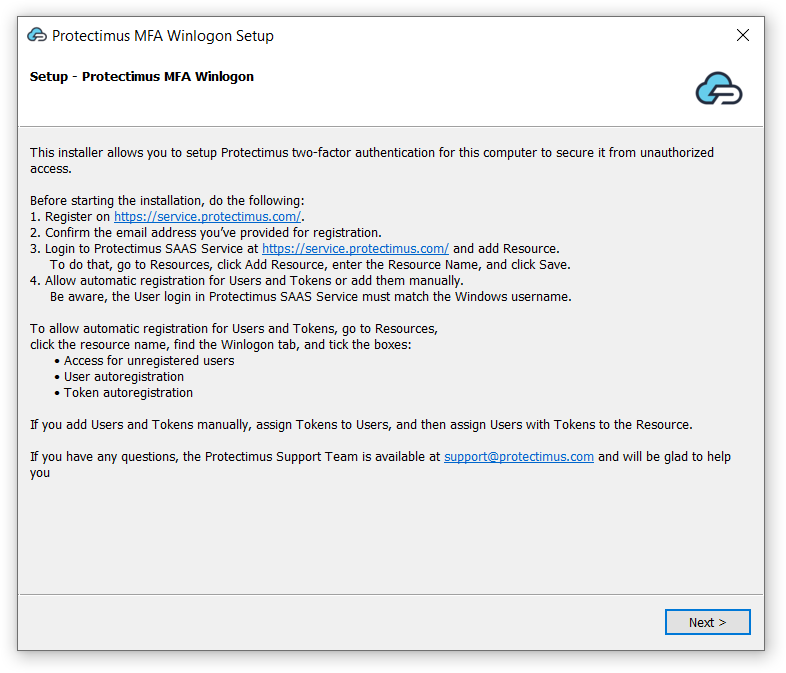
If you do not want to use automatic registration, add and assign users and tokens manually.
ATTENTION!
The user login in Protectimus must match the Windows username format expected by your environment.
For local Windows accounts, the login in Protectimus should match the Windows username exactly.
For Active Directory environments, usernames may need to use the form login@domain, depending on your configuration.
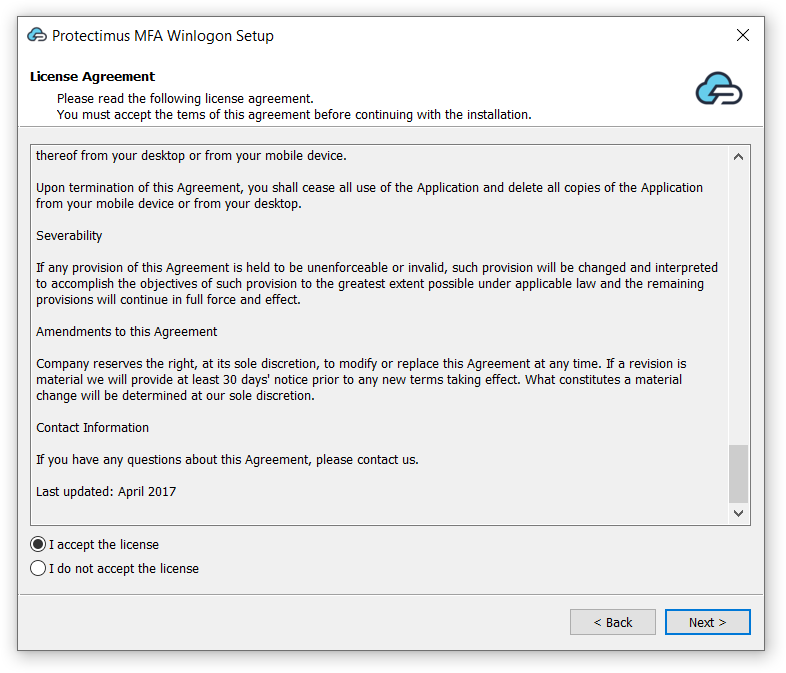
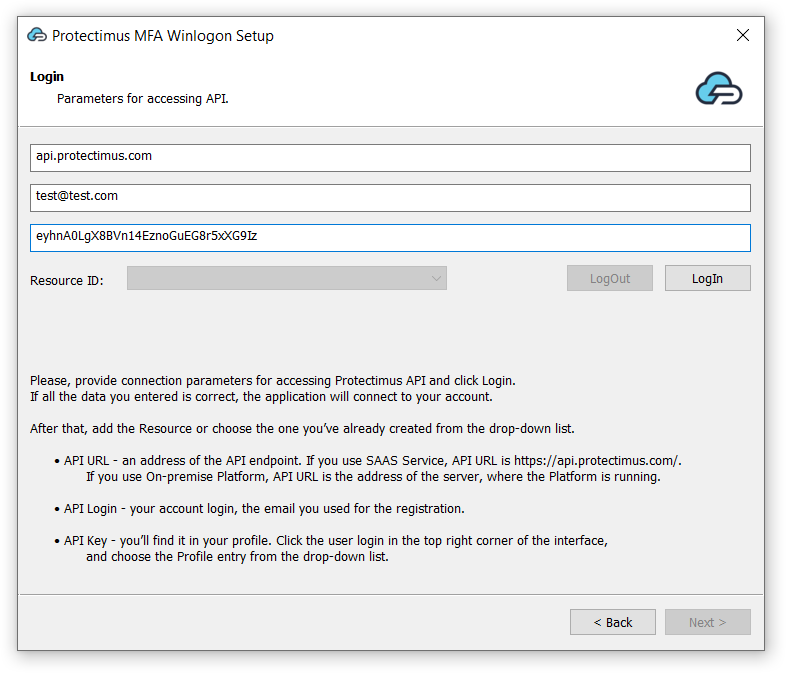
These parameters mean:
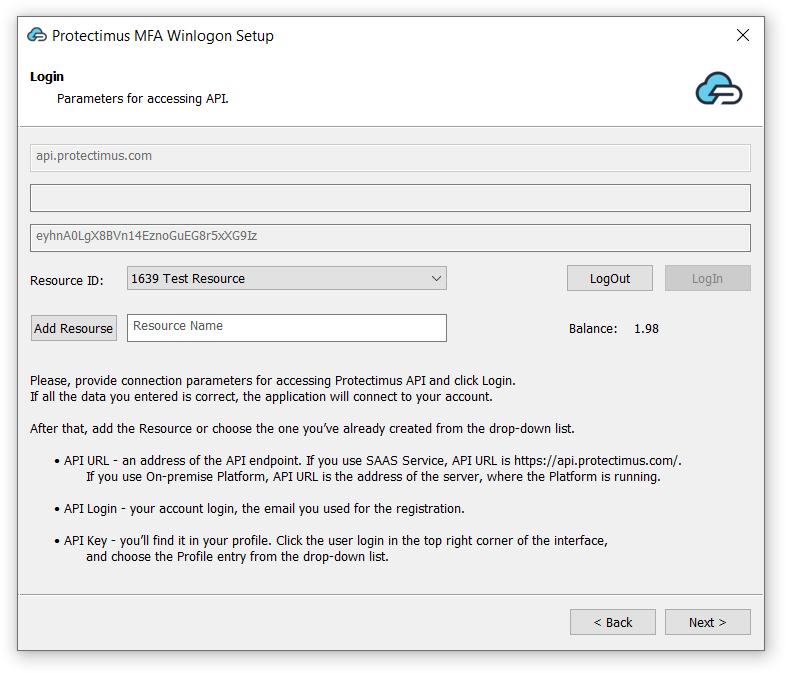
If you have not added the Resource yet, create it first in Protectimus SaaS Service.
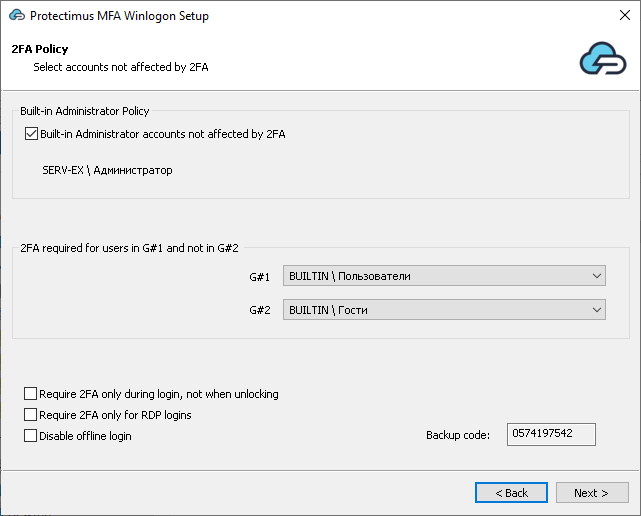
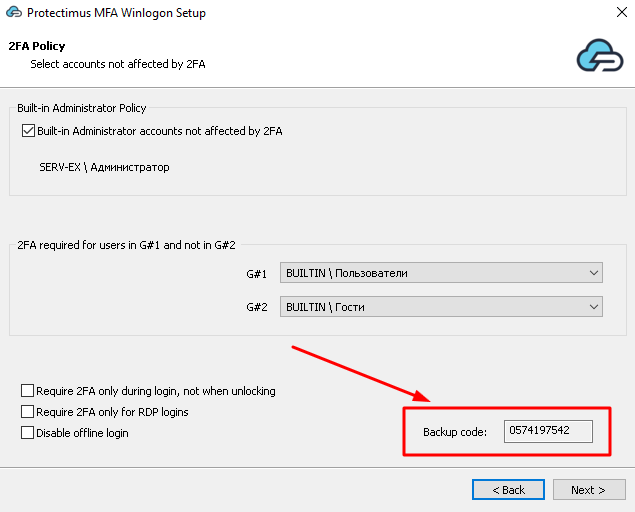
Configure the 2FA policy and save the backup code if needed. By default, two-factor authentication is applied to all accounts on this computer except the built-in Administrator and guest accounts.
ATTENTION!
When a backup code is used, a new one is generated. Save the new code for the next offline login. The backup code works for all accounts on the same computer.
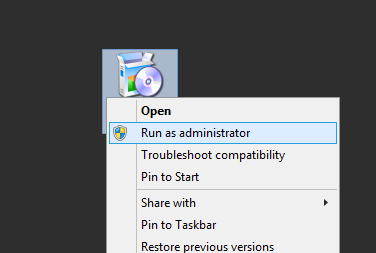
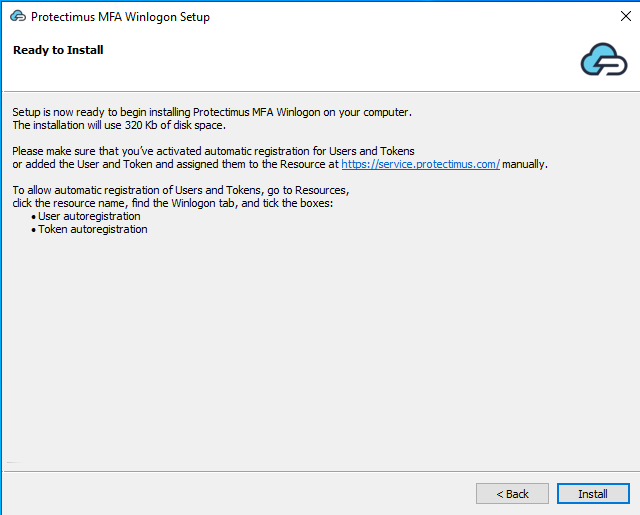
If this is not a domain controller, just click Install.
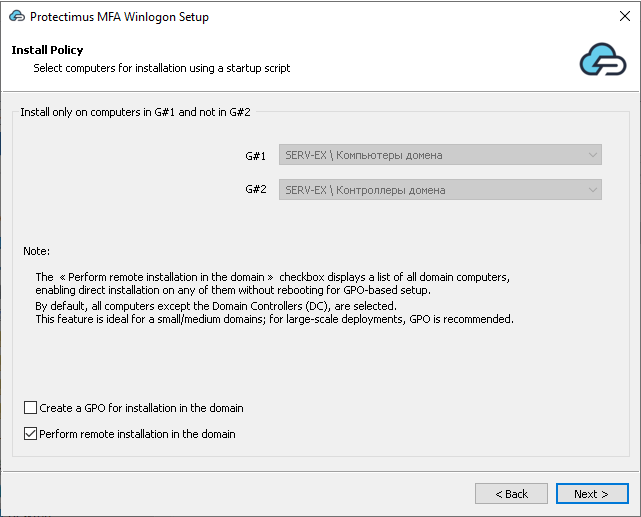
If you install Protectimus Winlogon & RDP 2FA on a domain controller, you will see two additional options:
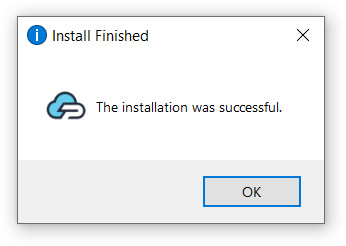
After the installation is completed, click OK. Two-factor authentication will be enabled the next time the computer starts.
For Protectimus Winlogon to work normally, the computer must be connected to the Internet.
If the Internet connection is unavailable, users can sign in with a backup code instead of a one-time password.
The first backup code is issued during installation. This code is valid for all accounts registered on the same computer. It can be used only once. After that, a new backup code is generated.
ATTENTION! When a user logs in with a backup code, a new code is generated. Save it for the next offline login. The new code is also valid for all accounts on this computer.
If users lose the backup code, they can generate a new one while online. For this, your chief Protectimus account administrator should request a special utility from support@protectimus.com.
To use the utility:
If you encounter problems, first check the Windows system logs: Event Viewer → Windows Logs → Application.
You can also review relevant events in your Protectimus account.
If there is no access to the Windows account, you can disable the Protectimus Winlogon application in Safe Mode.
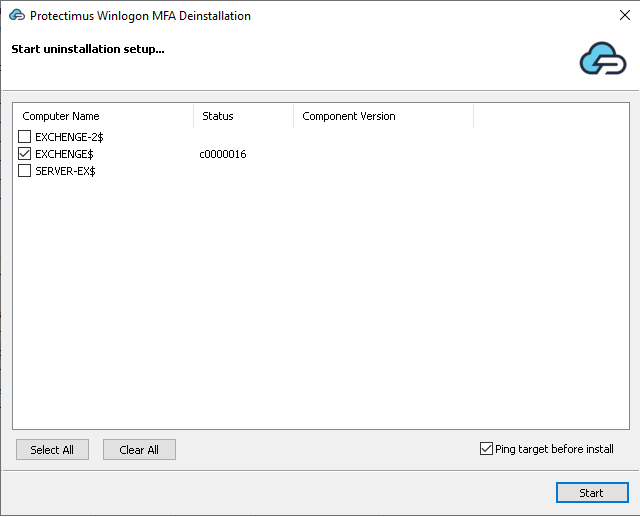
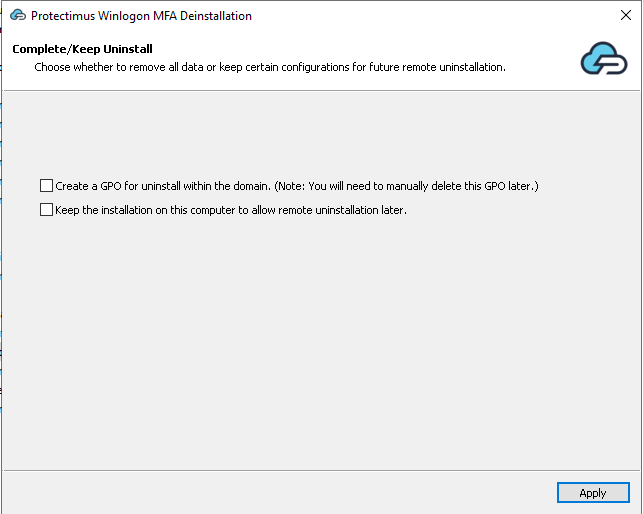
ATTENTION!
If you create a GPO to uninstall Protectimus Winlogon & RDP on all machines in your domain, delete this GPO manually after the uninstallation is finished.
If you do not remove the uninstall GPO manually, it may cause problems when you install the component again later.
Yes. Protectimus supports Windows Server 2012, 2016, 2019, and 2022, allowing administrators to protect both local logon and RDP access.
Yes. Protectimus Winlogon allows administrators to require one-time passwords for Remote Desktop logins, helping prevent unauthorized access.
If the computer has no Internet connection, users can sign in using a backup code generated during installation.
Yes. Administrators can enable User Auto Registration and Token Auto Registration so users can enroll their tokens during the first login.
Protectimus supports several token types, including mobile OTP apps, hardware tokens, SMS OTP, and messenger-based tokens, depending on your configuration.










