How to Add OATH Hardware Tokens to Microsoft Entra ID
Last updated: November 2, 2026
There are two ways to add OATH hardware tokens to Microsoft Entra ID. The Microsoft Graph method, which Microsoft now recommends, uploads tokens to a tenant-wide inventory, supports both SHA-1 and SHA-256, works with the Authentication Policy Administrator role instead of Global Administrator, and lets users assign and activate tokens on their own. The legacy CSV upload in the Entra admin center handles SHA-1 tokens only, requires a Global Administrator, and every token has to be activated by hand. Classic tokens with pre-installed seeds, such as Protectimus Two, need an Entra ID P1 or P2 license either way.
Microsoft Entra ID supports hardware OATH-TOTP tokens for multifactor authentication. Depending on the enrollment method, you can use SHA-1 or SHA-256 tokens with a 30- or 60-second time interval.
Please note: you need a Microsoft Entra ID Premium P1 or P2 license to add classic OATH TOTP hardware tokens with pre-installed secret keys.
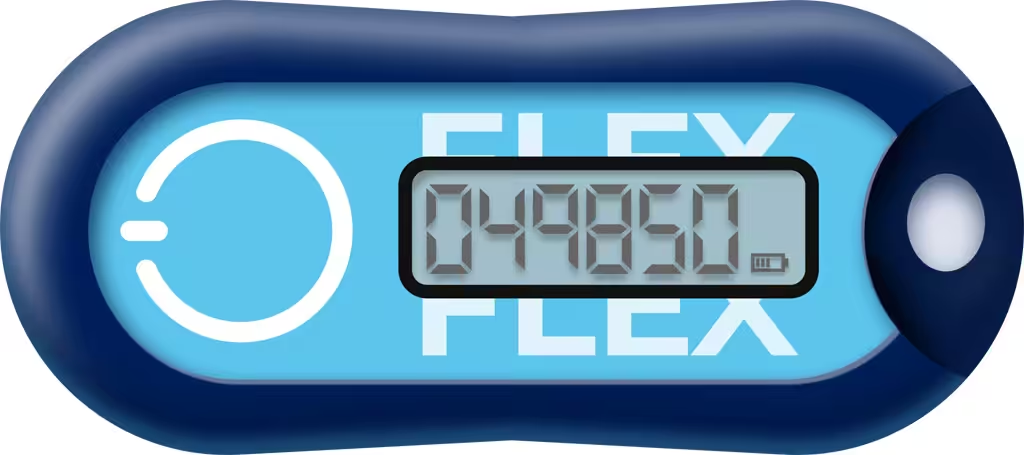
If you don’t have a Microsoft Entra ID Premium P1 or P2 license, use programmable TOTP tokens such as Protectimus Slim NFC or Protectimus Flex, which you can add as if they were an authenticator app.
There are currently two ways to add classic OATH hardware tokens to Microsoft Entra ID:
- Import tokens using a CSV file in the Microsoft Entra admin center. This is the legacy method inherited from Azure MFA. It supports SHA-1 tokens and requires an administrator to assign each token to a specific user in the CSV file and then activate each token manually.
- Add tokens using Microsoft Graph. This newer method is currently in preview and supports both SHA-1 and SHA-256 hardware tokens. You can add tokens to the tenant inventory without assigning them to users in advance, allowing users to self-assign and activate their tokens.
Microsoft currently recommends the Microsoft Graph approach for adding hardware OATH tokens, while CSV upload remains available as an alternative for existing deployments.
The instructions below describe both methods.
Before You Start: Requirements
You need a Microsoft Entra ID Premium P1 or P2 license and compatible Protectimus OATH-TOTP hardware tokens, such as
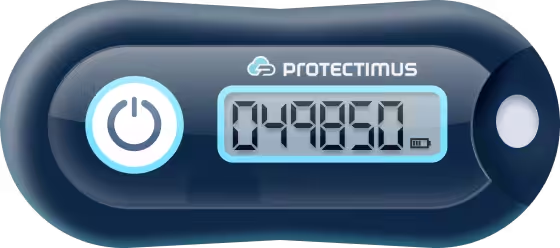
Protectimus Two with SHA-1 or
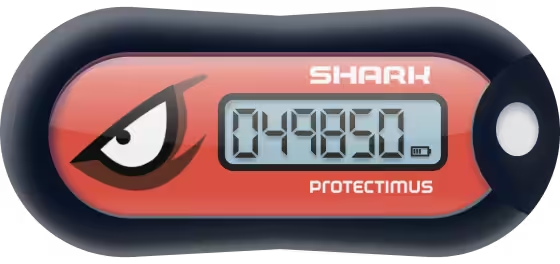
Protectimus SHARK with SHA-256. Microsoft Entra supports tokens that generate 6-digit codes with a 30- or 60-second refresh interval. SHA-256 tokens such as SHARK can only be added through the Microsoft Graph method.
Admin roles depend on the method. CSV upload is reserved for a Global Administrator. The Microsoft Graph method runs on least-privileged roles: an Authentication Policy Administrator enables the policy and adds tokens to the inventory, while assigning a token to a specific user takes an Authentication Administrator (or a Privileged Authentication Administrator if the target account is itself an admin).
Some limits apply no matter which method you pick. A token can be assigned to one user only. Each user can have up to five OATH hardware tokens or authenticator apps registered at the same time. And hardware OATH tokens can’t be assigned to guest users in a resource tenant.
CSV Import vs Microsoft Graph: Which Method to Use
| Criterion |
CSV import (legacy) |
Microsoft Graph (preview) |
| Where you work |
Entra admin center, OATH tokens page |
Graph Explorer or any Graph client |
| Hash algorithms |
SHA-1 |
SHA-1 and SHA-256 |
| Minimum admin role |
Global Administrator |
Authentication Policy Administrator |
| Token-to-user assignment |
Fixed in the CSV at upload time |
Optional; tokens can sit unassigned in the inventory |
| Activation |
Admin activates each token manually |
Admin, or the user via Security info |
| Management after upload |
Entra admin center |
Microsoft Graph only |
| Compatible with new preview features |
No |
Yes |
| Practical fit |
A small batch of SHA-1 tokens for known users |
Bulk rollouts, SHA-256 tokens, delegated or self-service enrollment |
For a new deployment, the Graph method is the one to plan around. CSV still has its place when a handful of SHA-1 tokens is going to named users and nobody wants to open Graph Explorer. What you shouldn’t do is upload the same token both ways: it ends up registered twice on the user’s account, and cleaning that up takes several Graph calls (see
Troubleshooting below).
Method 1. Import OATH Hardware Tokens Using a CSV File
The CSV import method is the traditional way to add hardware OATH tokens to Microsoft Entra ID. It can be used with
SHA-1 OATH-TOTP tokens, such as Protectimus Two.
With this method, each token is assigned to a user during import and must then be activated manually by an administrator.
Step 1. Prepare the CSV File
Create a CSV file containing the following information for every token:
upn,serial number,secret key,time interval,manufacturer,model
JohnDoe@yourdomain.com,123456,SECRET_KEY,30,Protectimus,Two
JaneDoe@yourdomain.com,123457,SECRET_KEY,30,Protectimus,Two
The fields are:
- upn: User Principal Name of the user who will use the token;
- serial number: unique serial number of the hardware token;
- secret key: Base32-encoded secret key (seed);
- time interval: token refresh interval, either 30 or 60 seconds;
- manufacturer: for example,
Protectimus;
- model: for example,
Two.
Make sure that the CSV file includes the header row. Microsoft also specifies that the secret key must be Base32 encoded and is limited to 128 characters.

Step 2. Open the OATH Tokens Page
Sign in to the
Microsoft Entra admin center as a Global Administrator. If the Upload button is greyed out, the signed-in account isn’t a Global Administrator: helpdesk and Authentication Administrator roles can’t upload CSV files.
Navigate to
Entra ID → Multifactor authentication.
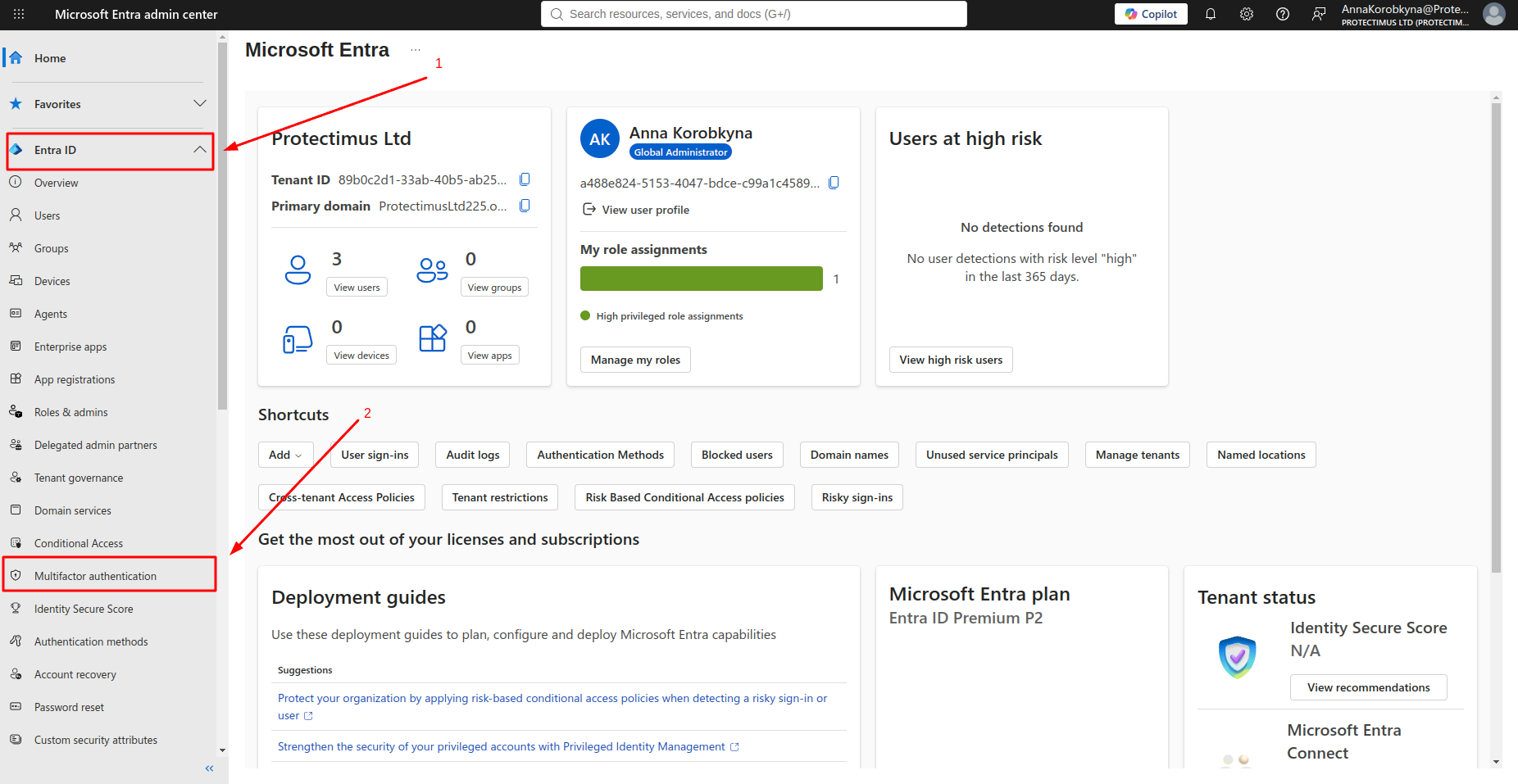
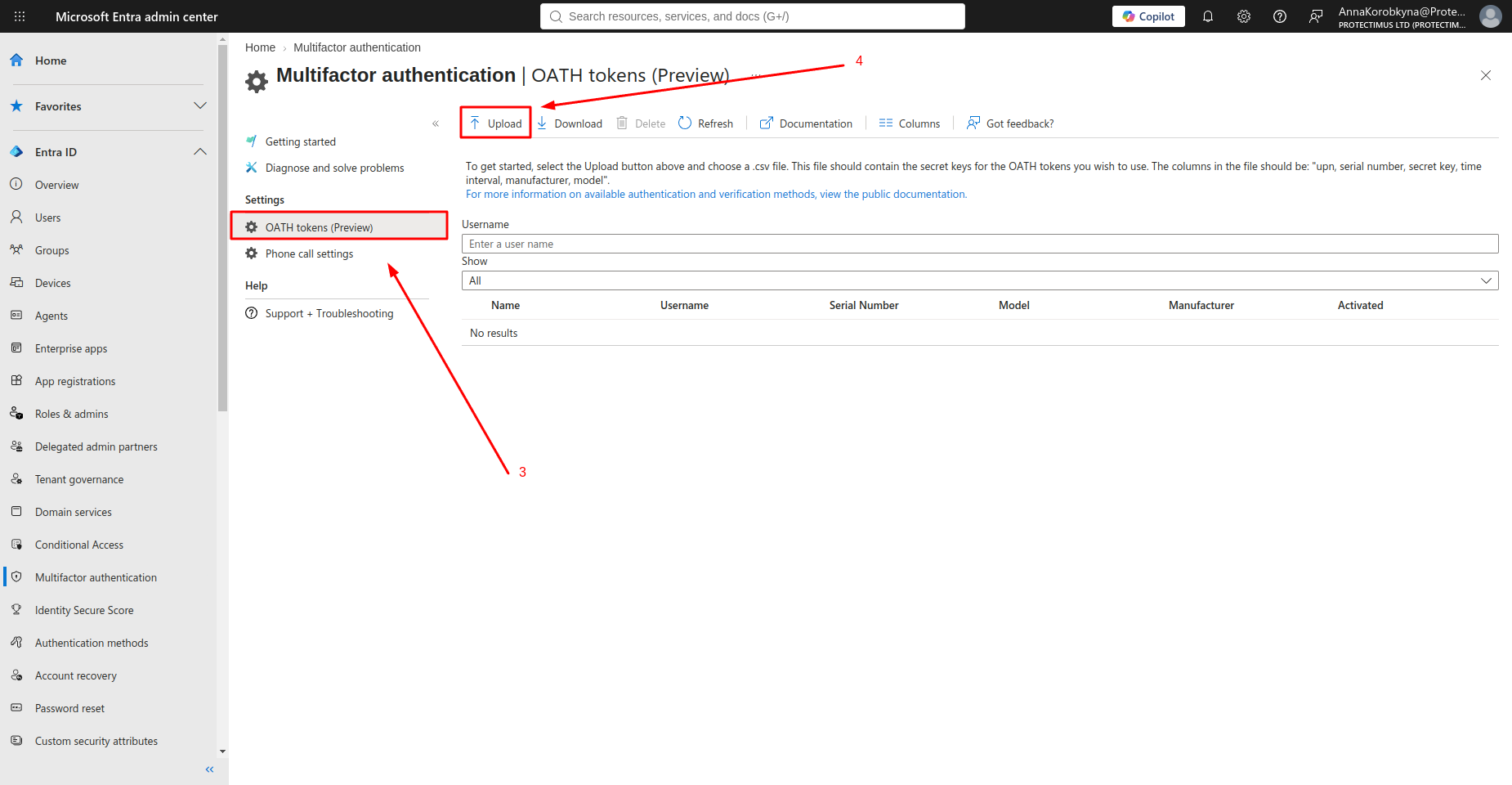
Then select
OATH tokens (Preview) and click
Upload.
Step 3. Download the CSV Template
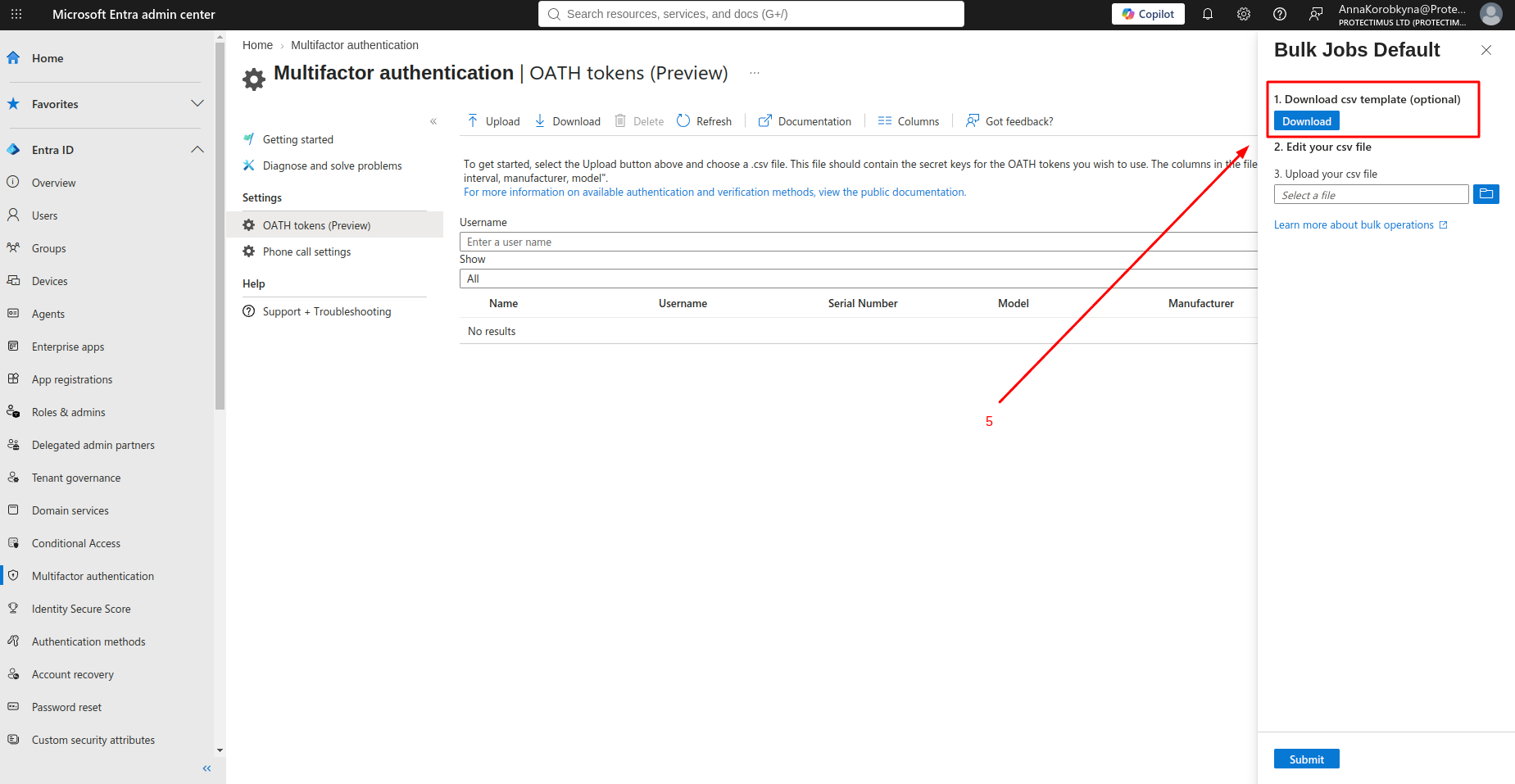
The
Bulk Jobs Default panel will open.
If necessary, click
Download under
Download csv template (optional) to download Microsoft’s CSV template, then add your users and OATH token information to the file as described above in Step 1.
Step 4. Upload the CSV File
Under
Upload your csv file, select your completed CSV file.
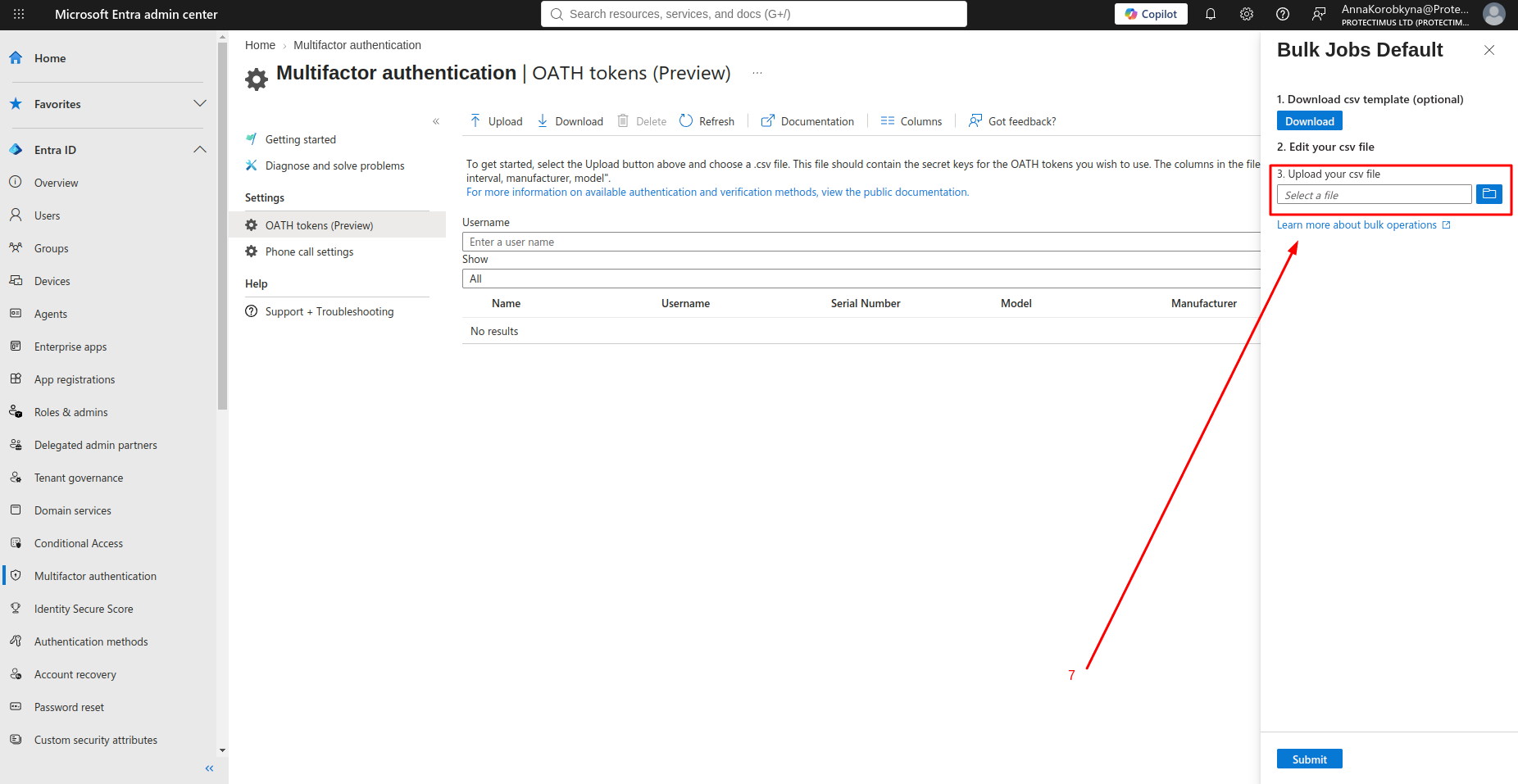
After the file has been uploaded successfully, click
Submit.
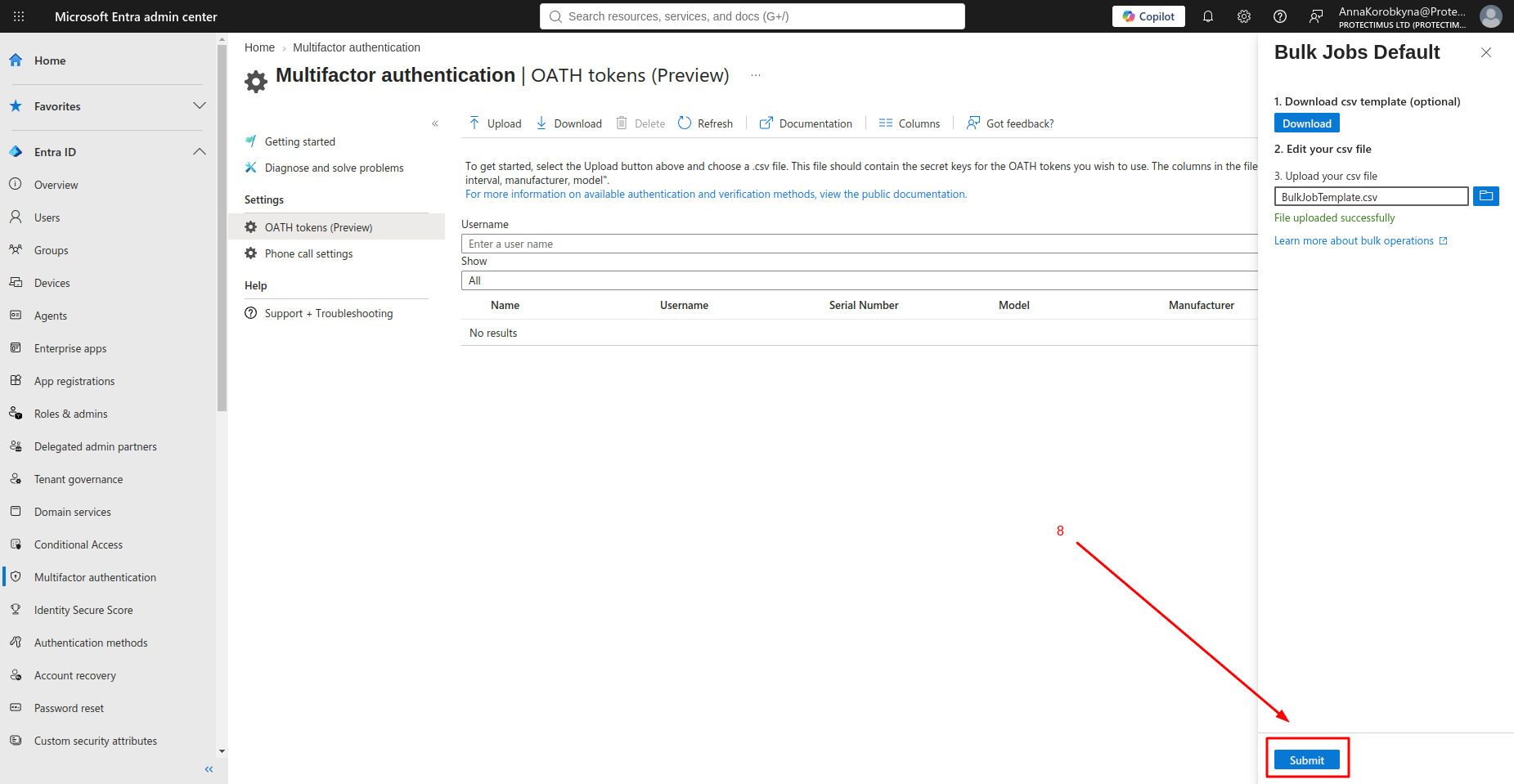
Depending on the number of tokens, processing may take a few minutes.
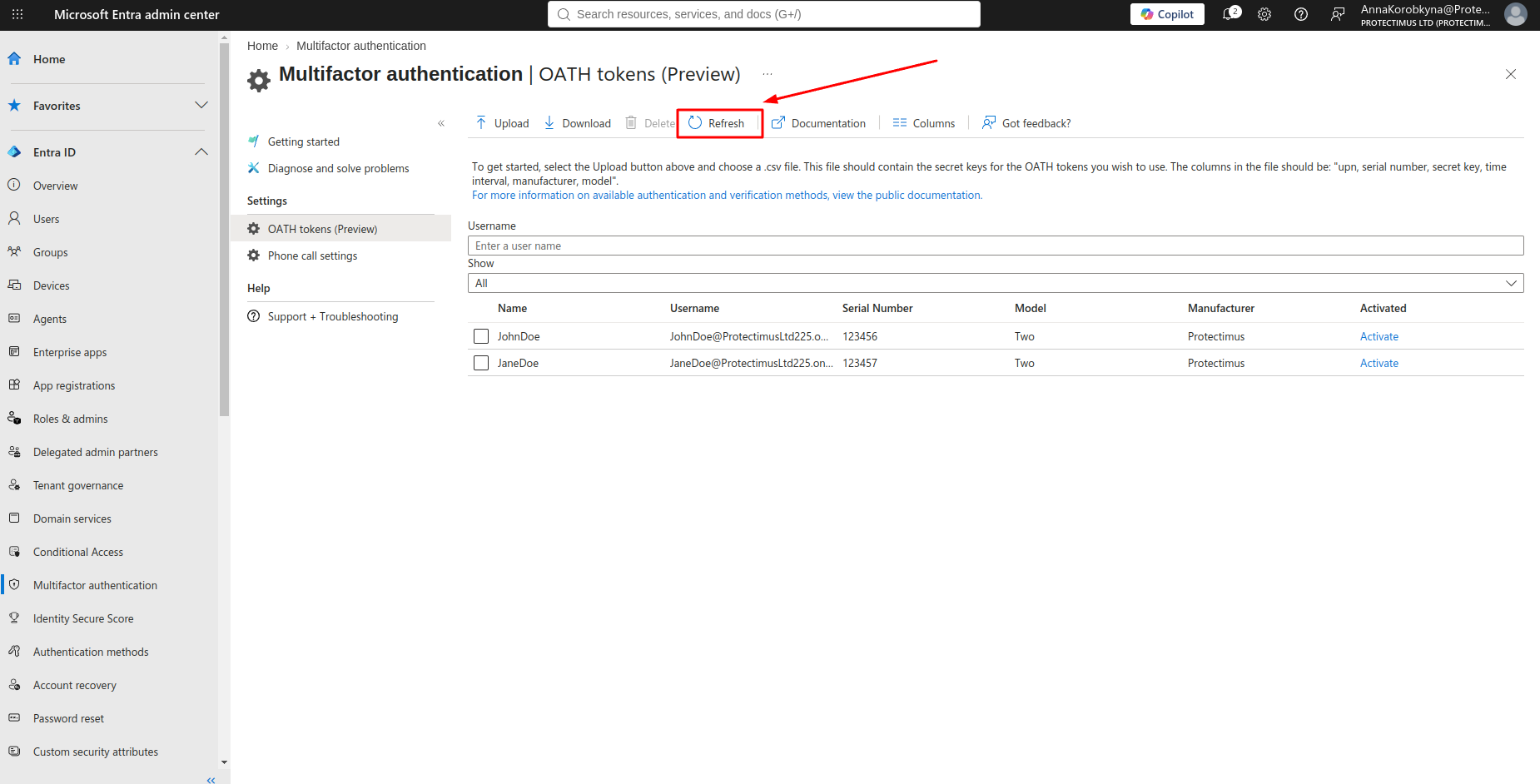
Step 5. Refresh the Token List
Click
Refresh.
After the import is processed successfully, the uploaded hardware tokens will appear in the list.
If Microsoft Entra detects an error in the CSV file, the bulk operation will fail. To find out why, select
View Details. The Hardware token status panel lists each failed upload; tick the checkbox next to it and select
Download to get a file named Failures_filename.csv with the error for every rejected row. The most common one is a UPN that doesn’t exist in the tenant. Note that the column names in this error file differ from the ones you uploaded, so fix your original CSV rather than editing the error file. Upload status records are kept for 30 days.
Step 6. Activate the Hardware Token
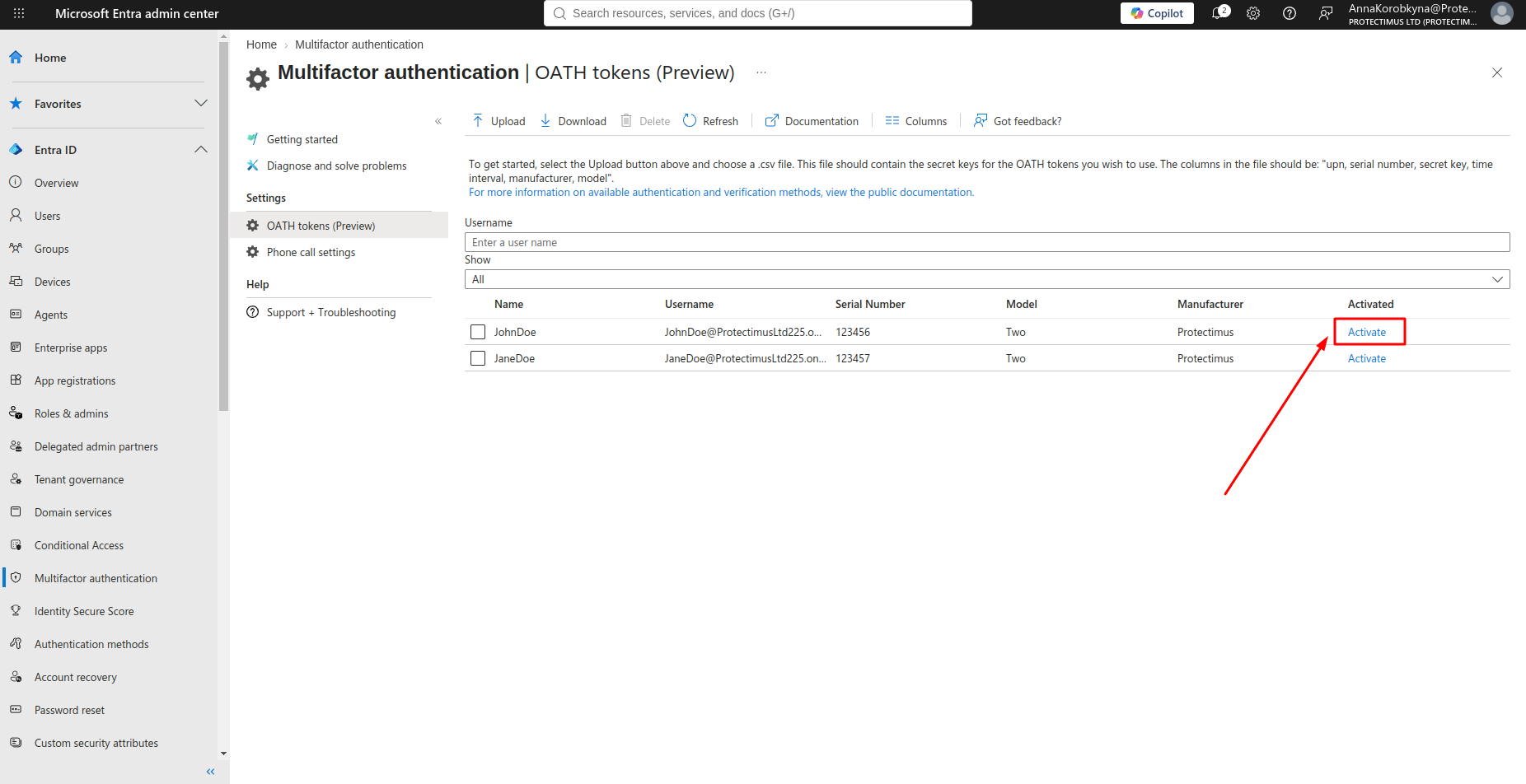
Each imported token must be activated individually.
Find the required token and click
Activate in the
Activated column.
Enter the current 6-digit one-time password generated by that hardware token.
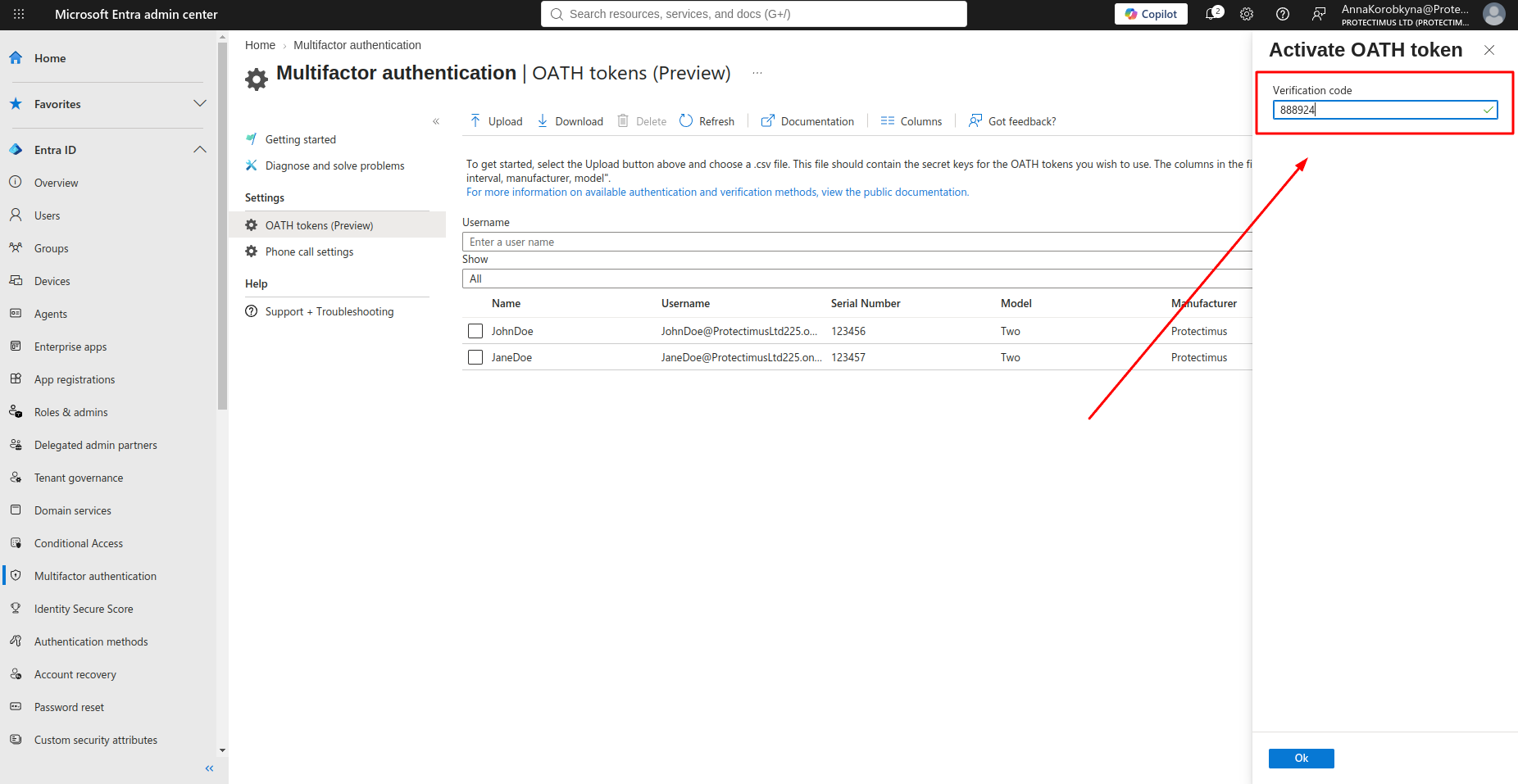
Click
OK.
If the verification code is correct, Microsoft Entra will activate the token. A check mark will appear in the
Activated column.
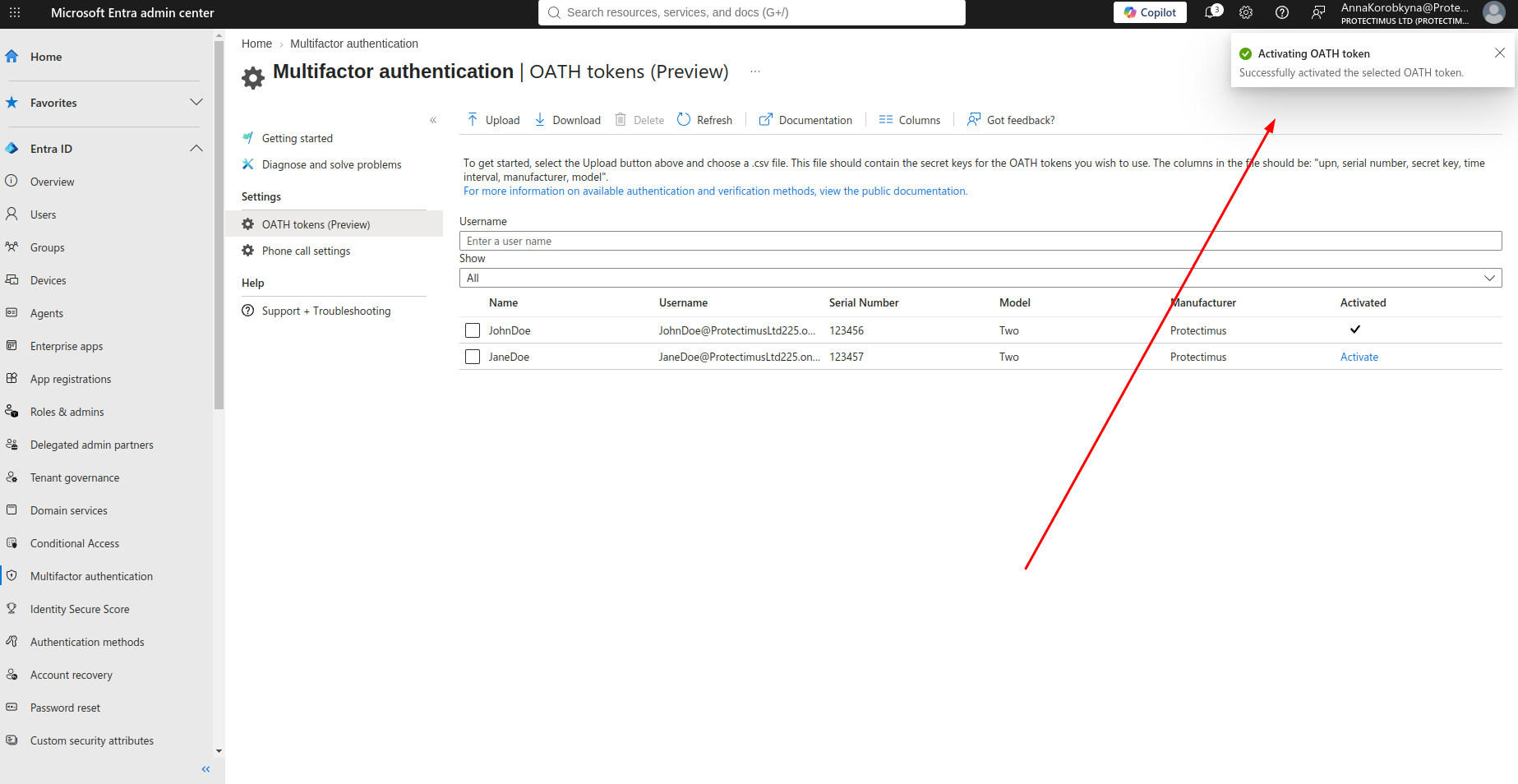
Repeat this process for each imported token.
The hardware OATH token is now ready to be used for multifactor authentication.
Method 2. Add OATH Hardware Tokens Using Microsoft Graph API
Microsoft has introduced a newer hardware OATH token management system based on Microsoft Graph. The feature is currently in preview.
Compared with legacy CSV import, this method provides several important improvements:
- supports both SHA-1 and SHA-256 OATH-TOTP tokens;
- does not require a Global Administrator for all token-management operations;
- allows tokens to be added to the tenant inventory before they are assigned;
- supports user self-service assignment and activation.
Microsoft Graph currently provides the management interface for tokens added through this new workflow. Such tokens can appear in the Entra admin center, but management of the new inventory is performed through Graph APIs.
Step 1. Enable Hardware OATH Tokens
Before adding tokens, enable the hardware OATH authentication method. Microsoft states that at least the
Authentication Policy Administrator role is required to enable this policy.
In the
Microsoft Entra admin center, navigate to
Entra ID → Authentication methods, then select
Hardware OATH tokens (Preview).
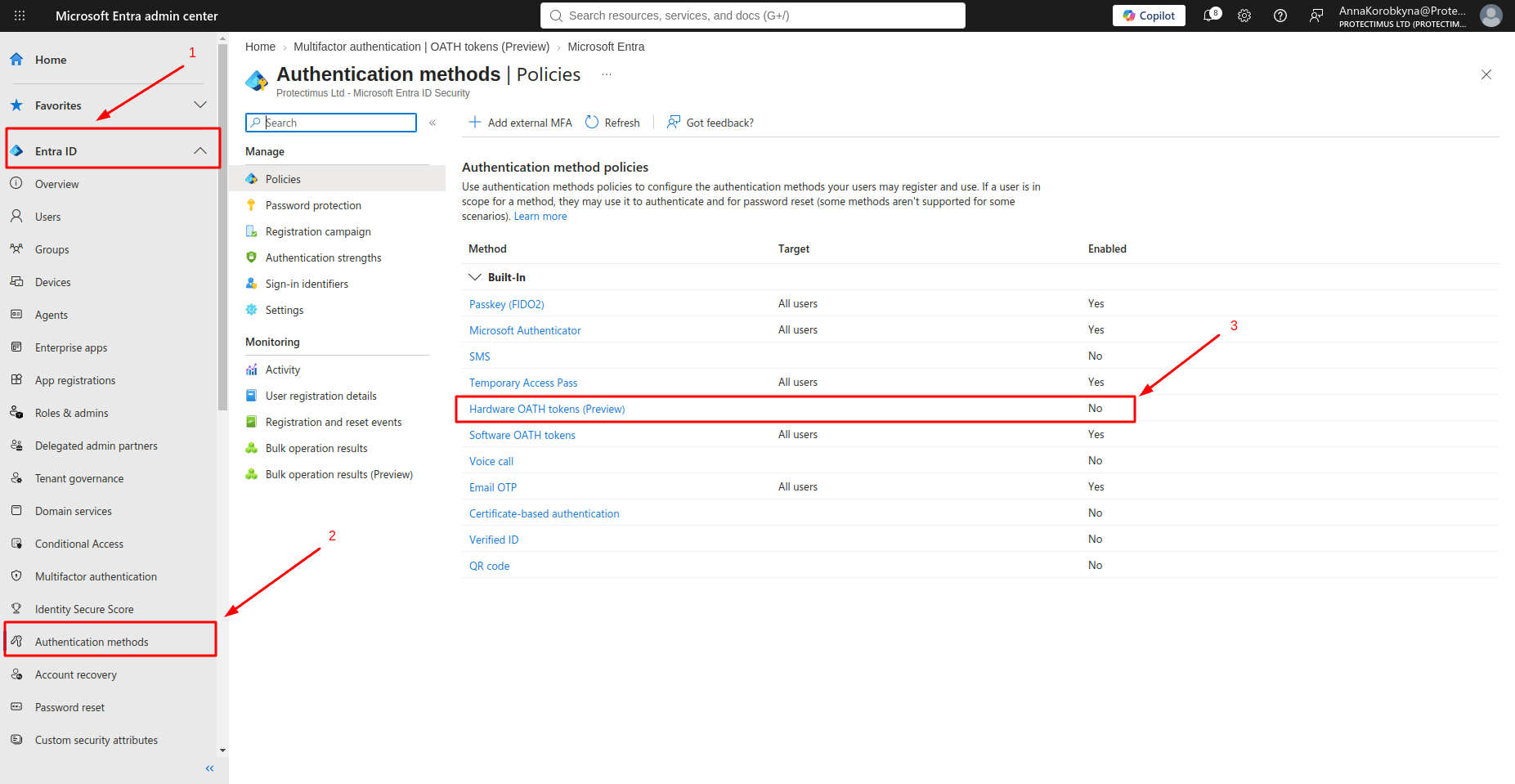
Turn
Enable on.
You can make hardware OATH tokens available to
All users or select specific groups.
Click
Save.
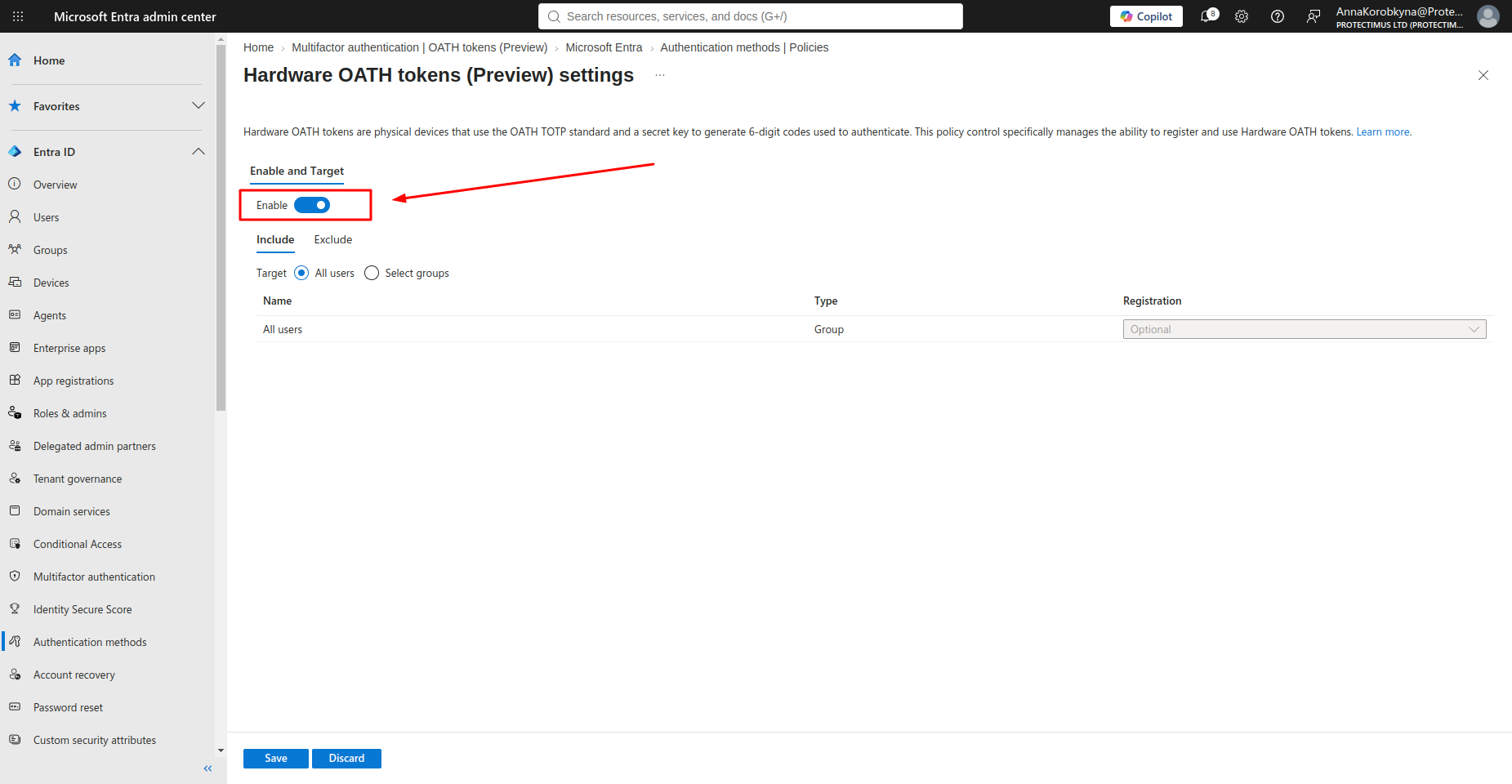
Give the change time to propagate. Microsoft notes a delay of up to 20 minutes and recommends allowing an hour before users try to sign in with a new token or look for it in Security info.
One thing worth checking if your tenant still uses the legacy MFA policy: there, hardware and software OATH tokens can only be enabled together, so users see a Hardware OATH tokens option in Security info whether you planned for it or not. The Authentication methods policy manages the two separately, and Microsoft recommends migrating to it.
Step 2. Prepare the Token Data
For this method, the token information must be provided in JSON format.
Protectimus supplies the token serial numbers and secret keys. Convert this information into the JSON structure required by Microsoft Graph. You can do this using this converter:
https://2fasolution.com/entraid.html
An example of the JSON structure required by Microsoft Graph:
{
  "@context": "#$delta",
  "value": [
    {
      "@contentId": "1",
      "serialNumber": "TOTP123456",
      "manufacturer": "Protectimus",
      "model": "Two",
      "secretKey": "ILGPXSA75PXK3V77VFZ5QNX25UVFPK2I",
      "timeIntervalInSeconds": 30,
      "hashFunction": "hmacsha1"
    }
  ]
}
For
SHA-1 tokens, use:
"hashFunction": "hmacsha1"
For
SHA-256 tokens, use:
"hashFunction": "hmacsha256"
For multiple tokens, add additional objects to the
value array and give each one a unique
@contentId:
{
  "@context": "#$delta",
  "value": [
    {
      "@contentId": "1",
      "serialNumber": "TOTP123456",
      "manufacturer": "Protectimus",
      "model": "Two",
      "secretKey": "SECRET_KEY_1",
      "timeIntervalInSeconds": 30,
      "hashFunction": "hmacsha1"
    },
    {
      "@contentId": "2",
      "serialNumber": "TOTP123457",
      "manufacturer": "Protectimus",
      "model": "Two",
      "secretKey": "SECRET_KEY_2",
      "timeIntervalInSeconds": 30,
      "hashFunction": "hmacsha1"
    }
  ]
}
The JSON file holds every token’s secret key in plain text, so treat it like a password vault export: keep it off shared drives and delete it once the upload succeeds. You won’t need it again. After import, Microsoft Graph never returns the secret key, and the secretKey field comes back as null in every response.
Step 3. Open Microsoft Graph Explorer
Open
Microsoft Graph Explorer and sign in with an account that holds at least the Authentication Policy Administrator role in your Microsoft Entra tenant.
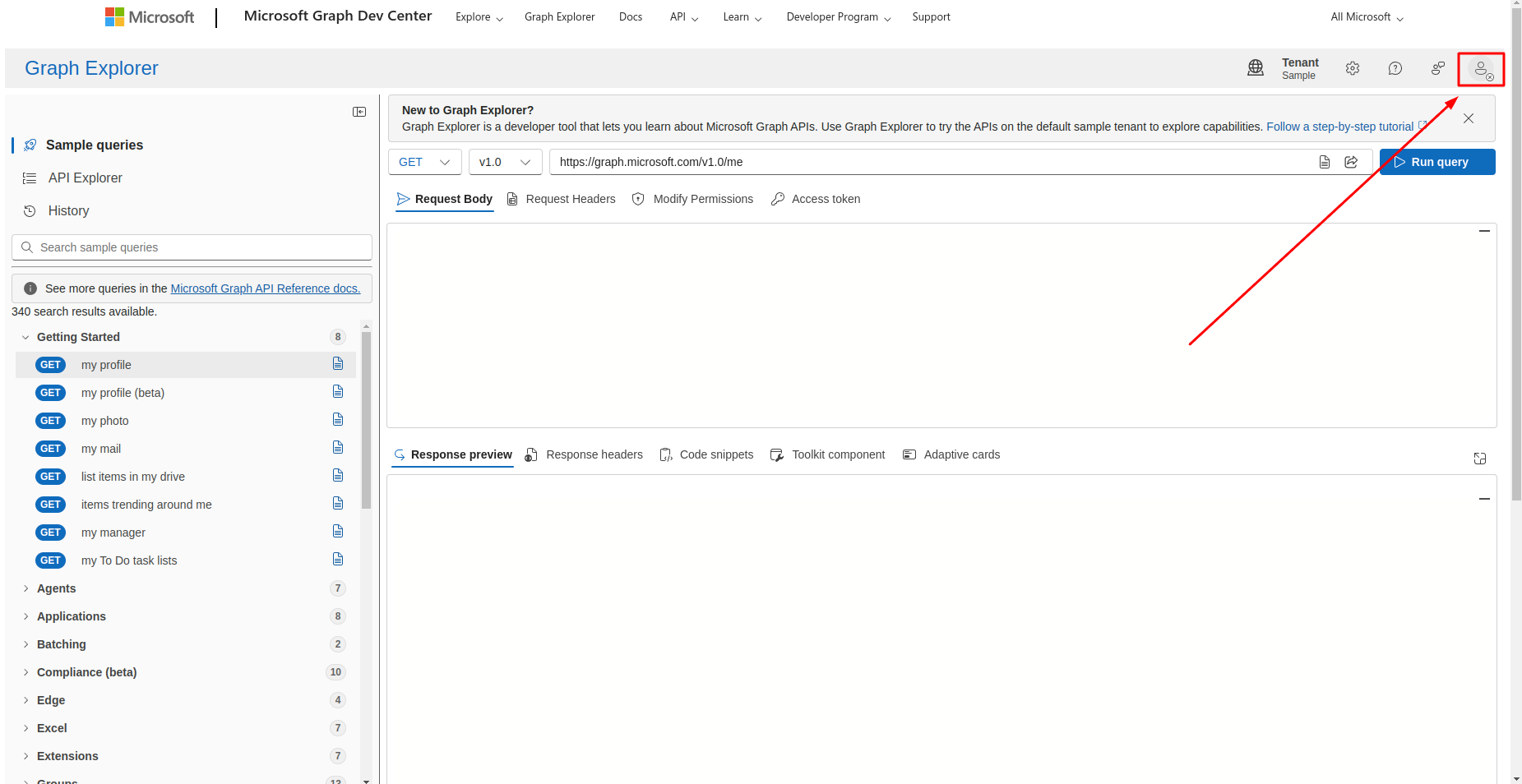
Select
PATCH and enter the following endpoint:
https://graph.microsoft.com/beta/directory/authenticationMethodDevices/hardwareOathDevices
The API version will automatically switch to
beta.
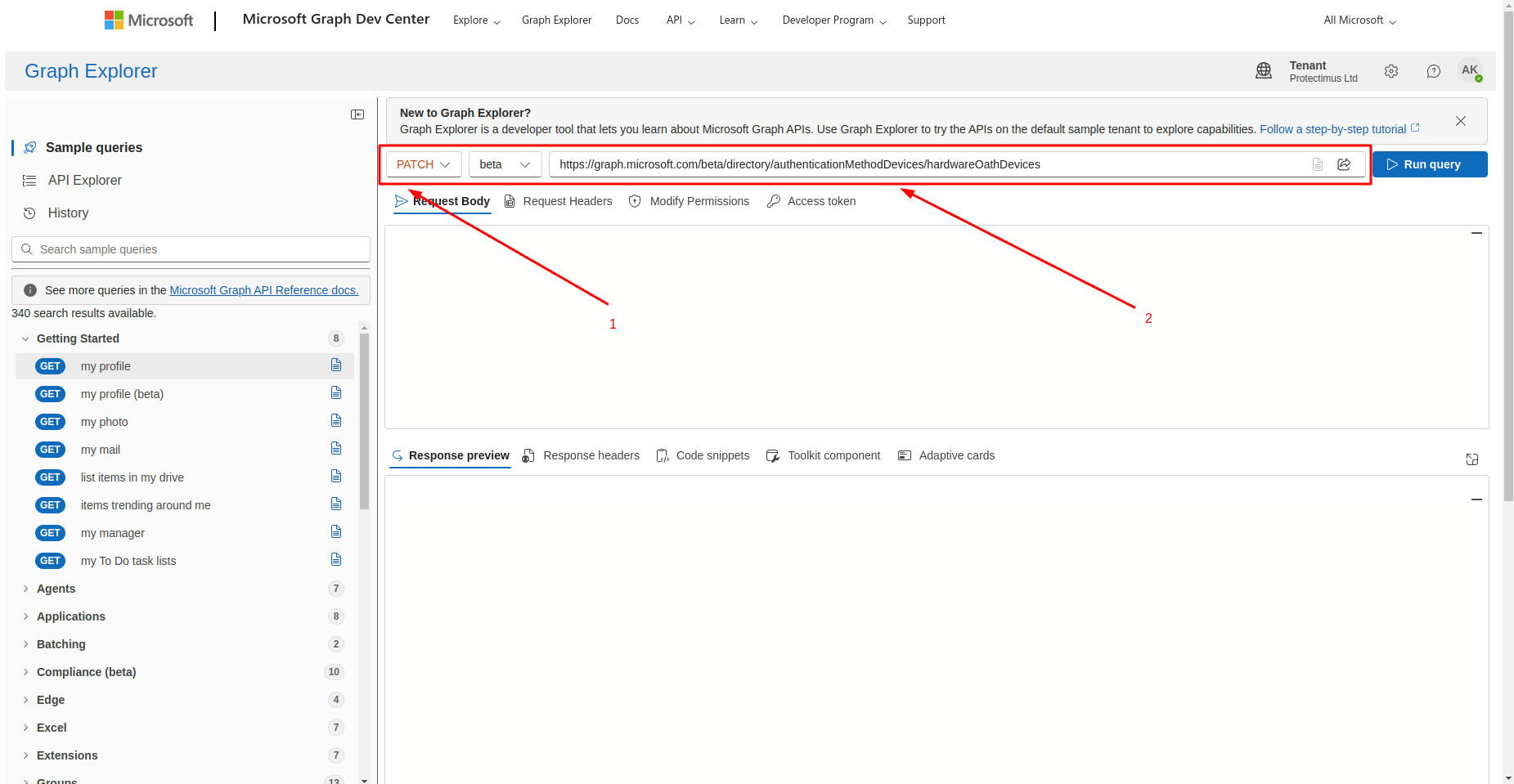
Because this functionality belongs to the Microsoft Graph beta API, Microsoft notes that the API is subject to change and isn’t supported for production applications in the same way as v1.0 APIs.
Step 4. Grant the Required Permission
Open the
Modify Permissions tab and click
Open the permissions panel.
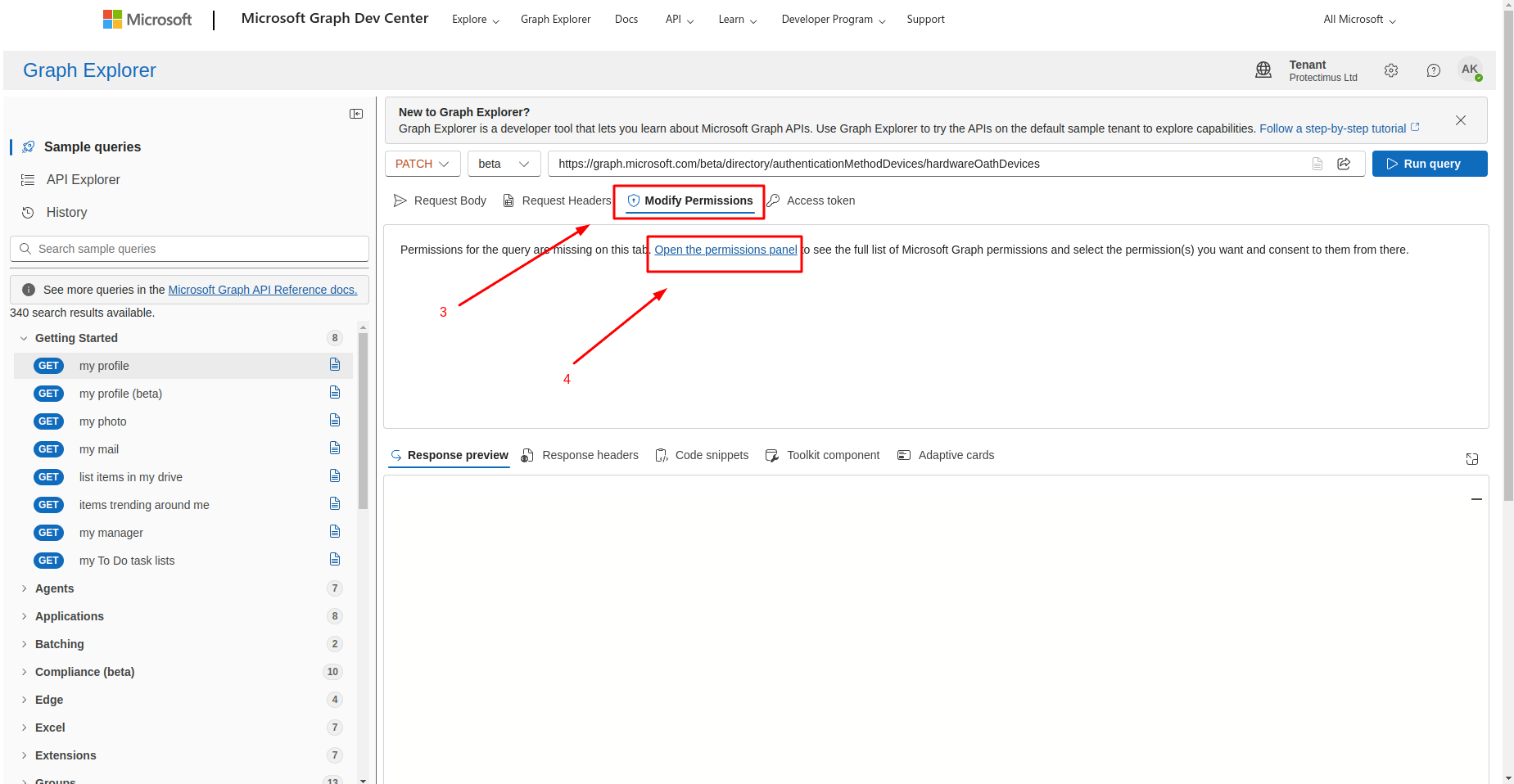
Expand
Policy, find
Policy.ReadWrite.AuthenticationMethod and click
Consent.
Administrator consent is required for this permission.
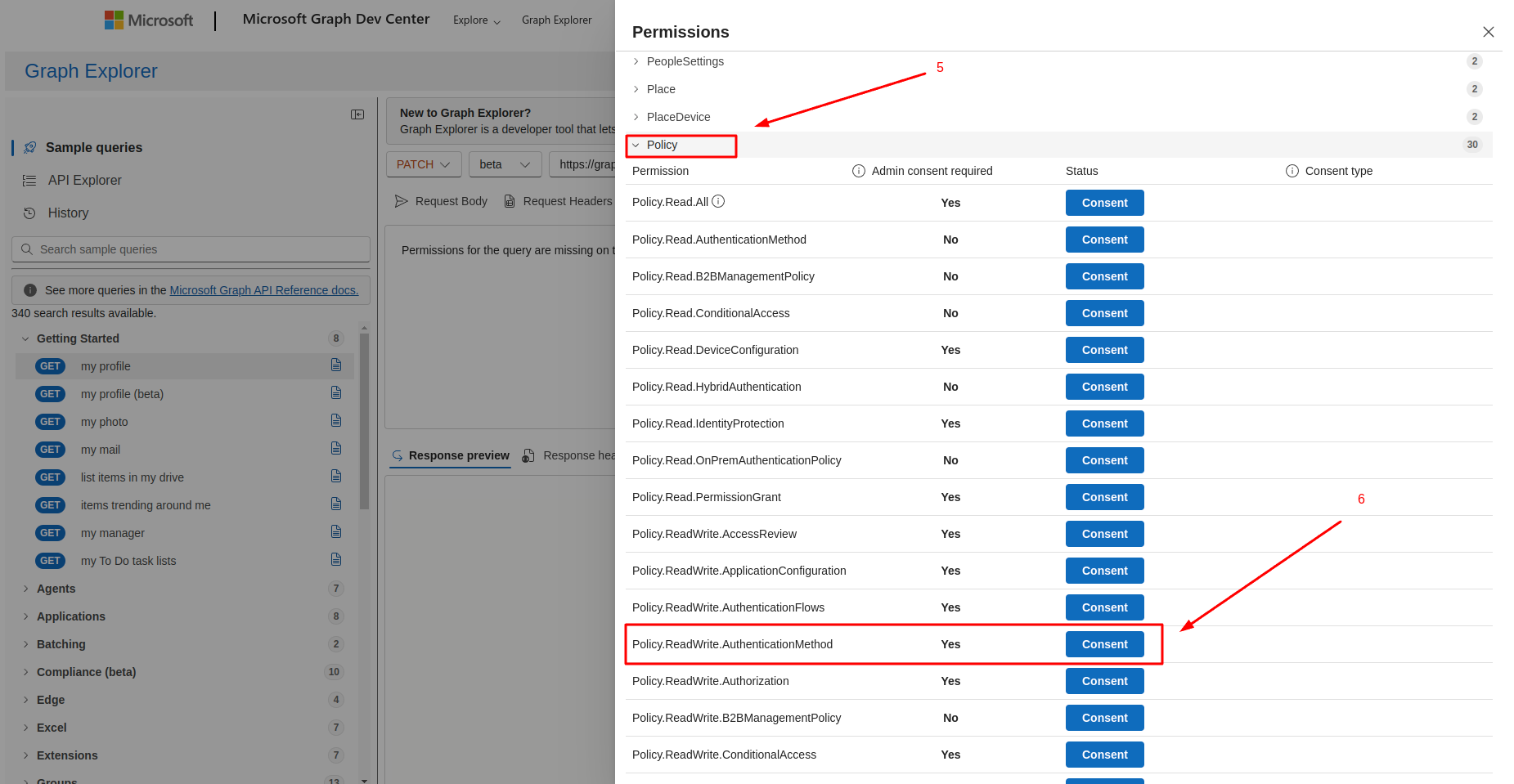
Step 5. Upload the Hardware Tokens
Return to
Request Body and paste the JSON containing your hardware token information.
Then click
Run query.
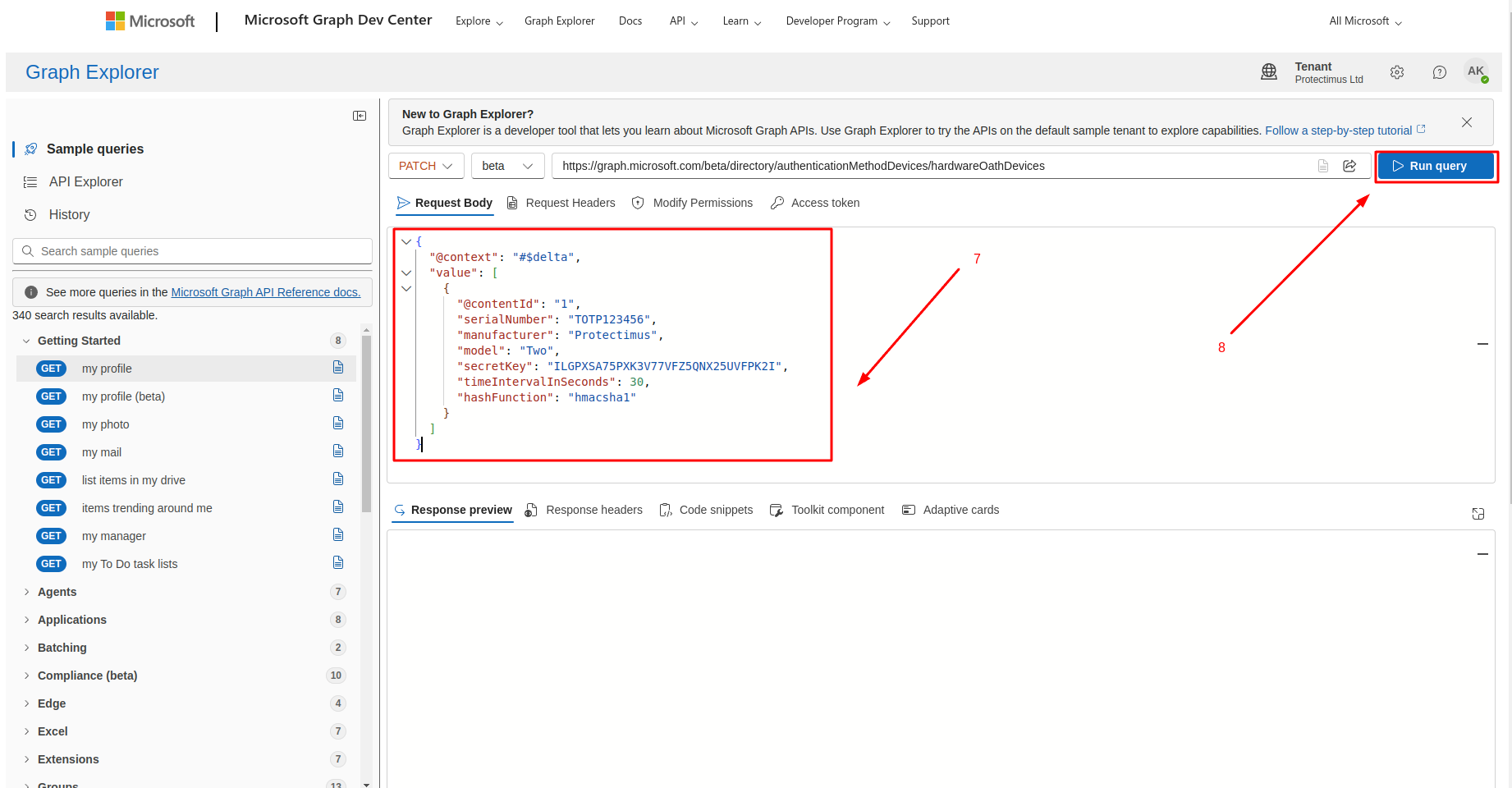
If the request succeeds, the tokens are added to your tenant’s hardware OATH token inventory and become available for assignment.
You can view the current inventory using:
GET https://graph.microsoft.com/beta/directory/authenticationMethodDevices/hardwareOathDevices
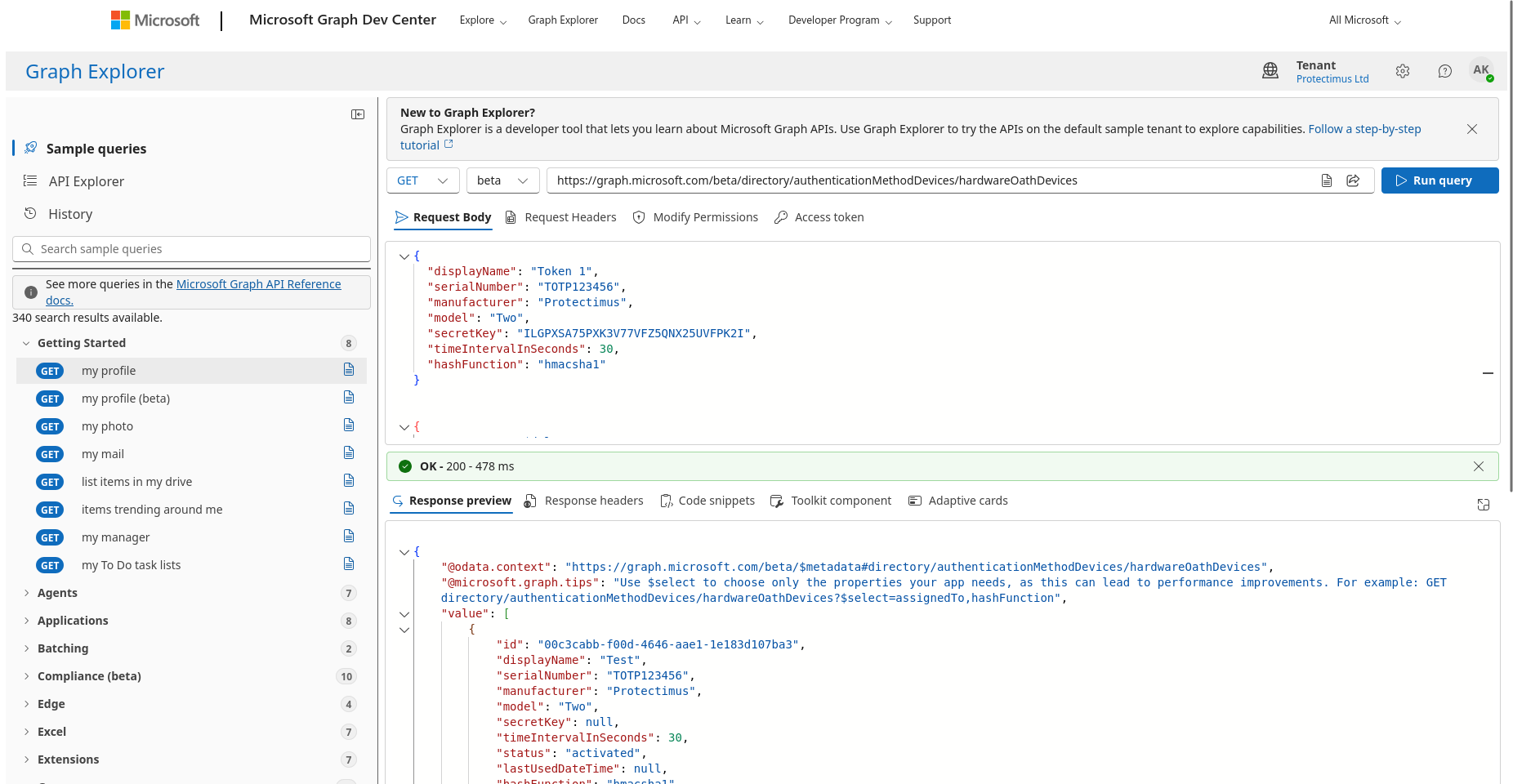
Each token in the response carries a status: available, assigned, activated, or failedActivation. That makes this GET request the quickest way to see which tokens users have already claimed and which are still sitting in the inventory.
Important: Serial Numbers and Secret Keys Must Be Unique
In the Graph-based hardware token inventory, each token must have a unique serial number and secret key. If a token with the same serial number or secret key already exists, Microsoft Graph returns an error such as:
oathTokenNotUnique
Cannot add hardware oath token to inventory because serialNumber and/or secretKey is not unique.
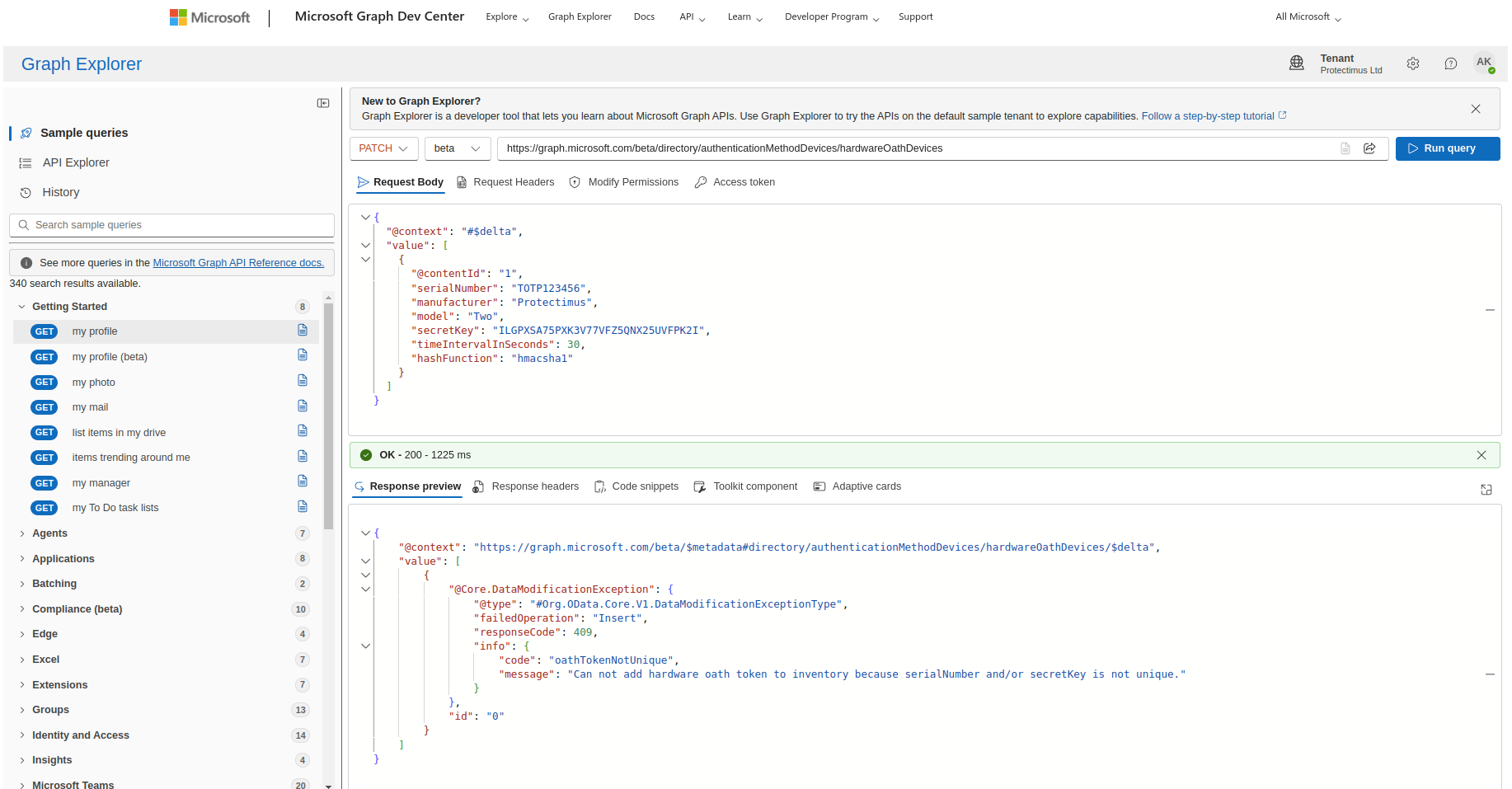
This is consistent with Microsoft’s model of each hardware token as an individual device in the tenant inventory.
User Self-Service Enrollment
One of the main advantages of the Microsoft Graph method is that an administrator can add hardware tokens to the tenant inventory without assigning them to particular users beforehand.
Users can then assign and activate their own hardware tokens. Microsoft explicitly supports self-service operations for hardware OATH token assignment.
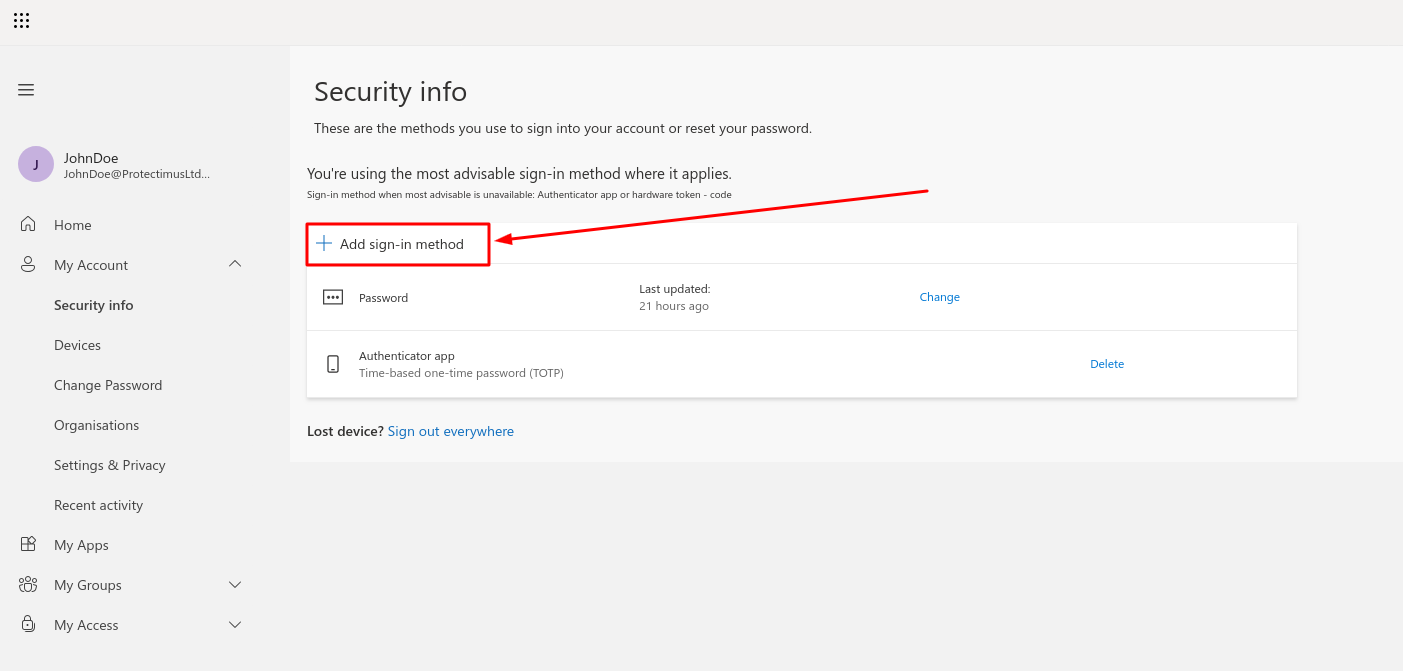
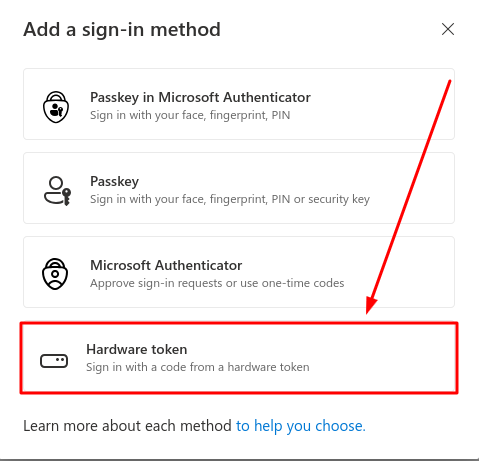
The user opens their Security info page and selects
Add sign-in method → Hardware token.
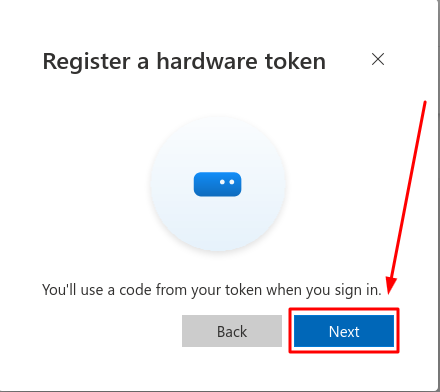
Then they:
- Enter the serial number printed on the hardware token.
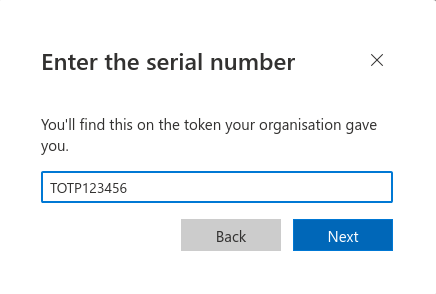
- Enter a name for the token.
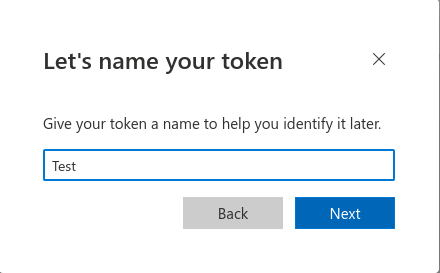
- Enter the current 6-digit OTP generated by the token.
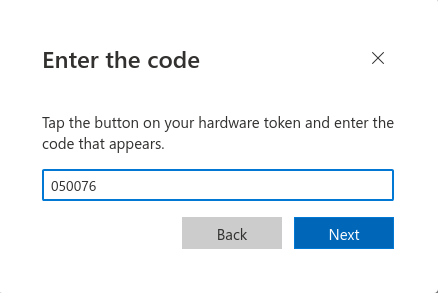 The code has to be submitted quickly: within one minute for a token with a 30-second interval, or within two minutes for a 60-second token. If the window passes, press the token button again and enter a fresh code.
If the serial number and verification code match a token available in the organization’s inventory, Microsoft Entra assigns and activates it for that user.
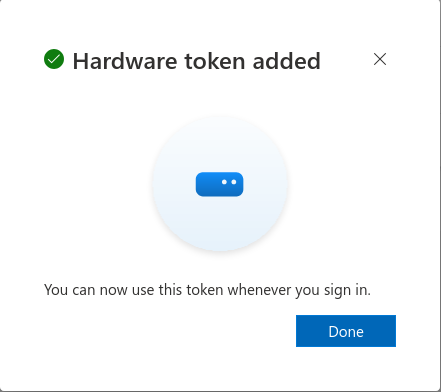
Fully open self-assignment means anyone in the tenant who holds a token can claim it. If you need certainty that a particular token ends up on a particular account, assign it to that user through Microsoft Graph first (this takes the Authentication Administrator role) and then hand over the device. The user still activates it in Security info, but nobody else can claim it.
After activation, the hardware token becomes available as an authentication method for the account.
Logging In
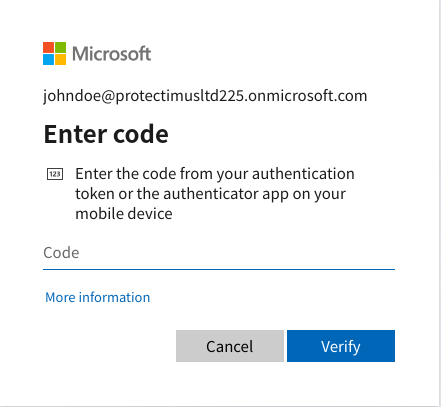
After the TOTP token is activated, the user can use it for authentication. When prompted for an
Authenticator Code during sign-in, enter the one-time password generated by the hardware token.
If the user has multiple authentication methods registered, such as both a hardware token and an authenticator app, they can choose any available method to complete the authentication.
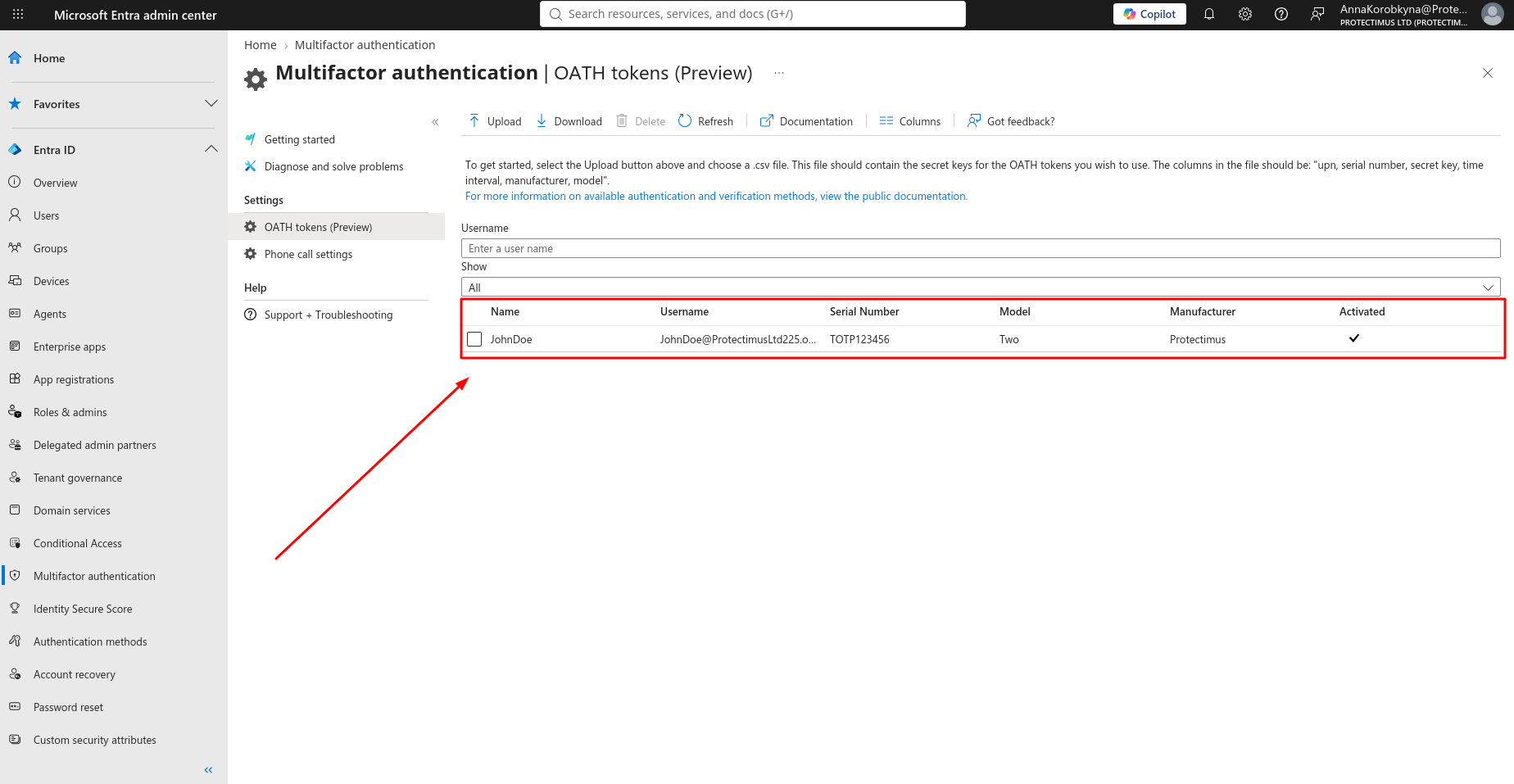
Once the enrollment is complete, the registered hardware token will also appear in the
Microsoft Entra admin center.
Troubleshooting and Common Gotchas
The Same Token Appears Twice on a User’s Account
This happens when a token was first uploaded via CSV and later added again through Microsoft Graph, without the legacy copy being removed from OATH tokens in the admin center. To clean it up, list the user’s hardware tokens and note both IDs:
GET https://graph.microsoft.com/beta/users/{user-upn-or-objectid}/authentication/hardwareOathMethods
Then query the inventory by serial number. This request returns only the token created through Graph:
GET https://graph.microsoft.com/beta/directory/authenticationMethodDevices/hardwareOathDevices?$filter=serialNumber eq '{serial}'
The other ID belongs to the legacy copy: remove its assignment with DELETE on the user’s
hardwareOathMethods/{legacyId}, then delete it from the inventory with DELETE on
hardwareOathDevices/{legacyId}.
Activation Keeps Failing with a Correct-Looking Code
Start with the time interval. If the upload says 60 but the token refreshes every 30 seconds (or the other way round), every code will be rejected, and the only fix is to delete the token and upload it again with the right value. Entra ID corrects normal clock drift on its own (within ±1 day at activation and ±1 minute at sign-in for 30-second tokens, double that for 60-second ones), so a token that has been sitting in a drawer for a few months should still activate. Also confirm that the code comes from the token whose serial number you entered; in a box of identical devices, that mix-up happens more often than you’d expect.
Graph Returns oathTokenNotUnique
The serial number or secret key is already in the inventory. See
Important: Serial Numbers and Secret Keys Must Be Unique above.
The Token Doesn’t Show Up in Security Info
If you’ve just enabled the Hardware OATH tokens policy, wait: propagation can take up to an hour. If the token was assigned to a user through Graph, check that the user belongs to a group included in the policy.
FAQ
Do I need a Global Administrator to add OATH hardware tokens to Entra ID?
Only for CSV upload. The Microsoft Graph method works with the Authentication Policy Administrator role for enabling the policy and managing the token inventory, and with the Authentication Administrator role for assigning tokens to users.
Does Microsoft Entra ID support SHA-256 OATH hardware tokens?
Yes, but only through the Microsoft Graph method. Set
"hashFunction": "hmacsha256" for each SHA-256 token, such as Protectimus SHARK, in the JSON. CSV upload works with SHA-1 tokens only.
Can users activate their own hardware tokens in Entra ID?
Yes, with tokens added through Microsoft Graph. The user goes to Security info, selects Add sign-in method → Hardware token, and enters the serial number, a display name, and the current code from the token. Tokens uploaded via CSV must be activated by an administrator.
Can I use a hardware token with Entra ID without a Premium P1 or P2 license?
Not a classic token with a pre-installed seed. A programmable token such as Protectimus Slim NFC or Flex can be enrolled through the software-token setup flow instead, the same way as an authenticator app, and that route doesn’t depend on the Premium license. The
overview of hardware token options for Entra ID MFA compares both approaches.
Can one hardware OATH token be shared by several users?
No. Microsoft Entra ID allows a token to be assigned to one user only. For shared workstations, each employee needs a personal account and a personal token.
How many OATH tokens can one user register in Entra ID?
Up to five OATH hardware tokens or authenticator apps in total, in any combination.
Is the Microsoft Graph hardware OATH API ready for production?
It’s still a preview built on the Graph beta endpoint, and Microsoft states that beta APIs can change and aren’t supported for production applications. Microsoft nevertheless points admins to this method as the recommended way to add hardware tokens, and tokens uploaded via CSV can’t use the new preview features.
Related Reading