Implementación de la autenticación de dos factores en MikroTik VPN
Esta guía explica cómo activar la autenticación de dos factores (2FA) de Protectimus para los usuarios que se conectan a MikroTik VPN.
El sistema de autenticación de dos factores de Protectimus puede integrarse con MikroTik VPN mediante el protocolo de autenticación RADIUS. Para ello, debe instalar el componente on-premise Protectimus RADIUS Server y configurar MikroTik VPN para que utilice Protectimus RADIUS Server en la autenticación de los usuarios.
El esquema siguiente muestra cómo funciona la solución de autenticación de dos factores de Protectimus para MikroTik VPN.
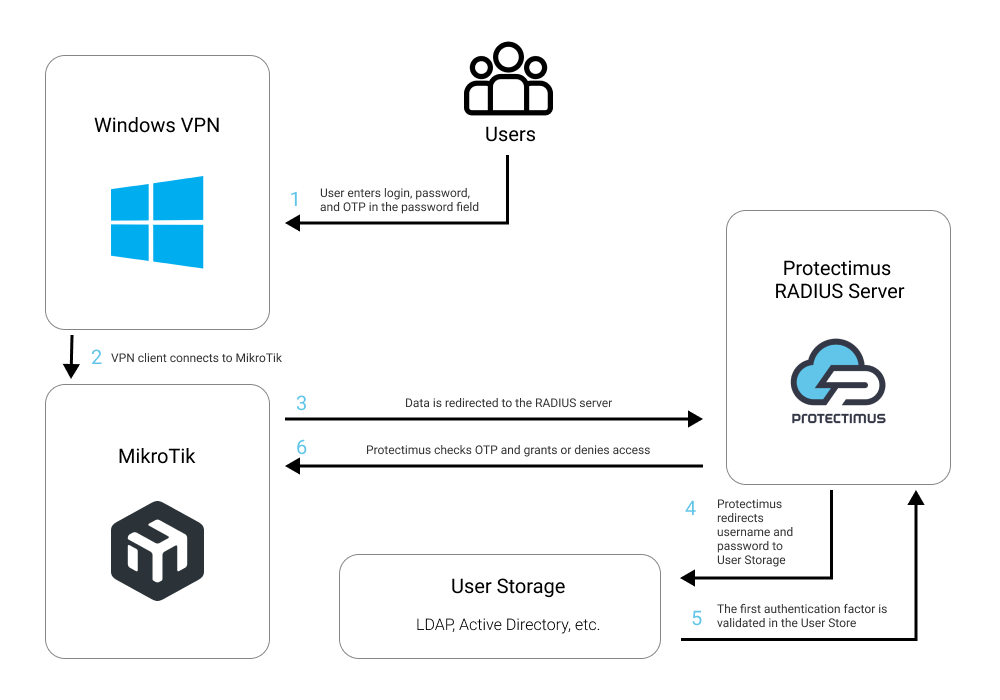
1. Cómo funciona la autenticación de dos factores (2FA) en MikroTik VPN
Después de integrar MikroTik VPN con el sistema MFA de Protectimus, los usuarios deberán superar dos etapas de autenticación para conectarse a MikroTik VPN:
- Introducen su nombre de usuario y contraseña.
- Introducen el código de acceso de un solo uso, que solo es válido durante 30 segundos.
Para generar códigos de acceso de un solo uso, los usuarios podrán utilizar los siguientes tipos de tokens de autenticación de dos factores:
- Tokens OTP de hardware clásicos y programables con formato de llavero o tarjeta de plástico;
- La aplicación 2FA Protectimus SMART OTP para iOS y Android;
- Otras aplicaciones 2FA compatibles con TOTP, incluido Google Authenticator;
- Envío de contraseñas de un solo uso mediante chatbots de Telegram, Messenger o Viber;
- Autenticación por SMS;
- Envío de contraseñas de un solo uso por correo electrónico.
Para un atacante, resulta difícil vulnerar dos factores de autenticación de distinta naturaleza —algo que el usuario sabe y algo que posee— y utilizarlos simultáneamente en un plazo de 30 segundos, durante el cual permanece activa la contraseña de un solo uso. Por ello, la autenticación de dos factores es una de las mejores medidas de seguridad para MikroTik VPN.
2. Cómo activar 2FA en MikroTik VPN
Puede configurar la autenticación de dos factores (2FA) de MikroTik VPN con Protectimus mediante el protocolo RADIUS:
- Regístrese en Protectimus SAAS Service o instale On-Premise 2FA Platform y configure los ajustes básicos.
- Instale y configure Protectimus RADIUS Server.
- Configure el cliente VPN de MikroTik.
- Configure la VPN de Windows.
2.1. Registrarse y configurar los ajustes básicos de Protectimus
Elija el tipo de implementación y complete la configuración básica:
Protectimus Cloud Service
- Registrarse en Protectimus Cloud Service y activar la API.
- Añadir un recurso.
- Añadir usuarios.
- Añadir tokens manualmente o activar el portal de autoservicio para usuarios.
- Asignar tokens a los usuarios.
- Asignar usuarios y tokens al recurso.
Protectimus On-Premise Platform
- Instalar Protectimus On-Premise Platform. Si instala Protectimus Platform en Windows, seleccione la opción RADIUS durante la instalación.
- Añadir un recurso.
- Añadir usuarios.
- Añadir tokens manualmente o activar el portal de autoservicio para usuarios.
- Asignar tokens a los usuarios.
- Asignar al recurso los tokens junto con los usuarios.
2.2. Instalar y configurar Protectimus RADIUS Server
Encontrará instrucciones detalladas para instalar y configurar Protectimus RADIUS Server para la autenticación de dos factores de MikroTik VPN mediante RADIUS en nuestra guía de instalación de Protectimus RADIUS Server para la 2FA de MikroTik VPN.
2.3. Configurar el cliente VPN de MikroTik
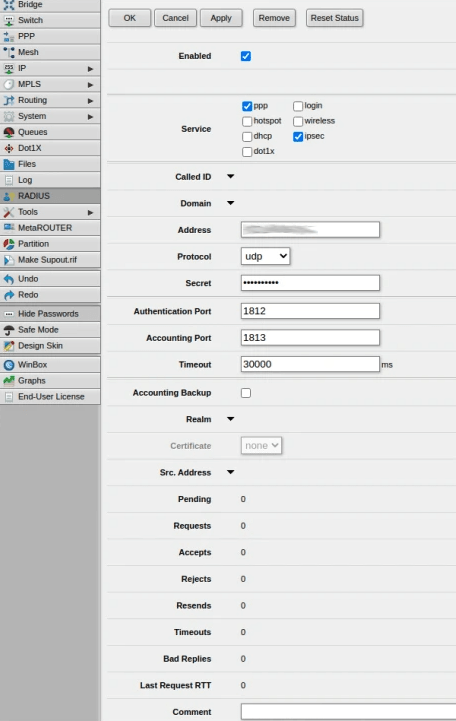
- Abra Webfig.
- En el menú de la izquierda, seleccione la pestaña RADIUS.
- Haga clic en Add New para configurar Protectimus RADIUS Server como servidor RADIUS.
- Marque ppp e ipsec en la sección Service.
- Marque login en la sección Service.
- Indique la IP del servidor donde está instalado Protectimus RADIUS Server.
- Establezca Protocol en udp.
- Indique el secreto compartido creado en el archivo radius.yml de Protectimus (propiedad radius.secret).
- Cambie el tiempo de espera predeterminado a 30000 ms o más.
- Haga clic en OK para guardar los ajustes.
- En el menú de la izquierda, seleccione la pestaña PPP.
- Seleccione la pestaña Interface y, a continuación, haga clic en PPTP Server, SSTP Server, L2TP Server o OVPN Server según el que utilice.
- Marque pap y desmarque las demás casillas de Authentication. Haga clic en OK.
- Seleccione la pestaña Secrets y haga clic en el botón PPP Authentication & Accounting.
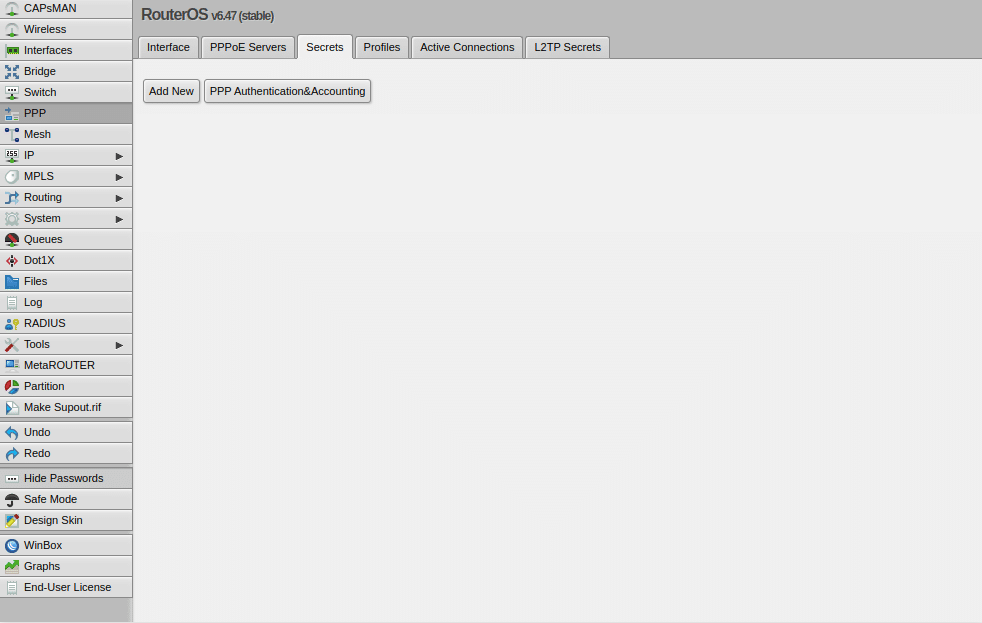
- Marque Use Radius y haga clic en OK para finalizar la configuración y habilitar la autenticación de dos factores de Protectimus en la VPN.
2.4. Configurar la VPN de Windows
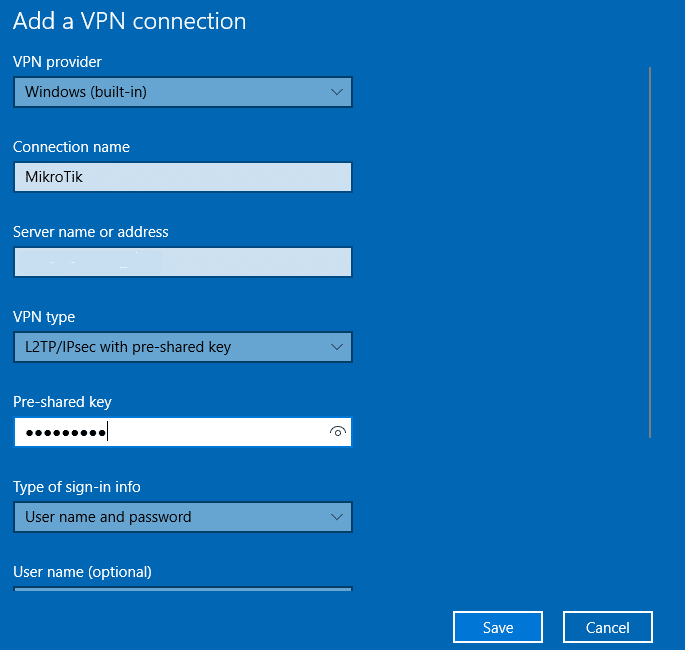
- En Windows, vaya a Settings –> Network & Internet –> VPN y seleccione Add a VPN connection.
- Complete el formulario y haga clic en Save. Consulte la siguiente imagen y tabla.
| VPN Provider |
Windows (in-built) |
| Connection name |
MikroTik |
| Server name or address |
Introduzca la dirección IP del servidor |
| VPN type |
Seleccione el tipo de VPN. En este ejemplo se utiliza L2TP/IPsec con clave precompartida; seleccione el que utilice en MikroTik. |
| Pre-shared key |
Indique el secreto compartido creado en el archivo radius.yml de Protectimus (propiedad radius.secret) al configurar Protectimus RADIUS Server. |
| Type of sign-in info |
User name and password |
| User name (optional) |
Su nombre de usuario |
| Password (optional) |
Su contraseña |
- Vaya a Control Panel → Network and Sharing Center y seleccione las opciones de Change adapter.
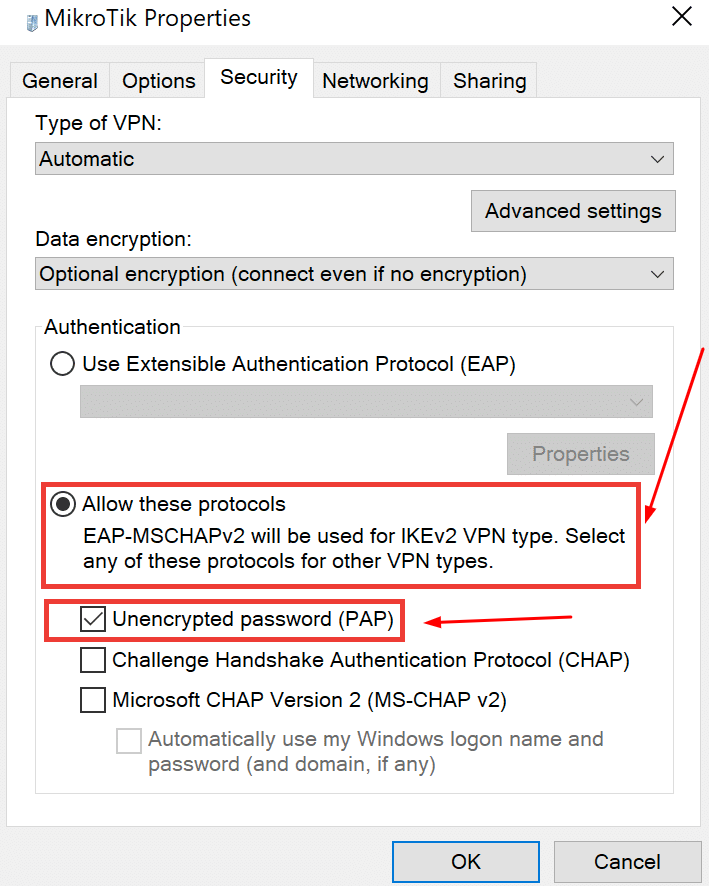
- Haga clic con el botón derecho en la conexión MikroTik recién creada y seleccione Properties.
- Seleccione la pestaña Security.
- Seleccione Allow these protocols y, a continuación, marque la casilla Unencrypted password (PAP).
- A continuación, haga clic en OK para guardar los cambios.
La integración de la autenticación de dos factores (2FA/MFA) para MikroTik VPN ha finalizado.
Si tiene alguna otra pregunta, póngase en contacto con el servicio de atención al cliente de Protectimus.













