



Esta guía muestra cómo habilitar autenticación multifactor (2FA / MFA) para los usuarios que inician sesión en Pulse Connect Secure SSL VPN mediante la solución de autenticación de dos factores de Protectimus para Pulse Connect Secure SSL VPN.
El sistema de autenticación de dos factores de Protectimus se integra con Pulse Connect Secure SSL VPN mediante el protocolo de autenticación RADIUS.
En este escenario, Protectimus Cloud 2FA Service u On-Premise 2FA Platform actúa como servidor RADIUS, mientras que Pulse Connect Secure SSL VPN desempeña la función de cliente RADIUS.
A continuación, encontrará el esquema de funcionamiento de la solución de Protectimus para la autenticación de dos factores de Pulse Connect Secure SSL VPN.
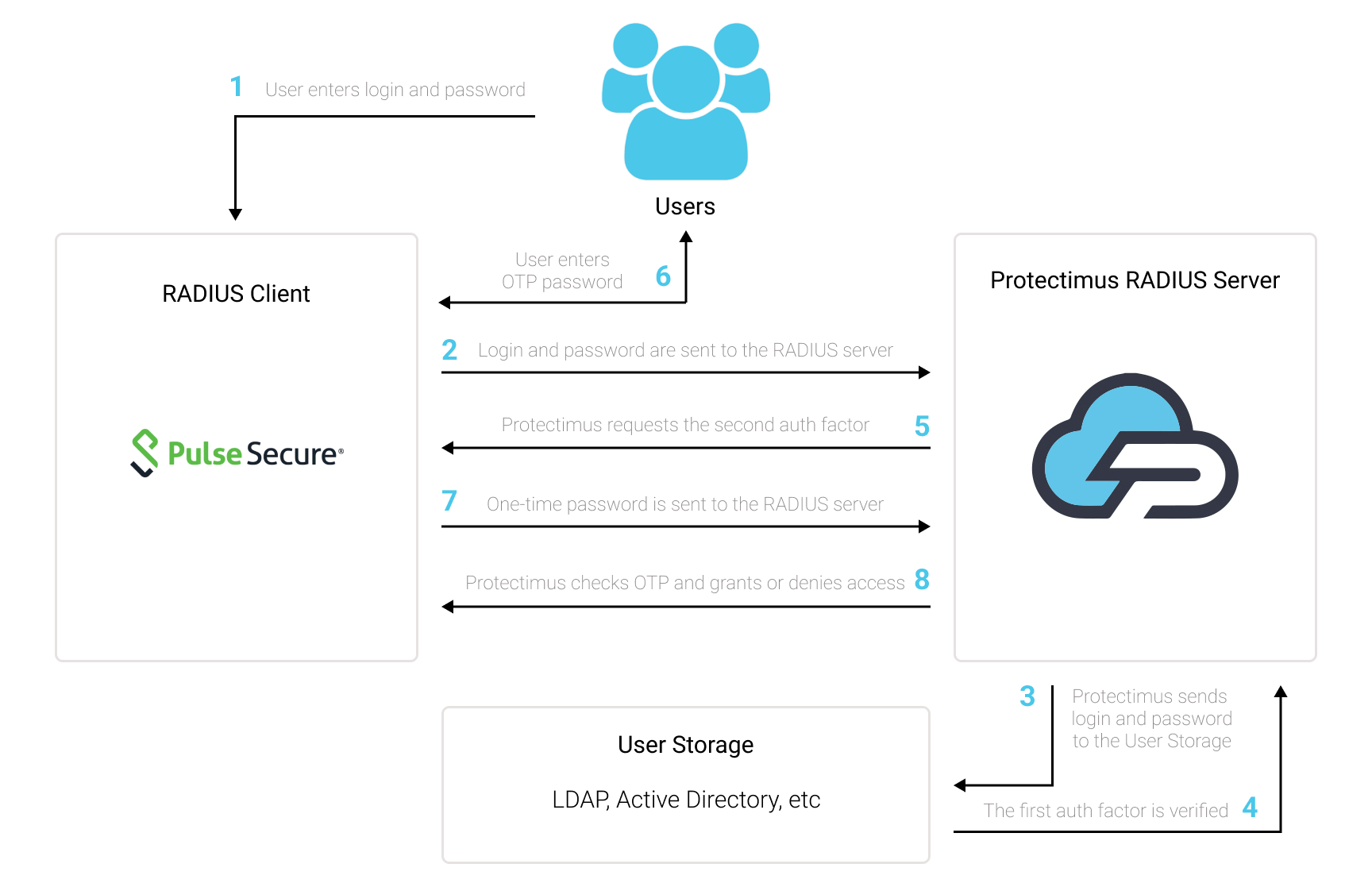
La autenticación de dos factores (2FA/MFA) protege las cuentas de usuario de Pulse Connect Secure SSL VPN frente al phishing, los ataques de fuerza bruta, los keyloggers, los ataques man-in-the-middle, la falsificación de datos, la ingeniería social y otras técnicas similares.
Cuando habilita 2FA/MFA para Pulse Connect Secure SSL VPN, los usuarios de Pulse Secure VPN utilizarán dos factores de autenticación diferentes para acceder a sus cuentas.
Para vulnerar una cuenta de usuario de Pulse Connect Secure SSL VPN protegida con autenticación de dos factores, un atacante necesitaría ambas contraseñas al mismo tiempo. Además, solo dispone de 30 segundos para averiguar y utilizar una contraseña de un solo uso basada en el tiempo. Cumplir estas condiciones es prácticamente imposible, lo que hace que la autenticación de dos factores sea tan eficaz.
Puede configurar la autenticación de dos factores (2FA) para Pulse Connect Secure SSL VPN con Protectimus utilizando el protocolo RADIUS:
- Regístrese en Protectimus SAAS Service o instale On-Premise 2FA Platform y configure los ajustes básicos.
- Instale y configure Protectimus RADIUS Server.
- Configure las políticas de autenticación de Pulse Connect Secure SSL VPN.
Elija su opción de implementación y complete la configuración básica:
Protectimus Cloud Service
Protectimus On-Premise Platform
Las instrucciones detalladas para instalar y configurar Protectimus RADIUS Server para la autenticación de dos factores de Pulse Connect Secure SSL VPN mediante RADIUS están disponibles en nuestra Guía de instalación de Protectimus RADIUS Server para la 2FA de Pulse Connect Secure SSL VPN.
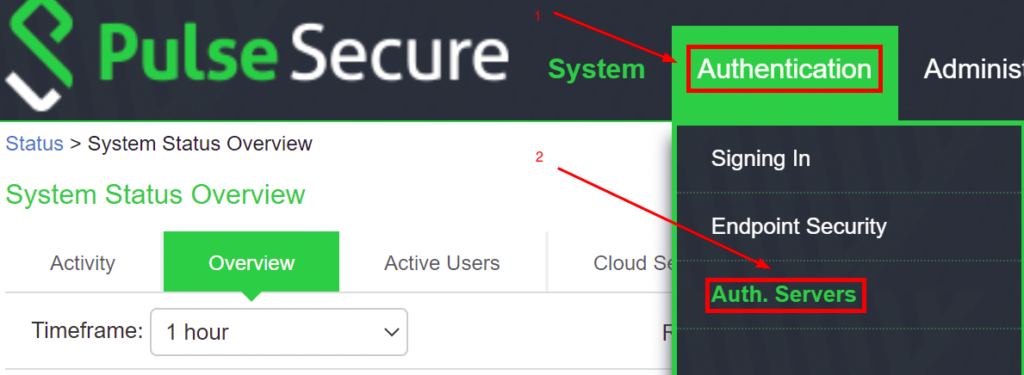
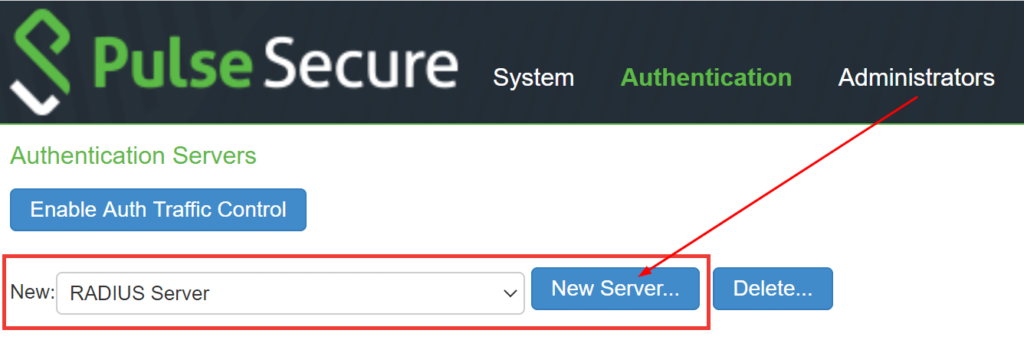
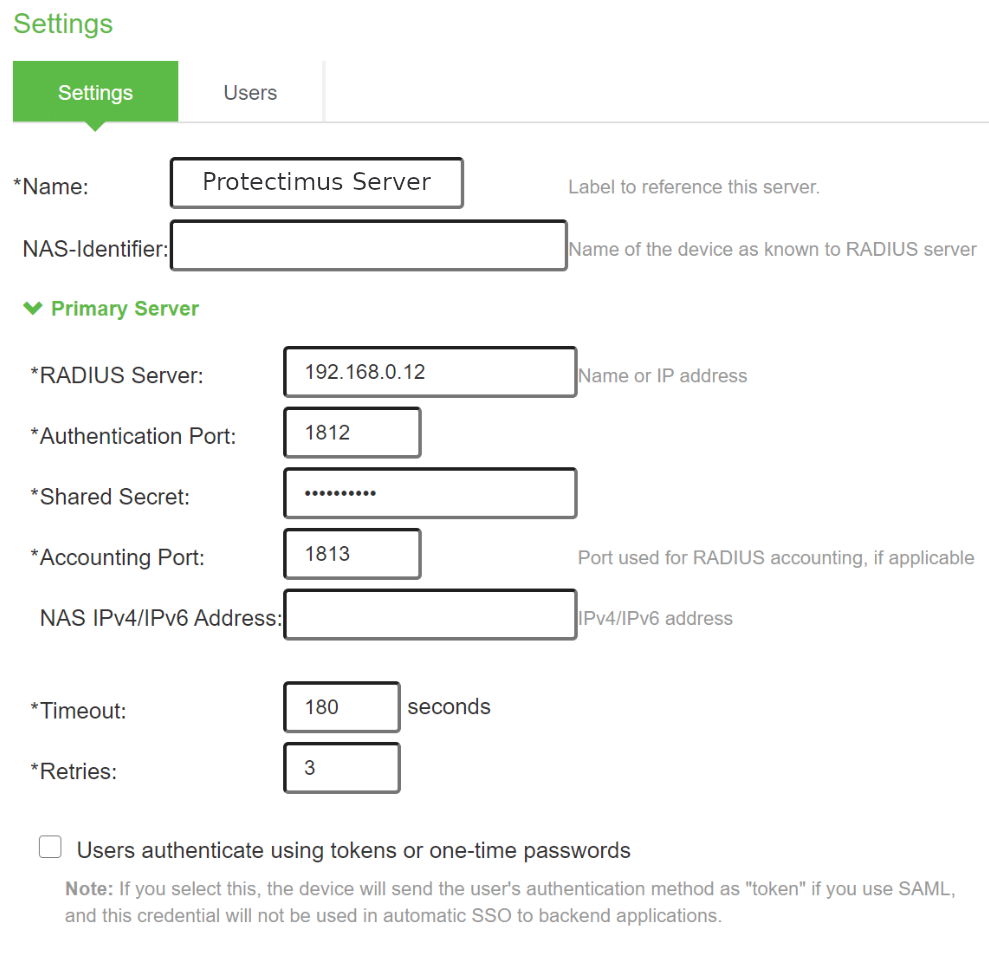
| Name | Introduzca un nombre para el servidor RADIUS, por ejemplo, Protectimus Server. |
| RADIUS Server | Introduzca la dirección IP del servidor donde está instalado el componente Protectimus RADIUS Server. |
| Authentication Port | Indique 1812 (o el puerto que haya configurado en el archivo radius.yml de Protectimus al configurar Protectimus RADIUS Server). |
| Shared Secret | Indique el secreto compartido que creó en el archivo radius.yml de Protectimus (propiedad radius.secret) al configurar Protectimus RADIUS Server |
| Timeout | Establézcalo en 180 segundos. |
| Retries | Establézcalo en 3. |
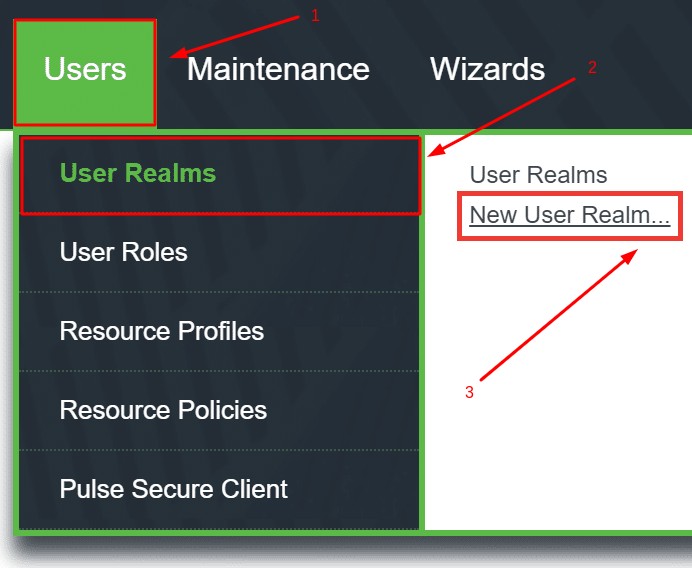
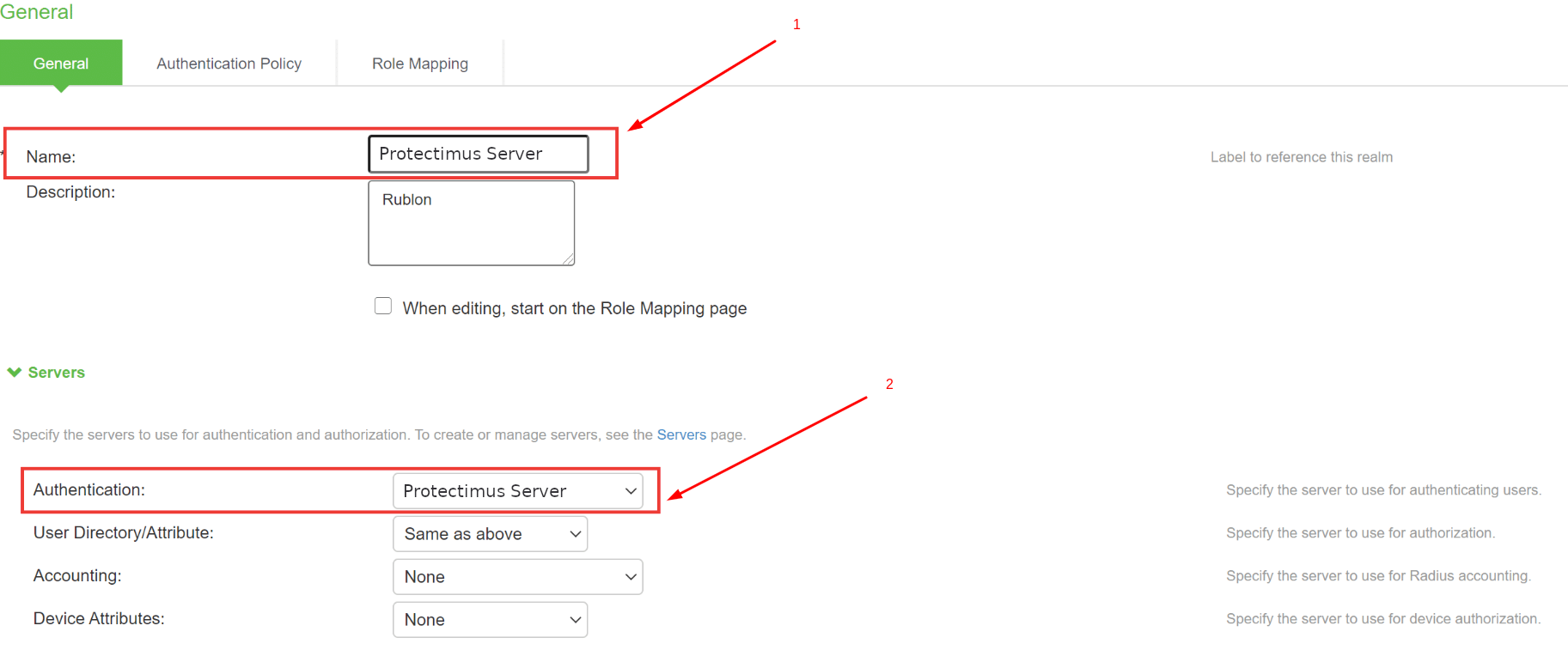
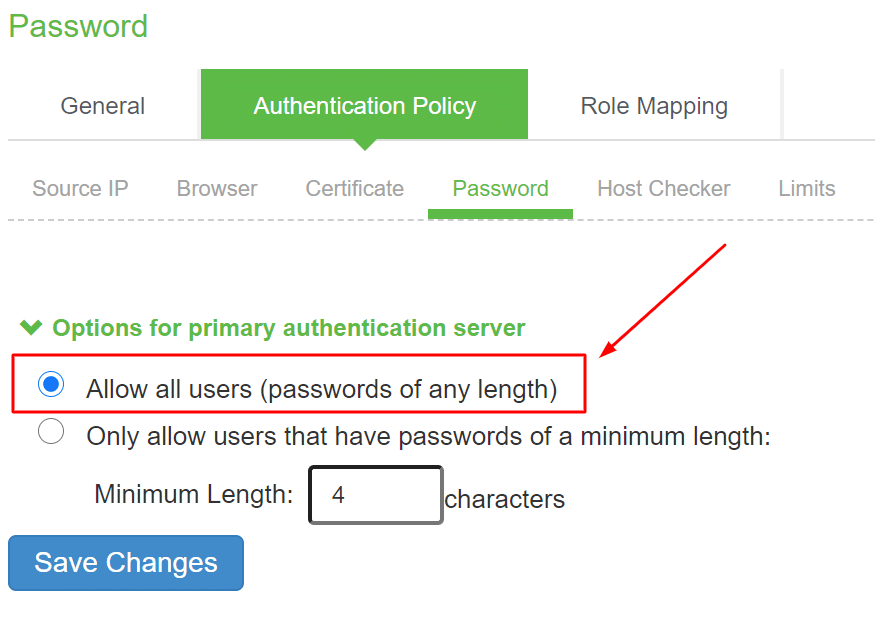
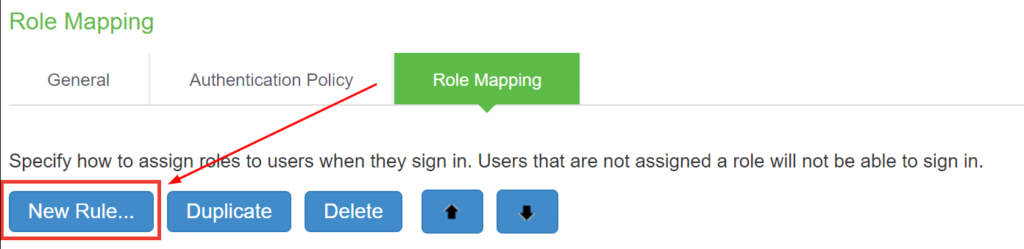
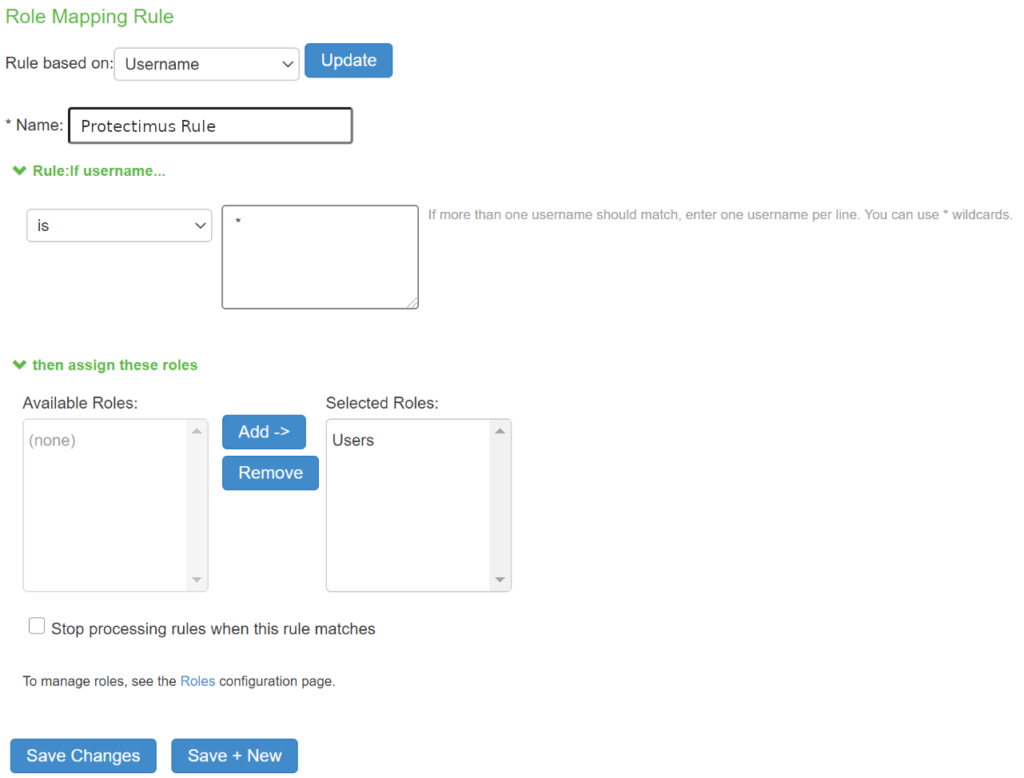
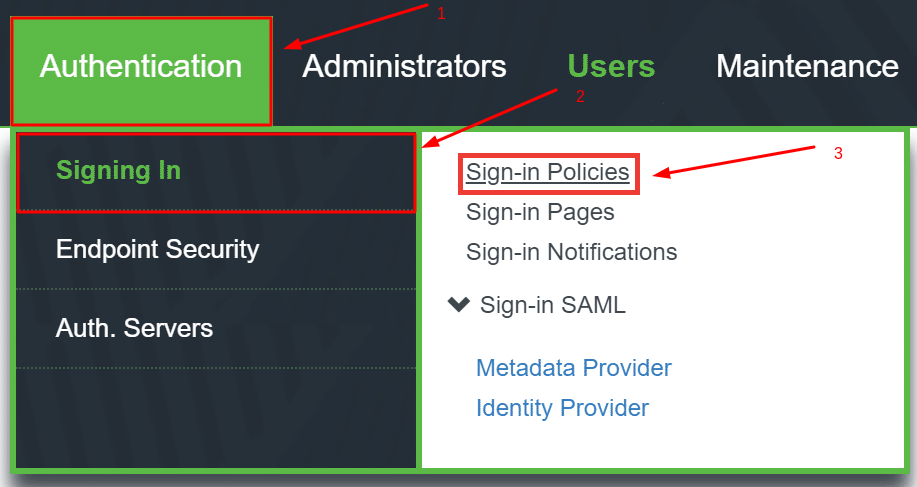
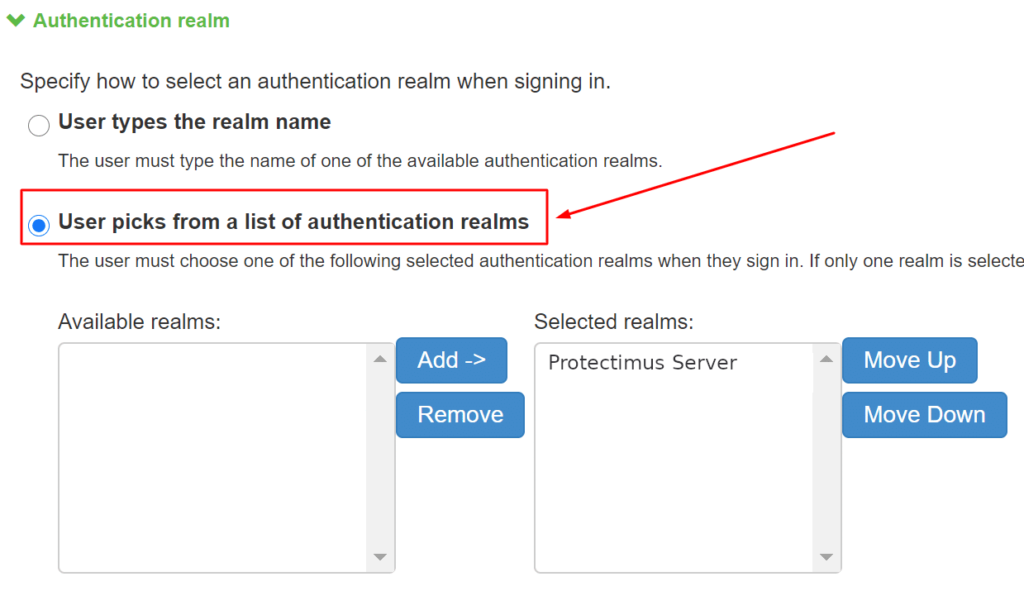
La integración de la autenticación multifactor para Pulse Connect Secure SSL VPN ya está completa.
Si tiene alguna otra pregunta, póngase en contacto con el servicio de atención al cliente de Protectimus.










