OWA: añadir autenticación de dos factores a Outlook Web App
Esta guía explica cómo instalar y configurar el componente Protectimus OWA para añadir autenticación de dos factores (2FA) a Outlook Web App y Exchange Admin Center (EAC), utilizando el servicio MFA en la nube o la plataforma MFA local de Protectimus.
¡Atención! Se requiere .NET Framework 4.7.x.
Requisitos previos
- .NET Framework 4.7.x instalado en el servidor Exchange.
- Acceso de administrador al servidor Exchange donde se instalará el componente.
- Para la integración con la plataforma local, se requiere un certificado SSL de confianza en la red. Exchange Server no acepta el certificado autogenerado durante la instalación. Se recomienda un certificado emitido por AD CS mediante certsrv.
- Los nombres de usuario en Protectimus deben tener el formato user@domain o DOMAIN\user; consulte el paso 5.
Versiones de Exchange compatibles
El componente Protectimus OWA admite Exchange Server 2013, 2016 y 2019 a través de Outlook Web App. Para Exchange Server 2010, utilice Protectimus DSPA en su lugar, que se integra directamente con Active Directory en lugar del flujo de inicio de sesión OWA/EAC.
Componentes requeridos
- Una cuenta del servicio MFA en la nube de Protectimus o una plataforma MFA local instalada.
- Un recurso creado en el sistema Protectimus.
- Usuarios y tokens añadidos manualmente o registrados mediante el portal de autoservicio.
- El instalador Protectimus OWA, descargado de la página de solución OWA.
1. Registrarse y configurar los ajustes básicos
¡IMPORTANTE! Para integrar OWA con la plataforma local debe utilizar un certificado SSL de confianza. Exchange Server no acepta el certificado autogenerado durante la instalación. Recomendamos un certificado emitido por AD CS mediante certsrv.
¡Atención! Los usuarios de Protectimus deben tener nombres de usuario con el formato user@domain o DOMAIN\user. Para obtener más información, consulte la sección 5. Configuración del formato del nombre de usuario.
Elija su opción de implementación y complete la configuración básica:
Servicio en la nube de Protectimus
- Regístrese y active la API.
- Añada un recurso.
- Añada usuarios. ¡IMPORTANTE! Los usuarios de Protectimus deben tener nombres de usuario con el formato user@domain o DOMAIN\user.
- Añada tokens manualmente o active el portal de autoservicio para usuarios.
- Asigne tokens a los usuarios.
- Asigne usuarios y tokens al recurso.
Plataforma local de Protectimus
- Instale la plataforma local de Protectimus.
- Añada un recurso.
- Añada usuarios. ¡IMPORTANTE! Los usuarios de Protectimus deben tener nombres de usuario con el formato user@domain o DOMAIN\user.
- Añada tokens manualmente o active el portal de autoservicio para usuarios.
- Asigne tokens a los usuarios.
- Asigne tokens y usuarios al recurso.
2. Instalar el componente Protectimus OWA 2FA
- Descargue el instalador de Protectimus OWA 2FA.
- Ejecute el instalador como administrador.

- En la pantalla de bienvenida, haga clic en Next para continuar.

- Lea y acepte los términos del acuerdo de licencia y haga clic en Next para continuar la instalación.

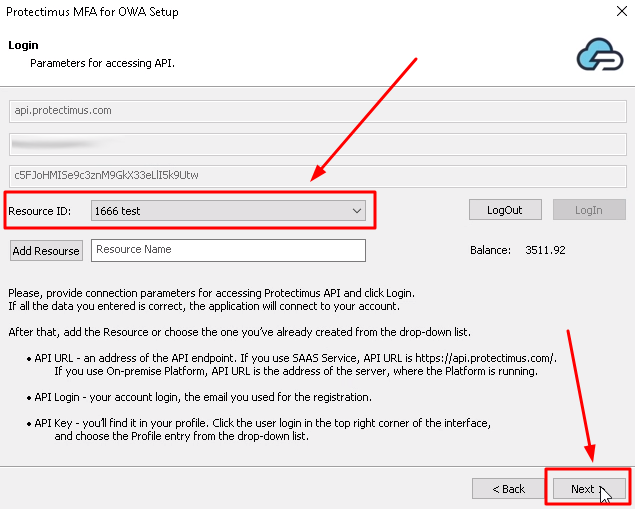
- Introduzca API URL, Login y API Key, y haga clic en LogIn. Estos parámetros significan:
- API URL: dirección del endpoint de la API. Para el servicio SaaS, la URL es https://api.protectimus.com/. Para la plataforma local, es la dirección del servidor donde se ejecuta, por ejemplo, https://localhost:8443.
- Login: nombre de usuario de su cuenta.
- API Key: se encuentra en su perfil. Haga clic en el nombre de usuario de la esquina superior derecha y seleccione Profile.

- Resource ID. Seleccione el recurso creado antes de la instalación y haga clic en Next para continuar.
Si aún no ha añadido el recurso, hágalo ahora. Haga clic en Add Resource e introduzca el nombre que desee.
- Configure los ajustes adicionales:
- Invalid OTP Message: mensaje que se mostrará cuando la OTP no sea válida.
- General API Error Message: mensaje de error de la API.
- AD Group: seleccione un grupo de AD si desea aplicar 2FA solo a sus miembros. De forma predeterminada se aplica a todos los usuarios.
- Protocol: protocolo de conexión. Se admiten SSL3, TLS1, TLS1.2 y TLS1.3.
- Cache Timeout: frecuencia, en minutos, con la que Protectimus consulta Active Directory. El valor predeterminado es 15; con 0 se consulta AD en cada inicio de sesión.
- OTP Cookie Lifetime: frecuencia, en minutos, con la que se solicita de nuevo la OTP. El valor predeterminado es 720 minutos (12 horas).
¡IMPORTANTE! También puede cambiar estos ajustes en el archivo de configuración más adelante.

- Haga clic en Next para continuar.

- Todo está listo. Marque OWA, Exchange Admin Center o ambos módulos y haga clic en Install.

3. Inicie sesión en Outlook Web App o EAC con Protectimus 2FA
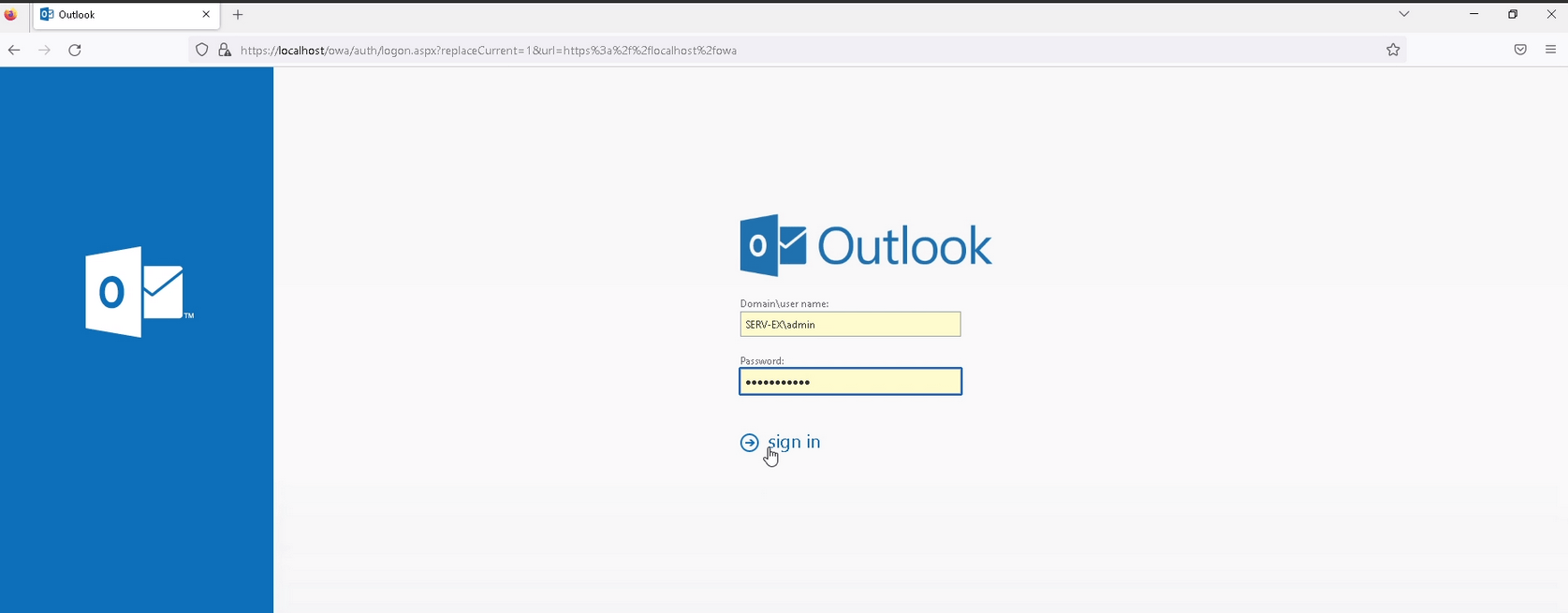
- Abra su Outlook Web App o Exchange Admin Center.
- Introduzca su nombre de usuario y contraseña y haga clic en Login.
- Introduzca la contraseña de un solo uso generada por el token 2FA.

¡IMPORTANTE! Si utiliza un token OCRA, use el desafío mostrado en la página para generar la OTP.

4. Cómo cambiar las opciones
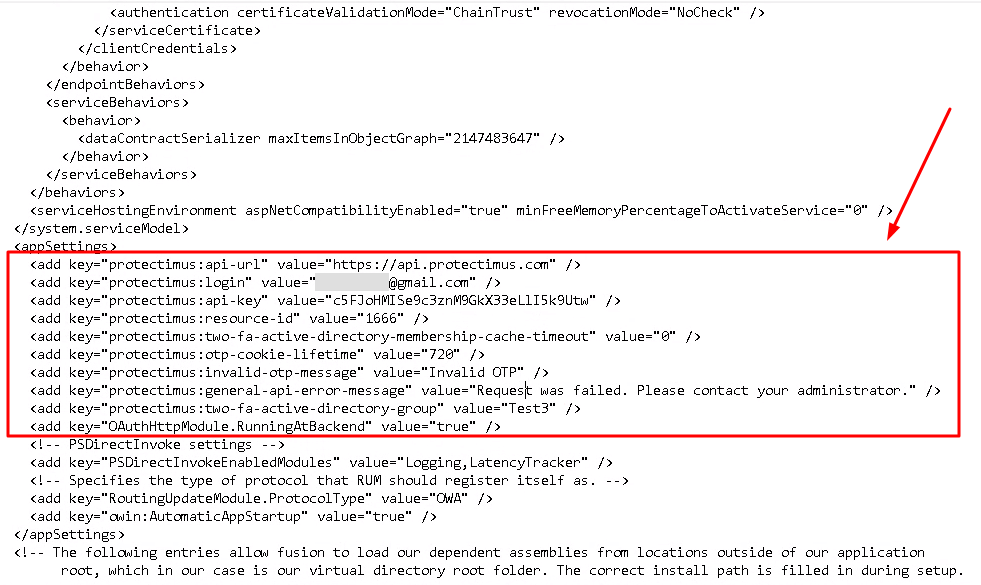
Puede cambiar API URL, API Key, Resource ID, el grupo y otros ajustes en el archivo de configuración.
El archivo de configuración se encuentra generalmente en la siguiente ruta:
C:\Program Files\Microsoft\Exchange Server\V15\ClientAccess\Owa
5. Configuración del formato del nombre de usuario
El nombre de usuario de Protectimus debe tener el formato user@domain o DOMAIN\user, donde user es el nombre de usuario de AD y domain es el dominio corporativo.
Para transmitir el login de usuario en el formato deseado a la API, puede utilizar el siguiente parámetro en el archivo de configuración:
<add key="protectimus:is-owa-old-format" value="true" />
El
protectimus:is-owa-old-format puede tener dos valores:
true o
false.
| VALOR DEL PARÁMETRO |
FUNCIÓN |
true
|
Cuando se introduce el nombre de usuario con el formato DOMAIN\user (netBiosName), se convierte al formato user@domain (UserPrincipalName). |
false
|
Cuando se introduce el formato user@domain, se convierte a DOMAIN\user. |
If the parameter is not set
|
El nombre introducido se transmite a la API en su formato original. |
Además, el usuario puede introducir user@domain si el valor es true o DOMAIN\user si el valor es false. En este caso no se realiza ninguna conversión porque el formato ya es correcto.
Notas de solución de problemas
- El instalador falla o no continúa: compruebe que .NET Framework 4.7.x esté instalado en Exchange Server.
- La integración con la plataforma local no conecta mediante SSL: compruebe que el certificado sea de confianza. Exchange Server no acepta el certificado autogenerado; utilice uno emitido mediante AD CS / certsrv.
- Los usuarios no pueden iniciar sesión con el formato esperado de nombre de usuario: compruebe el parámetro
protectimus:is-owa-old-format respecto al formato utilizado por los usuarios; consulte la sección 5.
- No se solicita 2FA a los usuarios del grupo de AD, o viceversa: compruebe Cache Timeout. Durante el diagnóstico, establézcalo en 0 para consultar Active Directory en cada inicio.
FAQ
¿Cómo instalo Protectimus OWA MFA?
Descargue el instalador desde la página de OWA, ejecútelo como administrador en Exchange Server, introduzca API URL, Login y API Key, seleccione un recurso, configure el grupo de AD y la sesión, marque OWA, EAC o ambos e instale.
¿Cuáles son los requisitos para Protectimus OWA?
.NET Framework 4.7.x, acceso de administrador y, para la plataforma local, un certificado SSL de confianza.
¿Cómo puedo configurar OTP Cookie Lifetime?
Defínalo durante la instalación o modifíquelo después en el archivo de configuración situado en
C:\Program Files\Microsoft\Exchange Server\V15\ClientAccess\Owa. Controla cada cuántos minutos se vuelve a solicitar una OTP; el valor predeterminado es 720.
¿Cómo puedo permitir el MFA para OWA y EAC juntos?
En la pantalla final de instalación, marque OWA y Exchange Admin Center antes de hacer clic en Install.
¿Qué formato de nombre de usuario requiere Protectimus OWA?
user@domain o
DOMAIN\user
La conversión entre ambos formatos antes de enviar el nombre a la API se controla mediante el parámetro
protectimus:is-owa-old-format
¿Dónde está el archivo de configuración OWA?
Por defecto, en
C:\Program Files\Microsoft\Exchange Server\V15\ClientAccess\Owa
Documentación relacionada
Si tiene alguna otra pregunta, póngase en contacto con el servicio de atención al cliente de Protectimus.













