



El sistema de autenticación de dos factores (2FA) de Protectimus admite el inicio de sesión único (SSO) iniciado por el proveedor de servicios (SP).
Esto significa que los usuarios finales podrán iniciar sesión en sus cuentas directamente desde la página de inicio de sesión del recurso protegido. Cuando un usuario intenta iniciar sesión en un recurso protegido, se envía una solicitud de autorización al proveedor de identidad (Protectimus). Una vez que Protectimus autentica la identidad del usuario, este inicia sesión en su cuenta del recurso protegido.
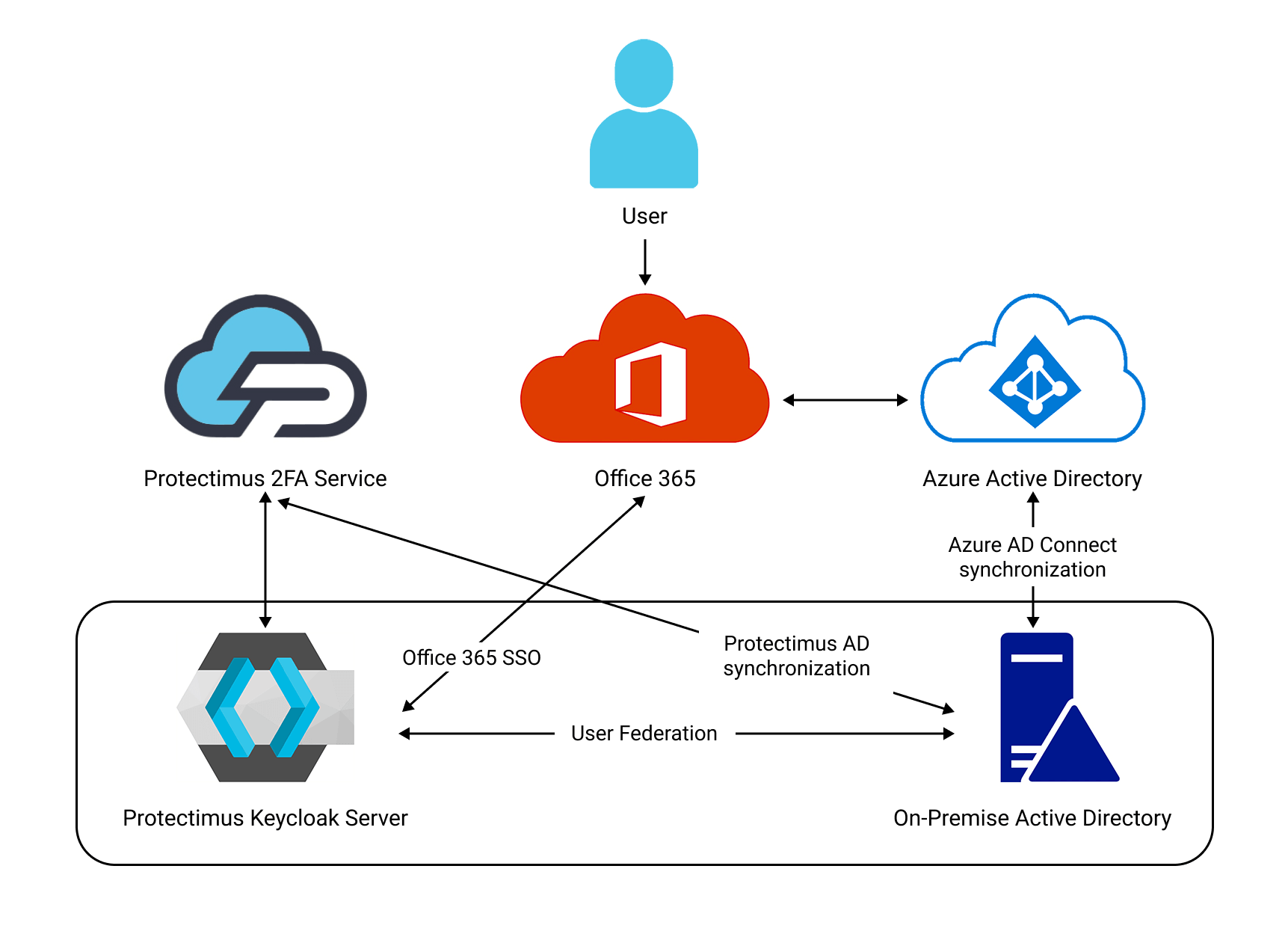
A continuación se muestra el esquema de interacción entre la plataforma 2FA local de Protectimus y Microsoft Office 365 mediante Keycloak.
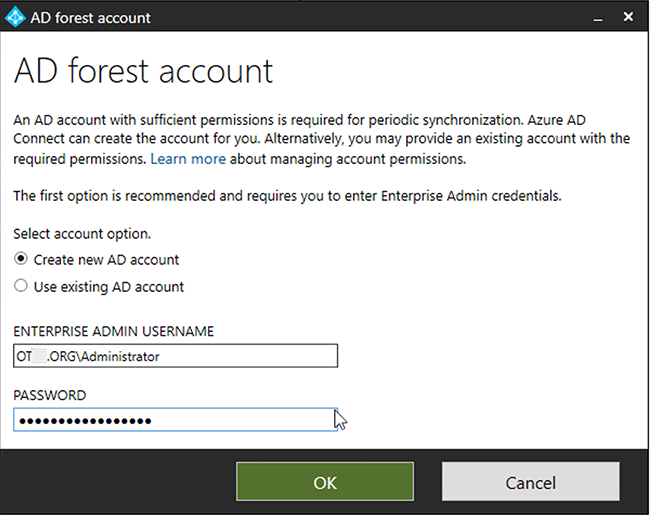
Elija el tipo de implementación y complete la configuración básica:
Admin → Show all → Azure Active Directory → Custom domain names → Add custom domain
En DNS, cree un registro TXT para confirmar la incorporación del dominio a Azure AD.
https://www.microsoft.com/en-us/download/details.aspx?id=47594
Continue → Customize → Install (sin opciones marcadas) → Password Hash Synchronization → Next → Connect to Azure AD:
username@[something].onmicrosoft.com, contraseña:
Next → Add Directory → dominio
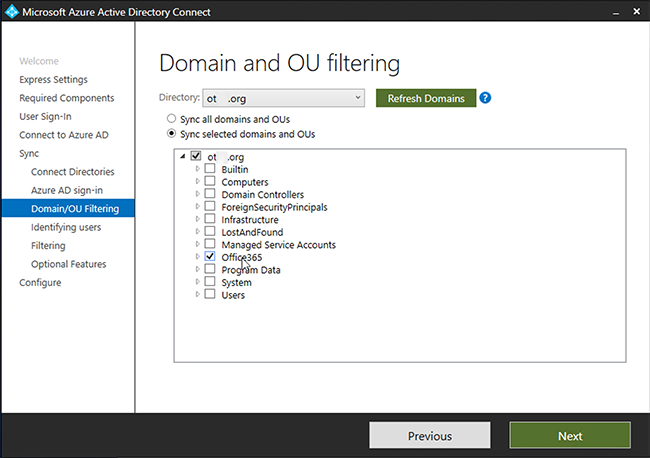
Puede crear una unidad organizativa (OU) independiente para los usuarios protegidos con 2FA y sincronizar únicamente esa OU. Cada usuario debe tener una dirección de correo electrónico, que se utilizará como UPN.
Consulte la imagen siguiente. ↓
Next → Next → Sync Selected Domain
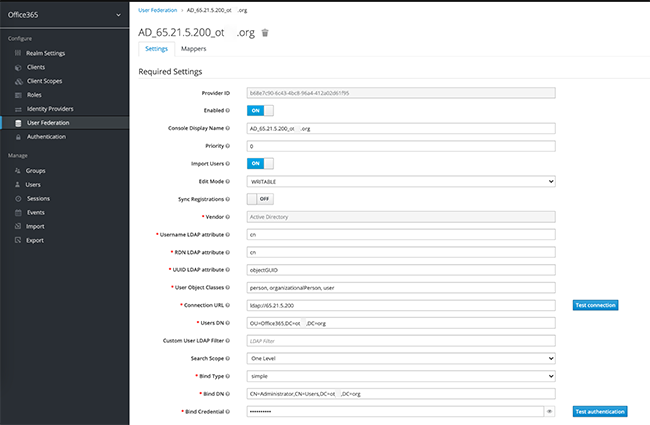
Next → Next → Next → Exit.
Añada un Realm, por ejemplo, Office365.
Añada un Mapper:
¡ATENCIÓN! Es importante asignar al archivo el nombre “urn:federation:MicrosoftOnline”.
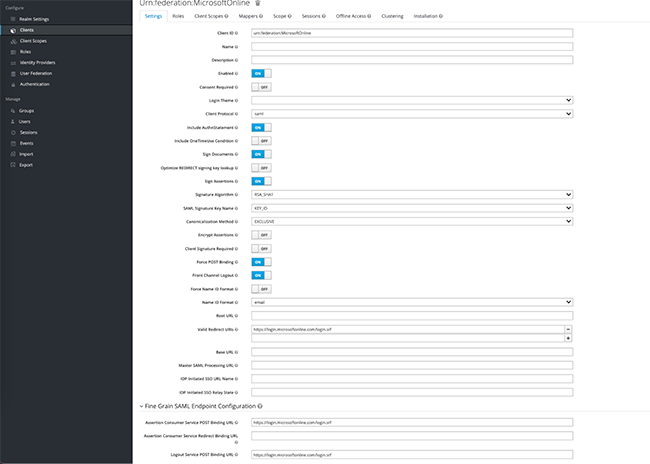
Obtenga un certificado SAML y compruébelo mediante esta URL:
https://kc.dev.protectimus.com/auth/realms/[realm name]/protocol/saml/descriptor
También puede comprobar el certificado mediante la función SAML keys de la interfaz.
Si se solicita instalar NuGet y PSGallery, instálelos también.
Ejecute el siguiente script:
# get the public key certificate from keycloak
# https://kc.dev.protectimus.com/auth/realms/2608/protocol/saml/descriptor
# see X509Certificate
$cert="MIICoTCCAYkCBgF3Y+nVLjANBgkqhkiG9w0BAQsFADAUMRIwEAYDVQQDDAlvZmZpY2UzNjUwHhcNMjEwMjAyMTgwMTQ0WhcNMzEwMjAyMTgwMzI0WjAUMRIwEAYDVQQDDAlvZmZpY2UzNjUwggEiMA0GCSqGSIb3DQEBAQUAA4IBDwAwggEKAoIBAQC3eE+GuP2ubqH0C2sceb1iBsPr5LNIK0dtW67CQPL2tLM0YlRAFXu2sWRMKwPl8ZULvMzufA855j0Chd5KX1izVi8c6fclqge+OB9iMB05Ew/zGb8zmCXETgVU9+lsQFchd8M/I/i0QKKOatIbP50t9SKJI5daX78wb/IVk2pexB76cqXaQrrddh9ksXo3OFyFpAk1xlCC9Nu77QLCPWK4fBnSEbnzxDP3ZMhPXMQsn3MbD1SHGmHmJ93wMeXFGGIU77aDI/uAYZj1tb7dj/aICqG8RpUVXEolf8BDH/nT2TonYSmMaSqd99wCNJaKJWpyPd2qid7118DtOyPzZza/AgMBAAEwDQYJKoZIhvcNAQELBQADggEBAFglY4CdTJkGTL7/YUY1uBhSTSGvtbv6GiQ+2Uox3JVNVECB1Za63mUU1tTC/r4Jp02jRnTtBfSR7Sra+HDIKgAOkwcVTh2P++i1bk7PiY1Rb2ePrBtXWnb0GC8qCLAOK7b2/y9E1K5Wjg2Qg1dxnNZFys8CLpHkkYwMwChJA6E8DMg/bWUYfighBo4mAUpORAwqkmEB2mC39VbWZAUyBysQ5Cb9xK8RWnOgj7XhZfhpihK815z+uwirQjOFmGhWs2Mxk9PHkPkCFeWdcGGoRPvBuVYaG5/MrWu5hqQFtiu4ZDsySEnBdUqfudD6Iorc6QHVYf6VCunSIdE9L9sIovs="

$uri="https://kc.dev.protectimus.com/auth/realms/Office365/protocol/saml"
$issuer_uri="https://kc.dev.protectimus.com/auth/realms/Office365"
$dom="yourdomain.com"

$cred = Get-Credential
Connect-MsolService -Credential $cred

Set-MsolDomainAuthentication -DomainName $dom  -Authentication Federated -ActiveLogOnUri $uri -SigningCertificate $cert -PassiveLogOnUri $uri -IssuerUri $issuer_uri -LogOffUri $uri -PreferredAuthenticationProtocol SAMLP
Puede comprobar si la operación se ha realizado correctamente:
Get-MsolDomainFederationSettings -DomainName domain.nameEjecute el siguiente script:
$dom="yourdomain.com"
Set-MsolDomainAuthentication -DomainName $dom -Authentication managed
Todo está listo. Abra office365.com e intente iniciar sesión con una cuenta de AD.
Si tiene alguna otra pregunta, póngase en contacto con nuestro servicio de atención al cliente.










