



Con la solución de autenticación multifactor (MFA) de Protectimus puede configurar la autenticación de dos factores (2FA) en Ubuntu en pocos pasos y proteger las cuentas de usuario frente al acceso no autorizado.
Después de activar la 2FA en Ubuntu, los usuarios introducirán dos contraseñas de autenticación diferentes al mismo tiempo para acceder a sus cuentas de Ubuntu:
De este modo, la cuenta de Ubuntu queda protegida mediante dos factores de autenticación diferentes. Aunque un atacante robe la contraseña estándar mediante phishing, fuerza bruta, ingeniería social, suplantación de datos u otro método, no podrá acceder sin la contraseña de un solo uso del token 2FA.
Esta guía explica cómo configurar la 2FA en Ubuntu mediante Protectimus RADIUS Server e integrarla con el servicio 2FA en la nube o la plataforma local de Protectimus.
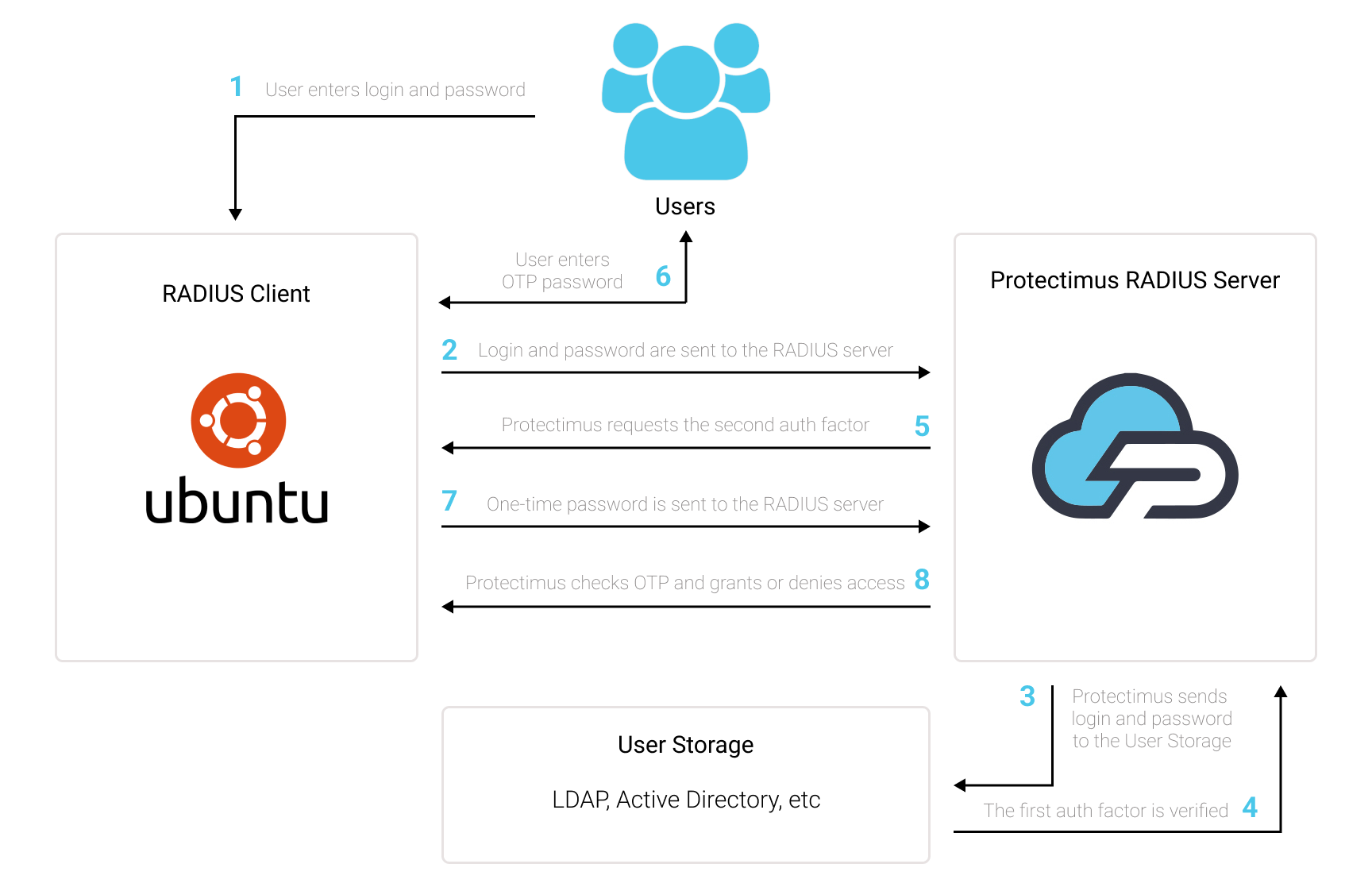
Puede configurar la 2FA de Ubuntu con Protectimus mediante RADIUS:
- Regístrese en el servicio SaaS 2FA de Protectimus o instale la plataforma local Protectimus On-Premise y configure los ajustes básicos.
- Instale y configure Protectimus RADIUS Server.
- Configure los ajustes de Ubuntu.
Elija su opción de implementación y complete la configuración básica:
Servicio en la nube de Protectimus
Plataforma local Protectimus On-Premise
Encontrará instrucciones detalladas para instalar y configurar Protectimus RADIUS Server en la guía de instalación y configuración de Protectimus RADIUS Server.
apt install libpam-radius-auth
vim /etc/pam_radius_server.conf
# server[:port]	shared_secret  	timeout (s)
127.0.0.1      	secret         	1
¡IMPORTANTE! Utilice la dirección IP de su plataforma en lugar de 127.0.0.1
vim /etc/sshd/sshd_config
ChallengeResponseAuthentication yesvim /etc/pam.d/ssh
# Standard Un*x authentication.
@include common-auth

auth required pam_radius_auth.sovim /etc/pam.d/ssh
# Standard Un*x authentication.
#@include common-auth

auth	required	pam_radius_auth.so
/etc/pam.d/gdm-password
auth required pam_radius_auth.soSi tiene alguna otra pregunta, póngase en contacto con nuestro servicio de atención al cliente.










