Guía paso a paso para gestionar usuarios
- En el servicio en la nube de Protectimus, puede añadir usuarios manualmente o importarlos mediante un archivo CSV.
- En la plataforma local Protectimus On-Premise, puede añadir usuarios manualmente, importarlos mediante CSV o activar la sincronización con su directorio de usuarios. Encontrará las instrucciones para activar la sincronización en la sección On-Premise Platform.
El número de usuarios que puede añadir depende del plan de servicio seleccionado. Si necesita más usuarios, ajuste su número en el plan de servicio.
1. Cómo añadir usuarios manualmente
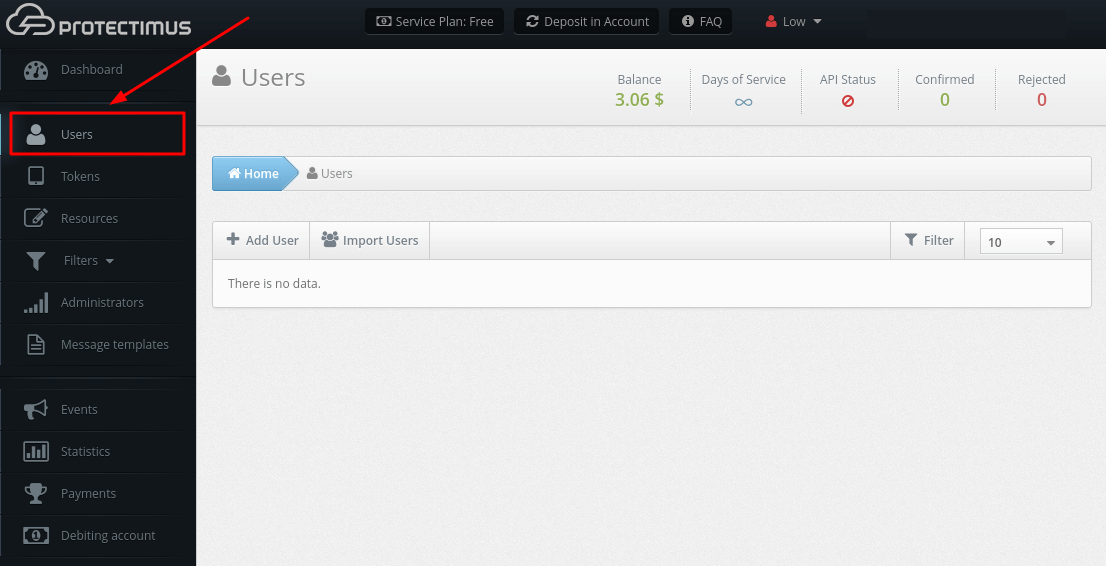
- Inicie sesión en su cuenta del servicio SaaS de Protectimus o de la plataforma local Protectimus On-Premise y abra la página Users.
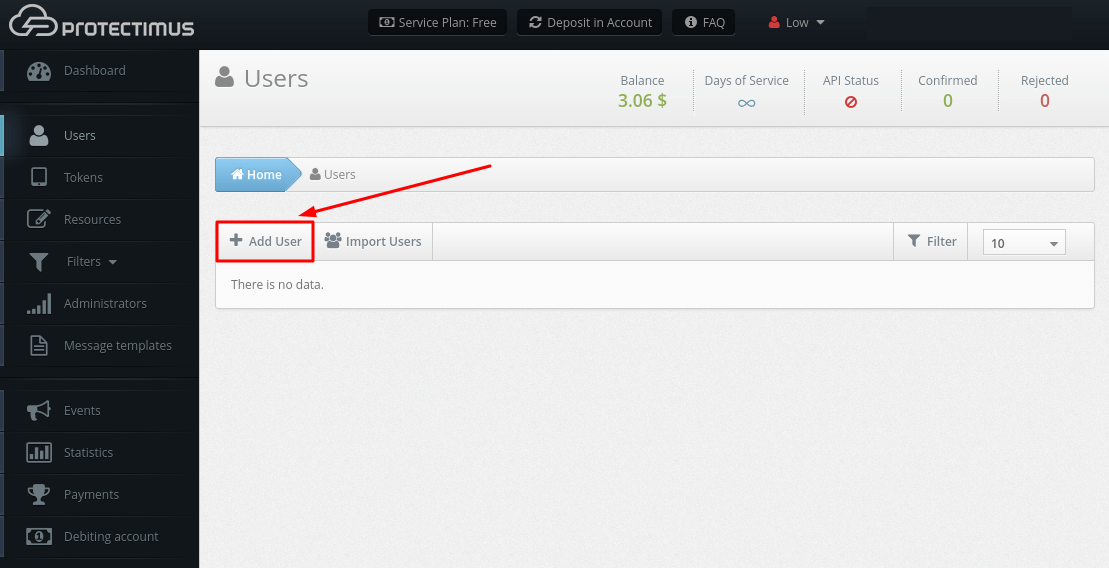
- Haga clic en el botón Add User.
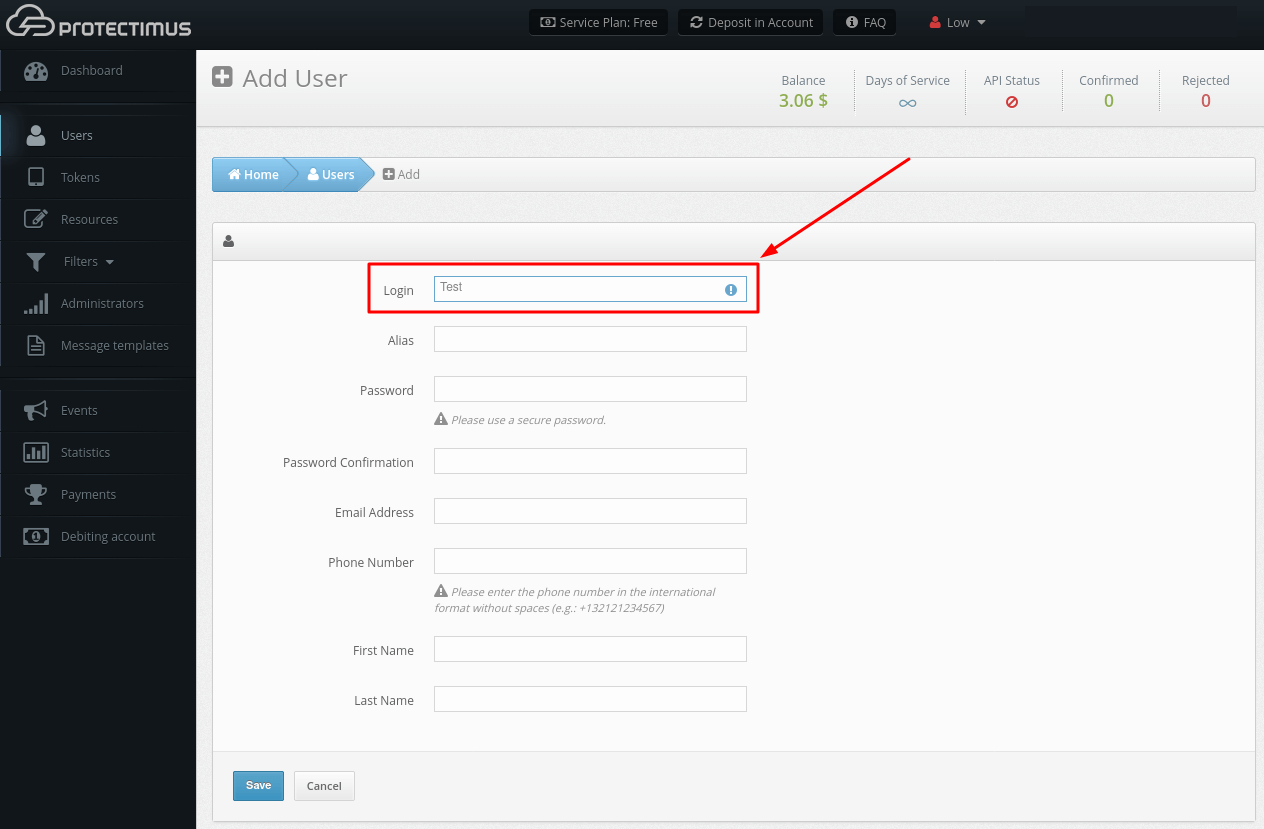
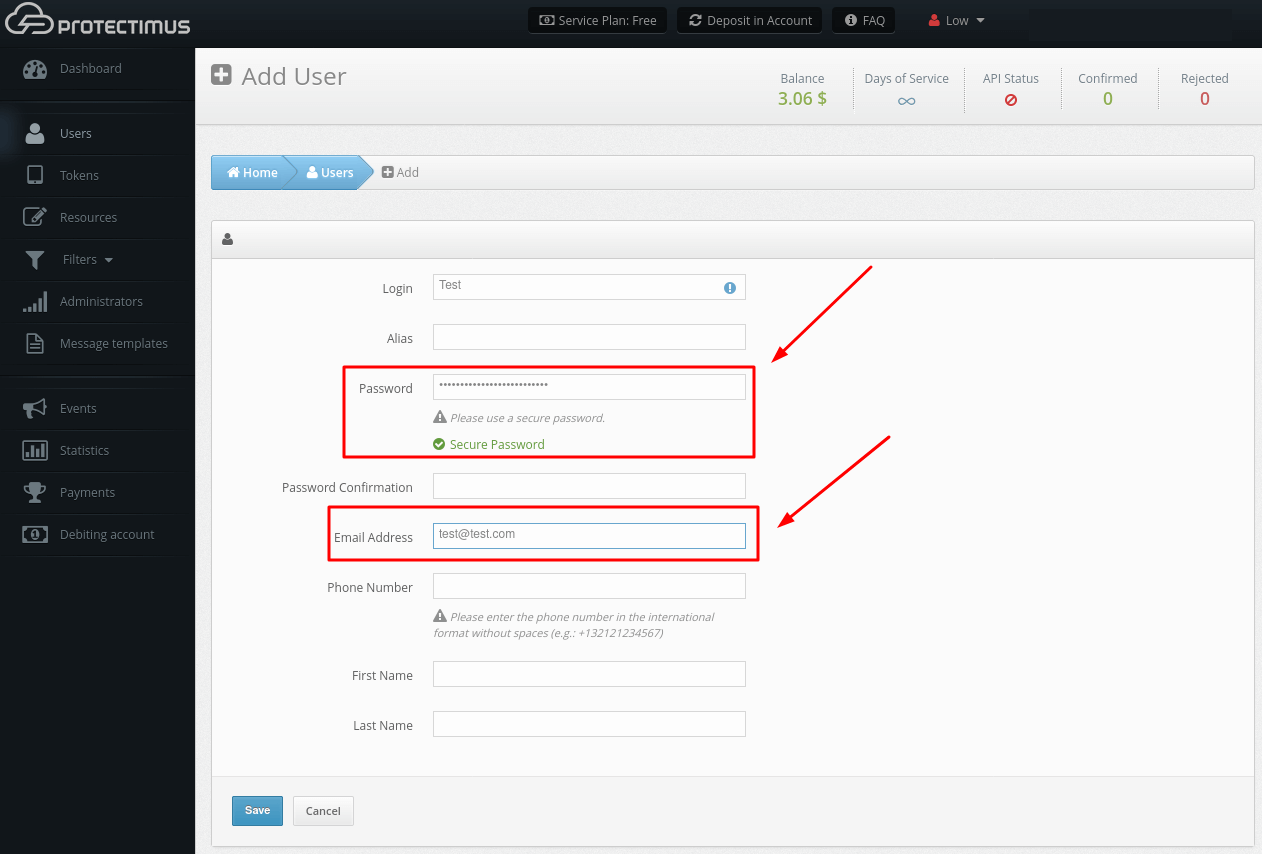
- Indique el Login del usuario; los demás parámetros son opcionales. El Login del usuario solo puede contener letras latinas, números y los símbolos _-@∽!#%+.$. No se permiten espacios ni otros símbolos. Después, haga clic en Save.
¡IMPORTANTE! Si piensa activar el registro de tokens mediante el portal de autoservicio, los usuarios de Protectimus también deben tener registrada una contraseña o una dirección de correo electrónico. Se enviará un código de verificación al correo registrado para acceder al portal de autoservicio. Si el usuario tiene contraseña y correo, iniciará sesión con la contraseña. Una vez emitido un token y asignado a un recurso, también se solicitará una OTP del token al acceder al portal.
2. Cómo importar usuarios
- Abra la página Users.
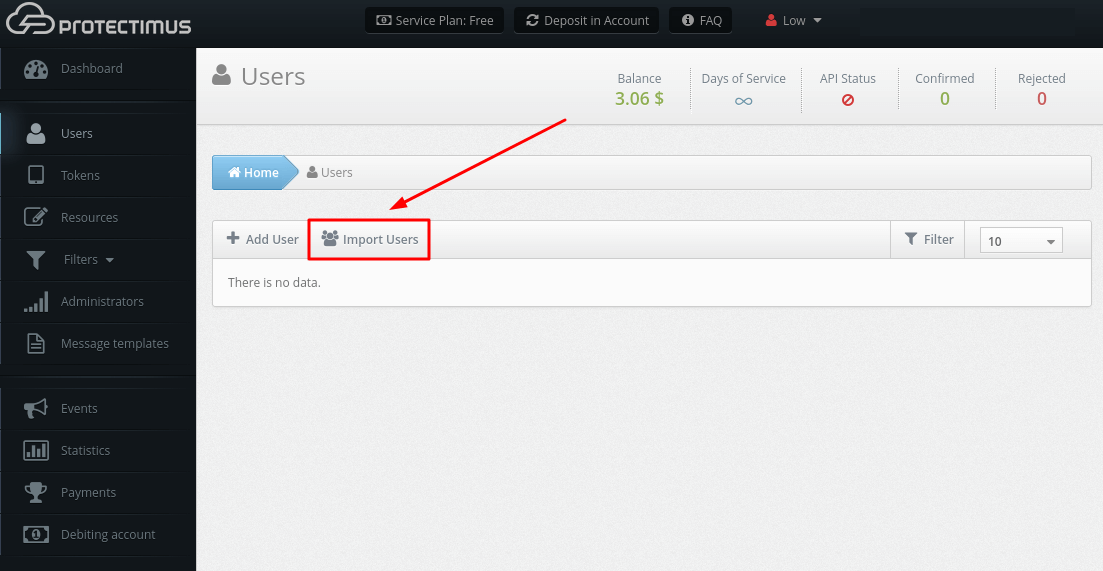
- Haga clic en el botón Import Users.
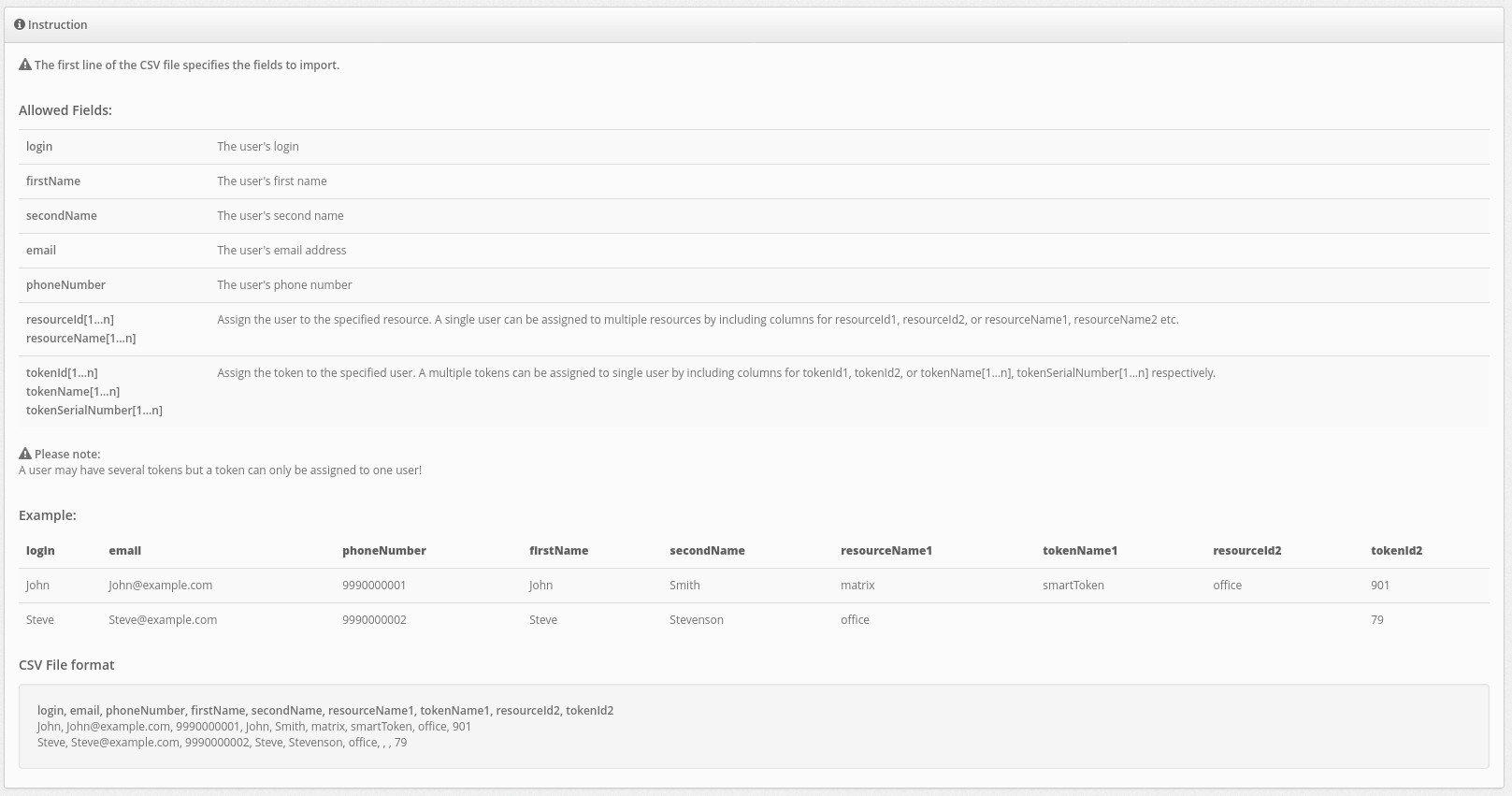
- Cree un archivo CSV según las instrucciones que aparecen en pantalla.
Ejemplo:
login, email, phoneNumber, firstName, secondName, resourceName1, tokenName1, resourceId2, tokenId2
John, John@example.com, 9990000001, John, Smith, matrix, smartToken, office, 901
Steve, Steve@example.com, 9990000002, Steve, Stevenson, office, , , 79
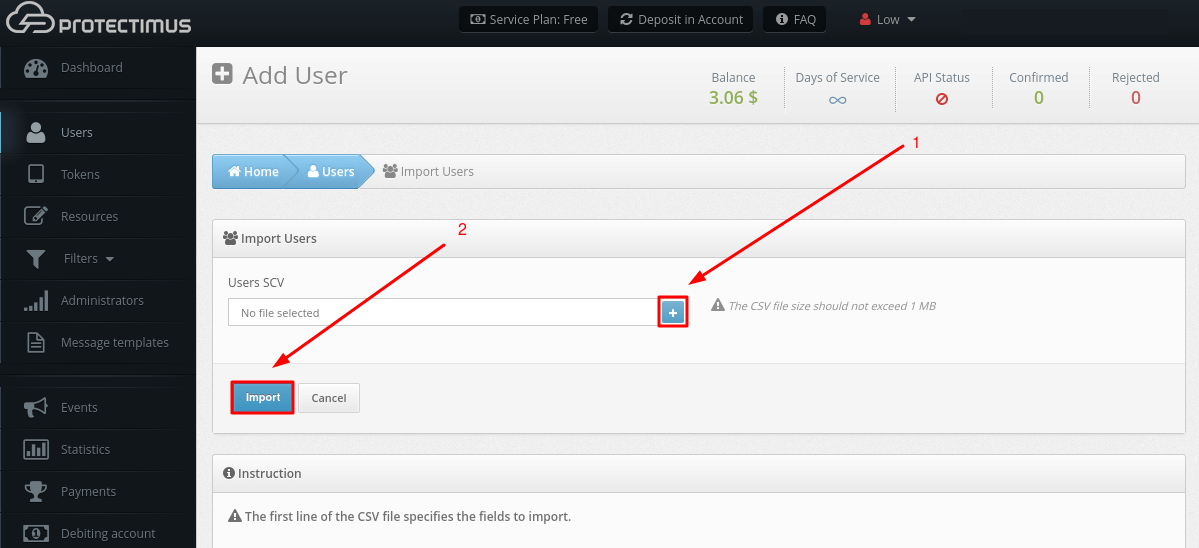
- Adjunte el archivo CSV y haga clic en Import.
3. Cómo asignar un token a un usuario
Debe asignar los tokens a los usuarios para que el sistema sepa qué token pertenece a cada usuario.
- Abra la página Users.
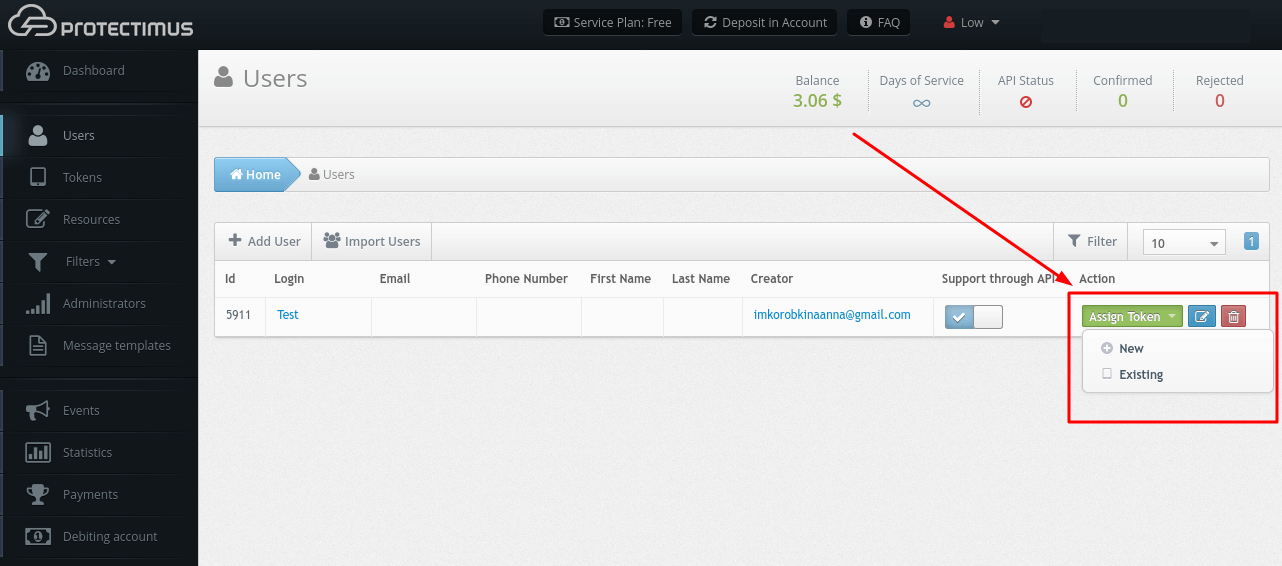
- Busque al usuario y haga clic en Assign Token:
- si todavía no ha creado el token, seleccione New y añádalo;
- si ya ha creado el token, seleccione Existing, elija el token correspondiente y haga clic en Assign.
4. Cómo desactivar el token de un usuario
Si un usuario pierde u olvida su token y necesita acceso urgente, basta con desactivarlo. Mientras esté desactivado, el token no participará en la autenticación.
- Abra la página Users.
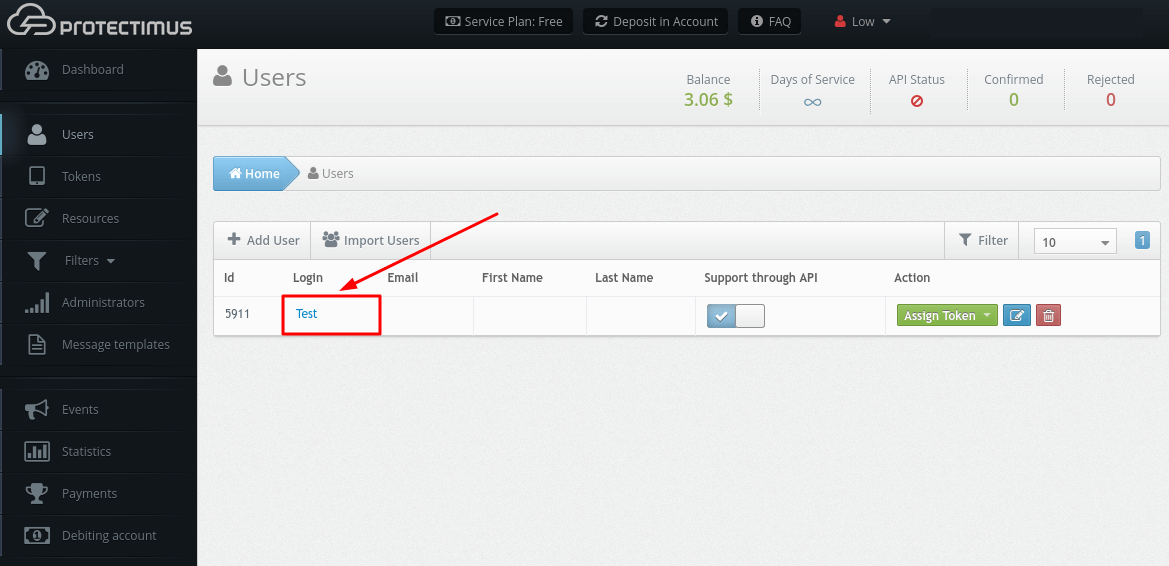
- Busque al usuario y haga clic en su Login.
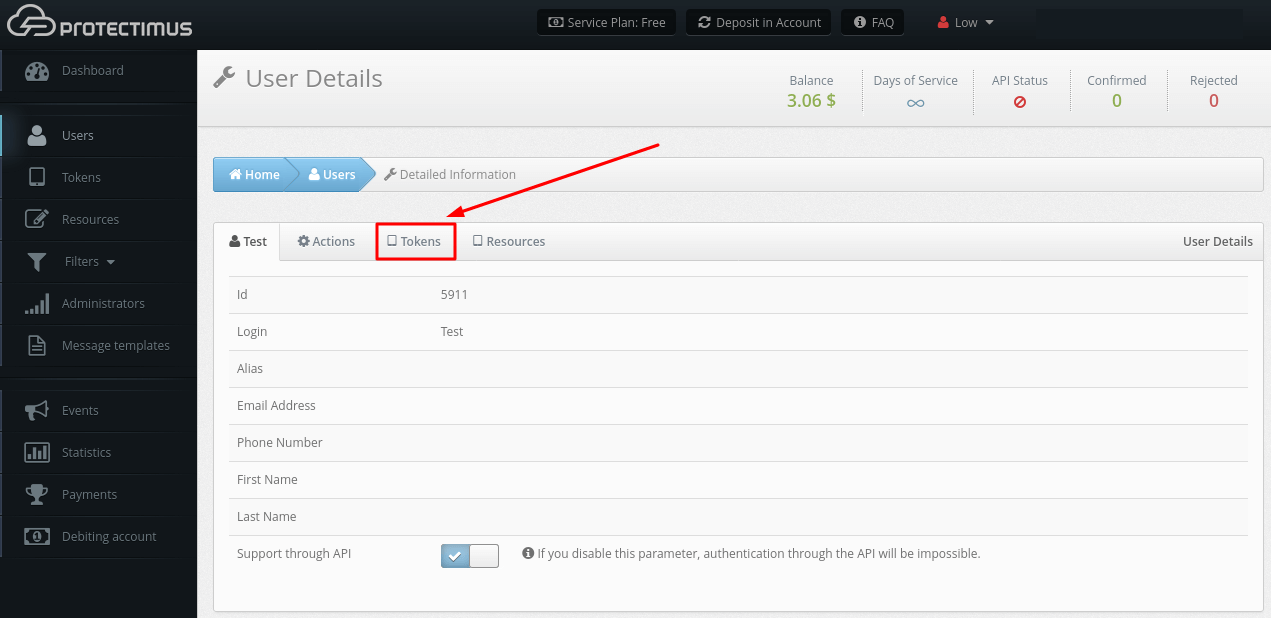
- Abra la pestaña Tokens.
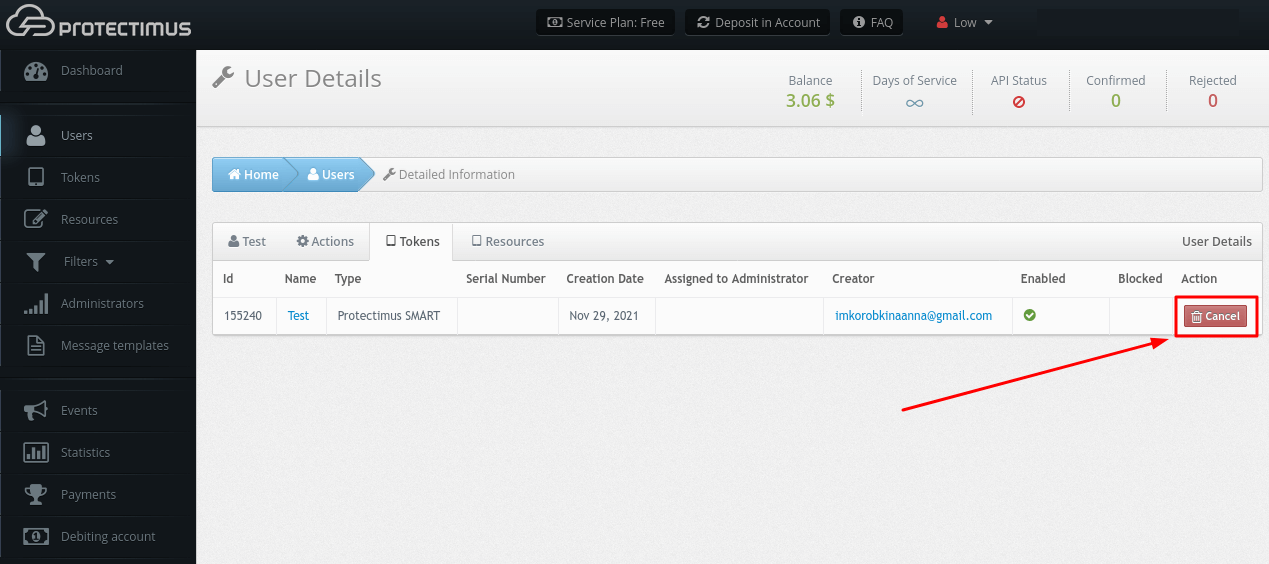
- Haga clic en Cancel y confirme la acción.
5. Cómo editar usuarios
- Abra la página Users.
- Busque al usuario que desea editar y haga clic en el botón azul situado a la derecha.
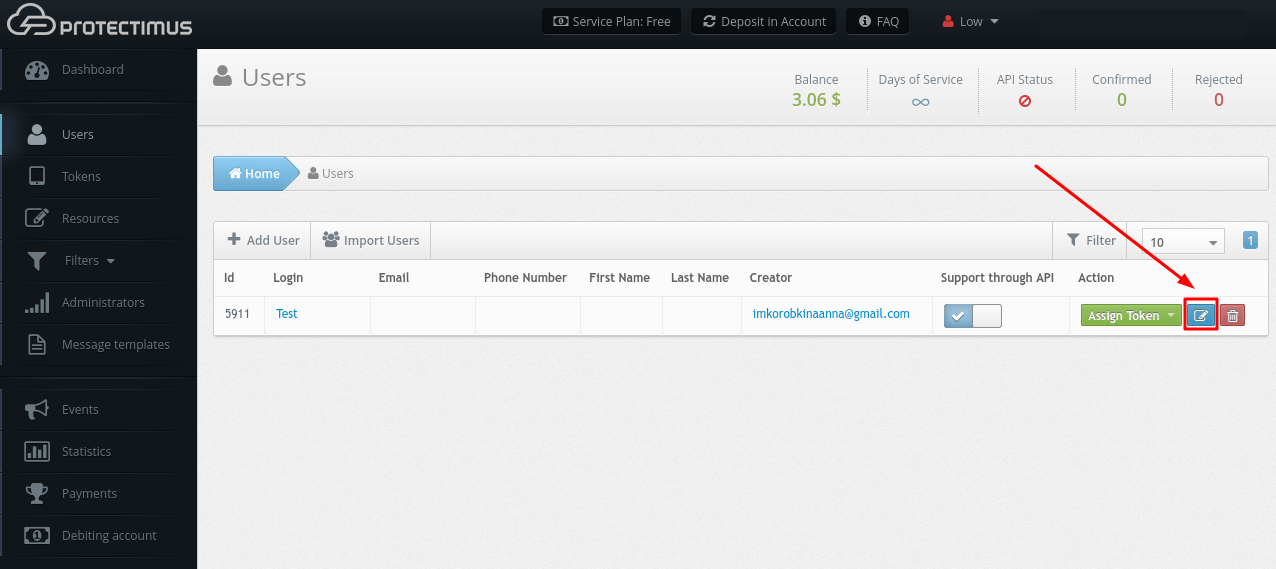
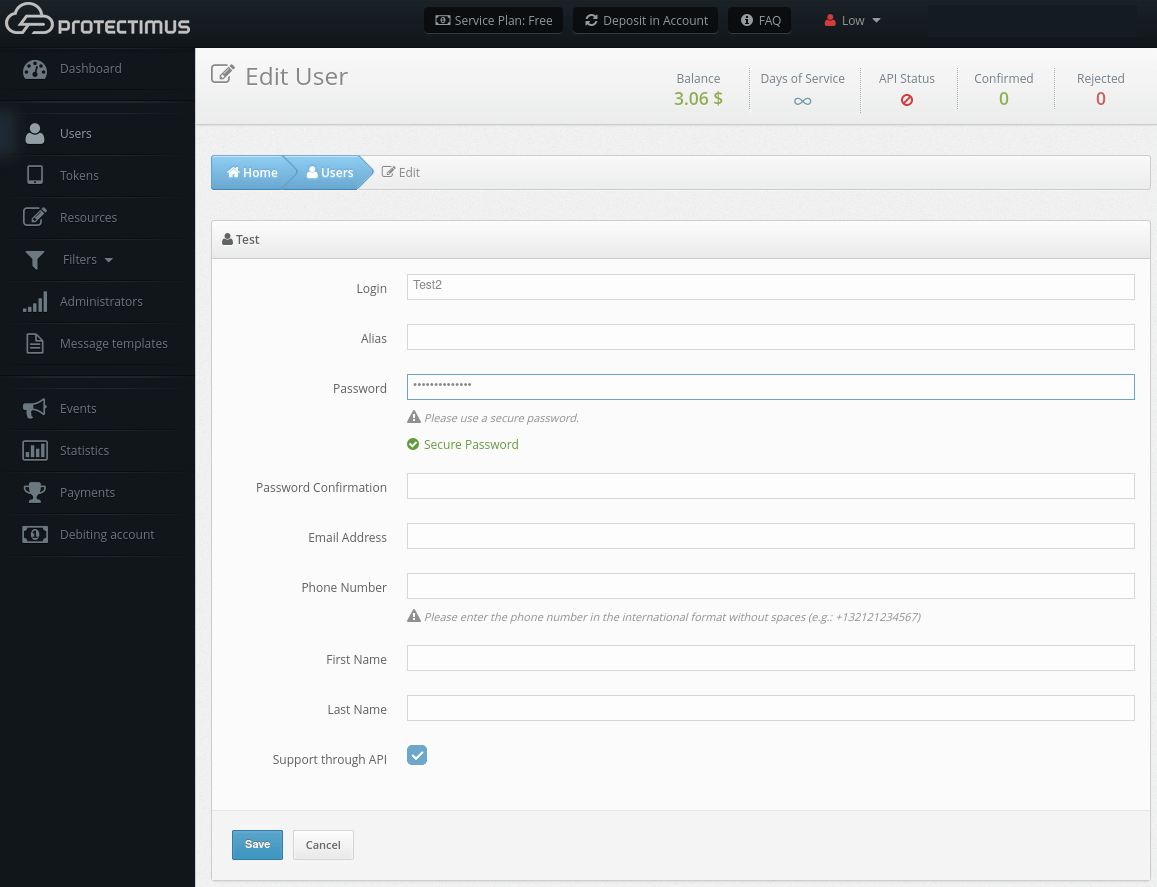
- Se abrirá la página Edit User, donde podrá realizar los cambios.
6. Cómo eliminar usuarios
- Abra la página Users.
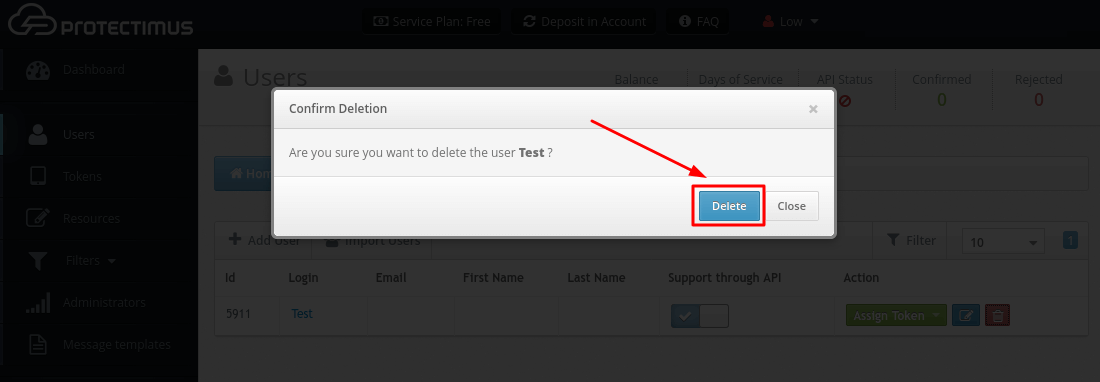
- Busque al usuario que desea eliminar y haga clic en el botón rojo con el icono de la papelera.
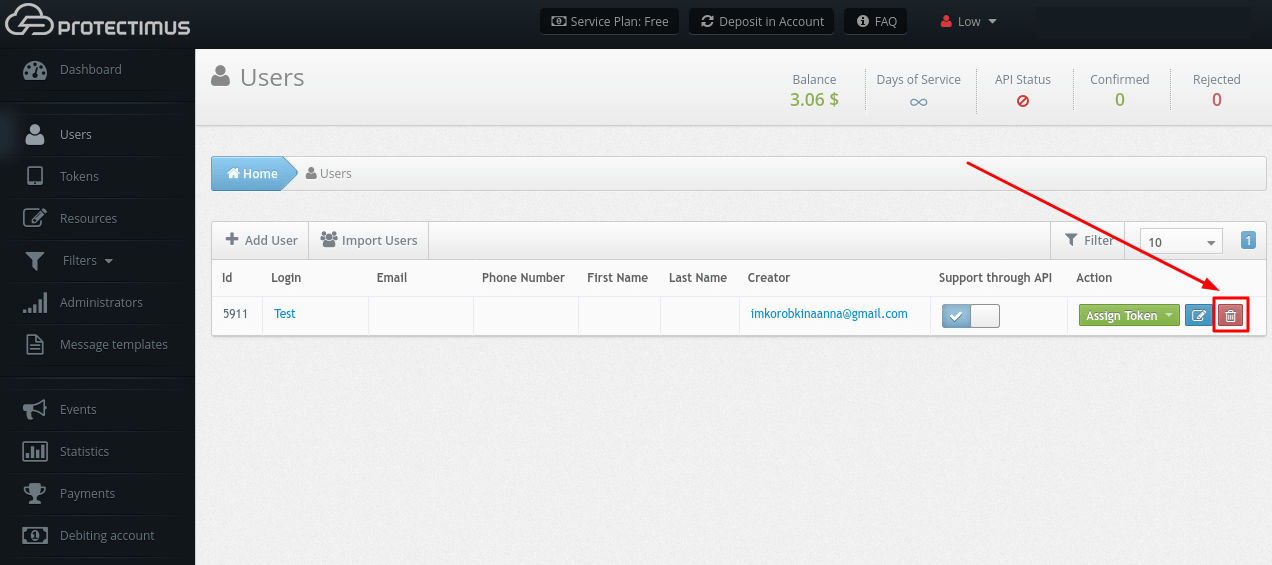
- Confirme la acción.