Implementación de la autenticación de dos factores en Windows VPN
Esta guía muestra cómo configurar la 2FA para Windows VPN con Protectimus. Tras la integración, los usuarios deberán completar dos pasos:
- Introducir su nombre de usuario y contraseña.
- Introducir la contraseña de un solo uso, válida durante solo 30 segundos.
Para generar códigos de un solo uso pueden utilizar una aplicación 2FA, Telegram, Viber o Facebook Messenger, tokens TOTP físicos, correo electrónico o SMS.
Es casi imposible obtener simultáneamente una contraseña habitual y una OTP. Por ello, la 2FA protege las cuentas de Windows VPN frente al phishing, la fuerza bruta, los keyloggers y la ingeniería social.
1. Cómo funciona la autenticación de dos factores para Windows VPN
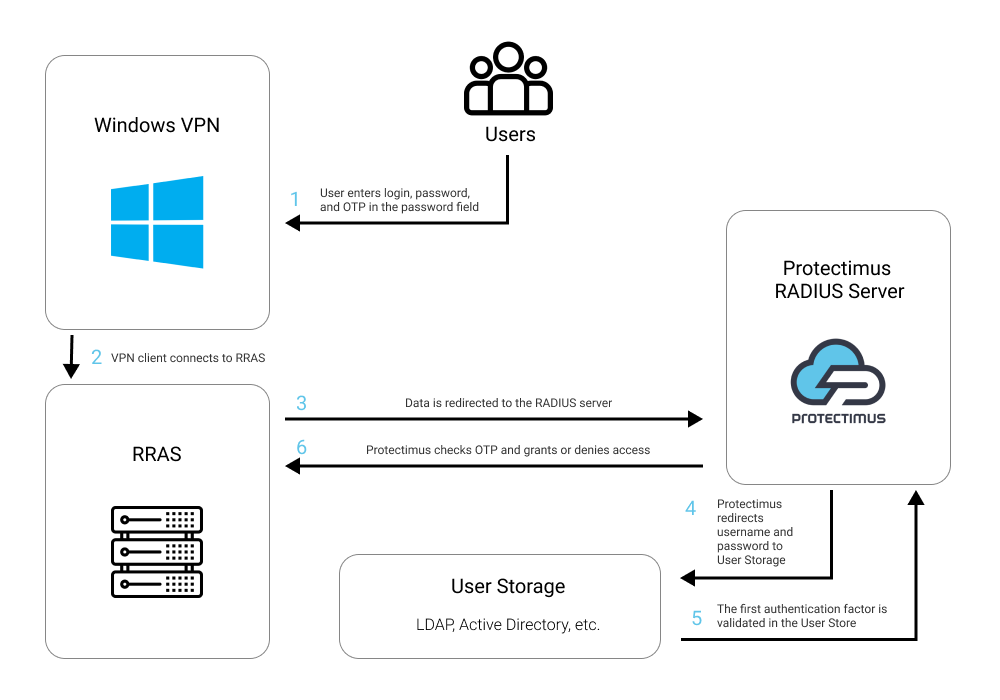
Esta guía utiliza el servicio 2FA en la nube o la plataforma 2FA local de Protectimus y el componente RRAS. RRAS se integra con Protectimus mediante RADIUS.
El siguiente esquema muestra cómo funciona Protectimus con Windows VPN.
2. Cómo activar 2FA para Windows VPN
Puede configurar 2FA para Windows VPN con Protectimus mediante RADIUS:
- Regístrese en el servicio SaaS de Protectimus o instale la plataforma 2FA local y configure los ajustes básicos.
- Instale y configure Protectimus RADIUS Server.
- Instale y configure RRAS.
- Configure las políticas de autenticación de Windows VPN.
2.1. Registrarse y configurar los ajustes básicos de Protectimus
Elija el tipo de implementación y complete la configuración básica:
Servicio en la nube de Protectimus
- Regístrese y active la API.
- Añada un recurso.
- Añada usuarios.
- Añada tokens manualmente o active el portal de autoservicio para usuarios.
- Asigne tokens a los usuarios.
- Asigne usuarios y tokens al recurso.
Plataforma local de Protectimus
- Instale la plataforma local de Protectimus. En Windows, seleccione la opción RADIUS durante la instalación.
- Añada un recurso.
- Añada usuarios.
- Añada tokens manualmente o active el portal de autoservicio para usuarios.
- Asigne tokens a los usuarios.
- Asigne tokens y usuarios al recurso.
2.2. Instalar y configurar Protectimus RADIUS Server
Las instrucciones detalladas para configurar Protectimus RADIUS Server para la 2FA de Windows VPN están disponibles en nuestra guía de instalación de Protectimus RADIUS Server para Windows VPN.
Especifique “inline-mode” en el archivo de configuración. En la sección “auth”, añada los siguientes ajustes; puede utilizar cualquier separador.
inline-mode:
  enabled: true
  separator: ‘,’
2.3. Instalar y configurar Routing and Remote Access Service (RRAS)
Instalación de RRAS
- Abra Server Manager y seleccione “Add Roles and Features Wizard” en el menú Manage.
- En “Server Roles”, seleccione “Remote Access”.
- En “Role Services”, seleccione “Direct Access and VPN (RAS)”.
- Complete la instalación.
Configuración de RRAS
- Inicie “Routing and Remote Access”.
- Seleccione “Deploy VPN only”.
- Haga clic con el botón derecho en el nombre del servidor y seleccione “Configure and Enable Routing and Remote Access”.
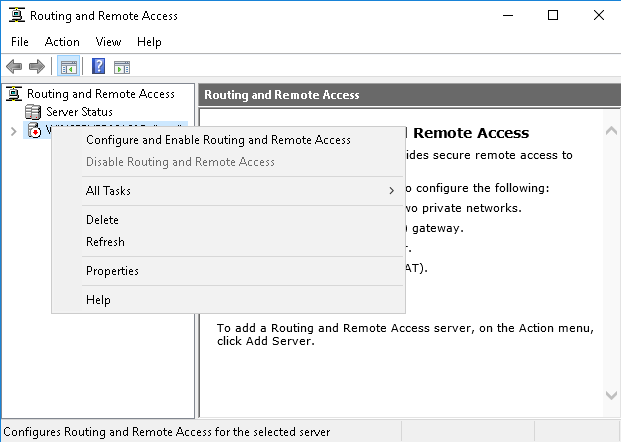
- Seleccione “Custom Configuration”.
- Marque “VPN Access”.
- Complete la instalación e inicie el servicio.
Configuración de la autenticación
- Haga clic con el botón derecho en el servidor, seleccione “Properties” y abra la pestaña “Security”.
- Seleccione “RADIUS Authentication” en la lista “Authentication Provider”.
- Haga clic en “Configure” en esa misma lista.
- Añada un nuevo servidor:
- Server name: dirección IP del equipo donde está instalado el servidor RADIUS.
- Shared Secret: secreto compartido especificado en radius.yml.
- Seleccione también “Always use message authenticator”.
- Deje los demás ajustes con sus valores predeterminados.
- Guarde el servidor añadido.
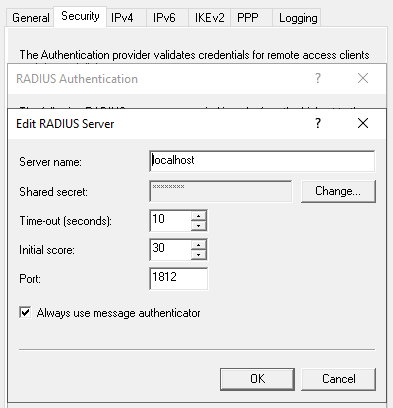
- Haga clic en “Authentication methods”.
- Deje seleccionada únicamente la opción “Unencrypted password (PAP)”.
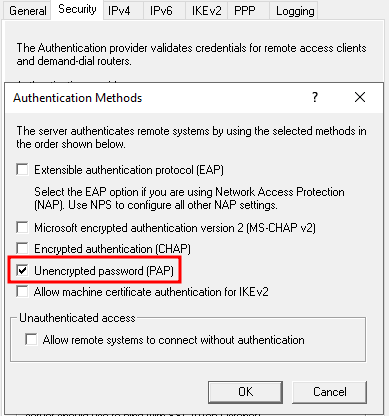
- Guarde todos los ajustes.
2.4. Configurar Windows VPN
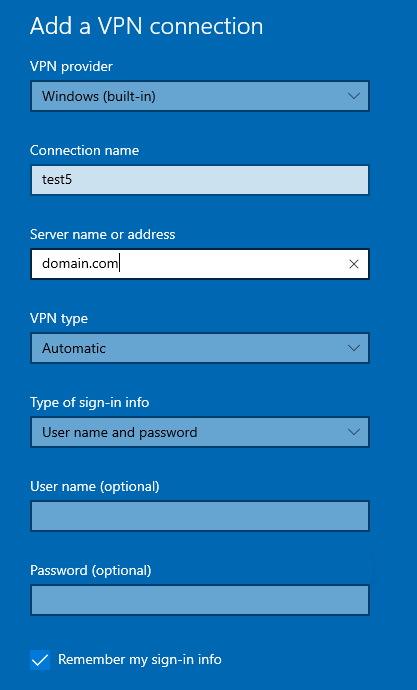
- Abra la configuración de VPN.
- Haga clic en “Add a VPN connection”.
- VPN provider: Windows (built-in).
- Server name or address: dirección de su servidor.
- Type of sign-in info: Username and password.
- Guarde la conexión VPN.
- Abra Control Panel > Network and Internet > Network Connections.
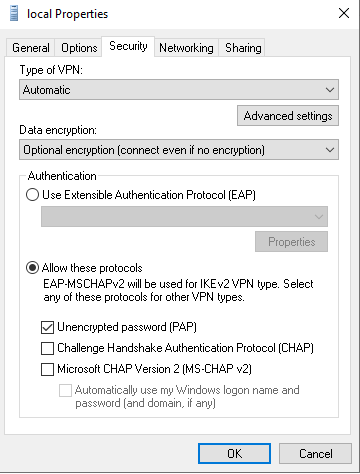
- Haga clic con el botón derecho en la conexión VPN creada y seleccione Properties.
- En la pestaña “Security”, seleccione “Allow the following protocols”.
- Deje únicamente “Unencrypted password (PAP)”.
- Guarde los ajustes.
- La configuración de 2FA para Windows VPN ha finalizado; ya puede probar la conexión.
La integración de la autenticación de dos factores en Windows VPN está completa.
Si tiene alguna pregunta, póngase en contacto con el soporte de Protectimus.













