Gestión de tokens MFA en el servicio SaaS: guía completa paso a paso
Visite la página Tokens para obtener más información sobre los tokens OTP compatibles con Protectimus. Puede utilizar y combinar cualquier tipo de token según sus necesidades.
Notas importantes:
- Un usuario solo puede utilizar un token para autenticarse dentro de un mismo recurso.
- Puede activar el portal de autoservicio para que los usuarios registren y gestionen sus tokens por sí mismos.
- El número de tokens que puede añadir está limitado por la cuota de su plan de servicio.
1. Cómo importar tokens
Si utiliza tokens OTP físicos, puede importar al servicio SaaS de Protectimus un archivo CSV que contenga las claves secretas de los tokens.
-
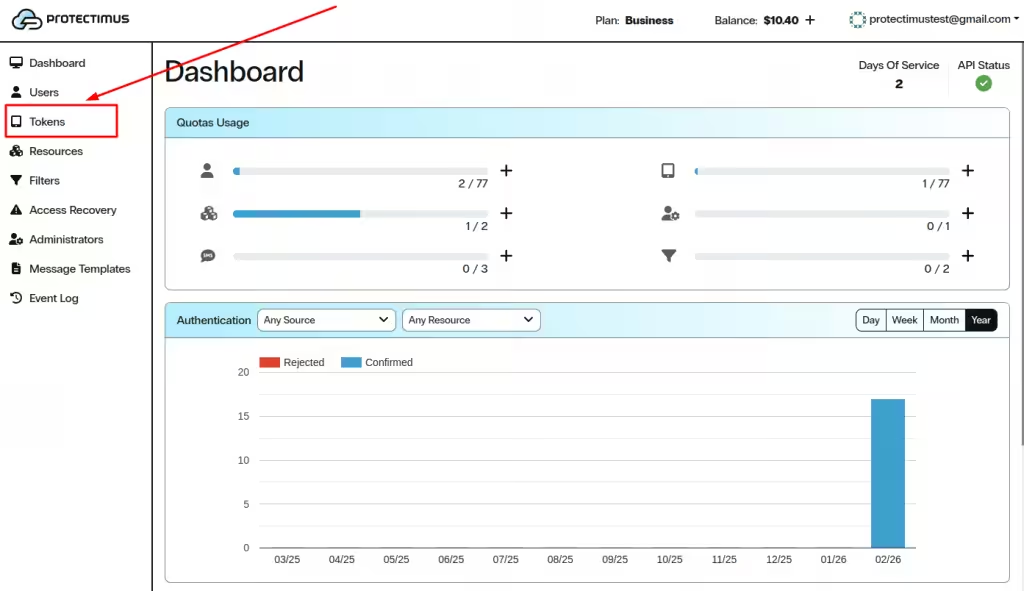
Inicie sesión en su cuenta del servicio SaaS de Protectimus y vaya a la
página Tokens.
-
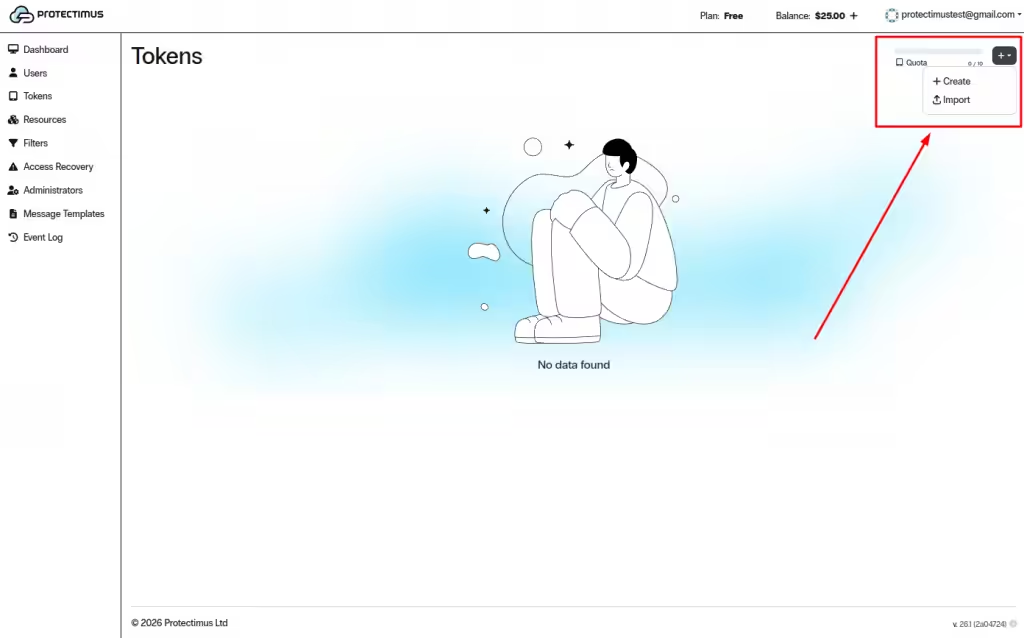
Haga clic en el botón + (Crear token) de la esquina superior derecha y seleccione Importar.
-
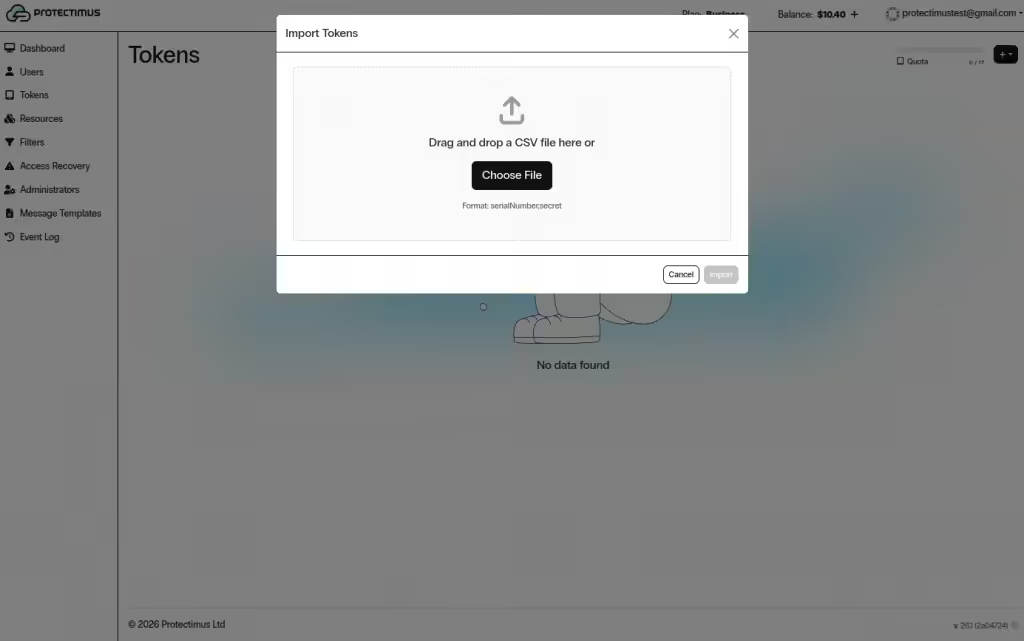
Cargue un archivo CSV con el siguiente formato:
serialNumber,secret
2. Cómo añadir tokens manualmente
-
Inicie sesión en su cuenta del servicio SaaS de Protectimus y vaya a la
página Tokens.
-
Haga clic en el botón + (Crear token) de la esquina superior derecha y seleccione Crear.
-
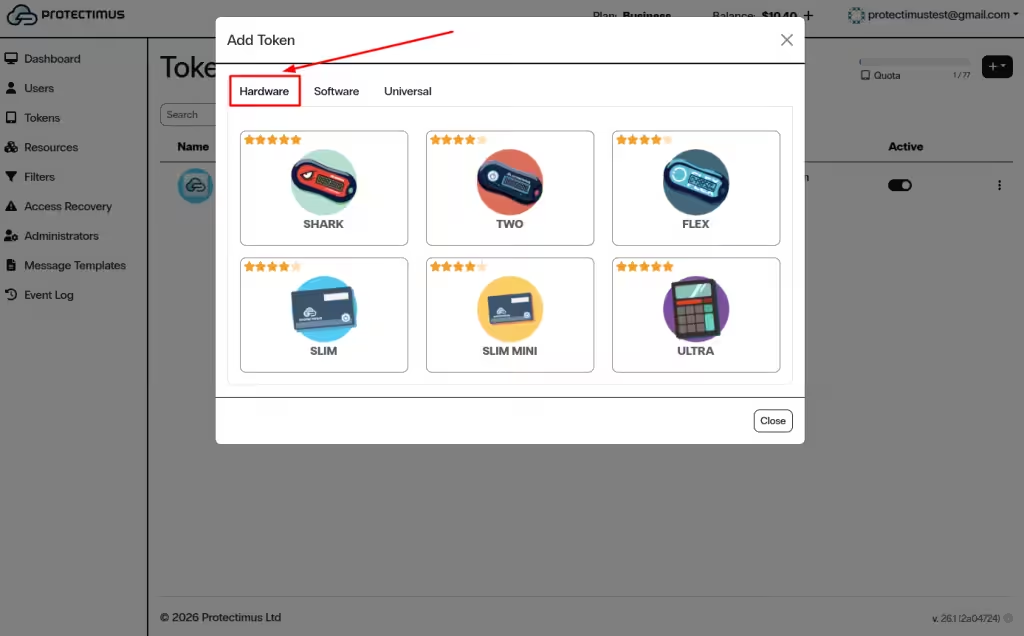
Seleccione el tipo de token: Hardware, Software o Universal.
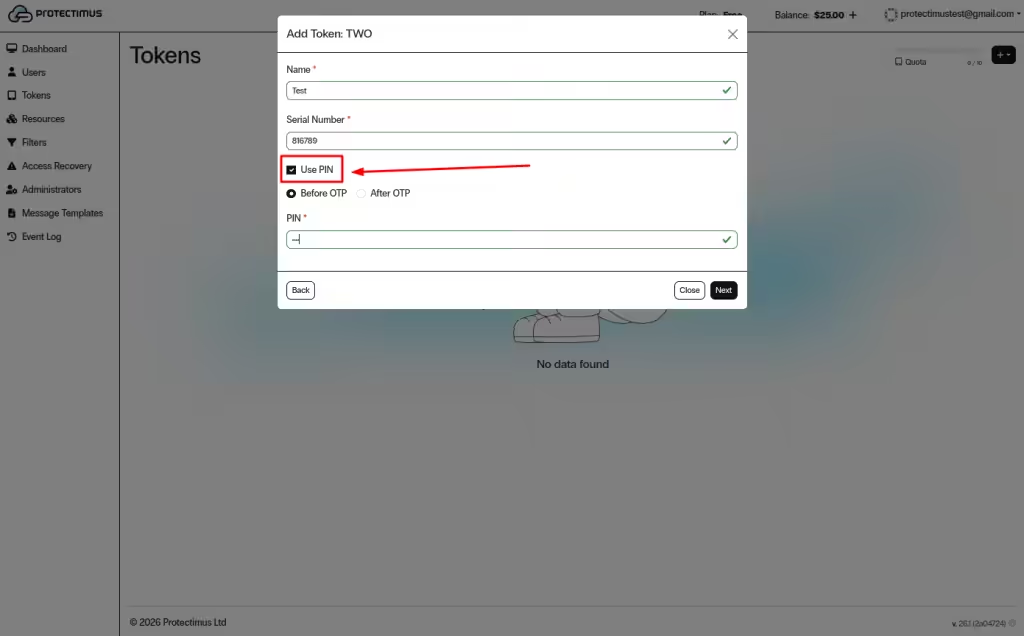
Nota: Si la protección mediante PIN está activa, el usuario debe introducir el PIN junto con la contraseña de un solo uso, antes o después de la OTP según la configuración del administrador. El PIN y la OTP se introducen como una sola cadena sin espacios, lo que añade una capa de seguridad.
2.1. Tokens físicos
Los tokens físicos son dispositivos OTP de Protectimus, como:
- Protectimus Two
- Protectimus Slim / Slim Mini
- Protectimus Flex
- Protectimus Ultra
Para añadir un token físico:
-
Seleccione Hardware y elija el modelo de token necesario.
-
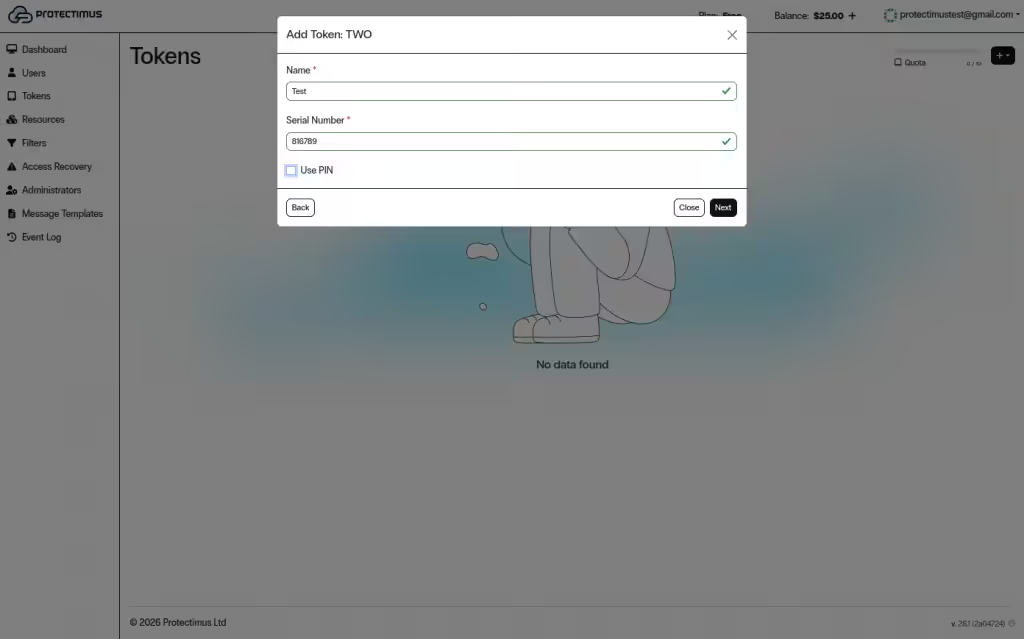
Introduzca los campos obligatorios, como Nombre y Número de serie o Periodo de OTP (segundos), según el modelo.
-
Opcionalmente, active Usar PIN si desea añadir un PIN y haga clic en Siguiente para completar la configuración.
2.2. Tokens de software
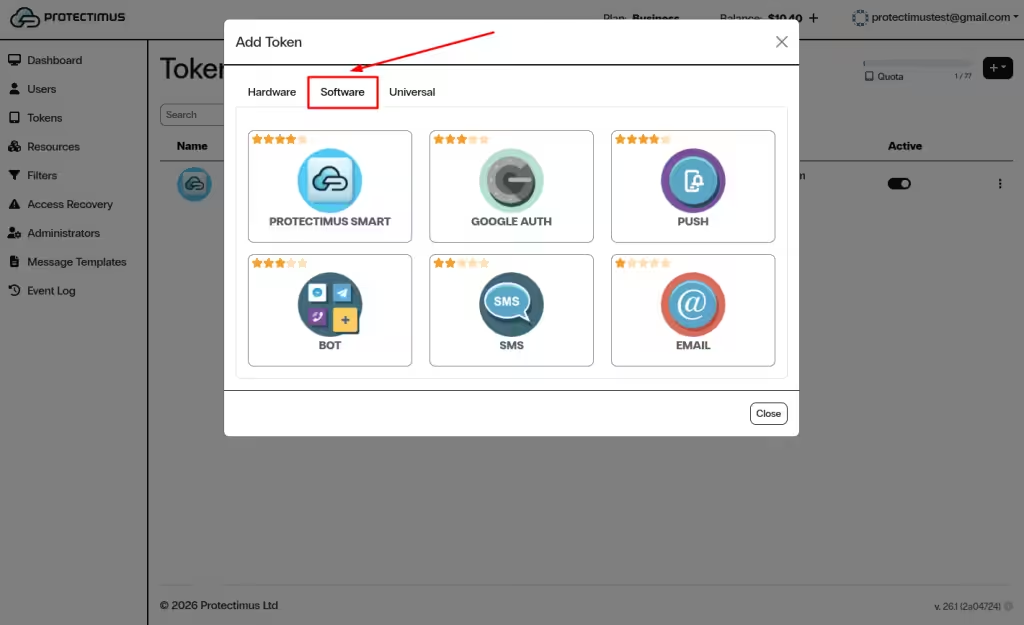
Los tokens de software incluyen métodos basados en aplicaciones y en el envío de códigos, como:
- Protectimus Smart
- Google Authenticator y otras aplicaciones TOTP
- Push
- SMS
- Correo electrónico
- Bot
Para añadir un token de software:
-
Seleccione Software y elija el tipo de token necesario.
-
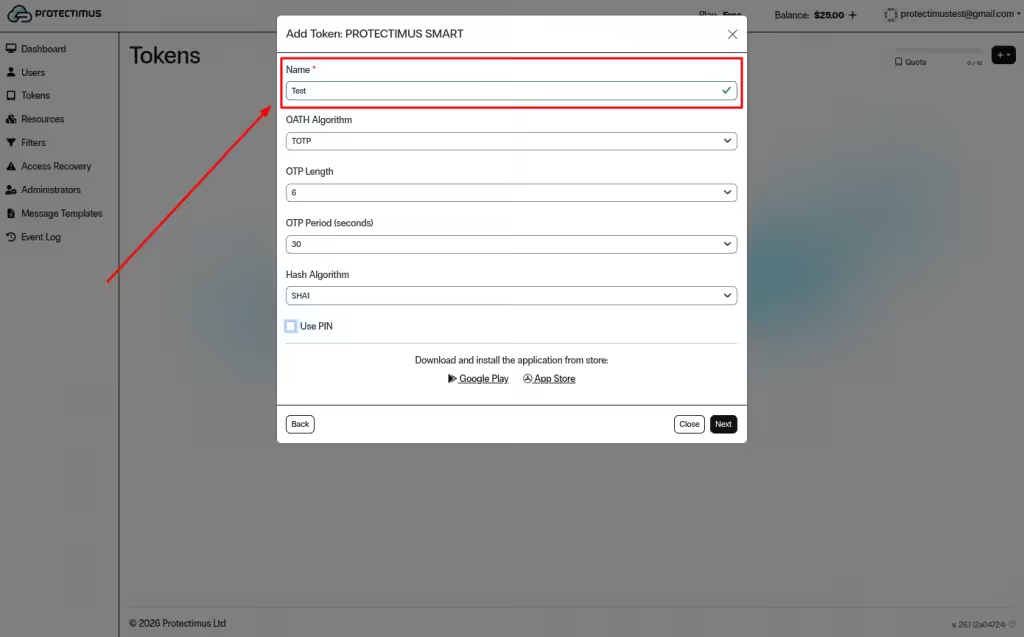
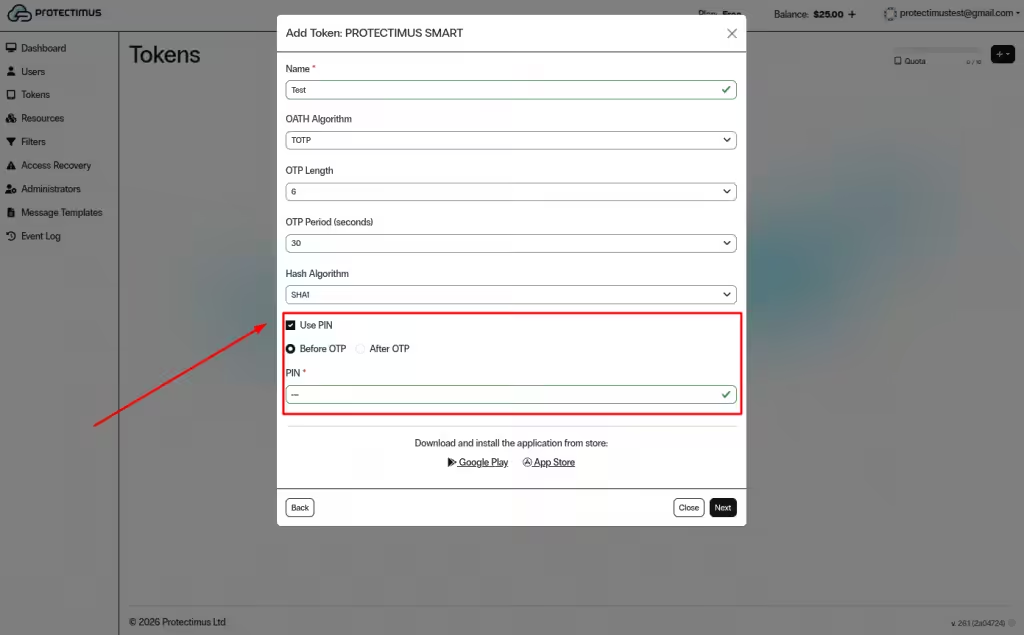
Complete los parámetros obligatorios, por ejemplo, Nombre y los ajustes OATH, como la longitud y el periodo de la OTP y el algoritmo hash.
-
Opcionalmente, active Usar PIN y elija si el PIN se introduce Antes de la OTP o Después de la OTP, y haga clic en Siguiente.
-
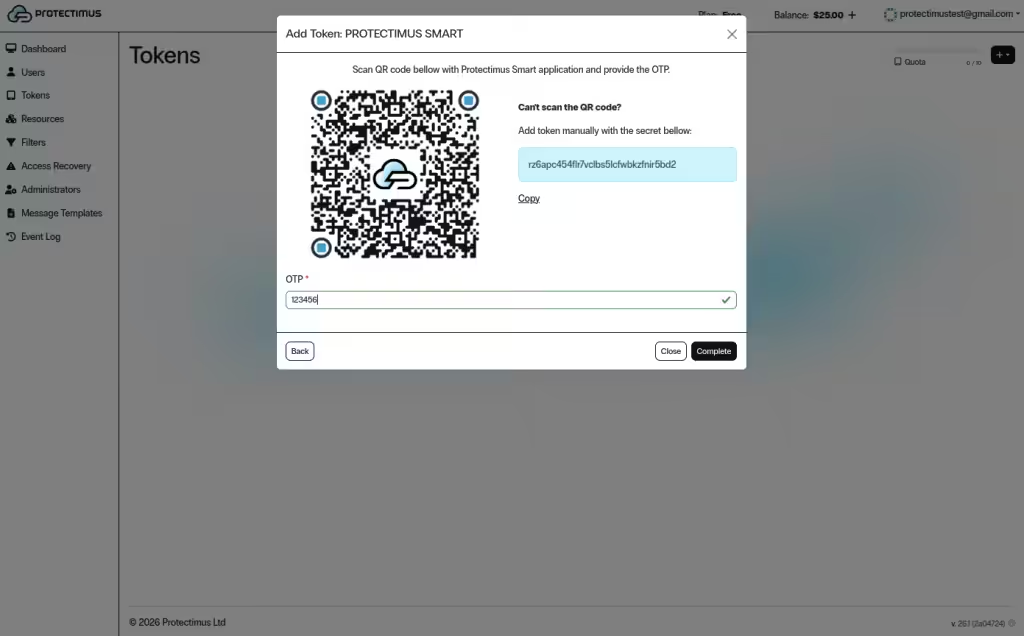
Escanee el código QR con una aplicación de autenticación o introduzca el secreto manualmente, según el tipo de token seleccionado.
-
Introduzca una OTP válida y haga clic en Completar.
2.3. Tokens universales
Los tokens universales permiten añadir cualquier token compatible con OATH de otro proveedor. Necesitará el secreto del token.
Para añadir un token universal:
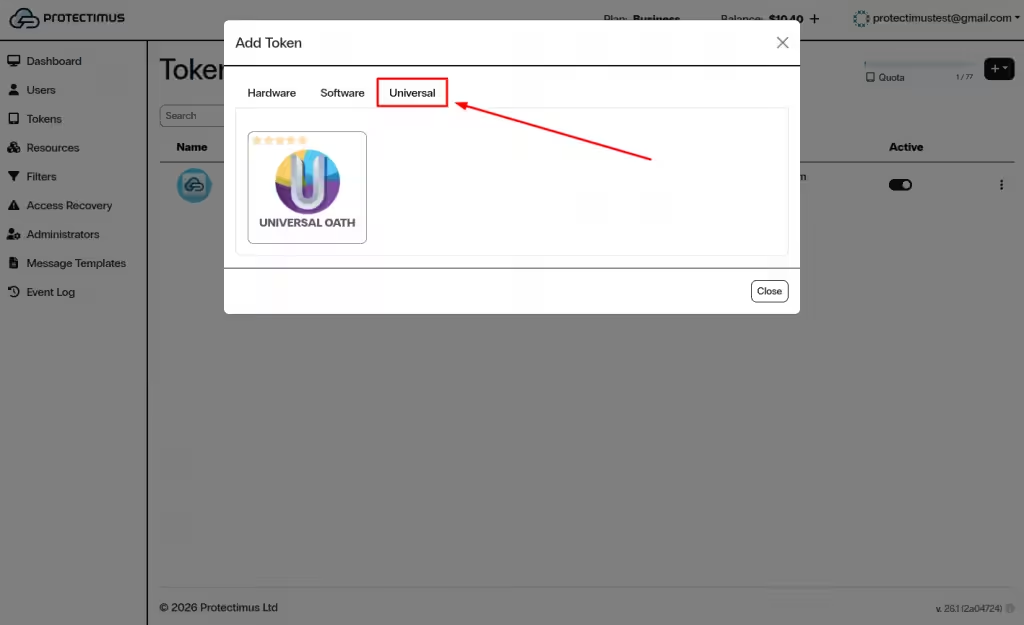
- Seleccione Universal.
-
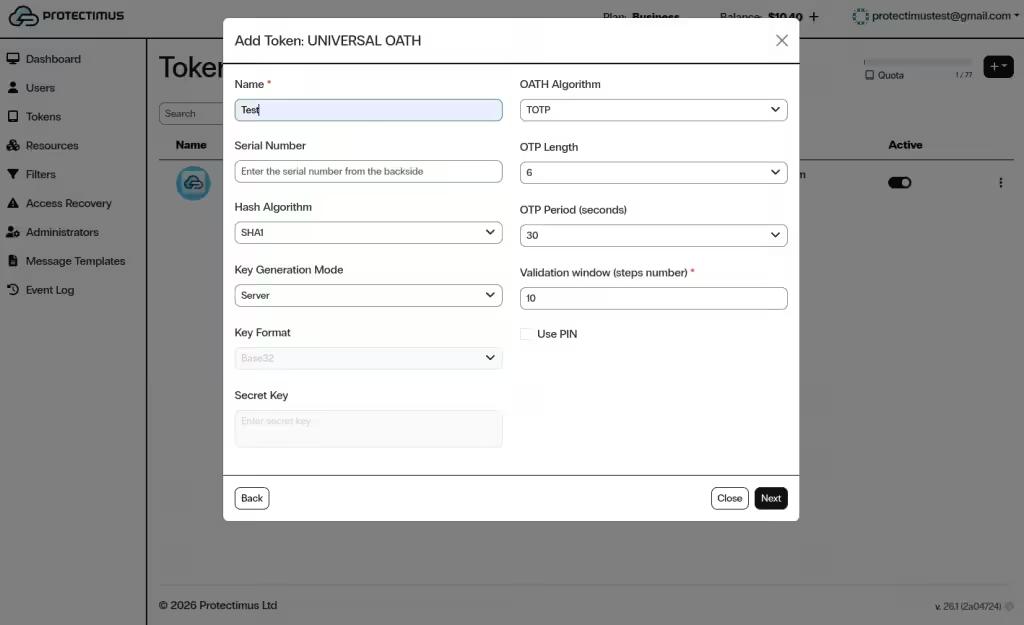
Introduzca los campos obligatorios, por ejemplo, Nombre, Número de serie y el Secreto.
-
Opcionalmente, active Usar PIN y elija si el PIN se introduce Antes de la OTP o Después de la OTP, y haga clic en Siguiente.
Importante: Después de añadir un token, debe asignarlo a un usuario específico y asignar el usuario y el token a un recurso.
3. Gestión de un token
Para gestionar un token, abra la página Tokens y haga clic en el nombre del token.
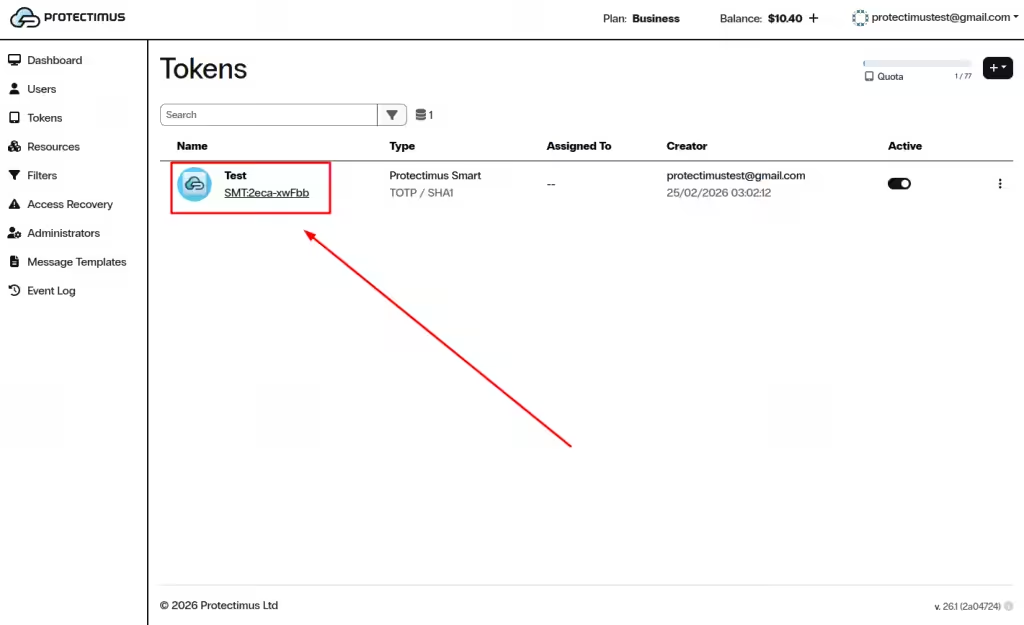
Se abrirá la página Información del token.
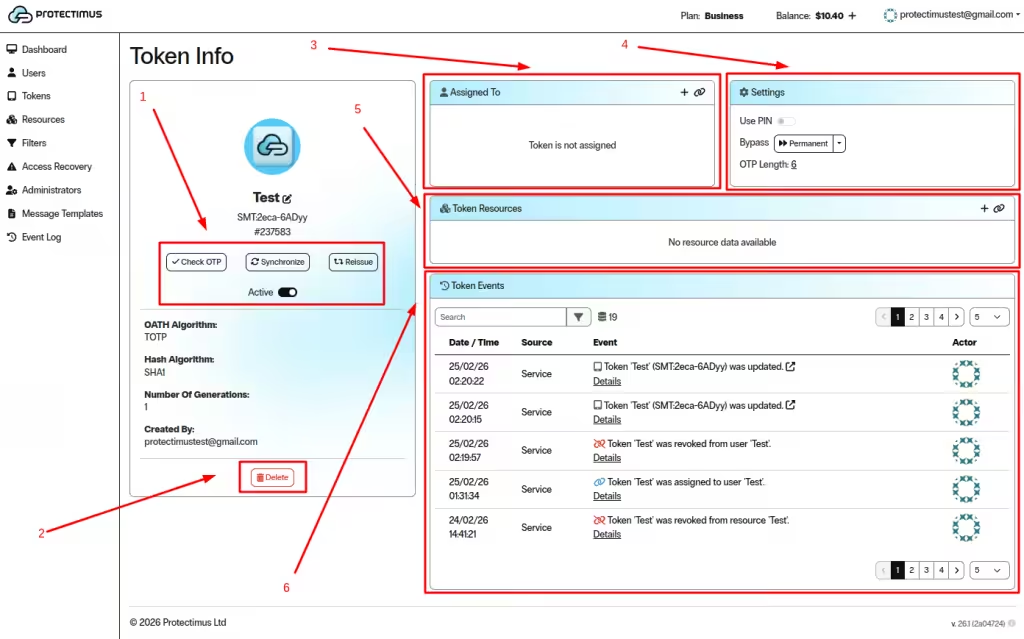
3.1. Acciones del token
En el panel del token están disponibles las siguientes acciones:
- Comprobar OTP: comprueba que el token genera una contraseña de un solo uso válida.
- Sincronizar: sincroniza el token con el servidor, principalmente para tokens físicos.
- Reemitir: genera un nuevo secreto si el usuario pierde el acceso al token.
- Activo: activa o desactiva el token.
Un token inactivo no puede utilizarse para la autenticación.
3.2. Eliminar el token
- Haga clic en Eliminar para borrar permanentemente el token.
- Esta acción no se puede deshacer.
3.3. Asignado a un usuario
La sección Asignado a muestra el usuario al que está vinculado el token.
- Haga clic en el icono + para crear un usuario nuevo y asignarle el token.
- Haga clic en el icono de enlace para asignar el token a un usuario existente.
Si el token no está asignado, no puede utilizarse para autenticar a un usuario.
3.4. Ajustes
La sección Ajustes permite configurar:
- Usar PIN: activa o desactiva la protección mediante PIN.
- Omitir verificación: permite omitir temporal o permanentemente la verificación mediante OTP.
- Longitud de OTP: cambia la longitud de la contraseña de un solo uso, si es compatible.
Cuando se omite la verificación, la autenticación puede completarse sin comprobar la OTP.
3.5. Recursos del token
La sección Recursos del token define en qué recursos puede utilizarse.
- Haga clic en el icono + para asignar el token a un recurso nuevo.
- Haga clic en el icono de enlace para vincular el token a un recurso existente.
El token debe estar asignado a un recurso para poder utilizarse en él.
3.6. Eventos del token
La sección Eventos del token muestra todas las acciones relacionadas con el token.
- Consulte las actualizaciones, asignaciones, revocaciones y eventos de sincronización del token.
- Utilice el campo Buscar para filtrar los eventos.
- Utilice los controles de paginación para consultar el historial de eventos.
4. Omisión temporal o permanente de la verificación OTP
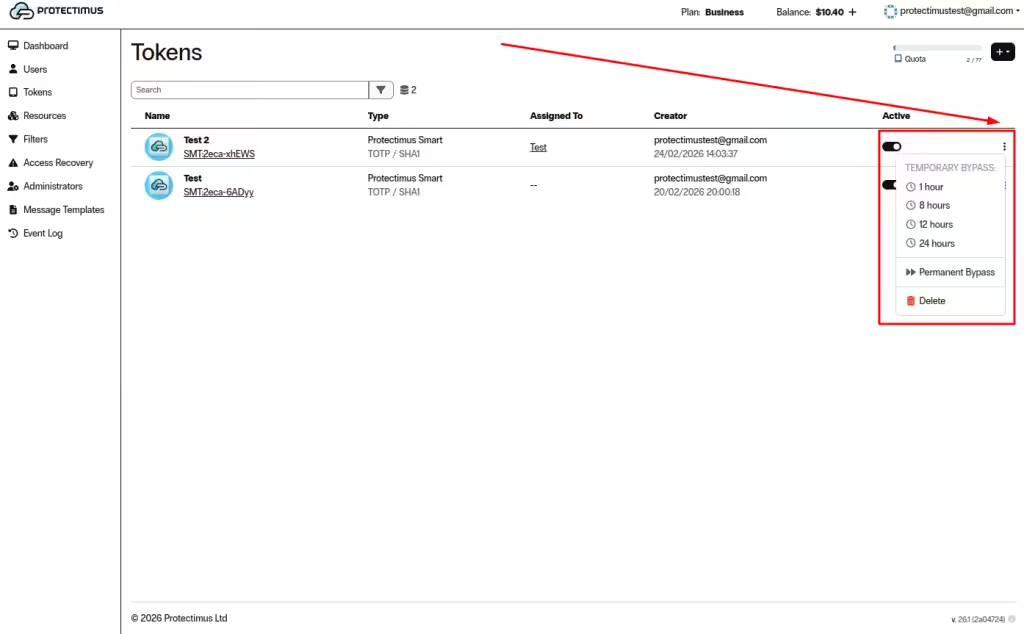
Puede omitir temporal o permanentemente la verificación OTP de un token desde la lista Tokens mediante el menú de la columna Activo.
- Omisión temporal: 1 hora, 8 horas, 12 horas o 24 horas
- Omisión permanente: permanece activa hasta que se deshabilite manualmente
Advertencia: Cuando se omite la verificación, la autenticación puede completarse sin comprobar la OTP.
Si tiene alguna pregunta, póngase en contacto con el servicio de atención al cliente de Protectimus.













