



In Protectimus SaaS MFA Service, Users can only be added manually.
The number of Users you can add depends on your selected Service Plan. To add more Users, upgrade or customize your Service Plan accordingly.
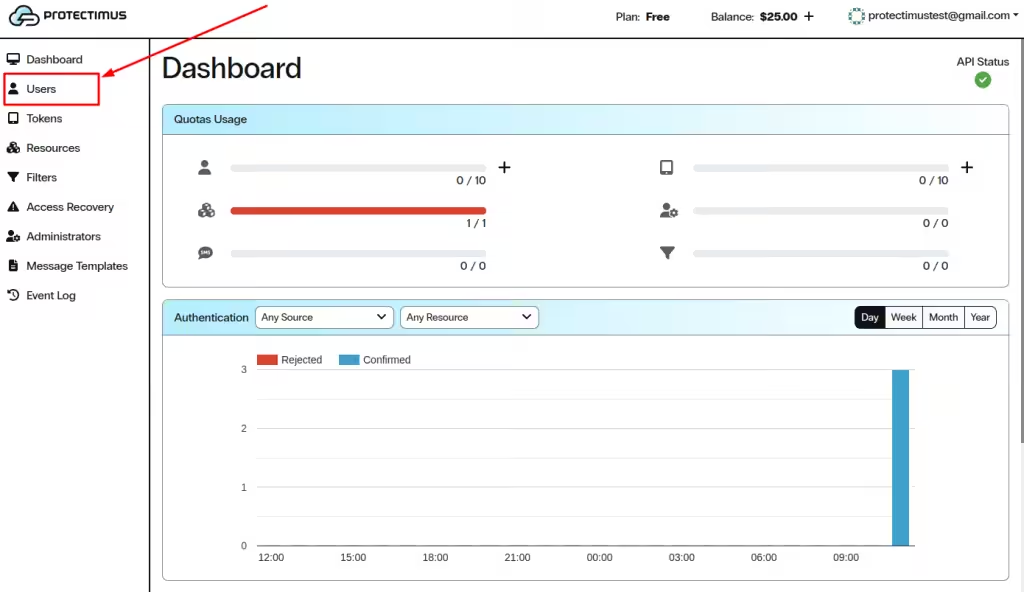
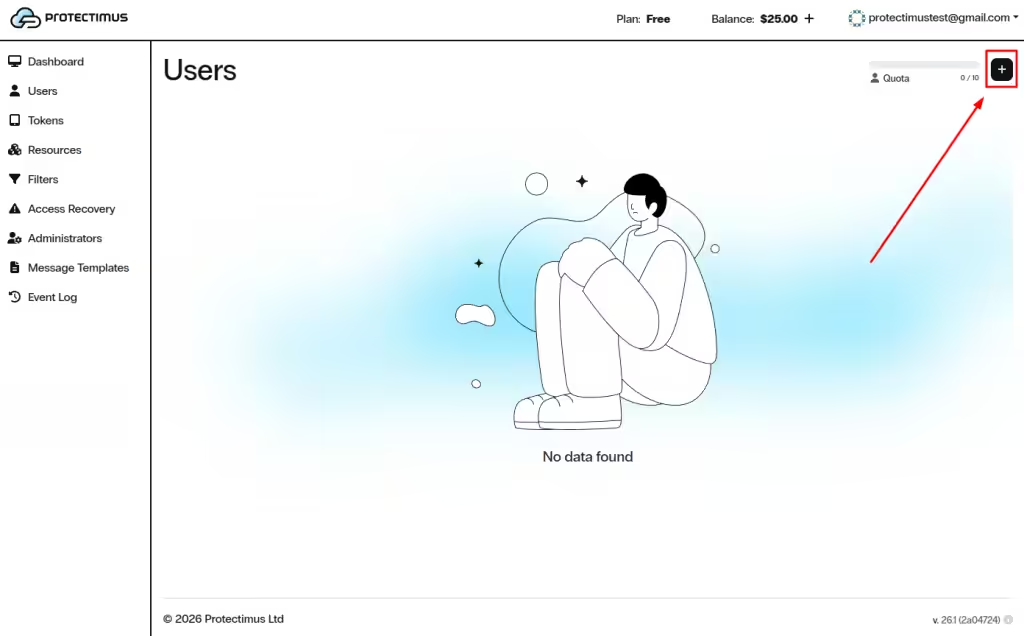
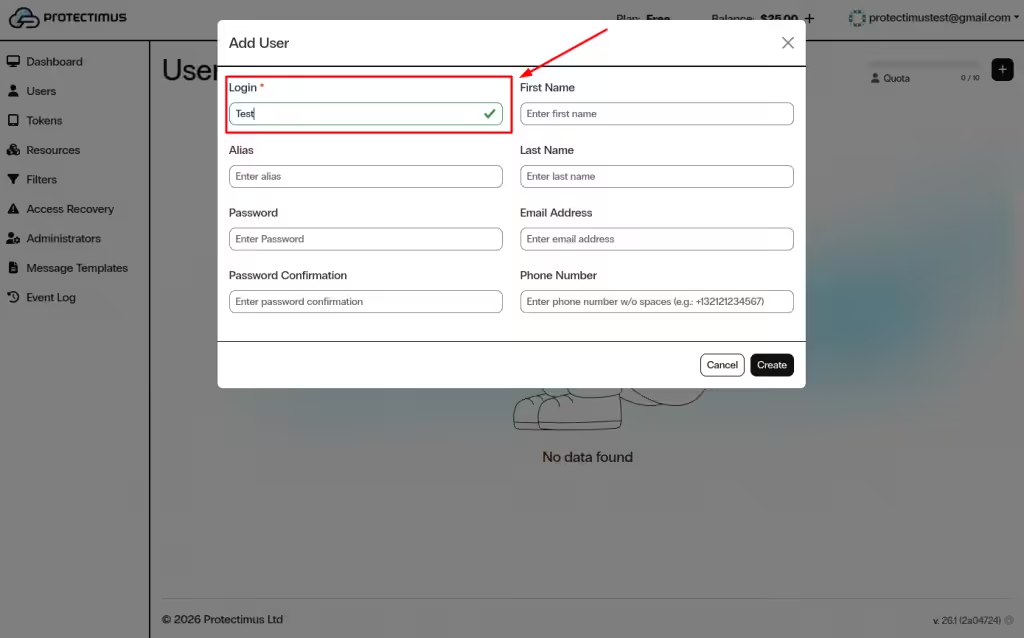
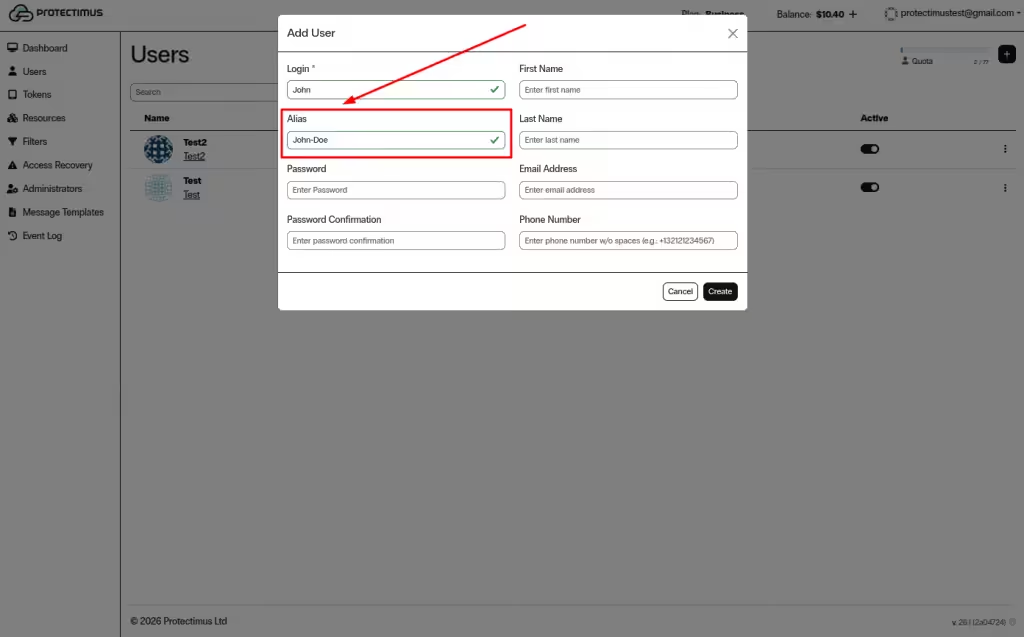
Note: If a User needs to authenticate in two systems using the same Token, create a User Alias with a different username. The alias will use the same Token.
Note: If you plan to allow Users to register Tokens via the Self-Service Portal, each User must have either:
- a password, or
- a registered email address.
A verification code will be sent to the registered email address. If both a password and email address are set, the User will log in using the password.
After a Token is assigned, the User will also be required to enter a one-time password (OTP).
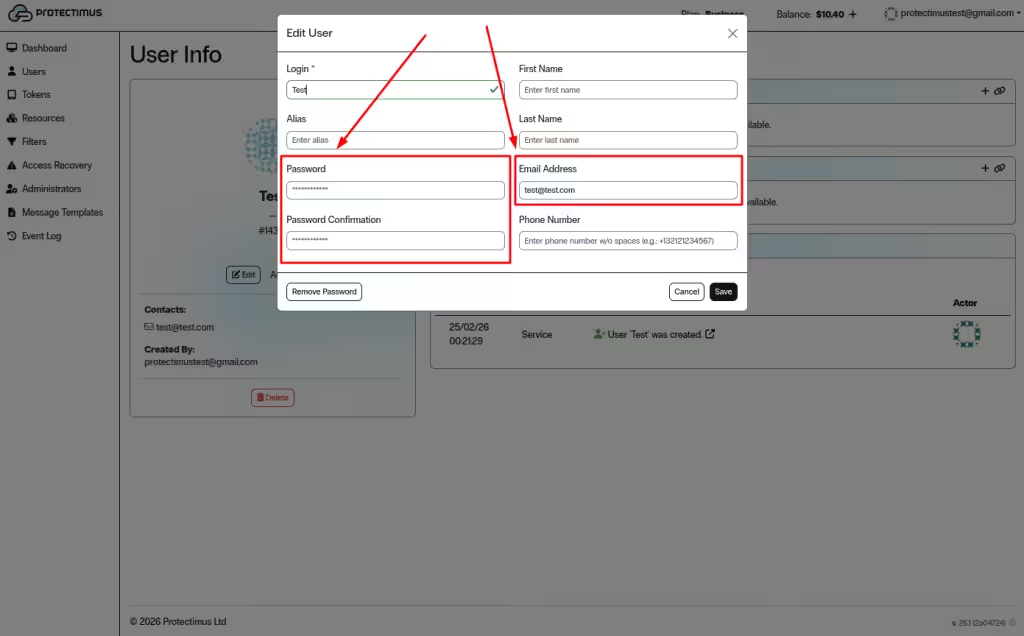
After creating a User, open the User Dashboard to configure settings, assign Tokens and Resources, and monitor activity.
Note: For authentication to work properly:
- A Token must be assigned to the User.
- The User must be assigned to a Resource.
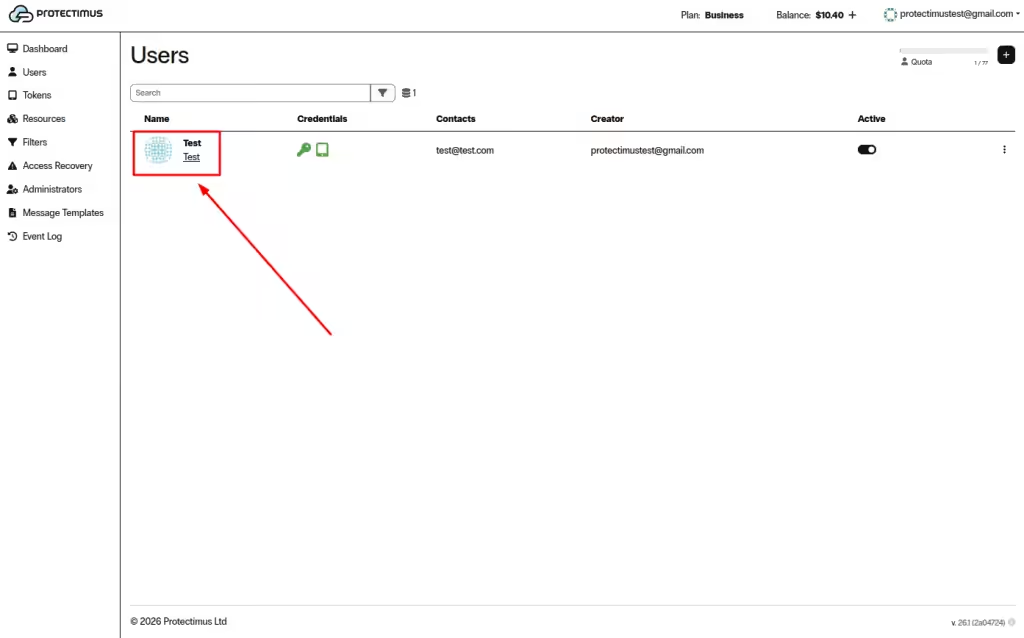
To open the dashboard, go to the Users page and click the User’s Login.
The User Dashboard includes the following sections:
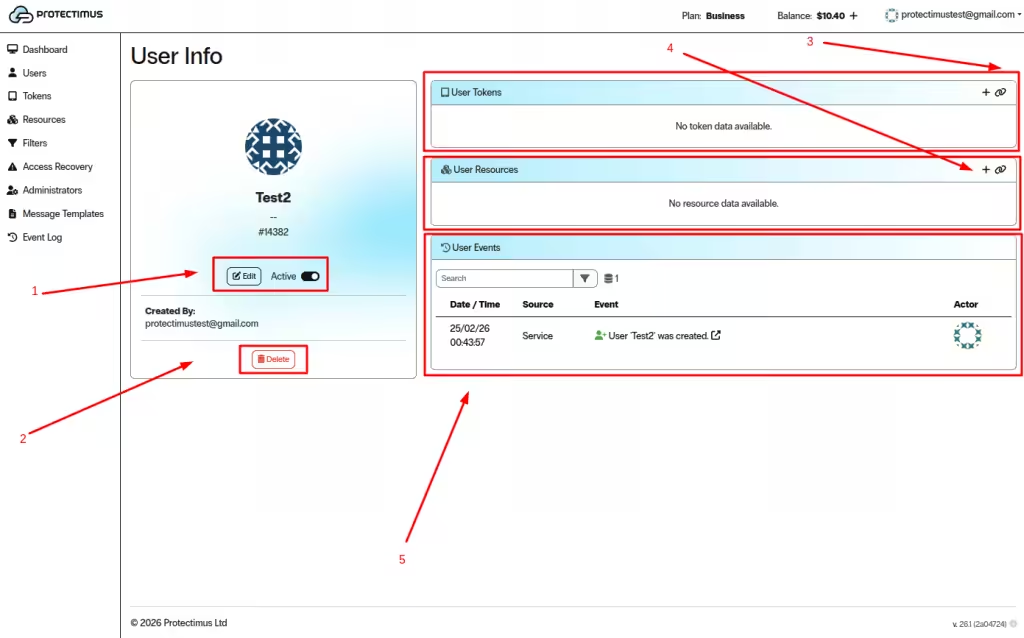
The User Tokens section allows you to manage authentication Tokens assigned to the User.
The User Resources section defines which Resources the User can access.
The User Events section displays all User-related activity.
If you have any questions, please contact Protectimus customer support.










