



Esta guía explica cómo reforzar NComputing vSpace con la autenticación multifactor (MFA o 2FA) de Protectimus mediante RADIUS.
Para configurar la 2FA en NComputing vSpace mediante RADIUS, necesitará el servicio 2FA en la nube o la plataforma 2FA local de Protectimus. La conexión se realiza mediante Protectimus RADIUS Server; NComputing vSpace actúa como cliente RADIUS.
Protectimus RADIUS Server transmite las solicitudes de autenticación de NComputing vSpace al servidor MFA de Protectimus. Según la respuesta, el acceso se concede o se deniega.
A continuación se muestra un ejemplo de integración de Protectimus 2FA con NComputing vSpace.
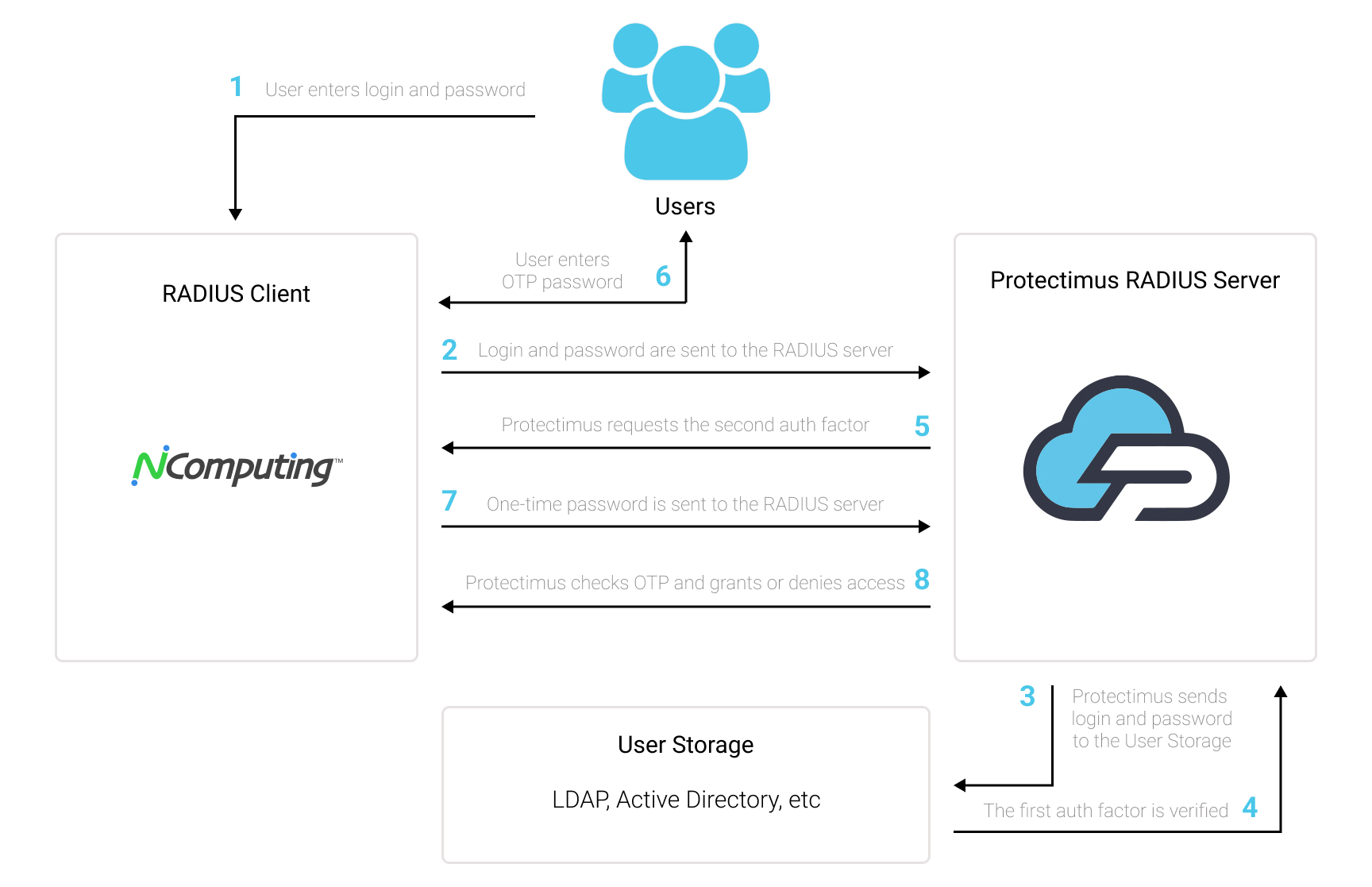
Puede configurar la autenticación multifactor (2FA) para NComputing vSpace con Protectimus mediante RADIUS:
- Regístrese en el servicio SaaS de Protectimus o instale la plataforma 2FA local y configure los ajustes básicos.
- Instale y configure Protectimus RADIUS Server.
- Añada Protectimus como servidor RADIUS para NComputing vSpace.
Elija el tipo de implementación y complete la configuración básica:
Las instrucciones detalladas para instalar y configurar Protectimus RADIUS Server para la autenticación de dos factores de NComputing vSpace mediante RADIUS están disponibles en nuestra guía de instalación de Protectimus RADIUS Server para la 2FA de NComputing vSpace.
| Label | Introduzca un nombre para el servidor RADIUS. |
| Hostname/Address | IP del servidor donde está instalado Protectimus RADIUS Server. |
| Authentication Port | Indique 1812 o el puerto configurado en el archivo radius.yml de Protectimus. |
| Authentication Type | Se requiere autenticación PAP. |
| Shared Secret Code | Indique el secreto compartido creado en radius.yml (propiedad radius.secret). |
| Server Timeout (in seconds) | Establézcalo en 90 segundos. |
| Max Attempts | Indica cuántas veces se enviará la solicitud de autenticación. Establézcalo en 1. |
La integración de la autenticación de dos factores (2FA/MFA) para NComputing vSpace ya está completa.
Si tiene alguna otra pregunta, póngase en contacto con el servicio de atención al cliente de Protectimus.










