



Вы можете легко настроить двухфакторную аутентификацию (2FA) для Sophos Firewall VPN с помощью Protectimus по протоколу RADIUS. Добавив MFA в качестве дополнительного уровня безопасности, вы сможете надежнее защитить удалённый доступ к сети, даже если пароль пользователя будет скомпрометирован.
Protectimus обеспечивает многофакторную аутентификацию для Sophos Firewall VPN с помощью Protectimus RADIUS Server. Он получает запросы аутентификации от Sophos Firewall, проверяет факторы аутентификации и возвращает ответ, разрешающий или запрещающий доступ.
Ниже представлена схема работы решения Protectimus для двухфакторной аутентификации Sophos Firewall VPN.
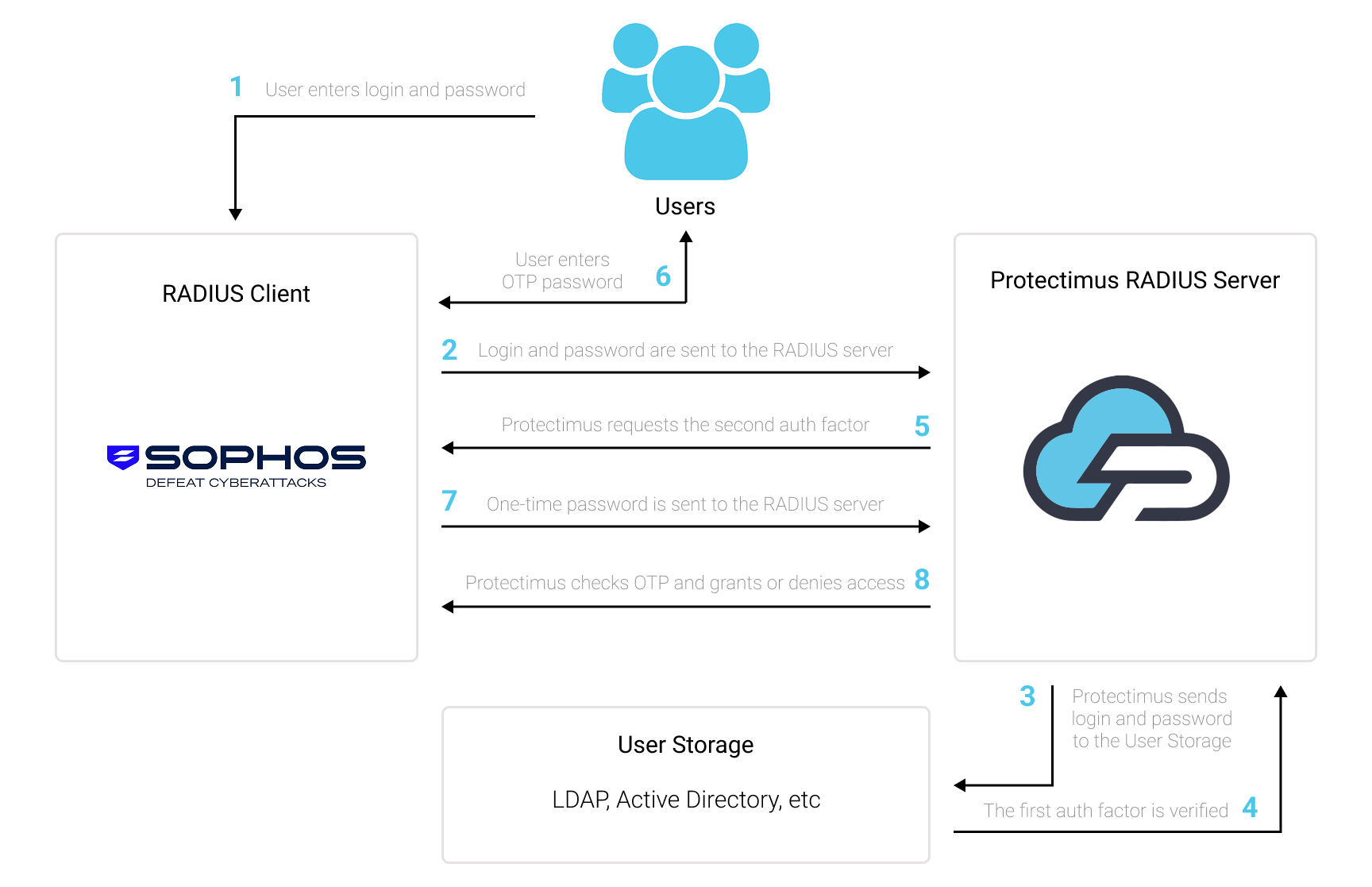
Решение Protectimus для двухфакторной аутентификации Sophos Firewall VPN обеспечивает дополнительный уровень безопасности, предотвращающий несанкционированный доступ к VPN.
После включения двухфакторной аутентификации (2FA) для Sophos Firewall VPN пользователи проходят проверку с помощью двух разных факторов:
Это означает, что одного скомпрометированного пароля недостаточно для доступа к Sophos Firewall VPN, поскольку также требуется действующий одноразовый пароль.
Вы можете настроить многофакторную аутентификацию (2FA) для Sophos Firewall VPN с помощью Protectimus по протоколу RADIUS:
- Зарегистрируйтесь в Protectimus Cloud Service либо установите локальную MFA-платформу и выполните базовую настройку.
- Установите и настройте Protectimus RADIUS Server.
- Добавьте Protectimus как RADIUS-сервер в Sophos Firewall.
- Настройте Sophos Firewall для использования Protectimus RADIUS Server при аутентификации VPN.
Выберите вариант развёртывания и выполните базовую настройку:
Облачный сервис Protectimus
Локальная платформа Protectimus
Установите и настройте Protectimus RADIUS Server, следуя нашему руководству по установке Protectimus RADIUS Server.
При настройке RADIUS Server убедитесь, что Sophos Firewall разрешено отправлять запросы аутентификации на Protectimus RADIUS Server, и запишите порт аутентификации и общий секрет. Те же параметры потребуется указать при настройке RADIUS-сервера в Sophos Firewall.
Примечание: Если ваш клиент Sophos VPN не поддерживает обмен RADIUS Access-Challenge для OTP-аутентификации, настройте Protectimus RADIUS Server на использование inline-режима. В этом режиме пароль пользователя и одноразовый пароль отправляются вместе в одном запросе аутентификации.
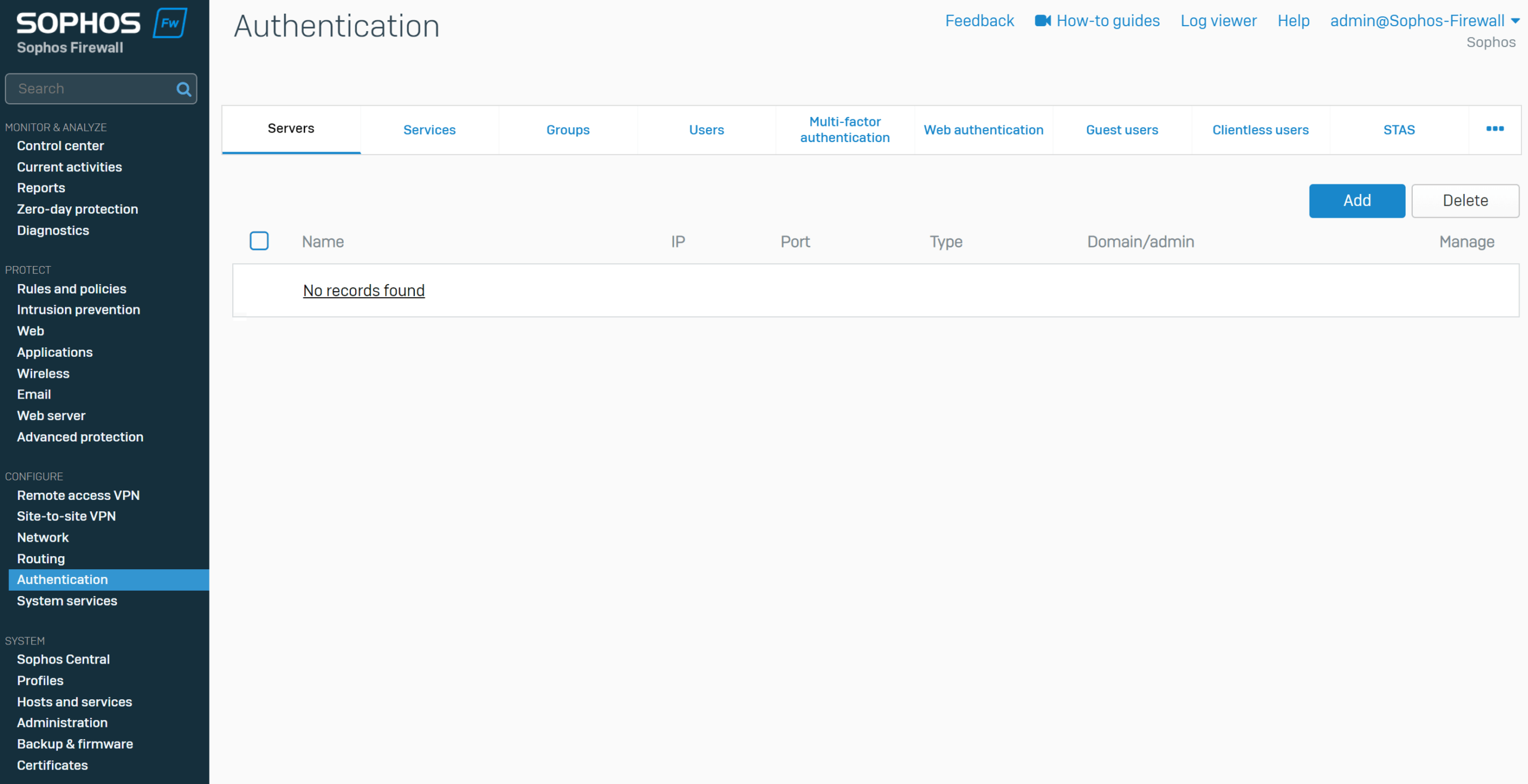
| Server type | Выберите RADIUS server. |
| Server name | Введите имя сервера, например Protectimus RADIUS Server. |
| Server IP | Введите IP-адрес сервера, на котором установлен компонент Protectimus RADIUS Server. |
| Authentication port | Введите 1812 или порт аутентификации, настроенный для Protectimus RADIUS Server. |
| Time-out | Установите тайм-аут 60 секунд. |
| Enable accounting | Включите этот параметр. |
| Accounting port | Введите 1813. |
| Shared secret | Введите тот же общий секрет, который настроен для клиента Sophos Firewall в конфигурации Protectimus RADIUS Server. |
| Domain Name | При необходимости введите имя домена. Это поле необязательно. |
| Group name attribute | Введите атрибут имени группы, настроенный для вашей конфигурации RADIUS. |
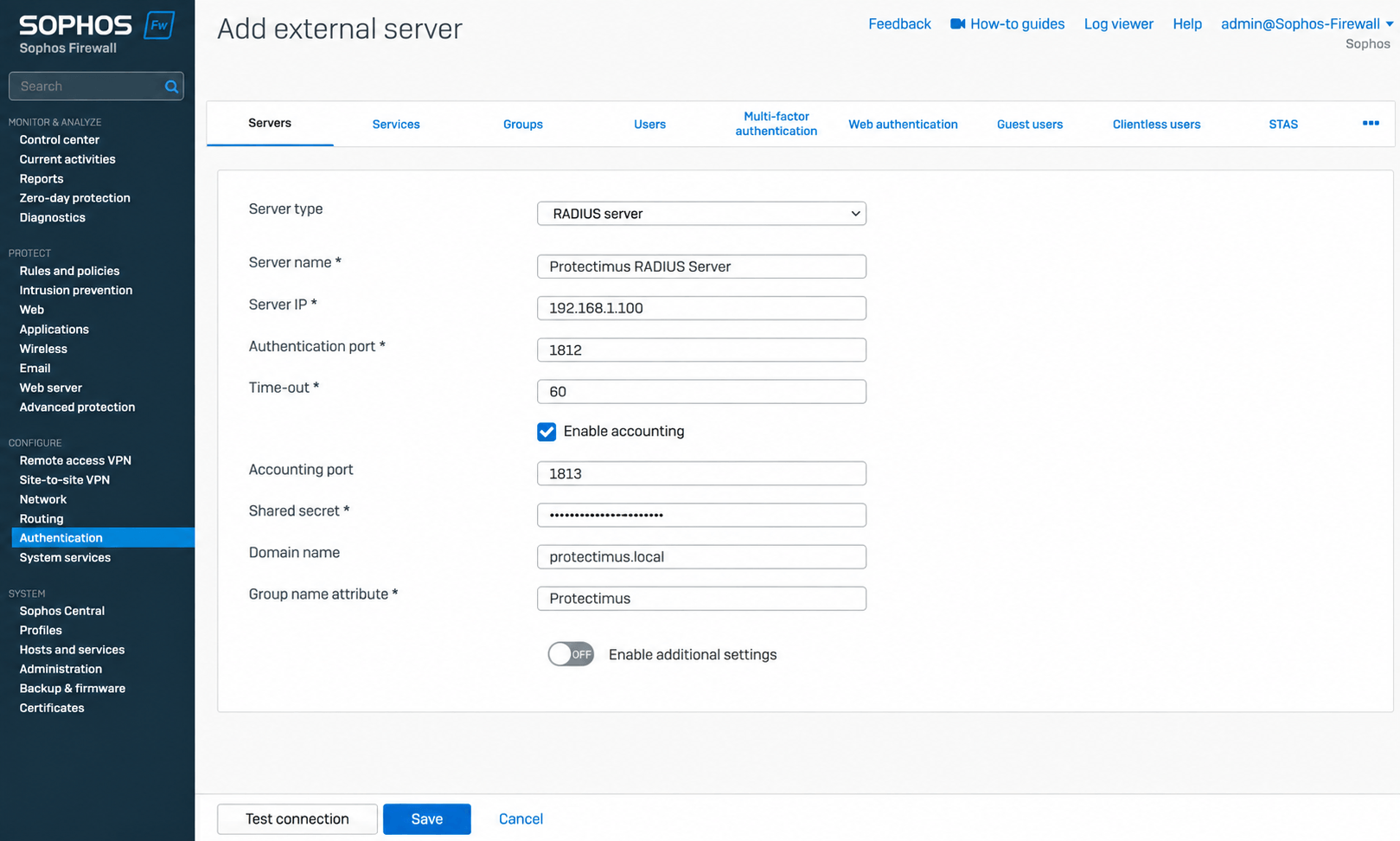
В этом руководстве предполагается, что необходимое VPN-подключение уже настроено в Sophos Firewall.
После добавления Protectimus RADIUS Server настройте Sophos Firewall на его использование в качестве источника аутентификации для нужной службы VPN.
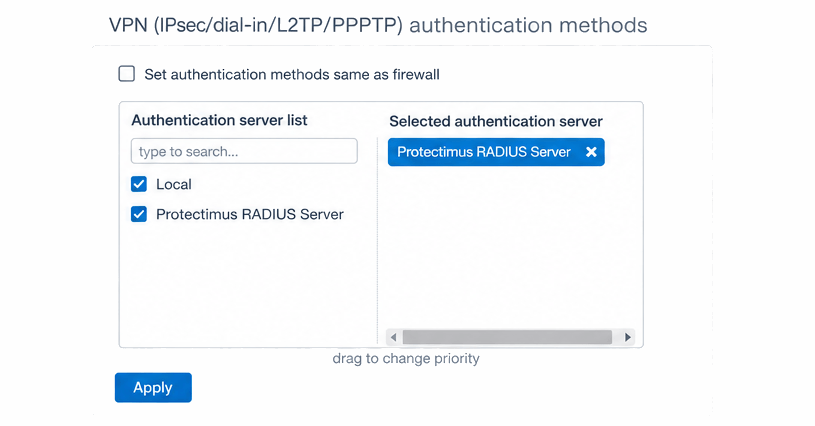
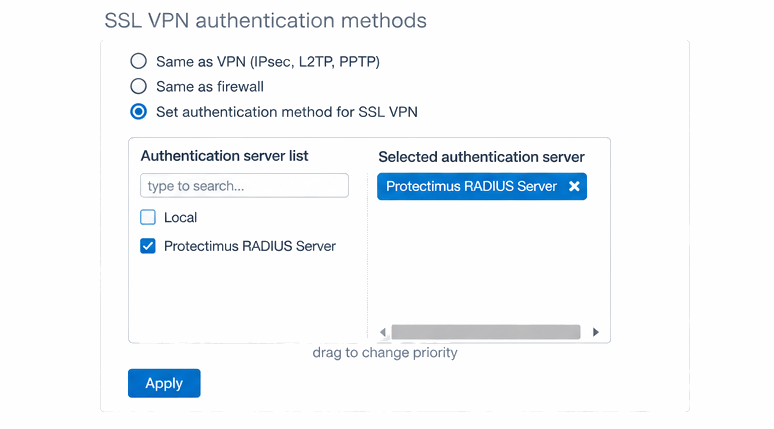
После настройки Protectimus RADIUS Server как источника аутентификации для нужной службы VPN проверьте конфигурацию, подключившись к соответствующей Sophos Firewall VPN.
Завершите аутентификацию, используя учётные данные пользователя и одноразовый пароль. При использовании inline-режима введите в поле пароля пароль пользователя, а затем одноразовый пароль. Например, при пароле Password123 и OTP 456789 введите Password123456789 в поле пароля.
Если оба фактора аутентификации успешно проверены, пользователю будет предоставлен доступ к VPN.
Интеграция двухфакторной аутентификации (2FA/MFA) для Sophos Firewall VPN с помощью Protectimus RADIUS Server завершена.
Если у вас остались вопросы, обратитесь в службу поддержки Protectimus.










