



Ви можете легко налаштувати двофакторну автентифікацію (2FA) для Sophos Firewall VPN за допомогою Protectimus через протокол RADIUS. Додавши MFA як додатковий рівень безпеки, ви зможете краще захистити віддалений доступ до мережі, навіть якщо пароль користувача буде скомпрометовано.
Protectimus забезпечує багатофакторну автентифікацію для Sophos Firewall VPN за допомогою Protectimus RADIUS Server. Він отримує запити автентифікації від Sophos Firewall, перевіряє фактори автентифікації та повертає відповідь, що дозволяє або забороняє доступ.
Нижче наведено схему роботи рішення Protectimus для двофакторної автентифікації Sophos Firewall VPN.
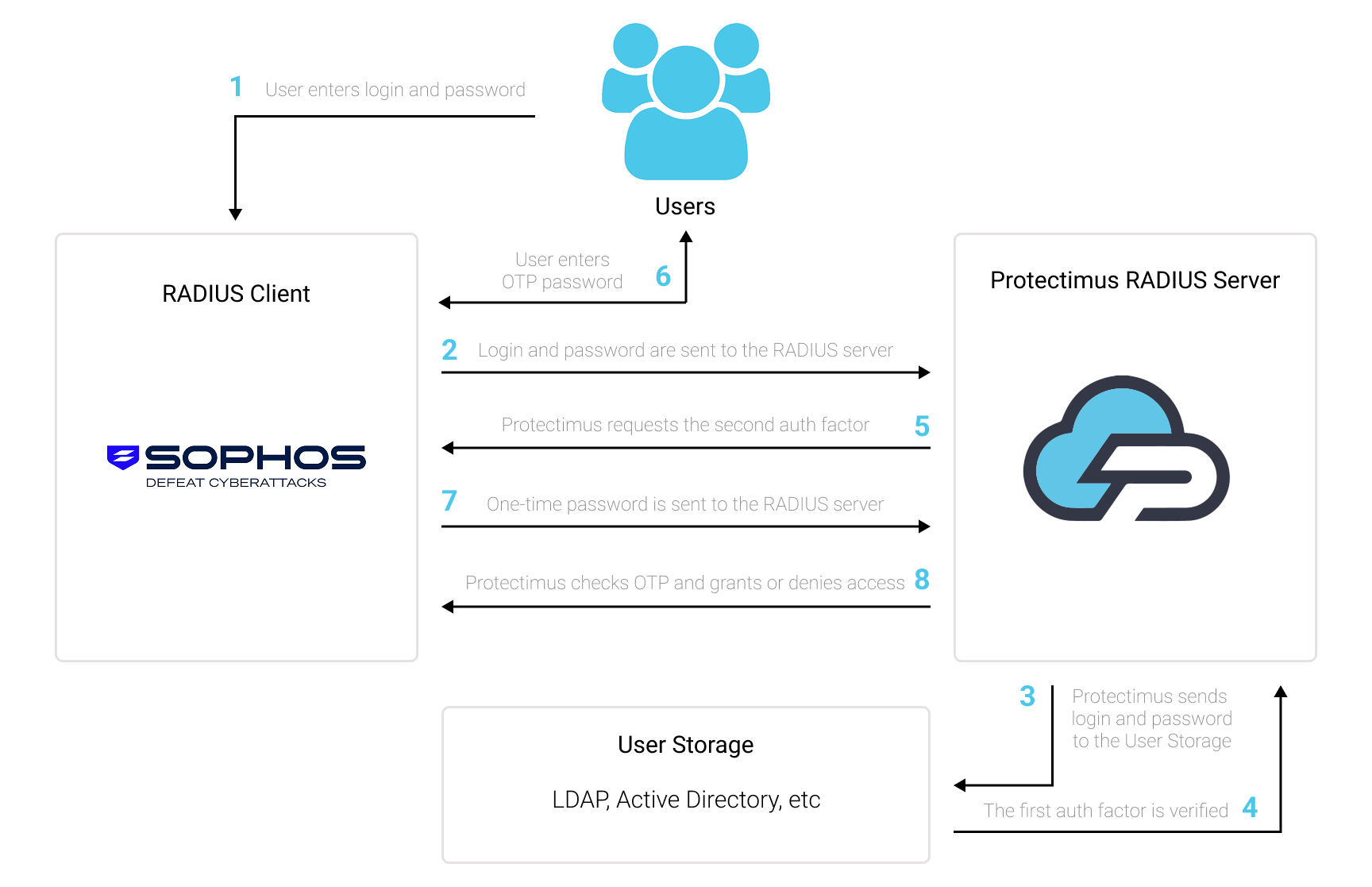
Рішення Protectimus для двофакторної автентифікації Sophos Firewall VPN забезпечує додатковий рівень безпеки, що запобігає несанкціонованому доступу до VPN.
Після ввімкнення двофакторної автентифікації (2FA) для Sophos Firewall VPN користувачі проходять перевірку за допомогою двох різних факторів:
Це означає, що одного скомпрометованого пароля недостатньо для доступу до Sophos Firewall VPN, оскільки також потрібен дійсний одноразовий пароль.
Ви можете налаштувати багатофакторну автентифікацію (2FA) для Sophos Firewall VPN за допомогою Protectimus через протокол RADIUS:
- Зареєструйтеся в Protectimus Cloud Service або встановіть локальну MFA-платформу та виконайте базове налаштування.
- Установіть і налаштуйте Protectimus RADIUS Server.
- Додайте Protectimus як RADIUS-сервер у Sophos Firewall.
- Налаштуйте Sophos Firewall для використання Protectimus RADIUS Server під час автентифікації VPN.
Виберіть варіант розгортання та виконайте базове налаштування:
Хмарний сервіс Protectimus
Локальна платформа Protectimus
Установіть і налаштуйте Protectimus RADIUS Server, дотримуючись нашого посібника зі встановлення Protectimus RADIUS Server.
Під час налаштування RADIUS Server переконайтеся, що Sophos Firewall дозволено надсилати запити автентифікації на Protectimus RADIUS Server, і запишіть порт автентифікації та спільний секрет. Такі самі параметри потрібно буде вказати під час налаштування RADIUS-сервера в Sophos Firewall.
Примітка: Якщо ваш клієнт Sophos VPN не підтримує обмін RADIUS Access-Challenge для OTP-автентифікації, налаштуйте Protectimus RADIUS Server на використання inline-режиму. У цьому режимі пароль користувача та одноразовий пароль надсилаються разом в одному запиті автентифікації.
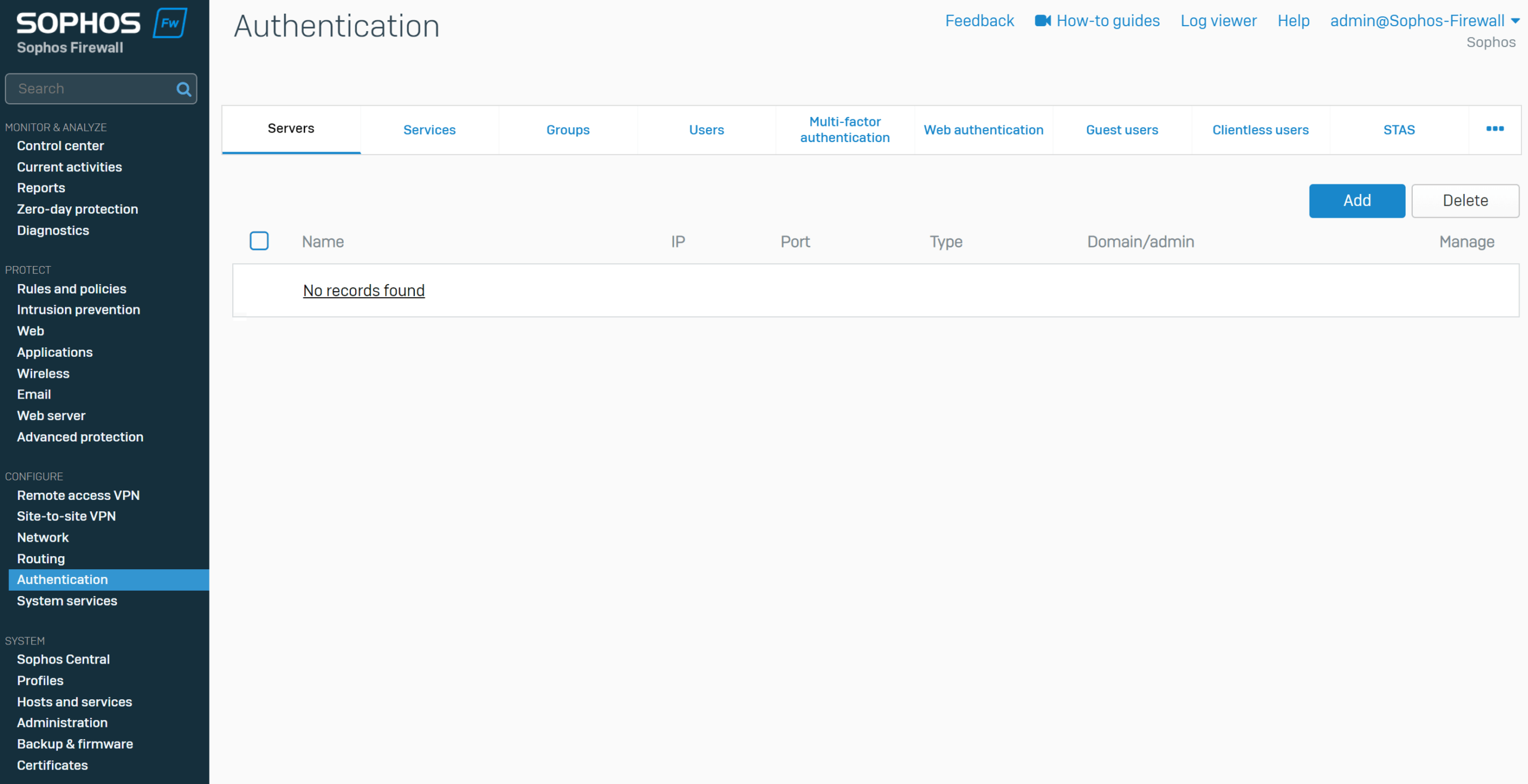
| Server type | Виберіть RADIUS server. |
| Server name | Введіть ім’я сервера, наприклад Protectimus RADIUS Server. |
| Server IP | Введіть IP-адресу сервера, на якому встановлено компонент Protectimus RADIUS Server. |
| Authentication port | Введіть 1812, або порт автентифікації, налаштований для Protectimus RADIUS Server. |
| Time-out | Установіть тайм-аут 60 секунд. |
| Enable accounting | Увімкніть цей параметр. |
| Accounting port | Введіть 1813. |
| Shared secret | Введіть той самий спільний секрет, який налаштовано для клієнта Sophos Firewall у конфігурації Protectimus RADIUS Server. |
| Domain Name | За потреби введіть ім’я домену. Це поле необов’язкове. |
| Group name attribute | Введіть атрибут імені групи, налаштований для вашої конфігурації RADIUS. |
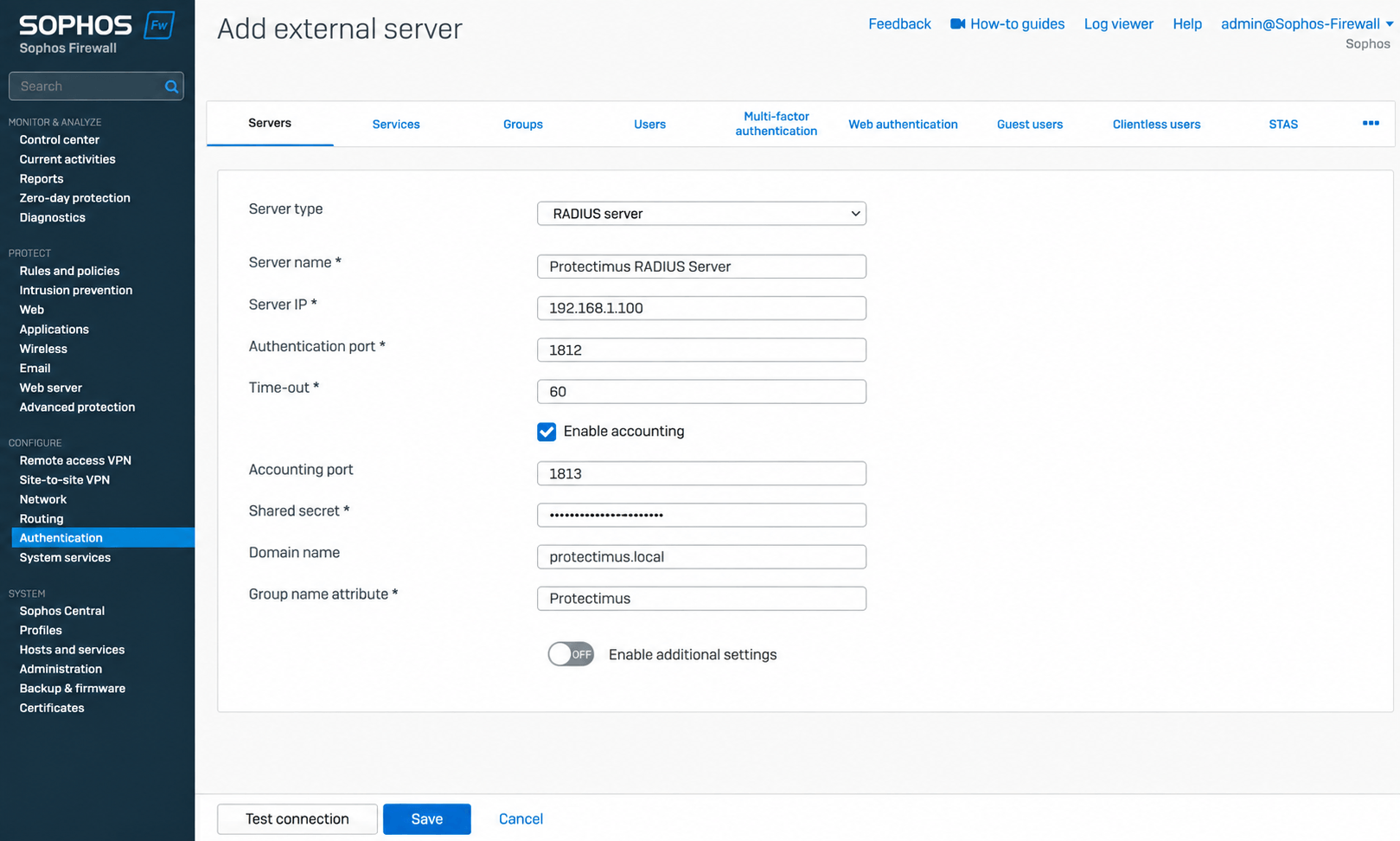
У цьому посібнику передбачається, що необхідне VPN-підключення вже налаштовано в Sophos Firewall.
Після додавання Protectimus RADIUS Server налаштуйте Sophos Firewall на його використання як джерела автентифікації для потрібної служби VPN.
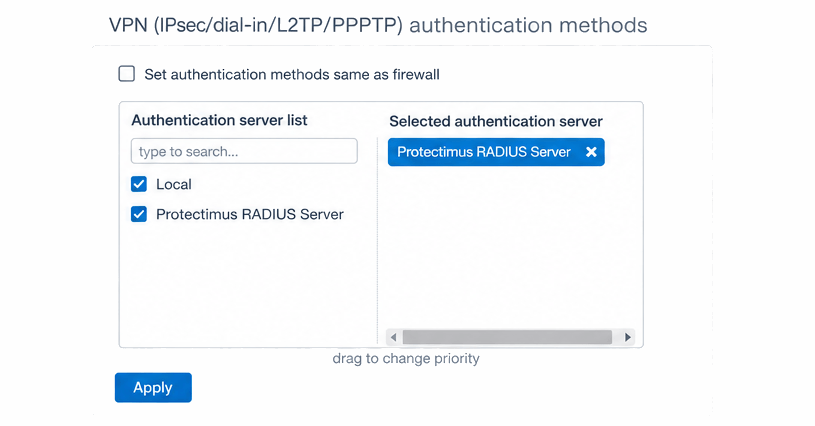
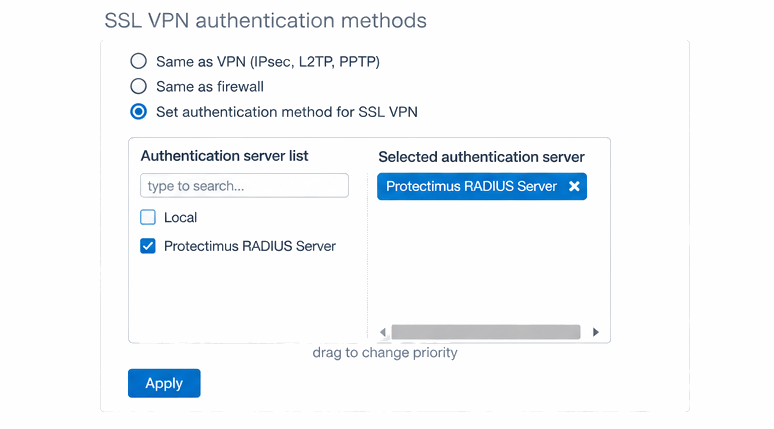
Після налаштування Protectimus RADIUS Server як джерела автентифікації для потрібної служби VPN перевірте конфігурацію, підключившись до відповідної Sophos Firewall VPN.
Завершіть автентифікацію за допомогою облікових даних користувача та одноразового пароля. У разі використання inline-режиму введіть у поле пароля пароль користувача, а потім одноразовий пароль. Наприклад, для пароля Password123 і OTP 456789 введіть Password123456789 у поле пароля.
Якщо обидва фактори автентифікації успішно перевірено, користувачеві буде надано доступ до VPN.
Інтеграцію двофакторної автентифікації (2FA/MFA) для Sophos Firewall VPN за допомогою Protectimus RADIUS Server завершено.
Якщо у вас залишилися запитання, зверніться до служби підтримки Protectimus.










