This guide shows how to enable multi-factor authentication (2FA / MFA) for users logging in to Pulse Connect Secure SSL VPN with the help of the Protectimus two-factor authentication solution for Pulse Connect Secure SSL VPN.
Protectimus’s two-factor authentication system integrates with Pulse Connect Secure SSL VPN via RADIUS authentication protocol.
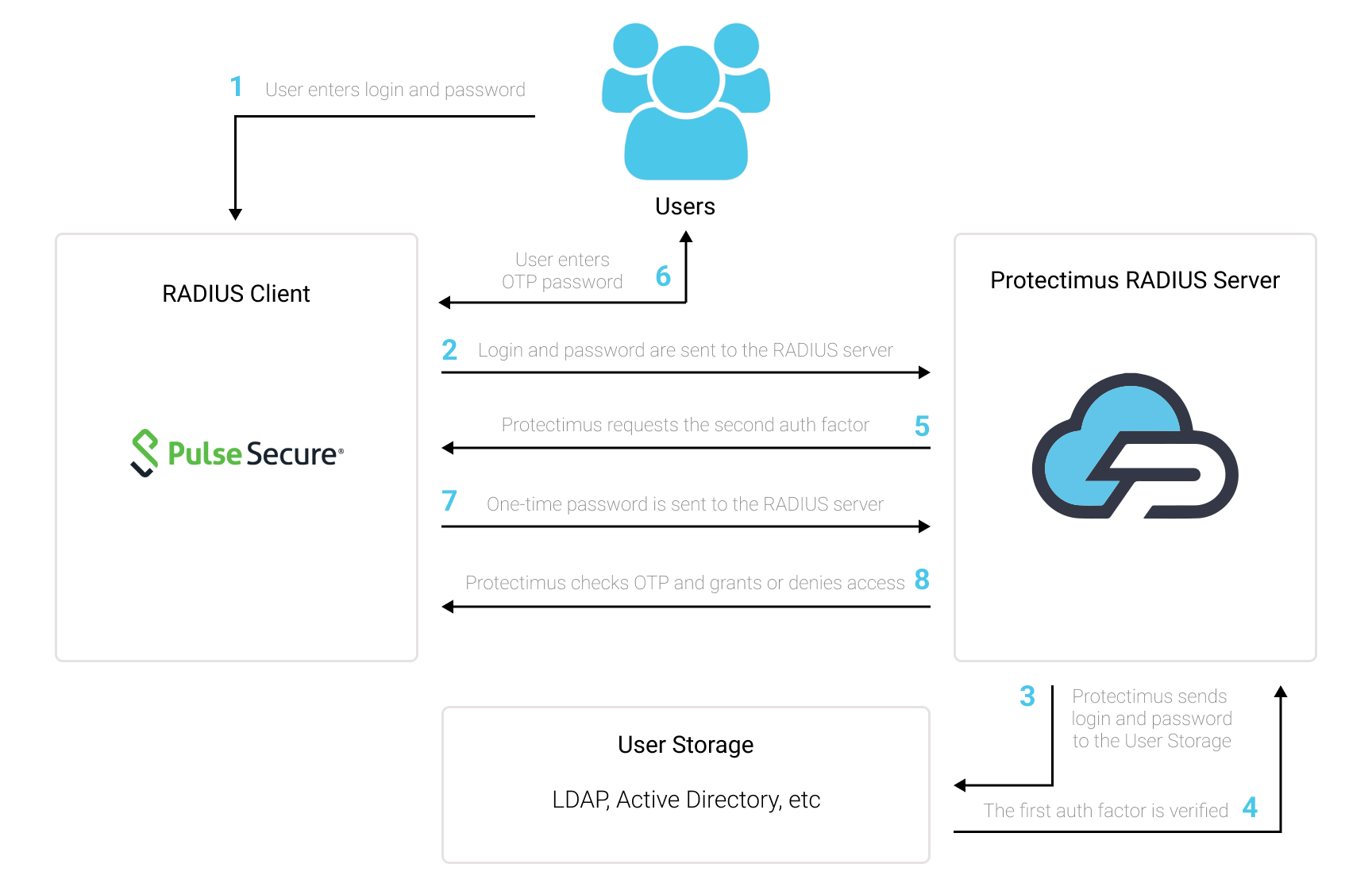
In this scenario, the Protectimus Cloud 2FA Service or On-Premise 2FA Platform performs as a RADIUS server, and the Pulse Connect Secure SSL VPN takes the role of a RADIUS client.
You will find the scheme of work of the Protectimus solution for Pulse Connect Secure SSL VPN two-factor authentication below.
Two-factor authentication (2FA / MFA) protects the Pulse Connect Secure SSL VPN user accounts from phishing, brute force, keyloggers, man-in-the-middle attacks, data spoofing, social engineering, and other similar hacking tricks.
When you enable 2FA/MFA for Pulse Connect Secure SSL VPN, Pulse Secure VPN users will use two different authentication factors to get access to their accounts.
To hack a Pulse Connect Secure SSL VPN user account protected with two-factor authentication, a hacker needs both passwords at once. Moreover, a hacker has only 30 seconds to crack and use a time-based one-time password. It is almost impossible to fulfill these conditions, which makes two-factor authentication so effective.
You can set up two-factor authentication (2FA) for Pulse Connect Secure SSL VPN with Protectimus using the RADIUS protocol:
- Get registered with Protectimus SAAS Service or install the On-Premise 2FA Platform and configure basic settings.
- Install and configure Protectimus RADIUS Server.
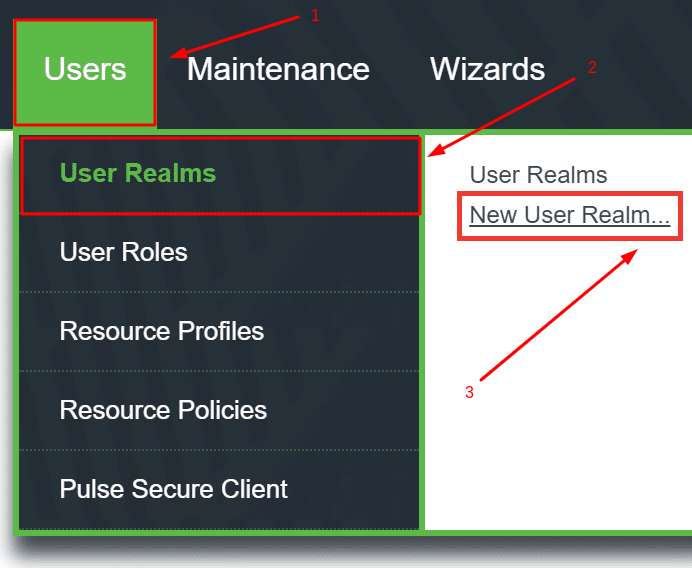
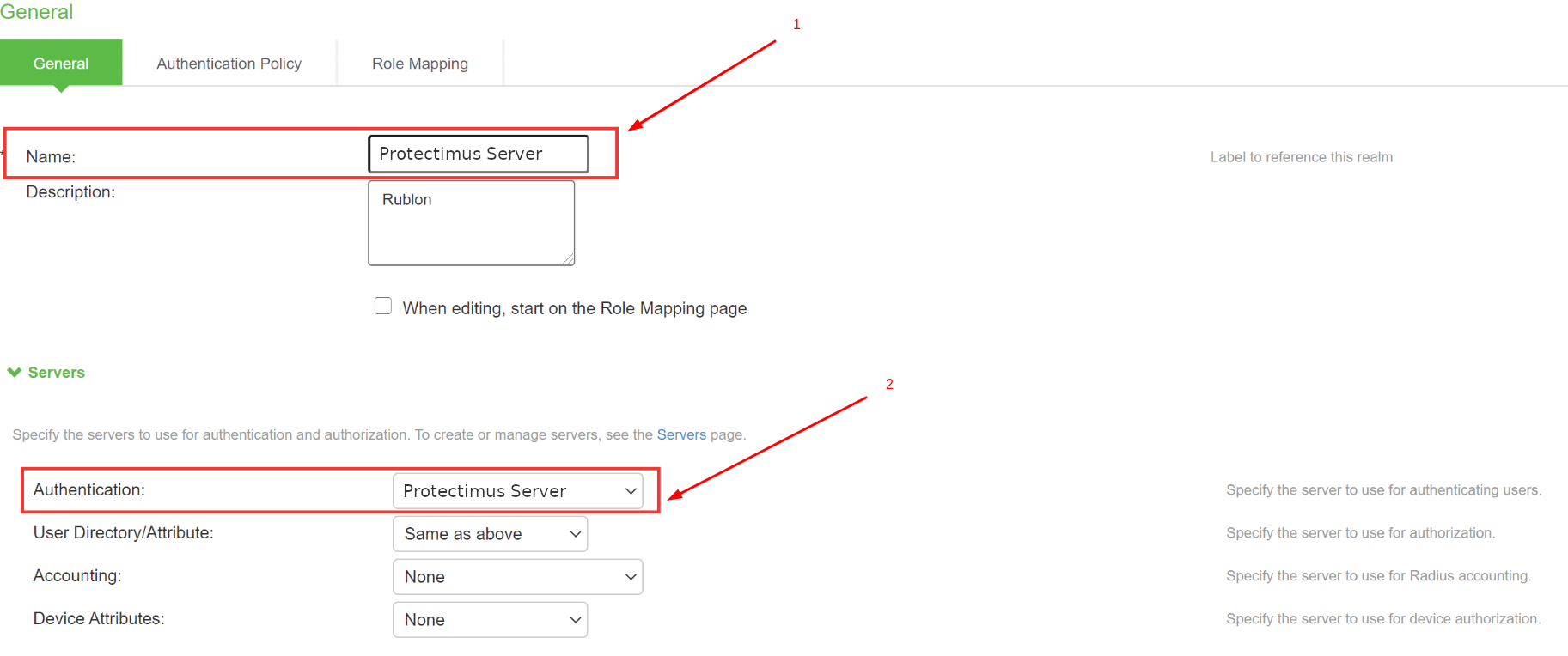
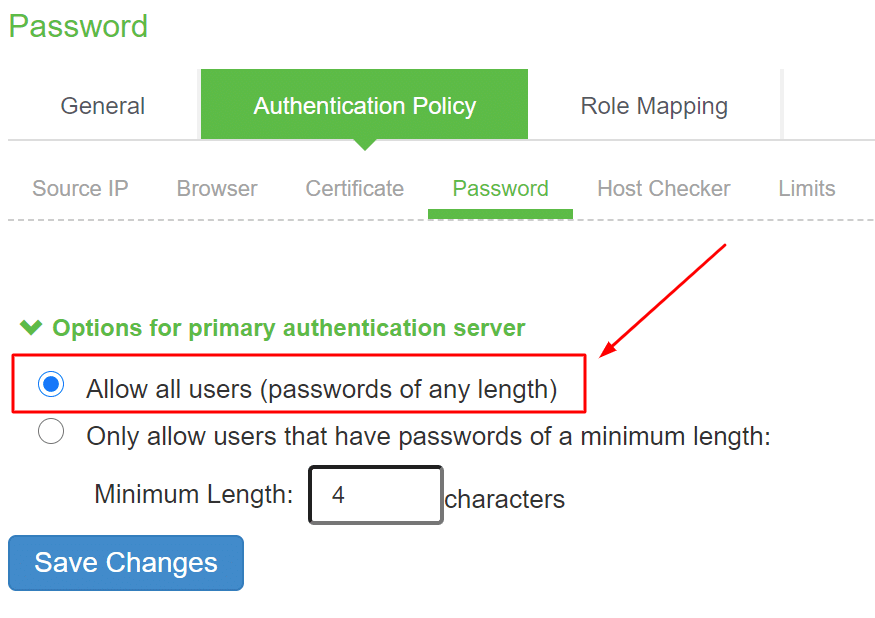
- Configure Pulse Connect Secure SSL VPN authentication policies.
Choose your deployment option and complete the basic setup:
Protectimus Cloud Service
Protectimus On-Premise Platform
Detailed instructions for installing and configuring the Protectimus RADIUS Server for Pulse Connect Secure SSL VPN 2-factor authentication using RADIUS are available in our Protectimus RADIUS Server Installation Guide for Pulse Connect Secure SSL VPN 2FA.
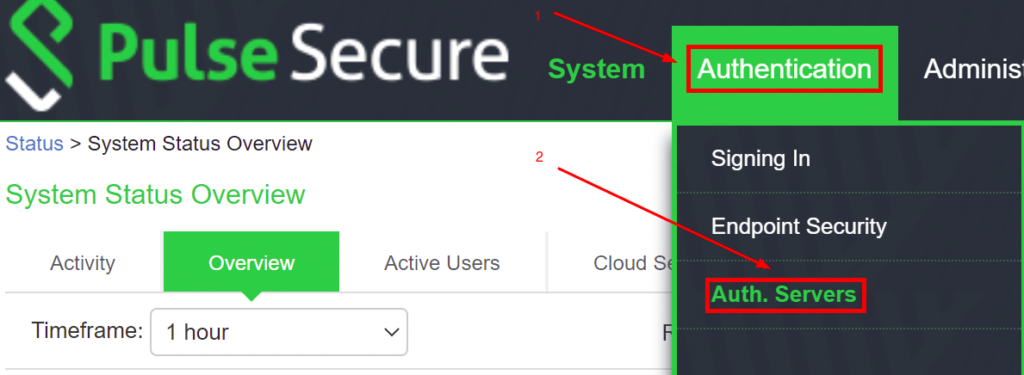
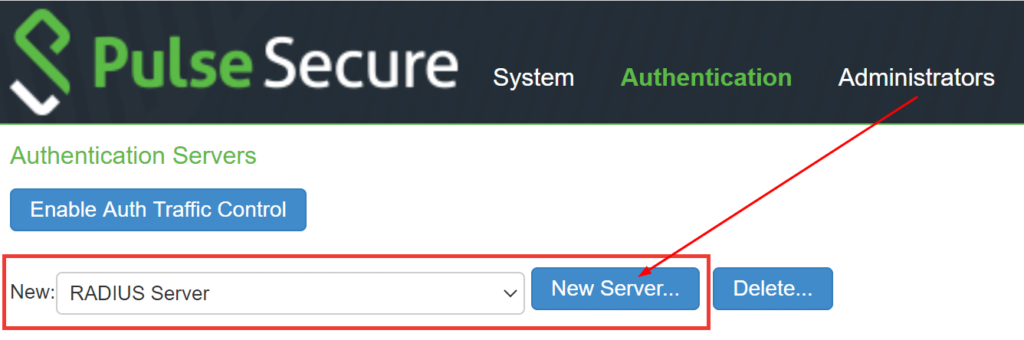
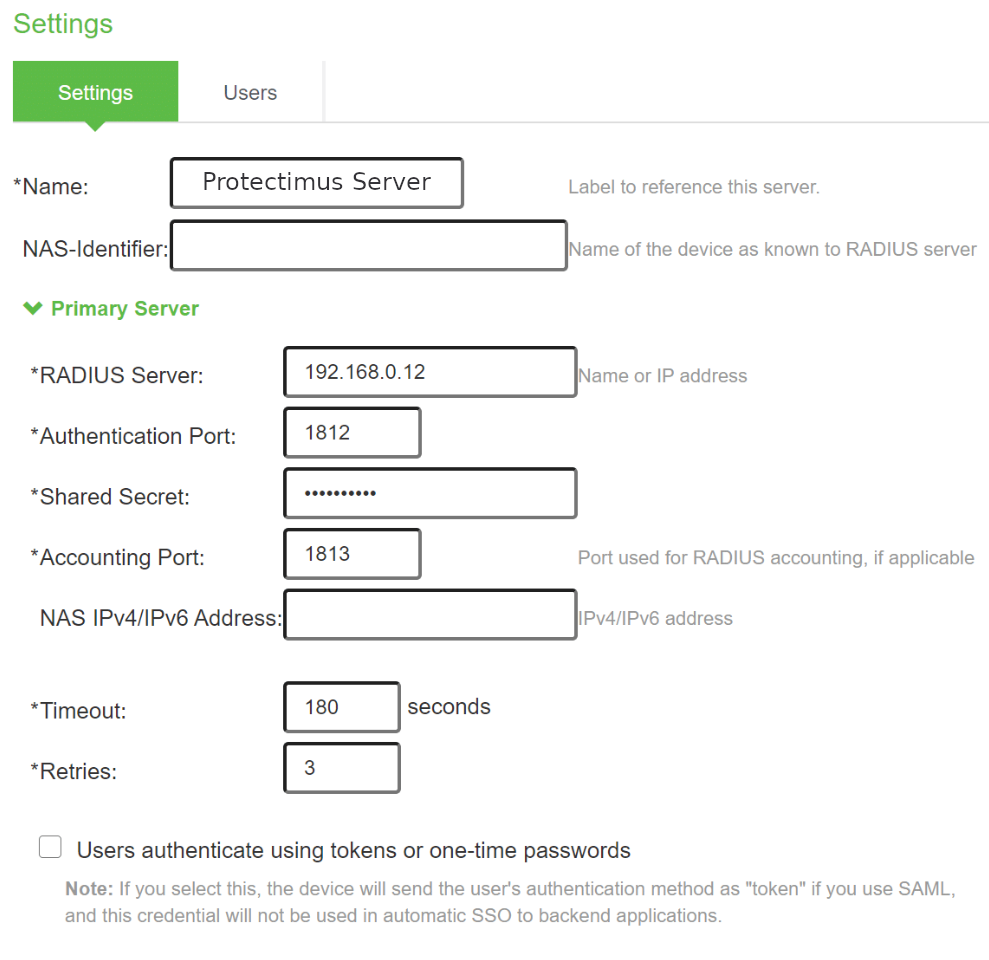
| Name | Come up with a name for your RADIUS server, e.g. Protectimus Server. |
| RADIUS Server | Enter the IP of server where the Protectimus RADIUS Server component is installed. |
| Authentication Port | Indicate 1812 (or whichever port you configured in the Protectimus radius.yml file when configuring Protectimus RADIUS Server). |
| Shared Secret | Indicate the shared secret you created in the Protectimus radius.yml file (radius.secret property) when configuring Protectimus RADIUS Server |
| Timeout | Set to 180 seconds. |
| Retries | Set to 3. |
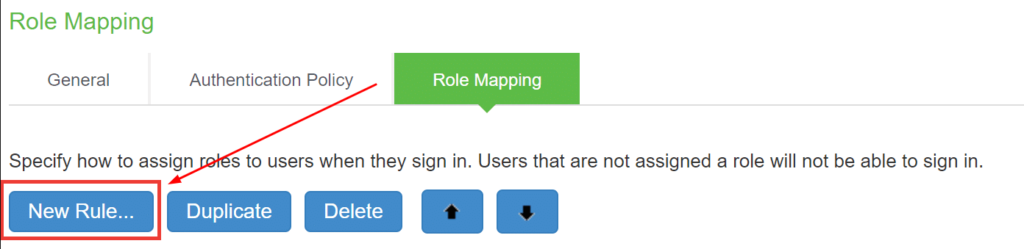
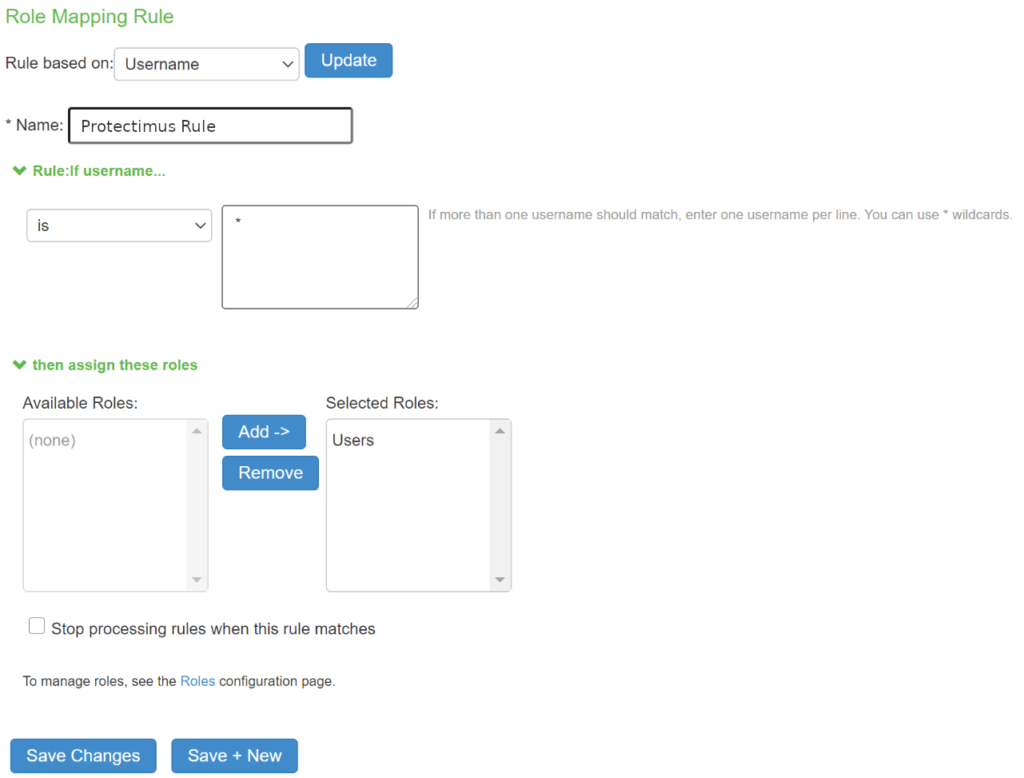
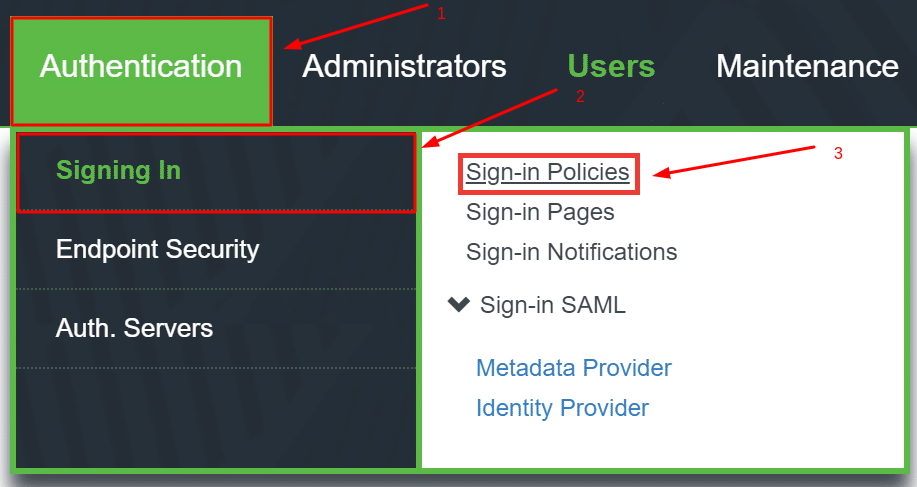
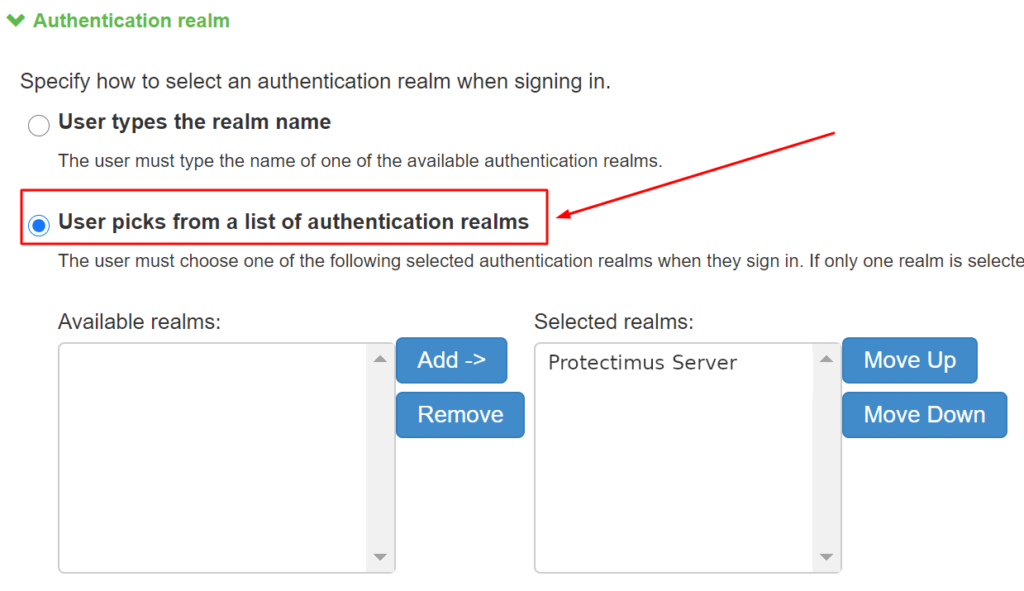
Integration of multi-factor authentication for Pulse Connect Secure SSL VPN is now complete.
If you have other questions, contact Protectimus customer support service.