Step-by-Step Guide to User Management
- In Protectimus Cloud Service, you can add the Users manually or import the Users using a CSV file.
- In Protectimus On-Premise Platform, you can add the Users manually, import the Users using a CSV file, or enable Users synchronization with your user directory. You’ll find instructions on enabling the synchronization of users in the On-Premise Platform section.
The number of Users that you may add depends on the Service Plan you select. If you need to add more Users, please select the required number of Users by customizing your Service Plan.
1. How to Add Users Manually
- Log into your account in Protectimus SAAS Service or On-Premise Platform and go to the Users page.
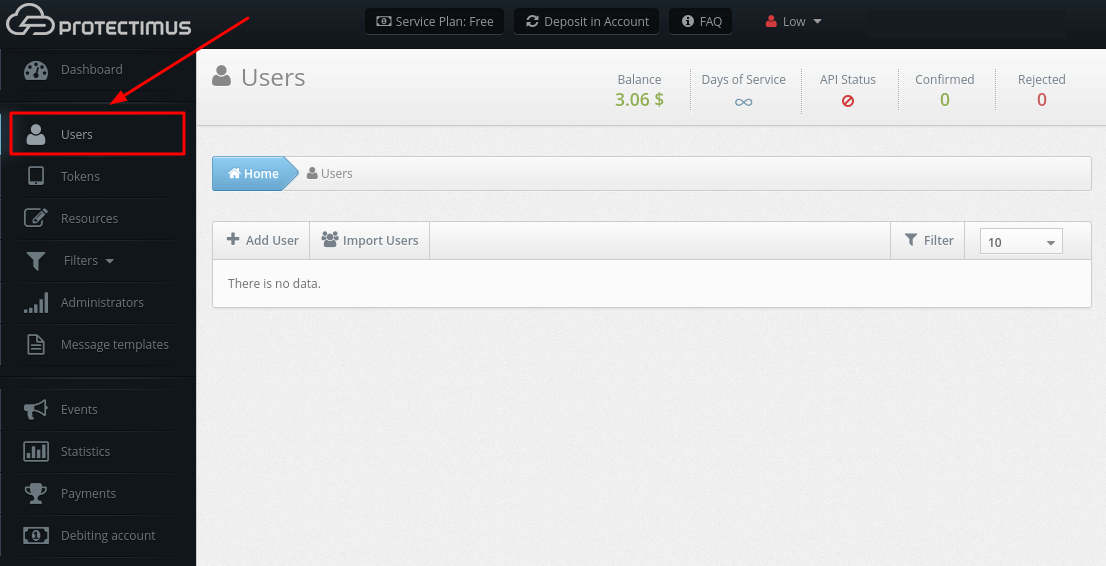
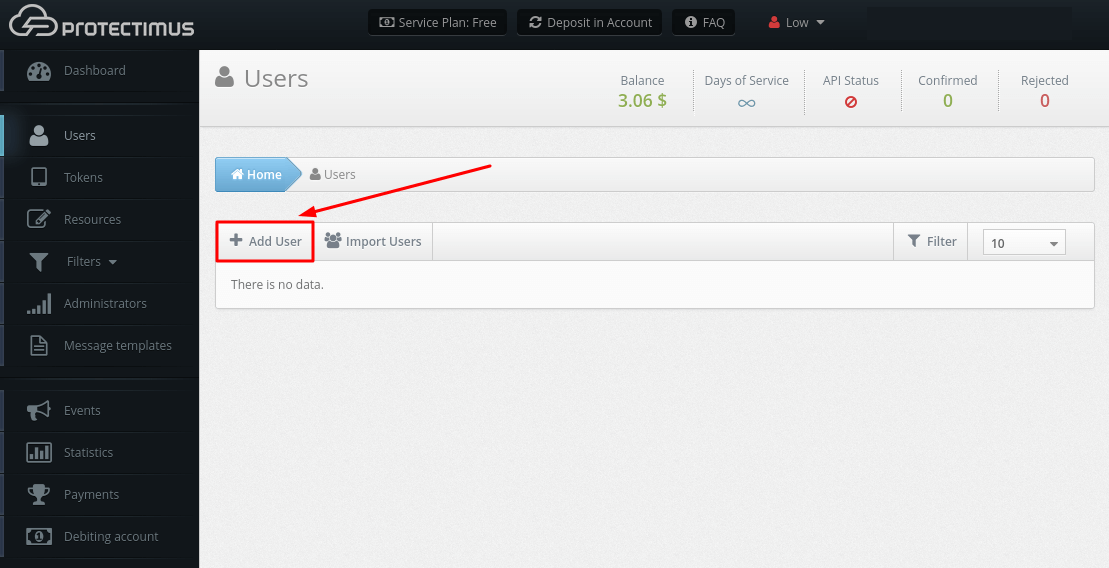
- Click the Add User button.
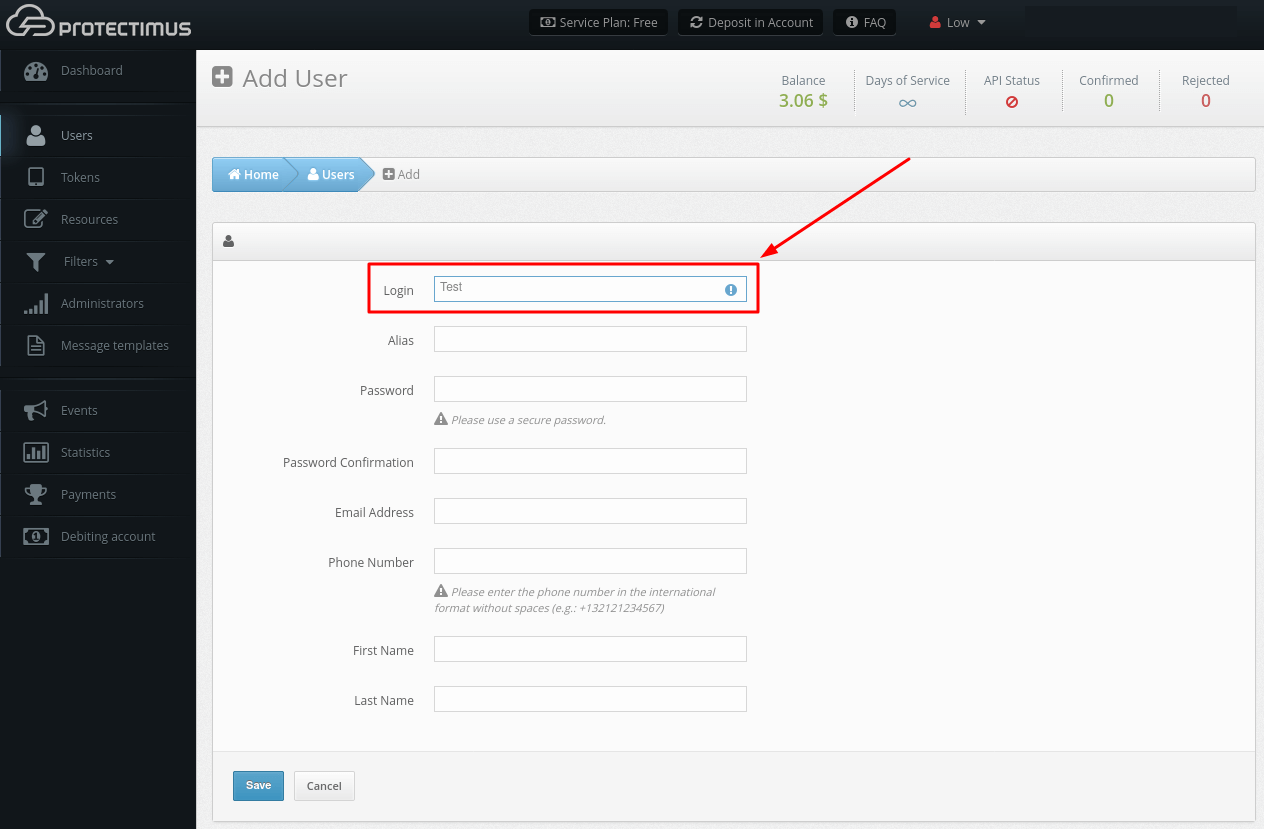
- Specify the user Login, other parameters are optional. The User Login must contain only Latin letters, numbers, and symbols _-@∽!#%+.$. Spaces and any other symbols are not allowed. Then click Save.
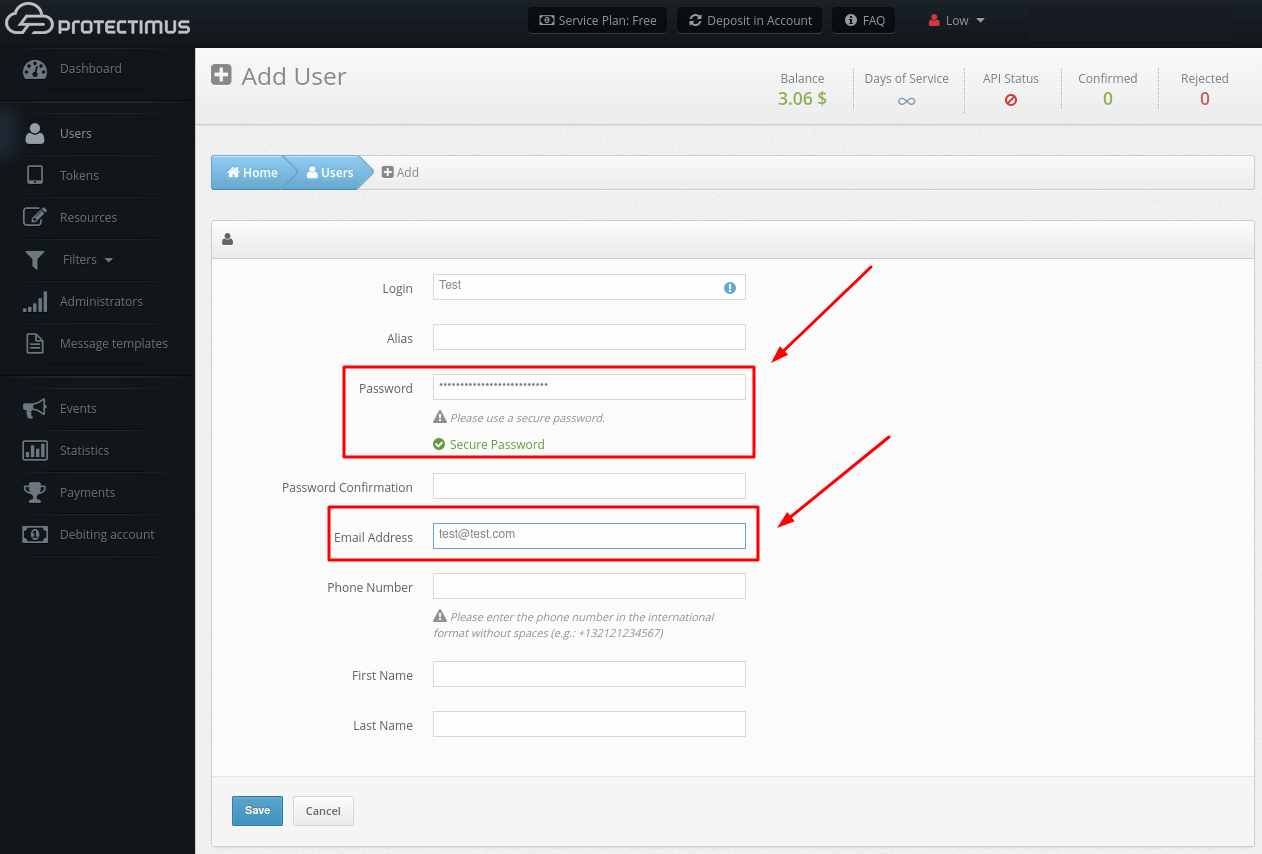
PLEASE NOTE! If you plan to activate the registration of Tokens through the Users’ Self-Service Portal, your Users in Protectimus system must additionally have a password or an email address on record. A verification code will be sent to the registered email address to allow your users to log into the Self-Service Portal. If a User has both a password and a registered email address, that User will use the password to log in. After a Token is issued for a User and assigned to a Resource, the User will also be asked for an OTP password from the Token when logging in to the Users’ Self-Service Portal.
2. How to Import Users
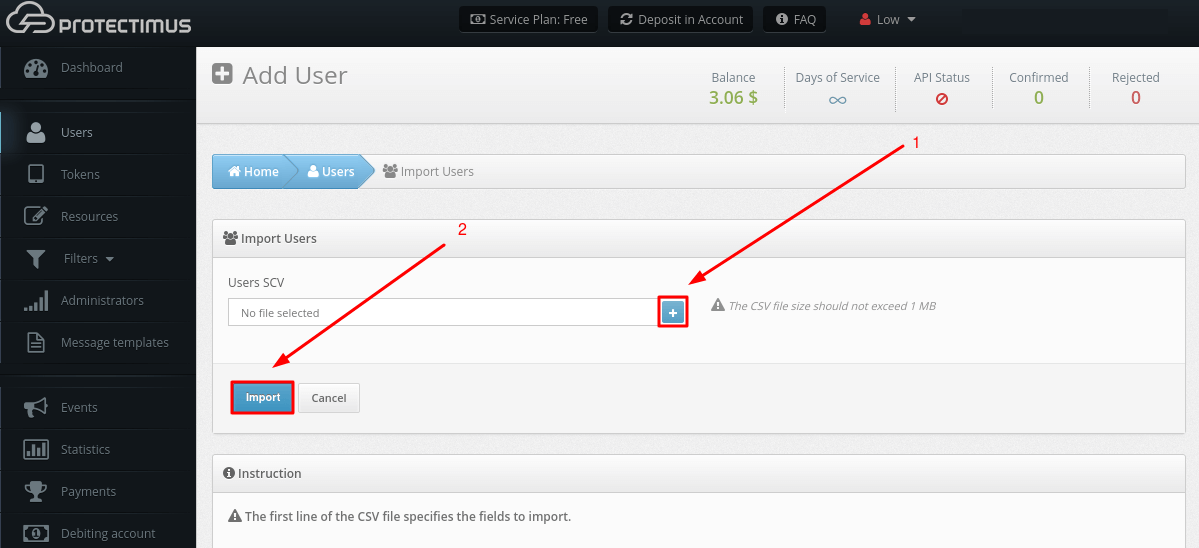
- Go to the Users page.
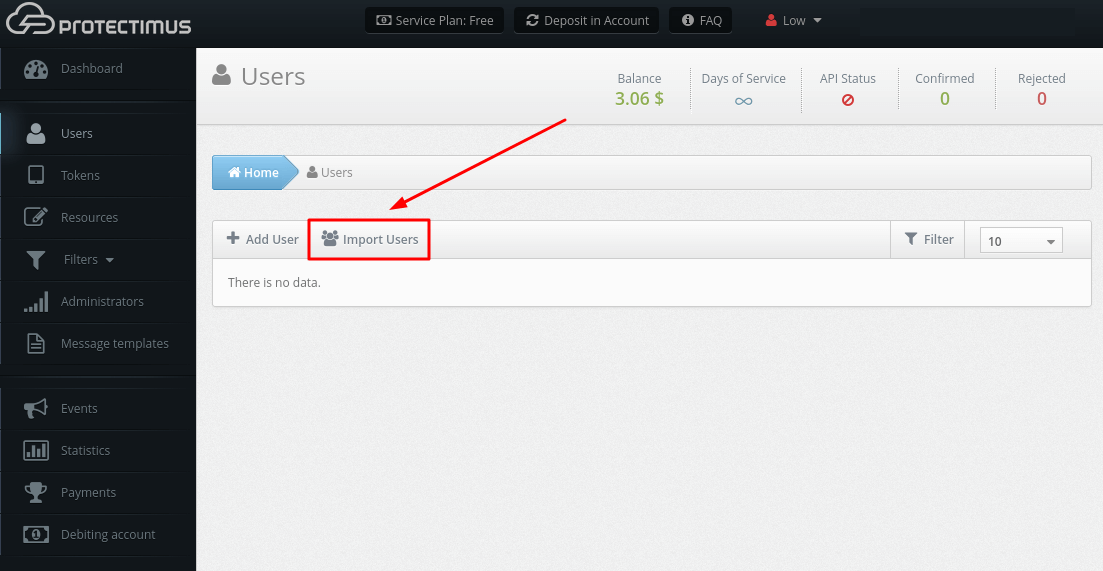
- Click the Import Users button.
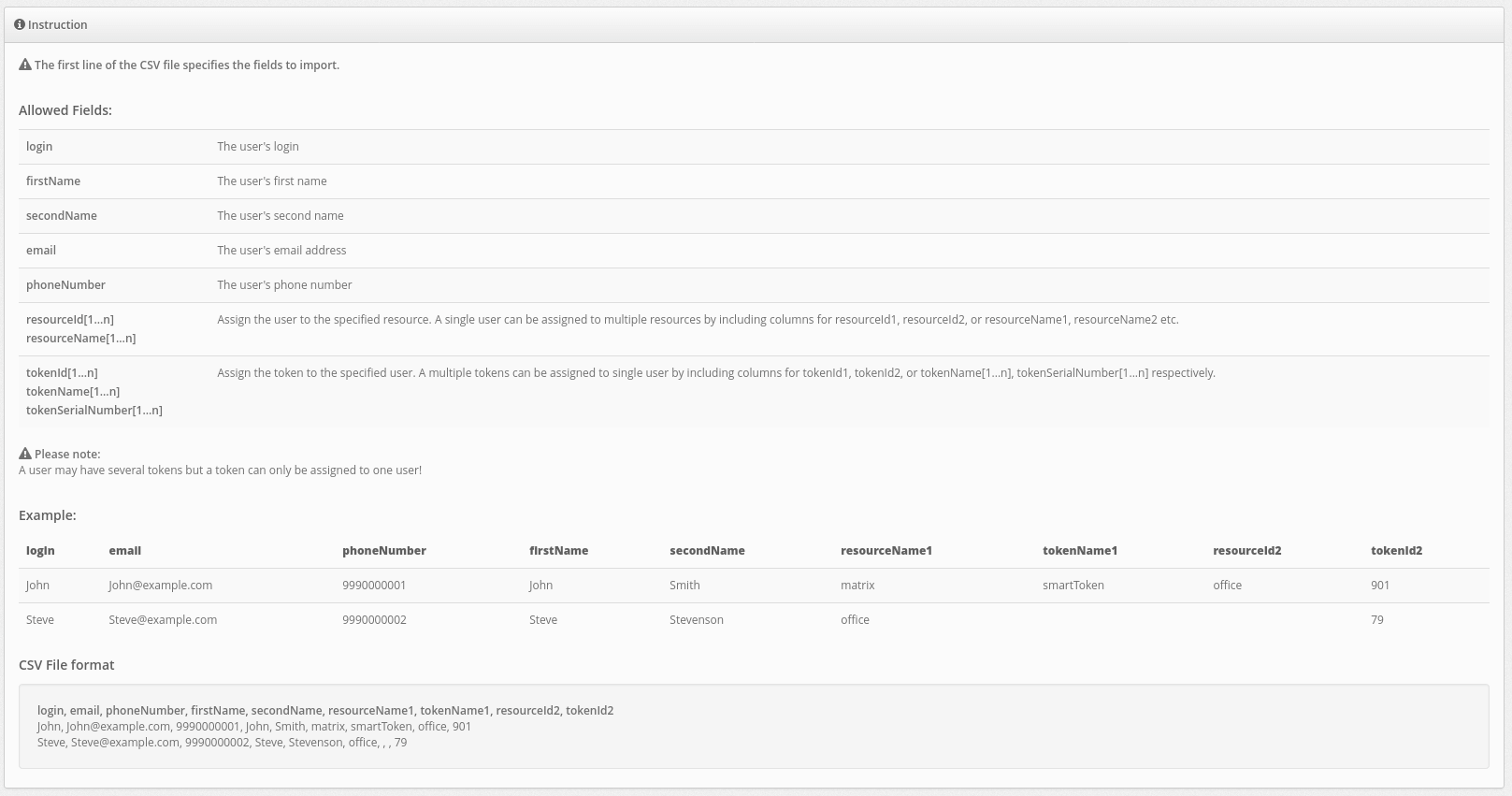
- Create a CSV file according to the instructions that you will see.
Example:
login, email, phoneNumber, firstName, secondName, resourceName1, tokenName1, resourceId2, tokenId2
John, John@example.com, 9990000001, John, Smith, matrix, smartToken, office, 901
Steve, Steve@example.com, 9990000002, Steve, Stevenson, office, , , 79
- Attach your CSV file and click Import
3. How to Assign a Token to a User
You need to assign tokens to users to let the authentication system know which Token every User owns.
- Go to the Users page.
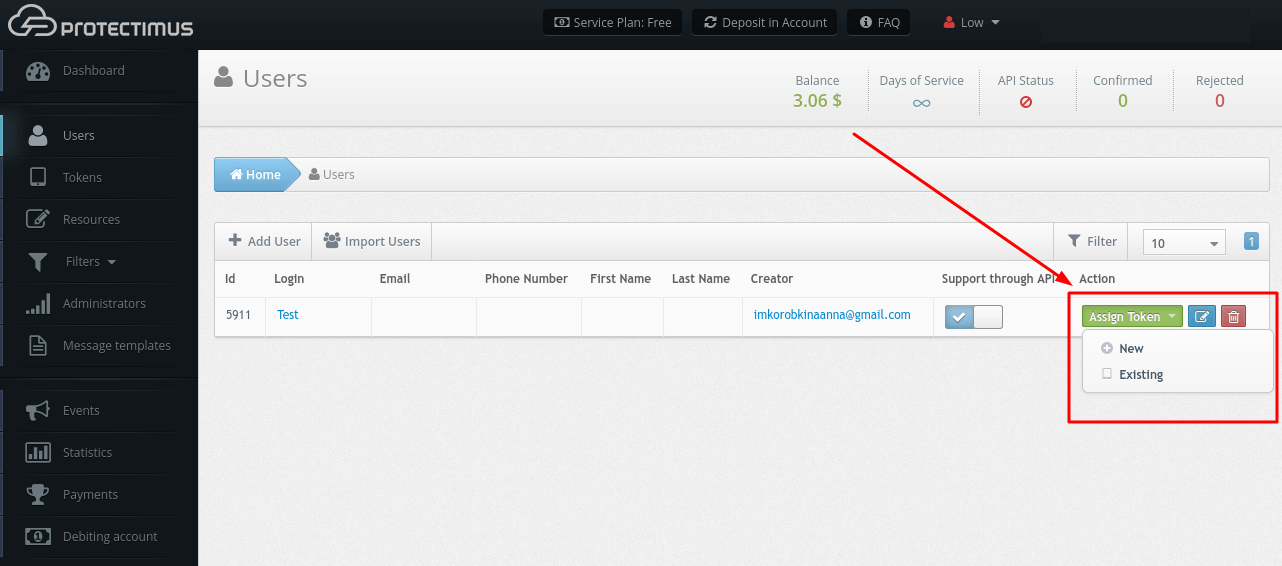
- Find the User you would like to assign a token to, click on the button Assign Token:
- if you have not created a Token yet, choose New, and add a token;
- if you have already created a Token (for more information see the Tokens section), choose Existing, then select the required Token and click Assign.
4. How to Deactivate a User’s Token
If a user loses their token or, for example, forgets the token at home, and you want to provide urgent access to this user, you will only need to deactivate this token. In this case, this token will not be involved in the user authentication process.
- Go to the Users page.
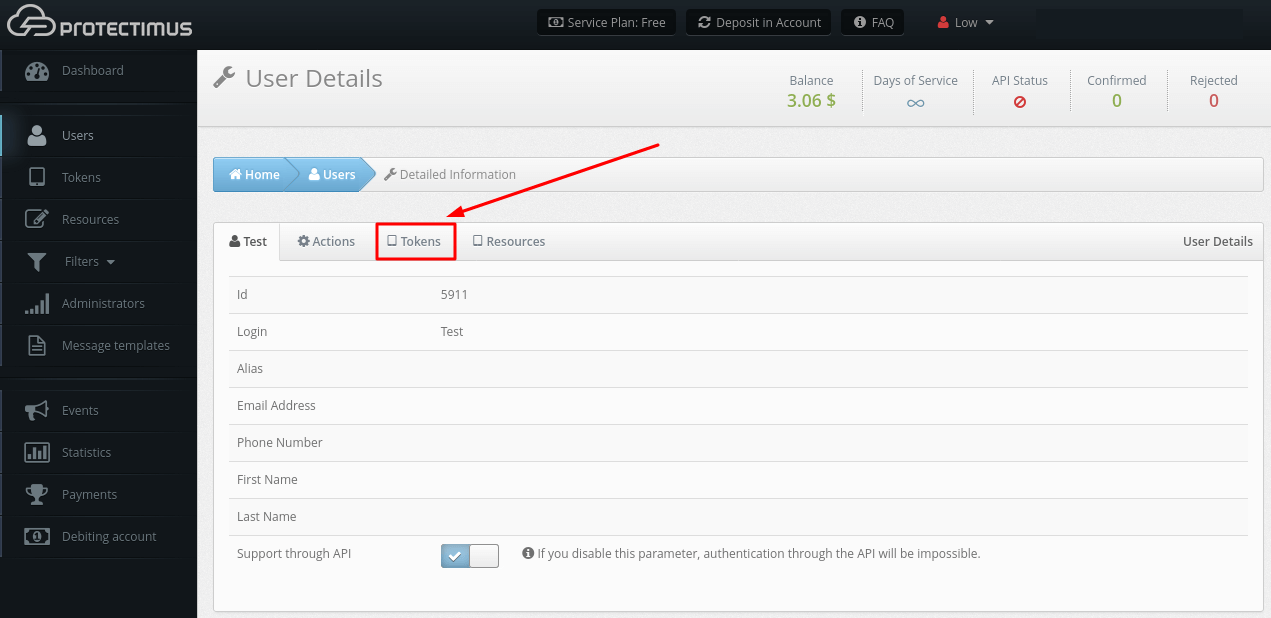
- Find the User you need and click on their Login.
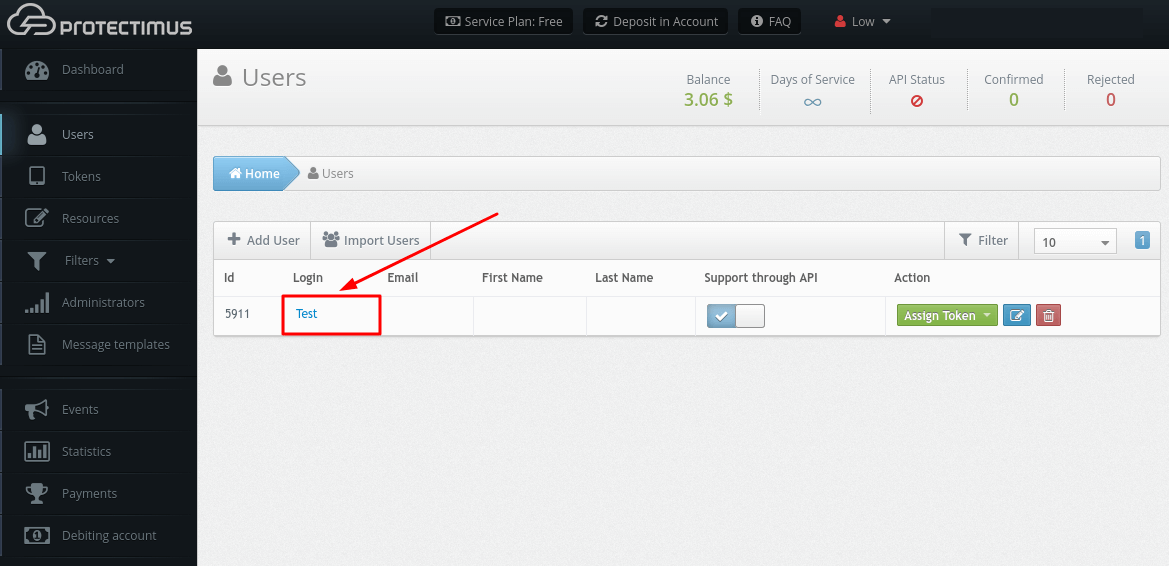
- Go to the Tokens tab.
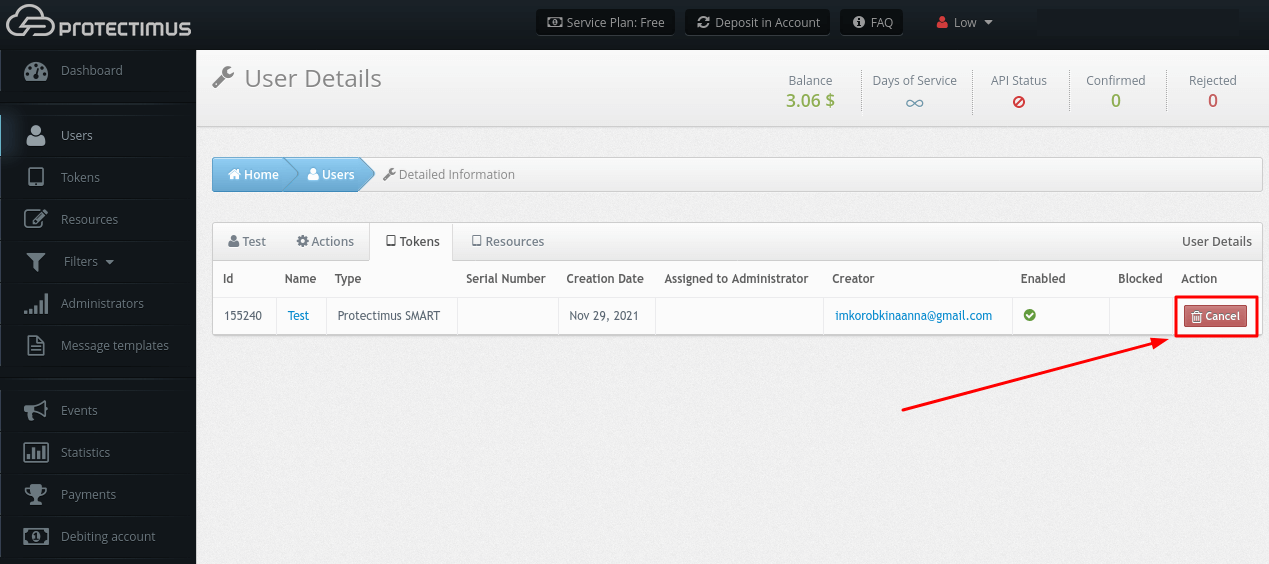
- Click the Cancel button and confirm this action.
5. How to Edit Users
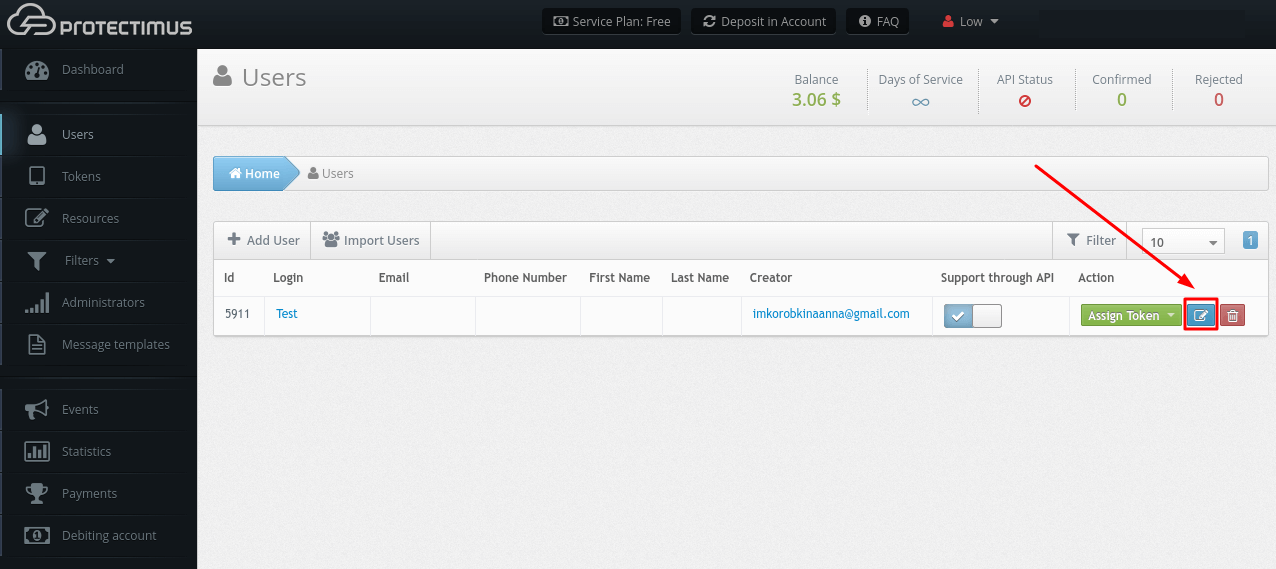
- Go to the Users page.
- Find the User you need to edit and click the blue button on the right.
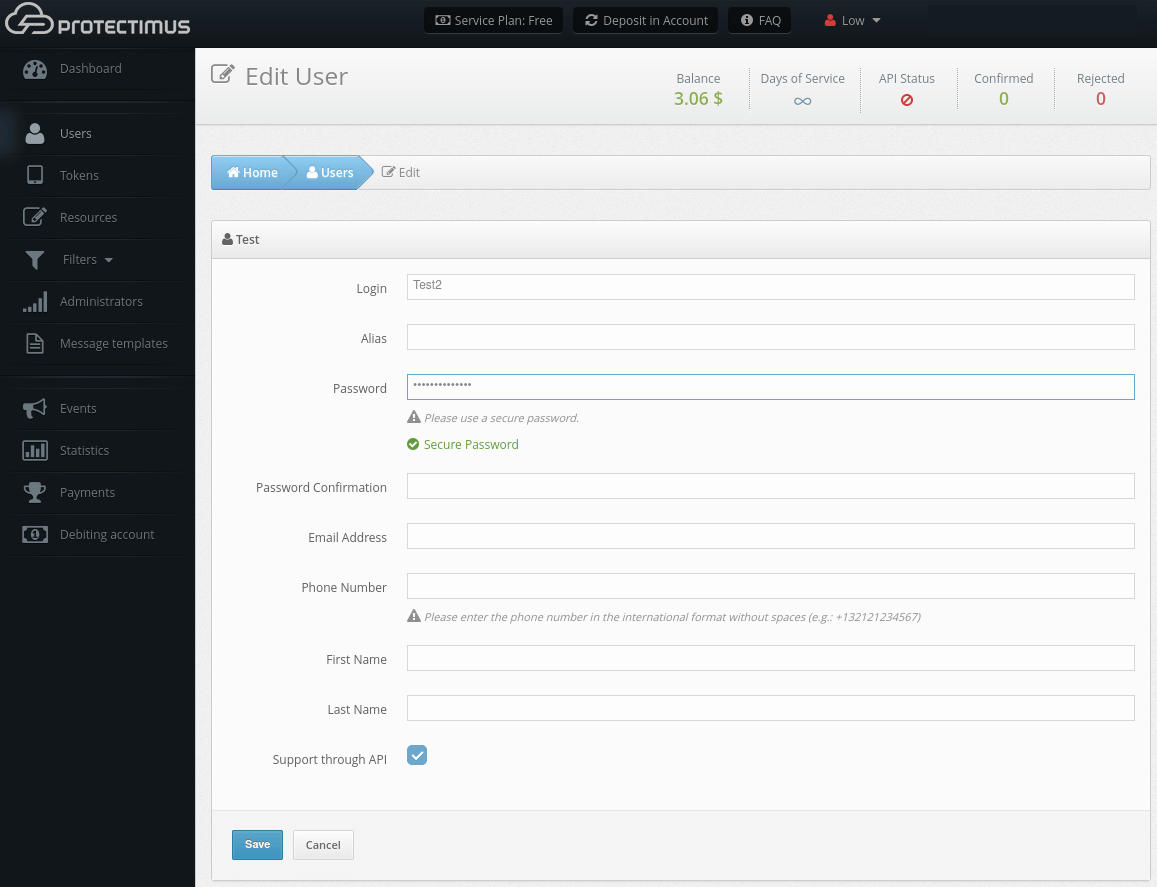
- You will be taken to the Edit User page where you can make changes.
6. How to Delete Users
- Go to the Users page.
- Find the User you would like to delete and click on the red button with the image of the bin.
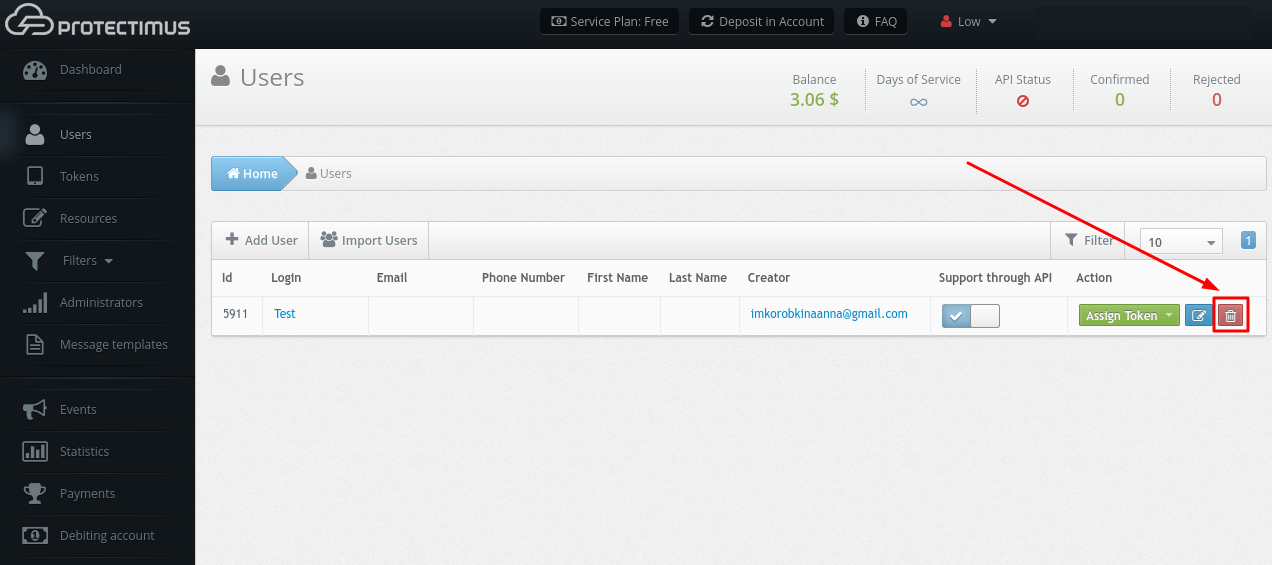
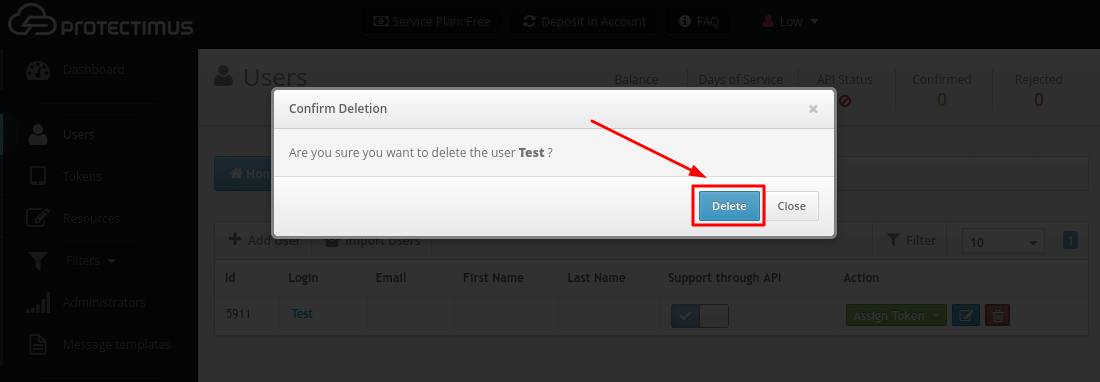
- Confirm the action.