How to Add and Manage Administrators in SaaS MFA Service
Note:
- Administrators can manage only the Resources assigned to them. Only the chief system administrator can manage Administrators — invite, create, assign permissions, or delete them.
- An Administrator can manage Users, Tokens, and Filters, but cannot delete objects created by another Administrator.
- Administrators cannot change the Service Plan, add funds to the account, or view payment statistics.
- The number of Administrators you can add depends on your selected Service Plan.
1. How to Add an Administrator in Protectimus SaaS MFA Service
- Log in to your account in Protectimus SAAS Service.
- In the left-side menu, click Administrators.
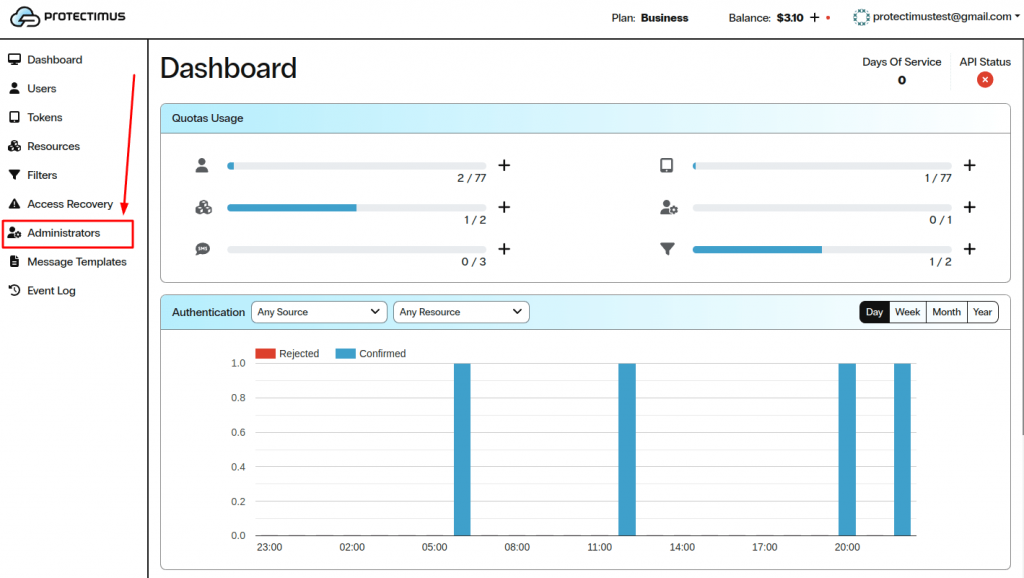
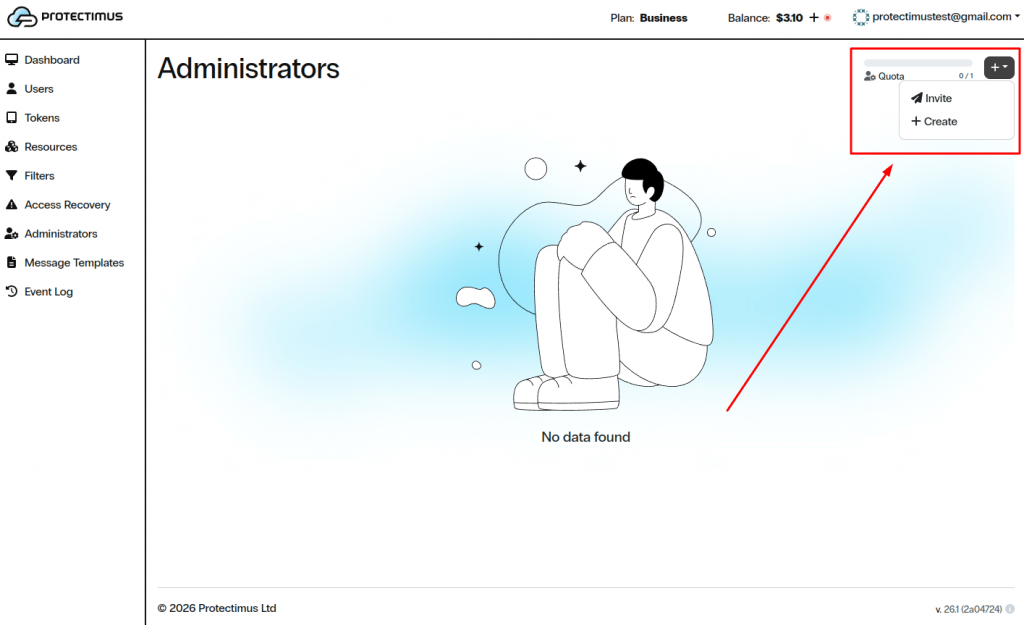
- In the upper-right corner, click the + button and choose one of the available options:
- Invite — send an invitation to a new Administrator.
- Create — create an Administrator manually.
Method 1. Invite an Administrator
- Select Invite.
- In the Invite Administrator window, enter the Administrator’s Email.
- Copy the Confirmation Code and send it to the administrator. They will need it to sign in for the first time.
- In the Assigned Resources section, select the Resources the Administrator will manage.
- Click Invite.
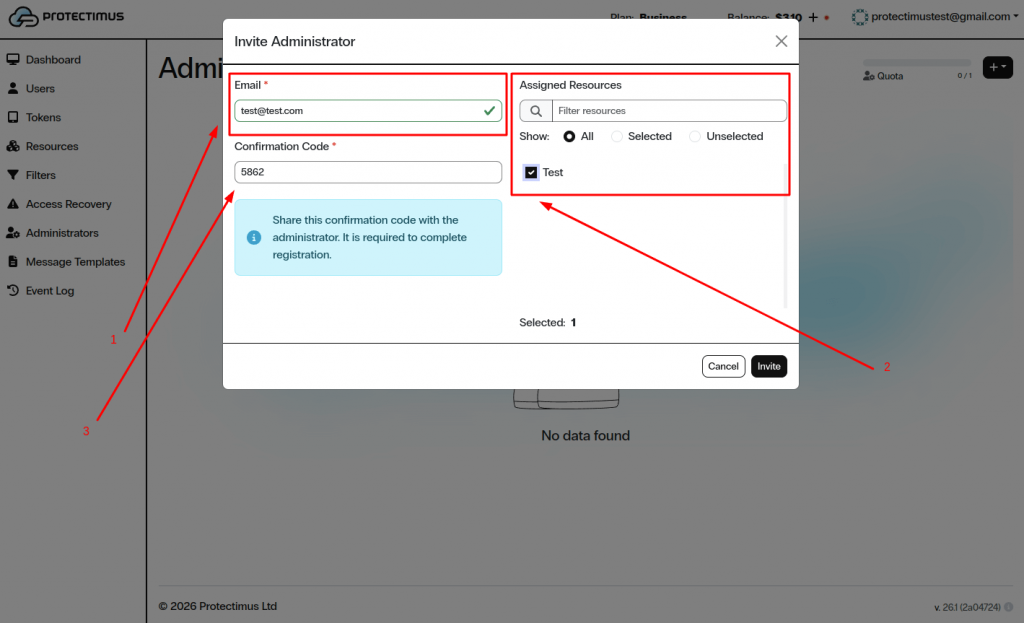
- Share the confirmation code with the Administrator using any secure communication method. The Administrator will use it to complete registration.
Method 2. Create an Administrator Manually
- Select Create.
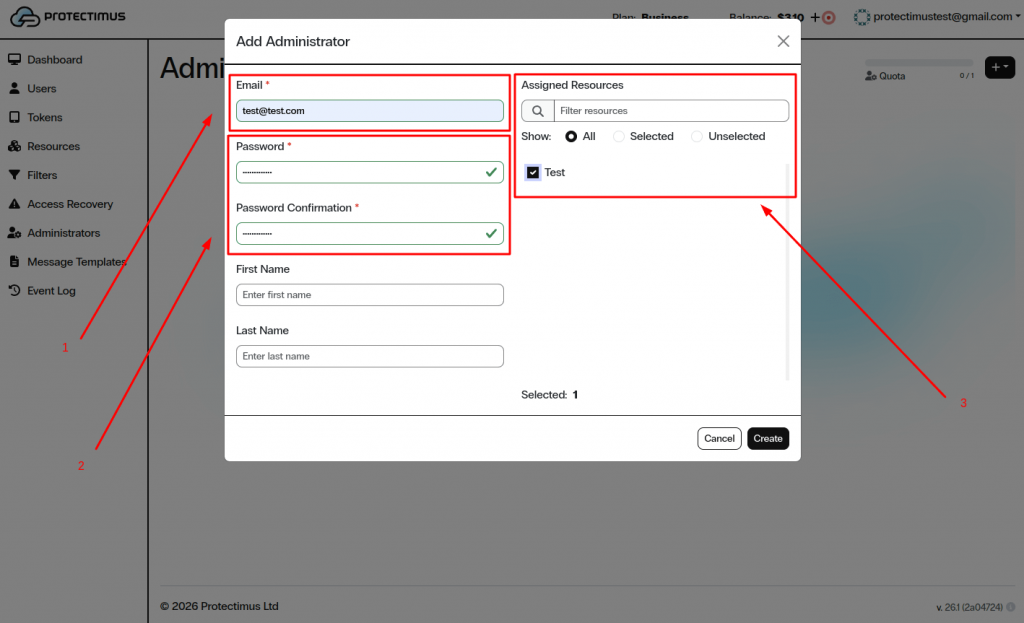
- In the Add Administrator window, enter the Administrator’s Email.
- Create a Password and confirm it. Share this password with the Administrator using any secure communication method. The Administrator will use it to log in to Protectimus MFA Service.
- (Optional) Enter the Administrator’s First Name and Last Name.
- In the Assigned Resources section, select the Resources the Administrator will have access to.
- Click Create.
2. Managing Administrators
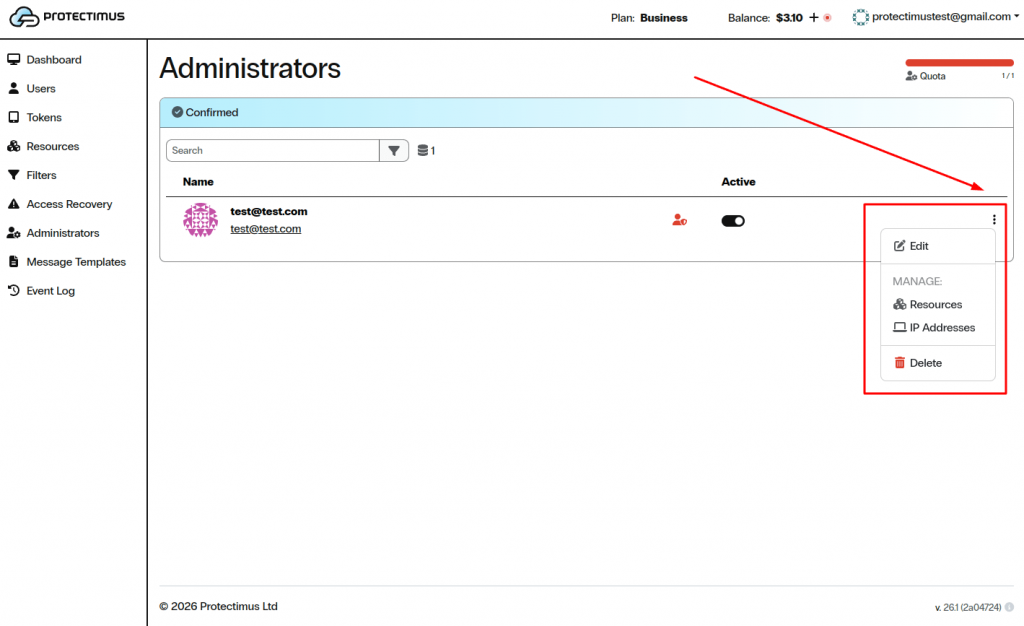
After an Administrator is added, they appear in the
Administrators list. Use the menu on the right side of the Administrator row to manage them:
- Edit — modify administrator details.
- Resources — change assigned Resources.
- IP Addresses — enable IP Verification. When enabled, admins can access the system only from trusted IP addresses that you specify.
- Delete — remove the Administrator.
If you have any questions, please contact
Protectimus customer support.