How to Set Up MFA for SonicWall VPN
Last updated: October 31, 2026
You can add MFA to SonicWall VPN with Protectimus via RADIUS. SonicWall sends VPN logins to the Protectimus RADIUS Server, which checks the one-time password before access is granted. Users confirm sign-in with an OTP from a hardware token, the Protectimus SMART app, a messenger chatbot, SMS, or email. Setup steps cover SonicOS 6.2 and earlier and 6.5 and later.
You can add MFA to SonicWall VPN with Protectimus via RADIUS. SonicWall sends VPN logins to the Protectimus RADIUS Server, which checks the one-time password before access is granted. Users confirm sign-in with an OTP from a hardware token, the Protectimus SMART app, a messenger chatbot, SMS, or email. Setup steps cover SonicOS 6.2 and earlier and 6.5 and later.
This guide describes how to set up
two-factor authentication (2FA) for your SonicWall VPN solution with Protectimus as a multi-factor authentication (MFA) provider.
The Protectimus two-factor authentication system can be integrated with SonicWall SSL VPN via RADIUS authentication protocol. For this purpose, you need to install an on-premise Protectimus RADIUS Server component and configure the SonicWall Network Security Appliance to refer to the Protectimus RADIUS Server for user authentication.
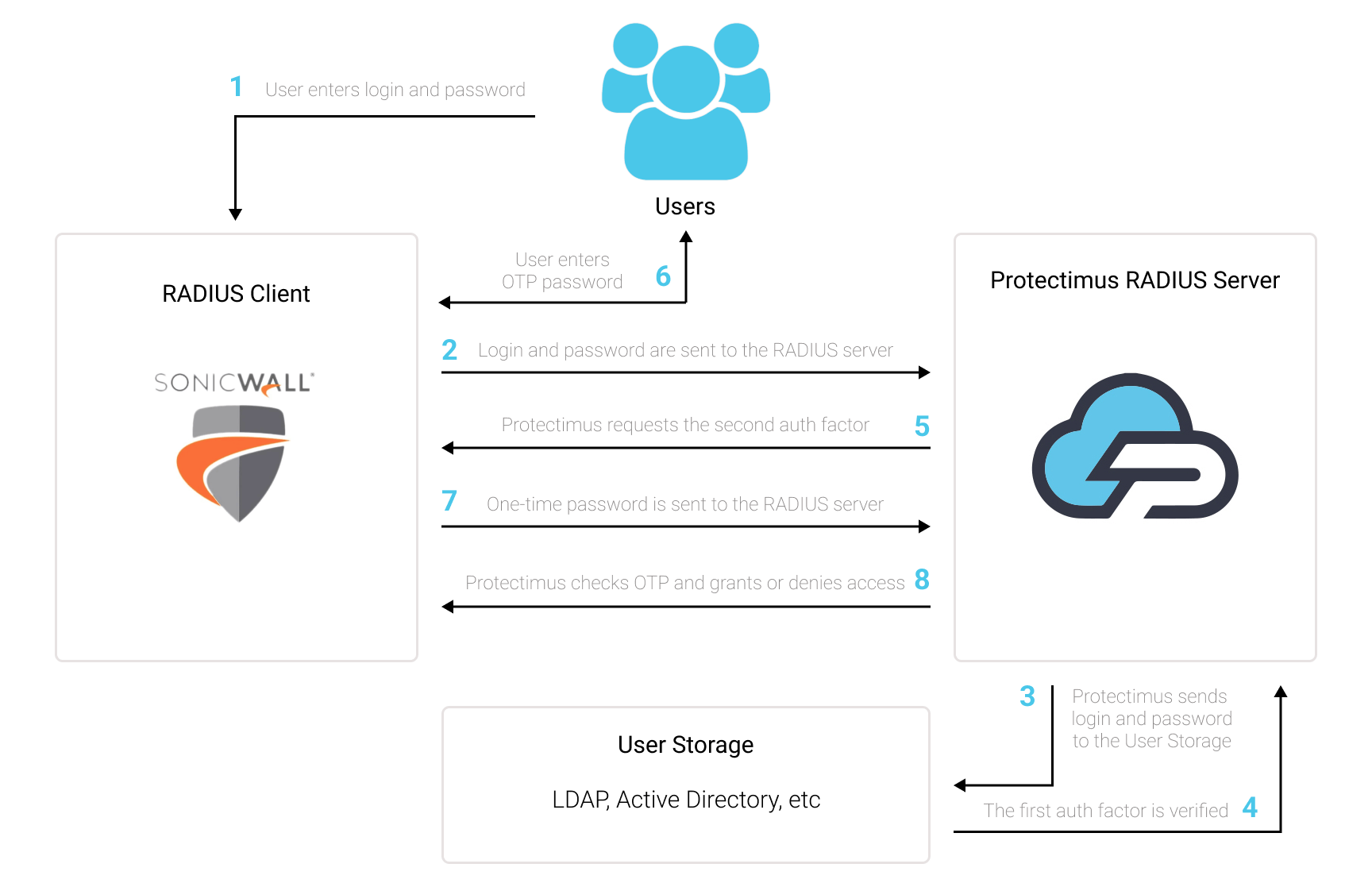
See how Protectimus two-factor authentication solution works for SonicWall VPN in the scheme below.
Requirements and Supported Versions
| Component |
Requirement |
| SonicWall |
SonicWall appliance with SSL VPN and RADIUS user authentication |
| SonicOS |
Separate configuration steps for SonicOS 6.2 and below and for SonicOS 6.5 and above |
| Protectimus |
Protectimus Cloud Service or Protectimus On-Premise Platform |
| RADIUS component |
Protectimus RADIUS Server installed in your network; with the On-Premise Platform for Windows, select the RADIUS option during installation |
| RADIUS port |
1812 by default (set in radius.yml) |
| RADIUS timeout on SonicWall |
30 seconds or higher, so users have time to receive and enter the OTP |
| Users and tokens |
Added to a Protectimus resource manually or through the Users’ Self-Service Portal |
Why Use Protectimus MFA for SonicWall VPN
- Works through RADIUS. SonicWall already supports RADIUS authentication, so MFA is added on the authentication server side and the VPN client stays as it is.
- One setup for both SonicOS branches. The same Protectimus RADIUS Server works with SonicOS 6.2 and 6.5+; only the SonicWall menu path differs.
- Cloud or on-premise. Use the Protectimus Cloud Service or keep authentication data on your own servers with the On-Premise Platform.
- Hardware and software tokens. Classic and programmable OTP tokens (key fobs and cards), the Protectimus SMART app, or any TOTP app such as Google Authenticator.
- Several ways to deliver the OTP. Chatbots in Telegram, Messenger, or Viber, SMS, and email. You can set one method for everyone or let users choose in the Self-Service Portal.
If you protect more than one gateway, see how the same approach covers other systems in
MFA for VPN.
How Two-Factor Authentication for SonicWall VPN Works
Protectimus adds the second authentication factor to your users’ login to the SonicWall VPN. After you set up SonicWall VPN two-factor authentication, your users will enter two different authentication factors when they log into their SonicWall VPN accounts. These authentication factors are:
- Basic credentials – username and password (something the user knows).
- A one-time password generated with the help of a two-factor authentication token (something that belongs to the user).
Protectimus offers different kinds of two-factor authentication tokens for SonicWall:
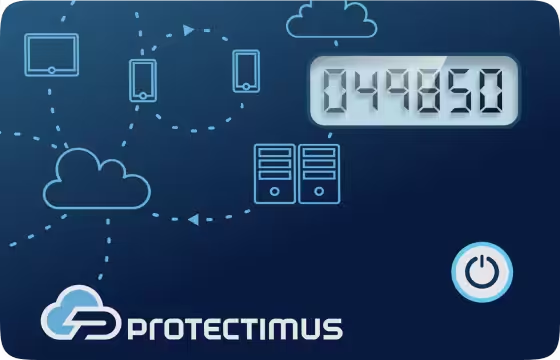
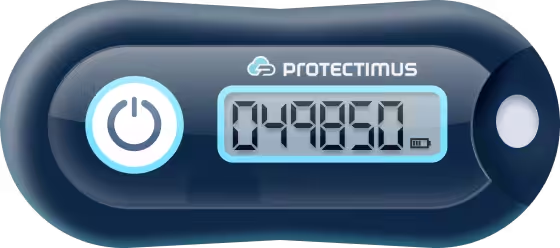
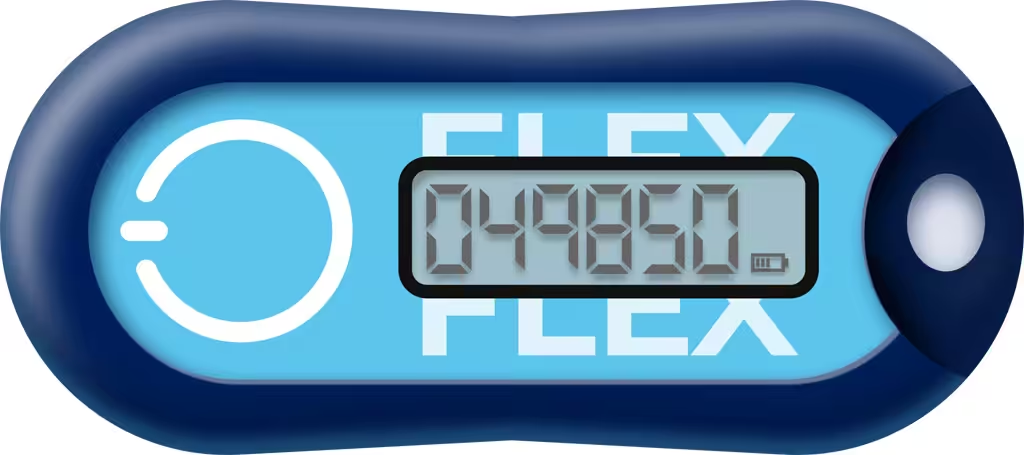
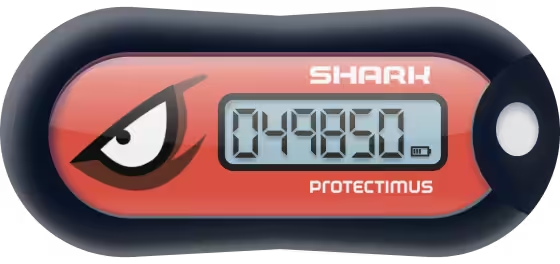
- Classic and programmable hardware OTP tokens that look like keyfobs and plastic cards;
- 2-factor authentication app Protectimus SMART OTP on iOS and Android
- Any other 2-factor authentication apps that support TOTP auth standard, including Google Authenticator;
- Delivery of one-time passwords using chatbots in Telegram, Messenger, or Viber;
- SMS authentication;
- Delivery of one-time passwords via email.
You may enable one authentication method for all your users or let users a chance to choose themselves if you activate the Protectimus Users’ Self-Service Portal.
Two-factor authentication protects SonicWall VPN from many threats associated with stealing users’ credentials, including phishing, social engineering, brute force, keyloggers, data spoofing, etc.
It is a challenging task for the fraudster to hack two authentication factors that differ in their nature (something the user knows and owns) and use them simultaneously within 30 seconds (the time when the one-time password remains active). That is why two-factor authentication is still one of the best security measures for SonicWall VPN.
How to Enable SonicWall VPN 2FA
You can set up SonicWall VPN two-factor authentication (2FA) with Protectimus using the RADIUS protocol:
- Get registered with Protectimus SAAS Service or install the On-Premise 2FA Platform and configure basic settings.
- Install and configure Protectimus RADIUS Server.
- Configure SonicWall VPN authentication policies.
Step 1: Get Registered and Configure Basic Protectimus Settings
Choose your deployment option and complete the basic setup:
Protectimus Cloud Service
- Register with the Protectimus Cloud Service and activate API.
- Add a Resource.
- Add Users.
- Add Tokens manually or activate the Users’ Self-Service Portal.
- Assign Tokens to Users.
- Assign Users and Tokens to the Resource.
Protectimus On-Premise Platform
- Install the Protectimus On-Premise Platform. If you install the Protectimus Platform on Windows, select the RADIUS option during installation.
- Add a Resource.
- Add Users.
- Add Tokens manually or activate the Users’ Self Service Portal.
- Assign Tokens to Users.
- Assign Tokens with Users to the Resource.
Step 2: Install and Configure Protectimus RADIUS Server
Detailed instructions for installing and configuring the Protectimus RADIUS Server for SonicWall VPN 2-factor authentication using RADIUS are available in our
Protectimus RADIUS Server Installation Guide for SonicWall VPN 2FA.
Step 3: Add Protectimus as RADIUS Server for SonicWall
Below you will find two instructions for adding Protectimus as RADIUS Server to the SonicWall Network Security Appliance:
SonicOS 6.2 and below
- Log into the SonicWall administrative interface.
- Navigate to Users –> Settings –> Authentication method for login and select RADIUS. Then click on Configure.
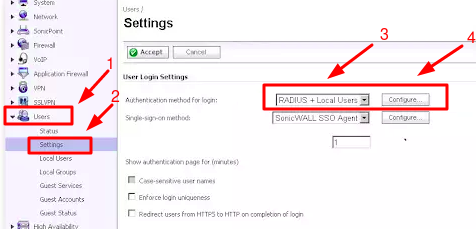
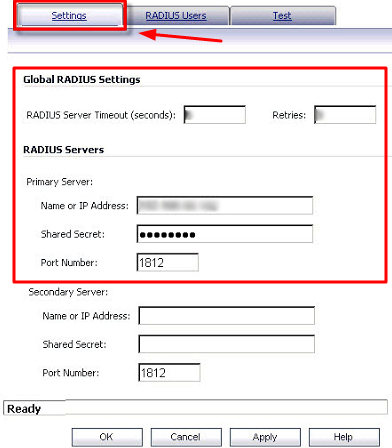
- Configure the following RADIUS Settings to add a RADIUS Server.
| RADIUS Server Timeout |
Set to 30 seconds or higher. This is to make sure that login has enough time to receive the OTP and enter it. |
| Name or IP Address |
IP of server where the Protectimus RADIUS Server component is installed. |
| Shared Secret |
Indicate the shared secret you created in the Protectimus radius.yml file (radius.secret property) when configuring Protectimus RADIUS Server |
| Port Number |
Indicate 1812 (or whichever port you configured in the Protectimus radius.yml file when configuring Protectimus RADIUS Server). |
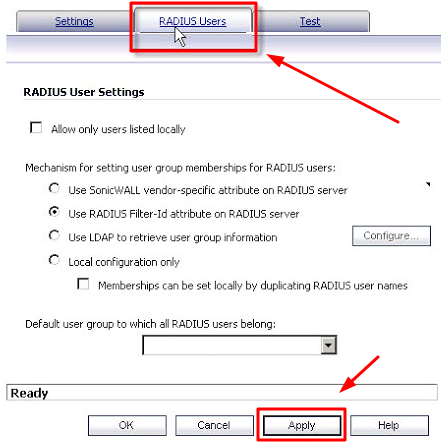
- Go to the RADIUS Users tab. Select appropriate mechanism for setting user group membership, Apply settings, and test the configuration.
SonicOS 6.5 and above
- Log into the SonicWall administrative interface.
- Click MANAGE, navigate to Users –> Settings –> User authentication method and select RADIUS. Then click on CONFIGURE RADIUS.
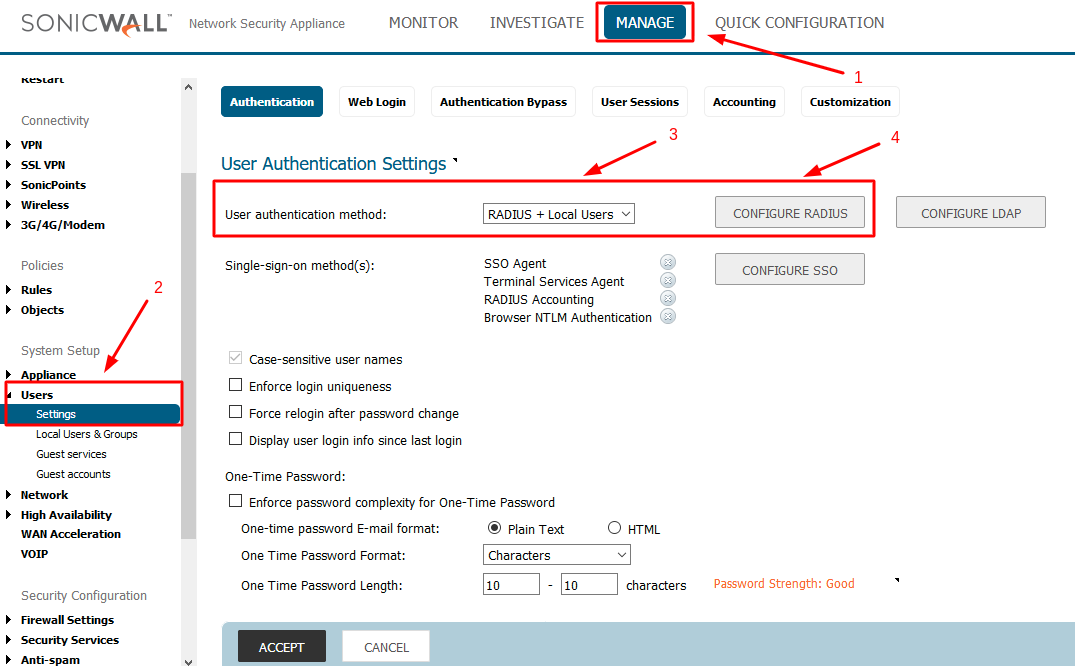
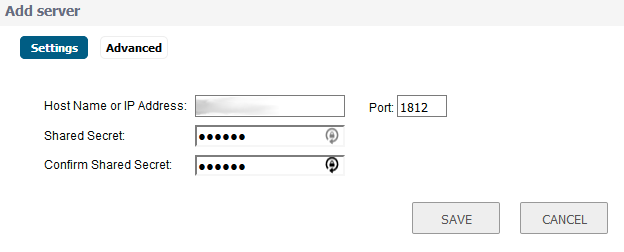
- Click Add and then configure the following RADIUS Settings to add a RADIUS Server.
| Host Name or IP Address |
IP of server where the Protectimus RADIUS Server component is installed. |
| Shared Secret |
Indicate the shared secret you created in the Protectimus radius.yml file (radius.secret property) when configuring Protectimus RADIUS Server |
| Confirm Shared Secret |
Confirm your shared secret. |
| Port |
Indicate 1812 (or whichever port you configured in the Protectimus radius.yml file when configuring Protectimus RADIUS Server). |
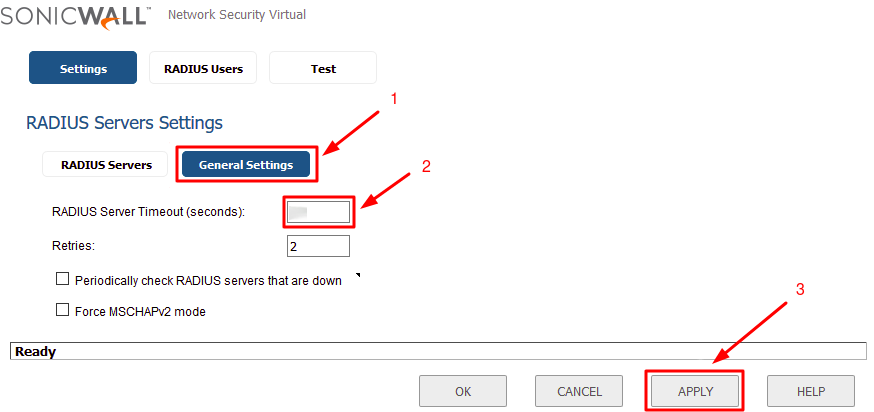
- While still in RADIUS Servers Settings, switch to General Settings and Set RADIUS Server Timeout to 30 seconds or higher.
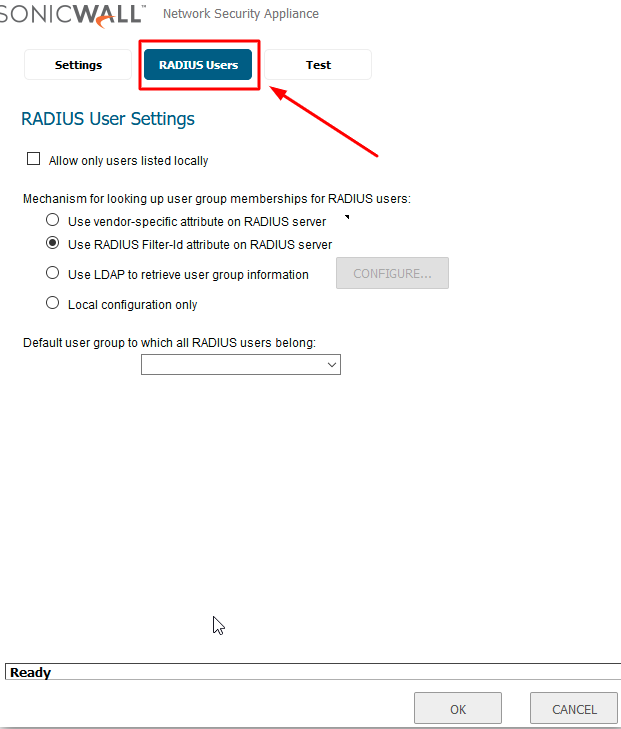
- Go to the RADIUS Users tab. Select appropriate mechanism for setting user group membership, click OK, and test the configuration.
Integration of two-factor authentication (2FA/MFA) for your SonicWall VPN is now complete.
If you have other questions, contact
Protectimus customer support service.
FAQ
Does SonicWall support MFA natively, or do I need a third-party solution?
SonicWall can pass VPN authentication to an external RADIUS server, and that is how third-party MFA such as Protectimus is added. A separate MFA server makes sense when you want the same users, tokens, and policies for the VPN and for other systems instead of managing a second factor on the firewall itself.
Can I use hardware tokens for SonicWall VPN login?
Yes. Protectimus supports classic and programmable hardware OTP tokens in key fob and card formats. A user enters the code from the token after the password, the same way as a code from an app.
Why does the RADIUS timeout on SonicWall need to be 30 seconds or more?
The user needs time to receive the one-time password and type it. With a shorter timeout, SonicWall can drop the request while the code is still being entered, and the login fails. Set RADIUS Server Timeout to 30 seconds or higher.
Which settings differ between SonicOS 6.2 and SonicOS 6.5 and above?
The settings are the same; the menu path is different. In SonicOS 6.2 and below, go to Users > Settings, select RADIUS as the authentication method for login, and click Configure. The timeout, server address, shared secret, and port are on one Settings screen.
In SonicOS 6.5 and above, click MANAGE, go to Users > Settings, select RADIUS, and click CONFIGURE RADIUS. Add the server with Add, and set the timeout under General Settings. In both versions, user group membership is set on the RADIUS Users tab.
What happens if the MFA server is unavailable?
SonicWall waits for a response from the Protectimus RADIUS Server for the configured timeout and then rejects the login. To keep VPN access available, deploy redundant Protectimus RADIUS Server instances and configure SonicWall to use them; with the On-Premise Platform, the platform itself can run as a multi-node cluster.
Planning MFA for more than one gateway?
Compare MFA options for VPN or
start a free trial of Protectimus.