Here’s a simple guide to beefing up your NComputing vSpace with Protectimus multi-factor authentication (MFA or 2FA) using the RADIUS protocol.
To set up Protectimus two-factor authentication in NComputing vSpace through RADIUS, you’ll need either Protectimus Cloud 2FA Service or the On-Premise 2FA Platform. The connection is made via a connector called Protectimus RADIUS Server. NComputing vSpace acts as the RADIUS client.
Here’s how it works: The Protectimus RADIUS Server connector passes authentication requests from NComputing vSpace to the Protectimus multi-factor authentication (MFA) server. Depending on the response, access is either granted or denied.
Below, we’ll walk you through an example of integrating Protectimus 2FA with NComputing vSpace.
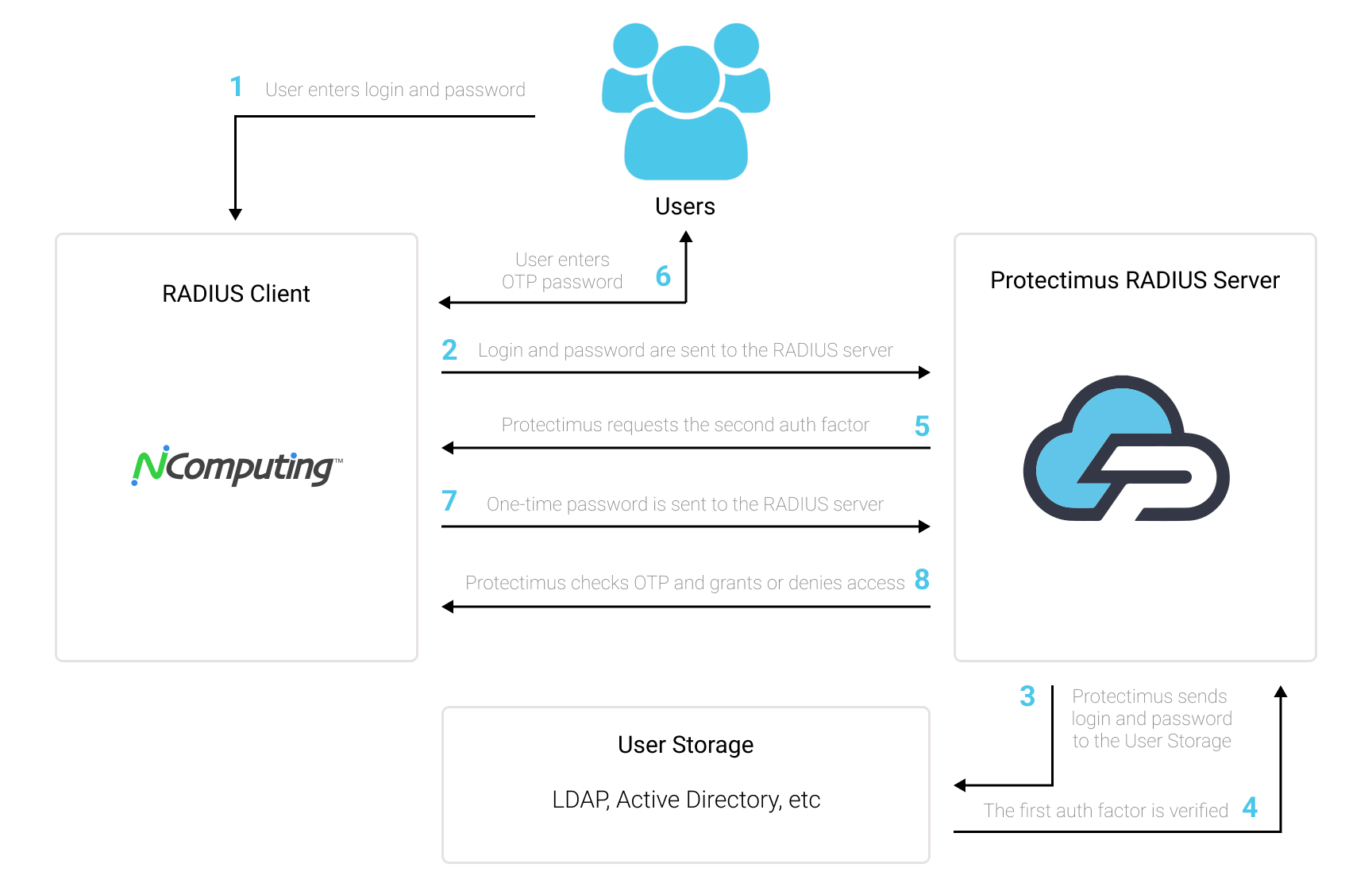
You can set up multi-factor authentication (2FA) for NComputing vSpace with Protectimus using the RADIUS protocol:
- Get registered with Protectimus SAAS Service or install the On-Premise 2FA Platform and configure basic settings.
- Install and configure Protectimus RADIUS Server.
- Add Protectimus as RADIUS Server for NComputing vSpace.
Choose your deployment option and complete the basic setup:
Detailed instructions for installing and configuring the Protectimus RADIUS Server for NComputing vSpace two-factor authentication using RADIUS are available in our Protectimus RADIUS Server Installation Guide for NComputing vSpace 2FA.
| Label | Come up with a name for your RADIUS server. |
| Hostname/Address | IP of server where the Protectimus RADIUS Server component is installed. |
| Authentication Port | Indicate 1812 (or whichever port you configured in the Protectimus radius.yml file when configuring Protectimus RADIUS Server). |
| Authentication Type | PAP authentication is required. |
| Shared Secret Code | Indicate the shared secret you created in the Protectimus radius.yml file (radius.secret property) when configuring Protectimus RADIUS Server. |
| Server Timeout (in seconds) | Set to 90 seconds. |
| Max Attempts | This specifies how many times the authentication request should be sent. Set to 1. |
Integration of two-factor authentication (2FA/MFA) for your NComputing vSpace is now complete.
If you have other questions, contact Protectimus customer support service.